Robyn Anderson shows how to use ChatGPT Spaces and Dots to organize work. She builds a project tracker that pulls data from Gmail, Google Drive, and your calendar, then updates itself every morning with your tasks and schedule.
Chapters
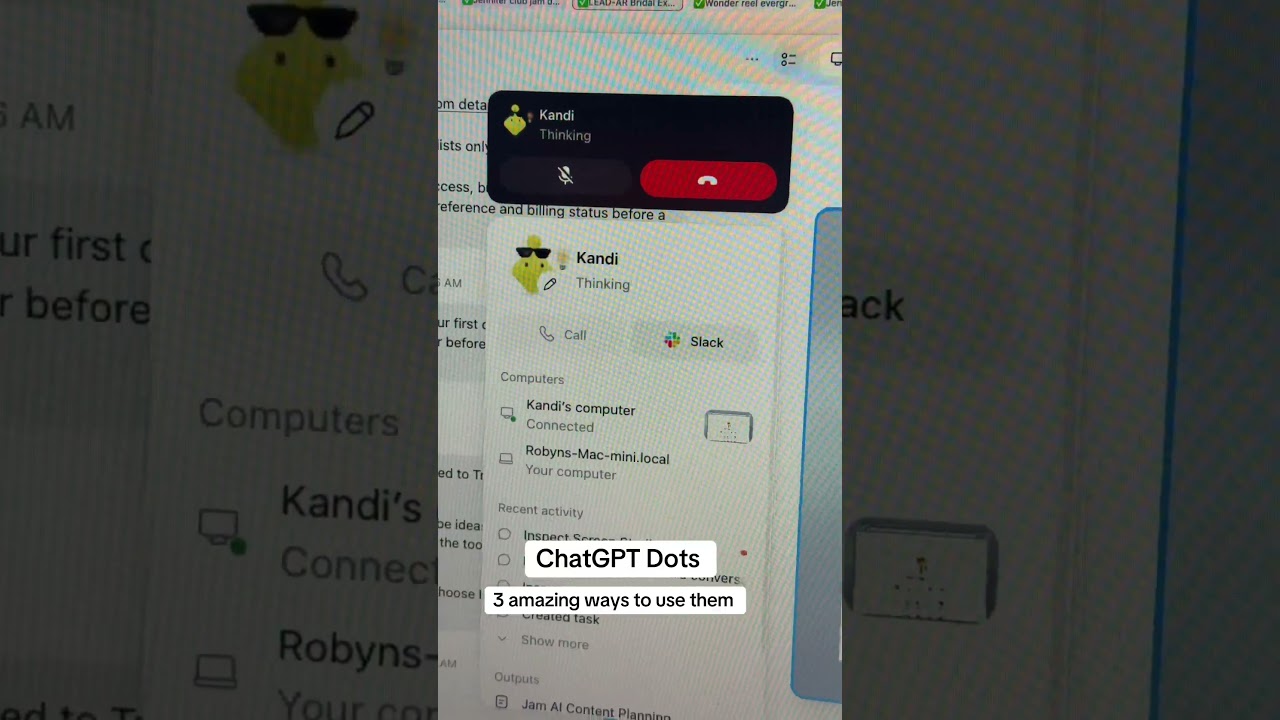
You may have noticed ChatGPT looks a little bit different. Let me talk to you about Space and also Dots, and I'm gonna show you how it's changed my entire workflow. If we haven't met yet, my name is Jan and I help non-technical small business owners, coaches, consultants, and creatives learn how to use AI to save more time and money. If you wanna keep learning with me, my school link is below, and don't forget to subscribe and follow Because I'm hustling out here, people. All right, so let me talk to you about Spaces. It is so cool. So when you go to your homepage, you'll see there's this little thing right here, and this is Space. And I gotta tell you, when I first logged in, I was like, whoa, Notion and Google Drive just had a baby. It's kind of the same. So over here, if you click New, you can do a page, site image, folder, or Space. So A space is really just a way to categorize your Google Drive or your Notion documents, right? But now we're in ChatGPT, so it's a way to organize all of the content in a specific space. And then your folders can go inside of your space or they can stay out. I'll show you in just a moment. And then inside pages, that's where it gets really cool. And also you can share these with your human coworker. You can bring in ChatGPT conversations, and the coolest part I think is I can have my Dot named Candy work on these with me. So let me show you how to use these and we'll get into it. First thing, I'm just going to open a new page so you can see what it's like. All right, so I just opened a new page and I'm gonna title it ChatGPT Dots. And what I'm going to do is I'm gonna go down here. You'll notice there's a little chat bar down here. And I'm just going to say, research ChatGPT Dots and tell me the difference between those and GrokBot. All right, so the conversation came up with all this information here. So it's comparing ChatGPT Dots around GrokBot. And then a really cool thing that you can do is you can come down here and you could hit forward slash visualization or visualize, and then just do a prompt and say, Give me a pie chart of tasks that Dots can do versus what Groq Bots can do. And you just hit enter and it'll create that image for you. You could ask for any type of image. It doesn't have to be a pie chart, but it will visualize the content in your document here. So that's a really cool feature as well. Cool. So it already came up with this, gave me this little, uh, pie chart like I asked, and it shows what Dots can do versus Groq Bot with both. Looks like it's pretty even here. Can't wait to dive into that. All right, and then one of my favorite things is you can do@ symbol and then you can call your dot. So my dot's name is Candy, so I could bring her in and I could say, hey Candy, why don't you go ahead and create a school post so I could tell people in Club Jam the difference between dots and GrokBot? So I went ahead and gave her that to-do item. The other thing I had her do earlier is I had a call with her and I told her to organize my pages. So if you are like me and you just get excited and create a ton of different pages, she will go ahead and organize them for you. So that's pretty cool. All right, let me show you my next favorite thing about ChatGPT Space. So what you can do is you can actually set up documents that have routines. So we'll go back over here, and if you go to start with a template, you could see project tracker, and this is how I started mine. So you'll go in here. I like to split my screen so that my page is on one side and my chat's on the other. But the prompt I did was this: check my relevant connected apps such as Gmail, Google Drive, and Obsidian, and I want you to update my project tracker every morning at 6:00 AM in my time zone. Check this out. And then I go to Jam Tracking and this is updating every single day. It's looking into my email, my Google Drive, my calendar, what's in school, and all of these other places. And giving me a whole overview of what I need to do that day, every single day. And you can also see these in the scheduled task section. So now I'm seeing my pages come up here in the scheduled area. And then to get to your actual spaces down here, this is where you create them. And I'm changing up how I'm looking at spaces. I currently have them as kind of like different aspects of my business. But I think I'm gonna go back in and I'm actually going to make them based on client because I like how you can create folders and pages and subpages inside of 'em. So I think I started out a little bit too high level and I wanna bring it down and be a little bit more exact when I create my spaces. But if you look at it, you just click in and now I'm in my Jam AI content planning and I can create a page in here. And I can also call in my past chats. I can create images I can share with people on my team, and there's a whole lot of other things you can do in here too. So I'm really excited about this because I've been using Obsidian to keep all of my work in one place as I work through Claude and ChatGPT. I have multiple other videos on that if you wanna check it out, but this is the first time I'm seeing a large language model actually try to help with the organization and the sharing aspect. Aspect, and the fact that it's all right here in one place and we now have Dots to help us keep them organized and keep working on our content with us, I think it's a complete game changer. So tell me below in the comments if you are using Space yet or if you're using Dots, and tell me what questions you have about this and where you're feeling stuck. And if you want to come build together with a bunch of really cool people, make sure you check out ClubJam. The link is in my comments. And I'll see you in the next one, friend. Bye!