Demo of evyAI 2026 - Lets break it down
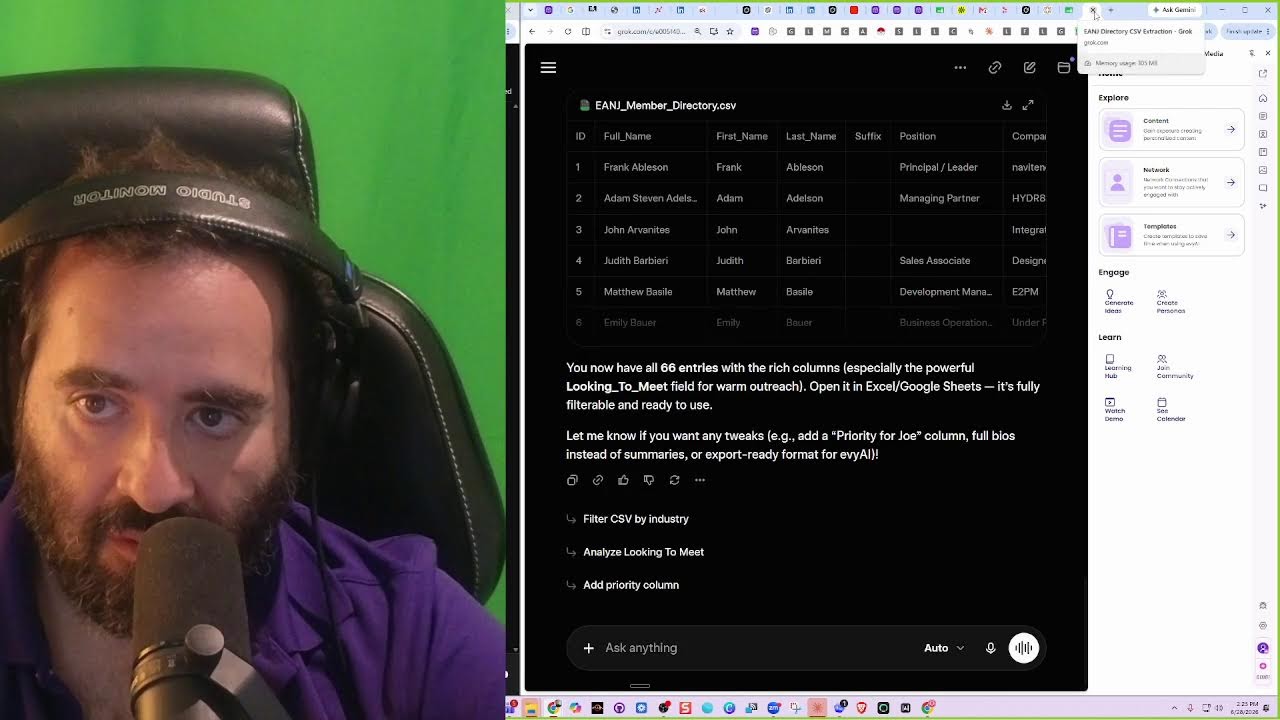
In this live, unscripted YouTube demo, Joe Apfelbaum presents the Evy AI platform to a small audience, interleaving a high‑energy promotional chant with a step‑by‑step product tour. He walks through the free sign‑up flow, the web‑app dashboard, and the Chrome extension side‑panel, showing how to pin the extension, navigate between Content, Network, Templates, Image Generation, and Chatbot sections. The demo covers the content generation suite (idea generator, post writer, tone, persona, style, image prompts), template creation with keyboard shortcuts, and how to save and reuse prompts. It then dives into the Network tab where contacts are displayed as cards with rich insights, notes, and integration options (CSV upload, GoHighLevel, HubSpot, Make.com, Zapier). Joe demonstrates prospect search by domain, bulk research, AI‑driven enrichment from a 280 million‑record database, and the chatbot’s ability to toggle web search for real‑time information. He showcases workflow ideas such as automated birthday messages, bulk enrichment, and the vision for fully automated pipelines. Community features like posting parties, a learning hub, and a library of prompts are highlighted. Throughout, Joe notes current limitations (missing video generation, bugs in bulk URL parsing) and outlines future roadmap items. The session ends with a call for the participant to document each feature briefly for iterative improvement.
Chapters
On the line, Joe F-bomb in the frame. Live right now, not rehearsed. They building value, say my name. The plan on the board, the people in the room. The promise so sharp it can cut through the Zoom. The story got weight, the presence got nerve. System exposure clean, every move that they serve. Credibility stacked like bricks on the site. Conversations start heating when the timing is right. Aye, aye, aye, aye. Look at the crowd, lean in. Look at the feet go. Every word got a purpose. Every move got style from the first hello to the last hard close. They not playing around. Everybody know that's popping, that's popping. Philip and Joe on the live. That's popping, that's popping. Full strategy in front of everybody. The plan, the people, the promise, the story, the presence, the proof. That's popping, popping. Blah, blah, blah, blah, blah, blah, blah. And there's popping. There's popping. No smoking mirrors, just the real thing shown. They don't hide the blueprint, they build in the open. System exposure make the machine come through. Credibility rising, every post got truth. Conversations spark when the room gets fed. One clear message, then the pipeline spreads. Talk to the market, then watch it return. Brand got a heartbeat and the comments burn. Look at the crowd lean in. Look at the feet go wild. Every word got a purpose. Every move got style. From the first hello to the last hard close, they not playing around. Everybody know that's popping, that's popping. Philip enjoying the live. That's popping, that's popping. Full strategy in front of everybody. The plan, the people, the promise, the story, the presence, the proof. That's popping, popping. Ain't no guessing game when the vision is clear. Say it out loud, let the whole world hear. One board, one voice, one move at a time. They turning a broadcast into a pipeline. That's poppin', that's poppin'. Philip and Joe on the line. That's poppin', that's poppin'. Full strategy in front of everybody. The plan, the people, the promise, the story, the presence, the proof. That's poppin', poppin'. That's poppin'. That's popping.
That's popping.
Yeah, yeah, yeah. That's popping. Ain't no guessing game. Gang, gang, gang, gang, gang, gang, gang. That's popping. Yeah, yeah, yeah, yeah, yeah. Philip Leno's on the line. Joe Alpha Bomb in the frame. Live right now, no rehearse. They building value. Say my name. The plan, the plan on the board. The people in the room. The promise so sharp it could cut through the Zoom. The story got weight. The presence got nerve. System exposure clean. Every move that they serve credibility stacked like bricks on the site. Bricks really start. Conversations start heating when the timing is right. The timing is right. Look at the crowd lean in. Look at the feet go out. Every word got a purpose. Every move got style. From the first hello to the last hard close, then I'm playing around. Everybody know that's popping, that's popping. Philip and John alive, that's popping, that's popping. Full strategy in front of everybody. The plan, the people, the promise, the story, the presence, the proof. That's popping, that's popping. No smoking mirrors, it's the real thing shown. They don't hide the blueprint, they build in the open. System exposure make the machine Come through. Credibility rising, every post got truth. Conversations spark when the room gets fit. One clear message, then the pipeline spreads. Talk to the market, then watch it return. Brand got a heartbeat and the comments burn. Look at the crowd leaning in, look at the feed go wild. Every word got a purpose, every move got style. From the first hello to the last, all close. They're not playing around, everybody knows. That's popping, that's popping. Philip and Joe on the live. That's popping, that's popping. Full strategy in front of everybody. The plan, the people, the promise, the story, the presence, the proof. Yes, that's popping, that's popping. Ain't no guessing game when the vision is clear. Say it out loud, let the whole world hear. One voice, one move at a time. They turning the broadcast into a pipeline. That's popping, that's popping. Philip and Joe on the line. That's popping, that's popping. Full strategy in front of everybody. The plan, the people, the promise, the story, the presence, the proof. That's popping, that's popping. Filipinos on the feed. Joe Apfelbaum, they plant the seed. Turn a profile to a pen lane. One good post, whole board go bang. Every AI in the house, everybody popping. Check the bounce. Newly sliding, quick reply. Cold to warm, watch the numbers climb. Blue suit, clean screen, name in the frame.
Making me.
One click, one call. Now the whole room know y'all. LinkedIn popping. Okay, I see.
Okay, so you ready for the, the demonstration of Heavy AI?
Yeah.
Are you recording yet?
Uh, I requested you to allow me to record.
Okay, let me know if you got it. I made you co-host. Welcome to the demonstration of Evie AI. My name is Joe Applebaum.
Hi, Joe.
Okay, so here, here's two things. Number one is when you register for free, click on sign up for free. It takes you to a very simple form that you can fill out. I'm already signed in. I'm going to go ahead and sign out just to show you the form that it takes you to. Um, so if you click sign up for free, it takes you to this signup thing. You put in your first name, your last name, your email, your phone, your LinkedIn URL, your password, and then you just press sign up and then it logs you right in. I'm already signed in. I have the opportunity to put my email, my password, or I could just press sign in with Google. If I want to register, I could always click the register button over here. So I press sign in with Google. It asks me to authenticate with Google, and then it takes me right in. This is called the dashboard of the app. Now this is the web app. We refer to this as the web app. We also have a Google Chrome extension. If you click on the way bottom left corner here and you click on add Evi AI to Chrome, it takes you to the web store. In the web store, you can watch the videos or you can click on add to Chrome. I'm going to remove it from Chrome just to kind of show you how it looks when I add it to Chrome. I press add to Chrome on the top. And it says, do you want to— sure you want to add it? I press add. And then it pops up over here and I have the opportunity to pin it. You see this little pin icon here. So I press pin it and it gets pinned. Now I have it pinned. If I pin it, I have it pinned right here. And then I could decide if I want to move it, where I want to take it to, and it just appears right on the side. I'm going to go ahead and make this a little bit bigger. So you see where it's pinned. I'm going to take this and drag it all the way to the left so that it's the first one here. And this way, if I make my window smaller, you see, it's still there.
Okay. Okay.
I'm going to close this out. If I want to open up the side panel extension, the side panel opens up just like this. It's right on the side. There's the homepage of the side panel. There's the content. The network, the templates, the image generation, and the chatbot. That's the navigation all the way on the right. On the bottom, we have settings where you can make it bigger and smaller, the text. And then there's also the ability to manage your account subscription or log out right from here. If you click on the arrow all the way on top over here, it opens up the web app. Which we already have open, so we didn't need to do that.
Okay.
Within the navigation of the web app, by default it opens up to Content. Inside Content, we have the Goal, the Tone, the Persona, and the Style. Then on the bottom, we have the ability to upload images, the ability to enter a prompt, the ability to choose your language, choose your LLM, also select templates. So, for example, you might have specific prompts that you saved as templates, so you can save them. And then we have the Chrome microphone where you can click on the microphone and you can talk. Hello. Hello. My name is Joe. You see? And it's right here. If I want to delete that info, I could press delete. If I want to copy that info, I could press copy. If I want to insert it into a text box, I could press insert. And if I want to pin it, I can pin the text just like that. And then it remembers, even after I hit generate, it remembers the prompt and it keeps it there.
Okay.
I'm going to press clear. I just cleared it out. I'm going to close the extension so it doesn't get confusing. And then we have the web app. The web app is our main application. We have content, network, and templates. Content is where you generate content. You could write posts, generate ideas, or generate images. And we also have custom generators here that we can manually create our own. And we have like the ability to do image prompts or comment generation or milestone messages or headline options, or we have many more here. You see keyword finder, voice post, call script, quote generators, hook generators, recommendation writer, and so on. So if I want to generate an idea, I click on idea generator. Give me ideas related to business networking. Now I can select my goal. Let's say for example, I want it to be educational, my tone. I want it to be Curious. My persona, I can train it based on my identity of me being the CEO of Evy AI. And then the style is I can tell it what type of style I want and I can choose my style, how long I want it to be. I want to include emojis or whatever. We have lots of styles and you can look at the styles here and you can look at the personas here in the navigation. Do you see that?
Yeah.
So if I press, and then I could also select my language and I can select my LLM. I could also pin it here. I can copy this text or I could delete it. And I could also speak to it. I'm going to click on generate ideas here. It's going to generate 4 ideas, which are basically topics that I can choose to create a post from that topic. So for example, this is the topic over here. Result 1 is topic 1. Result 2 is topic 2. Result 3 is topic 3. Result 4 is topic 4. I can regenerate this specific one if I want, this specific idea. I can edit the idea. I can star the idea, which saves it. I could report it, or I can copy it, or I can create a post. If I like this idea, I can press Create Post. It'll go ahead and take me to the content generator, and then the post is created. This is the context of the post, basically the idea that we generated. This is the goal, the tone, the persona, the style. This is the actual post here. If I like this post, I can press copy and I can paste it into LinkedIn. Simple as that. How do I paste it into LinkedIn? I just go to linkedin.com. I click on start a new post and then I paste the content in here. You see?
Yeah.
And this is a very nice post that has a hook, main points, call to action, hashtags, and so on. If I know what I want to post about and I don't need ideas, I could just go into the web app. I can click on content. I can click on write a post and I can tell it what the post is about. Create a post about the benefits of exercising before you do a LinkedIn Live because it helps you be able to be healthier and think better and think more clearly and so on. And then it'll just create a post about that. You see, it'll consider my goal, my tone, my persona, my language, my LLM. If I want to add an image, I can add an image. And then it'll reference that image in the generation. Now, if I want to create images, we have something called an image generator here. The image generator has 2 versions on the web app. Version 1 is quick prompt, where I can create my own prompts here that I already have saved. So as an admin of the, of Evie AI, I created all these different prompts that are already saved over here. So I can click on upload an image. I can select any image I want, like this one, and then I can convert this image into a power pose and into a thinker and into a team group and into a lifestyle personality. You see? And into behind the scenes.
Yeah.
And into a whiteboard and into whatever. And then it's gonna go and just take this image and turn it into all these different options here. I don't need to enter any prompts or do anything. It just does it. And it does it very fast. If I want to regenerate this image, I can click on this and I can refine it or regenerate it. If I want a custom prompt, I can click on custom prompt here and I could just, it'll keep the context of this image and I can write whatever I want here. If you need prompts, we have something called a library where we have hundreds of prompts. You see, we have many, many, many prompts. You can filter the prompts over here. Like image portrait prompts, and it'll show you all the image portrait prompts. We have many. You can click on it. This one's seated on the couch, a person, blah, blah, blah, blah, blah. You see?
Yeah.
And then you could use this, copy it, go to the content image generator, and you could generate from that, or you could save it as a template. And then from here, you can select it from the templates. You see? So if you have many, many templates of image prompts, I can go in here and I can type in headshot or image, whatever, whatever the image prompt is, ChatGPT image prompt guide, whatever. You see?
Yeah.
And then I could make it happen. Um, inside the network tab, so that's the content tab. We covered PostWriter, idea generator, image generator. Um, and then these content generators, which are custom content generators. So if I see somebody else's post and I paste it in here and I press generate, it'll make me 5 engaging comments to leave. Okay.
Yeah.
If I click on network over here on the left side, then I have, this is my cards. I have 5,000 saved connections over here. So all these cards have information in them. I can click on this person's name and it has insights about him, an introduction, a summary. Company and role, target market, connection tips, content style, achievements, conversation starters to speak to the guy about, and an email draft to send him if I want to start building a relationship with him. I also have the ability to save his contact information and I can sync it with GoHighLevel, with HubSpot, or I can send it as a webhook to Make.com, Zapier, or wherever to any API. And if in this case it'll add it to a spreadsheet. So I press send to webhook, it sends it to make.com, adds it to a spreadsheet. That's what I programmed it to. We have AI research that we can do so that if we click on, for example, Perplexity, it starts doing AI research on this person. You see?
Yeah.
It just executes it directly on Perplexity, so it saves it into your Perplexity account if you want. If you want to do this AI research on our own chatbot, you click on AI chatbot. You paste in the research prompt, you press search, and you press send. And this will research this guy using our own proprietary research agent inside our chatbot. We're going to be connecting the network to the chatbot so that you could research anybody using our own chatbot. Right now it's using external chatbots, external agents, but it's going to use our agents moving forward in the future. You see that?
Yeah.
It found his email address, his phone number, conversation starters. I can take this information, copy it. Go into network, click in here, click on notes. And I can add this information as a note here so that I have it always. You see, nice and organized.
Yeah.
Tells me what to talk to him about and everything. I also have the ability to enrich the contact. We have about 280 million records. So if I didn't have an email and phone number for this guy, I could press enrich and it would enrich it. If I go back to network, I have the ability to add a new connection via CSV. So I can upload a CSV of 1,000 contacts, or I could upload a single connection. And over here, I can manually put in his name, or I could put in a LinkedIn URL and then press autofill. And it'll automatically look up that LinkedIn URL, put the name, the headline, the company. You can add them directly to a list and so on. That's an easy way to add a connection. That makes sense so far. Yeah. If I want to find prospects, I can click on find prospects. I can put in any URL in here. So for example, I might have— go ahead.
Is there any way to onboard a bunch of contacts into the application?
Yeah, you can onboard a bunch of contacts. You click on network, you click on new connection, upload CSV.
Yeah.
Okay.
You could download an example and upload it.
Okay.
If I have, let's say for example, a domain name I want to look up, let's say I have a specific domain name I want to research, um, I can take any domain name. For example, let's say this domain name. I have a domain name over here, Ctrl+C, copy. I click on find prospects. I put the domain name, I hit search, and then it tells me if I have contacts in that domain in my system. You see, in this case, I don't. I can go in here, click on bulk research. I'm going to refresh this over here. I'm going to research these companies. You see, I have all these companies that I researched. So for example, if I want to look up this domain, I could just click on this. And then I could put in the domain here and it shows me the 17,000 people that work there. And if I click this and I press save, it enriches it with their email and cell phone number. I could also use all these AI agents to research these people. You see?
Yeah.
And you could also do that from the chatbot. Tell me everybody that works at this company. And then you put in the domain. Let's say, for example, related.com. You press search, it'll do a search for related.com in our database and it'll pull up the 3,000 people that work there. You see?
Yeah.
So it's tools that it has access to. If I want to ask it questions about related.com, tell me what this company does, and I press search, it'll start thinking. It'll search the web. It's— the web is a tool that it can use, and it'll tell me what the company does because it's actually going to their website to see what it does.
Okay.
You see, tells me what the company does. I can ask it any questions. Find me 10 competitors to this website. I can turn search on, so it's always going to use search, or I can turn search off. And it won't always use search unless it needs it. You get it?
Yeah.
If I say, what's 1+ 1? And search is off, it's not going to search the internet. It's going to give me an instant answer and it's going to go much faster. For example, if I'm here and I click on chatbot and I say, what's 1+ 1? And I press search, it's going to give me an answer very quickly. You see, it didn't search the web. It used its own LLM. You see?
Okay.
What rhymes with roses? You see a few words rhyme with rose. Rose, nose, chose, those, and pose. You see?
Okay.
Now I can click on the chatbot here, show conversations. It's going to show me all the conversations I had, and I can go back there and continue the conversation. I can also click on new conversation and it'll open up a new conversation. Every conversation is its own thread and it has its own memory. Get it?
Okay. Yeah.
I'm going to click back to network. It's pretty comprehensive, right?
Yeah. It's great.
There's a lot of stuff going on here. Okay. I'll go back to network. We have something called find prospects, but then we have something called directories. So I upload lists of directories in here. For example, I have 12,000 contacts in this directory of decision makers. And then it tells me everything about each one of those people, you see?
Yeah.
I have thousands of thousands and thousands of restaurants that I can focus on over here and find all these restaurants. If I want to see everyone that works at everbowl.com, I just click on Everbowl and it shows me everyone that works at that company. You see?
Okay.
So I have my own niche directories that I built under Find Prospects Directory. I built the Inc. 5000 list. I have electronic companies. These are not necessarily in our database of 280 million records. These are just records that I put together. So right now, I'm in the middle of putting together a list of property management companies in the United States, in New York, for our clients that need it. So a client will come to me, he's like, I need a niche list. I'm like, okay, I'll build you a list. Tell me what list you want. Yes, it's cooked. It's cooked. Yeah, I put it in the fridge. I cooked it. It's for you. You could have it. Yeah, I had 3, I made 4. No, no, I made 4, I ate 3, and I left you 1. You're welcome. Okay, so we have network. We have, if you click on prospects, you see all the searches that you did. Every time you do a search, even if the chatbot does a search, it gets saved here. And lists is the ability to add people to lists. So I have 331 different lists, and in each list there's people. So for example, if I wanna see who went out to lunch with me on March 2026, I click on it, it shows me all the people I went to lunch with.
Oh, cool.
You see? Because I added, I added them to a list. So if I wanna look this person up, I look this person up. I see this person doesn't have much information. I click on LinkedIn, it opens up their LinkedIn, and now I can message them. I can pull their information, whatever. I can check if her information's on my database. I could do AI research on her. You see, I click on this.
Yeah.
It looks her up online, tries to find whatever it can about her. If it finds contact information, like in this case it didn't, but many times it does. I'll save all the contact information in there. Yeah, I'm sure. Um, okay. Let's see what else we have going on over here. Any questions so far?
No.
It's a lot to take in, right?
Yeah, it's very comprehensive.
Now, if I add a new template over here, these templates are reusable prompts that you could use, or reusable DMs or messages or comments or whatever, whatever you want to put in here, you could put in. And then you could also put a keyboard shortcut too. You can say Alt+1 executes this.
Yeah, so this reusable prompts come with the application or the user adds them.
Uh, the library, the library comes with it. The templates are custom. You could save it from the library by pressing the plus sign. You could save it into your templates.
Oh, okay.
So I have hundreds of templates that I created myself. Like for example, I have one to send people happy birthday. So I go in here, I type in birthday, and over here you see it says birthday greeting. Birthday greeting linked to happy birthday LinkedIn. So for example, today is 6/28. So I'm going to do 6/28. I'm going to press save template and it saves the birthday greeting at 6/28. Right now I want to send this birthday template to people on LinkedIn. So I click on learning hub, I click on quick links and I click on birthdays on LinkedIn. And it's going to load up all the people that have birthdays on LinkedIn. You see, Yeah. So when I press wish happy birthday, I can execute that birthday message right in here. How do I do that? I open up the extension, I click on templates, and then I type in birthday, you see? And then in here, I could just push this button over here and then it goes from here to here. You see?
Yeah.
That saves me a lot of time. So I can, I can go in here and wish each person a happy birthday now. Watch, look how fast I can wish everyone a happy birthday. Look. And in just 30 seconds, I went ahead and I wished 10 people a happy birthday. Most people never do this. You know why they never do this? Because they don't have all the prompts ready to go. So I have the belated one. You see, I missed his birthday yesterday.
Cool.
So I go to belated one and I say, oh shoot, I missed your birthday on 6/27. You see? And then I can do the same thing here for all the people that I missed. On 6/27. You see?
Yeah.
So I'm actually taking the time of building these relationships with people, getting to know them, connecting with them, and then hopefully turning them into accounts.
Yes.
That's, that's the idea. But if you never message somebody ever, and then you all of a sudden you wish them— all of a sudden you need something from them, then it's weird. But if I wish you happy birthday, I can then call you a few days later and say, hey, how was your birthday? Did you have a good time? You see, I'm going to switch this to 26 so they know it's just for them. I go through each person like this. This is, this is a good workflow. Now, eventually what I want is I want the AI to be able to automatically send birthday message via email, not through DM, because that's against LinkedIn's terms. But I want the AI just to remember when each person's birthday is and then say on their birthday, send them an email from my email address.
Okay.
That's called a workflow. So we need to shift from doing manual work. To doing workflows where things just happen automatically. And that's, that's part of what we're working on. That's where we're going to need help is building out these workflows that happen automatically. Like you set it and then it just works every single day and does those things. You know what I mean?
Yeah.
That's the idea. But even if I'm doing manual labor here, this is manual labor. I'm still learning about whose birthday is when, you see? And I'm still looking at the DM about the last conversation that we had, what we spoke about.
Yeah.
Isn't it funny how nobody had a birthday on the 24th? It skips from the 25th to the 23rd. Isn't that weird? Like, was nobody born on June 24th?
Maybe in your contacts, no.
That's weird. What happened on June 24th that nobody was born? Maybe it's one of those days that the universe— nobody, nobody in the world was born that day.
Uh, I have a friend that was born on June 24th.
Really? Is he an alien?
Yeah.
No.
Maybe LinkedIn broke that day. Maybe it didn't fire off the, the birthday reminder thing. Maybe people are born on that day and it just messed up.
Okay, or just people that's born on that day didn't put their birthday on LinkedIn.
Yeah, those people are private people based on their astrology. The twenty or they're on the cusp of Gemini and Leo. Is it Gemini and Leo? I think is Gemini and Cancer. I mean.
I'm not, I'm not good with Spanish.
Yeah, but the idea is sending all these people messages and then building a relationship with them over time. Do you see how many messages I was able to send out and how quickly I was able to do it?
Yeah.
And the reason I was able to do it this quick is because I have these templates. So what we do is we save people a lot of time. With LinkedIn. That's our goal.
Yeah, but the workflow will be better. It's like now you can do this with ChatGPT or anything else. The workflow, I think it will make the experience more, more efficient.
Yes, but also networking is not supposed to be efficient. You're supposed to like go in there and see what you sent the person last. And follow up, meaning I'm supposed to open up the DM and see the last thing that happened for every single connection. You know what I mean?
Yeah. Yeah. You have a point.
And again, I have all these people I'm lazy loading over here that I have to get to. And that's, that's the, that's the work. That's the manual work.
Yeah.
But you do this and you spend 5 minutes doing this once every, let's say, 10 days, because you can miss people's birthdays. It's fine. But then you just go through and do this for, let's say, 5, 10 minutes every 10 days. And this has a massive impact on your ability to network and build relationships. And that's just one, that's just one activity. And then it reminds me, oh, Victoria, I haven't spoken to her since January when I met her in Orlando. And Jessica Loomis, I just asked her for an introduction to somebody and she said she wasn't comfortable. And Isaiah, I met her in Arizona and we just had a conversation and I have to call her up. Do you get what I'm saying?
Yeah. Yeah.
And the Scott, oh, I wonder what he's up to. I haven't spoken to him in some time. Whatever. That's the idea. And by the way, very few people are actually doing this. Very few people are actually sending out these belated birthday messages like a few days later. They're not. I'm the only one sending it to them with this beautiful blessing. And so if I'm the only one doing it, I majorly, majorly stand out.
Majorly.
Yeah.
Like crazy. I stand out like crazy. So that's my goal. My goal is to stand out like crazy, not to be actually crazy, but to stand out like crazy.
Yeah.
So I go ahead, I send all these messages to people and then I walk away. Okay. I got a, I got a, uh, I had a memory error. I go back to here. And I could do— now I could do Facebook messages. I could do Facebook birthdays if I want. Same way I did LinkedIn, I could do Facebook. And much more, much, much more. There's a lot more to this. But this is the basic idea. You log in, you do your network, you post content, use your templates, you generate images, use the chatbot to help you with stuff, and you build relationships. Now we also have a community. We have a community that we host in school and inside our community we do events. So for example, on Monday, we're going to have an event called a posting party at 10:00 AM Eastern. You're welcome to come to this. And usually we have 50 to 100 people at the event.
Is this online?
Yeah. On Zoom.
Yeah.
Okay.
On the same Zoom. And you watch the way everybody supports each other and helps each other out. You see?
Yeah.
Wow, this is an incredible event. Congratulations. Let me go here. Click on this.
Boom.
It's writing the comment and it inserts it.
You see? Yeah.
I could reply to comments as well. You see? Yeah. So I'm building real relationships with people using this tool, and it's helping me do things very, very fast to connect, to build relationships, to get to know people. To do AI research on them. You see, this person over here said, thanks for connecting. I don't even know who this person is, but I'm going to send her a message now. I'm going to click on my network. I'm going to sit right, hit reply. What made you decide to send me a connection request? I'm curious to know where you found me. You see that? I just sent her a message like that. I'm going to close this out. Now we have many things that happen in our community. We have many tutorials on how to use the app. If you click on Classroom, we have a library of tons of, tons of prompts, prompt chains, persona examples. Many persona examples, you see? Yeah, we have a lot. We have really a lot in this community. We have tons of prompts, templates, scripts, styles, tons of instructions, videos. We basically teach our people how to do this, and we meet our people every day, twice a day on Zoom in the community.
Great.
Yes. I'm just happy to show you how to create this list. I'm actually on LinkedIn Live right now. If you want to look, I have people that are pending to join the community. I check who to see who they are. And I could either let them in or not let them in depending on who they are. I just don't let everybody in. I first check to see if they're a real person. Now, Evie AI can allow you to do a social search on LinkedIn, Facebook, Instagram, Google, Twitter on anybody's name. You see, we have context on the end and the extension.
Yeah.
So I can select a name. I could right-click on it and I could say, look this person up on LinkedIn. And it does a search on LinkedIn for that particular person. You see? And then I can save them into Evie AI if I want. Again, I can select a name or I can select their LinkedIn that they gave me here. They actually gave me a LinkedIn, right-click, go to it, see if it's the same person. That's a different person, you see?
Yeah.
She does have 5,000 followers. She wants— she's a search consultant, a truck driver. Isn't that interesting that she's a truck driver? I click on her profile, see what she's up to, see if she's paying for any communities. She's paying for a few, you see? So she's a qualified— she's a qualified lead. So I'm gonna go ahead and press approve. But if, for example, let's say this guy over here, he's not paying for any communities. He's a LinkedIn coach for founders and CEOs. And if I look at his LinkedIn profile, I see he's not a real person. Oh, he has 38,000 people. You see, he's good.
Cool.
I'm going to want to talk to him. I'm going to go ahead and accept them. This person over here looks like it's a spam. I'm going to press decline. You see?
Yeah.
Um, so that's that. Let me go here and see what this person is. You are very welcome. One of the things, one of the features that I want to add is when you go into community here right now, when you click on content here and I click on, let's say, comments, It doesn't actually read the post. If I click in here and click into the comment box here, there's no context here. You see, it thinks I'm still a message on LinkedIn.
Oh yeah.
But if I go into LinkedIn and I click, and I click on comment, let's say I want to comment on his post. I'm going to go here 2 days ago and I click in the comment box. It usually knows, right? In this case, it doesn't know. There's nothing wrong with this particular profile. But if I go to Rick Clody's post and I click into the comment box, it should automatically pick it up. I have to refresh because I turned off— because I deleted the extension and re-added it and I didn't refresh since. But I'm going to click into the comment box here. Do you see it says comment?
Yeah.
So I can generate here and then press comment. You see? So I want to do that for school. And when I go in here and click comment, it reads the post and it has the context as well. Get it? School will be a lot easier. School will be a lot easier. Um, same with Facebook and Twitter and all that. We need to add all that. That's part of what you're going to be doing. Like the features you're going to be extending, adding other modules that allow us to do that within the app. Um, because that gives us a whole nother demographic of people. Not everybody's interested in commenting on LinkedIn. You know what I mean?
Yeah.
But there's, but there's hundreds of millions of people that are using these private communities like school and circle and so on. So this would help a lot. This would help people in every, every single community. Look how many communities I'm part of. All these people from all these communities would use it. You see, I'd click in here.
Does it work for Facebook?
It does. The way that it would work is I have to select this, right-click here, send it to the Evie AI side panel, and then press generate. You see? And then it generates a comment related to that. You see?
Yeah. Yeah.
What I want to do is I want to just click in here and it knows that I clicked in. You know what I mean?
Yeah, yeah, yeah. It should get the context automatically, right?
But it doesn't. Not— it only does it for LinkedIn. It doesn't do it for school. It doesn't do it for Facebook. It doesn't do it for anything. And officially, it doesn't do it for LinkedIn either. We, you know, yeah, well, we can talk about that. I'm gonna press comment, and I just commented. Um, I'm gonna click here. I have all these other ones I want to comment on. Okay. So you saw it works everywhere. It works on Facebook, Instagram, Twitter, and your email. It works on everywhere. 'Cause anywhere you can go here, I could select this, right-click and send to side panel. You see? And then I could generate off that. So I could do it anywhere on the internet. I could use Evvii AI anywhere on the internet I want to. That make sense?
Okay. Yeah, yeah.
Because it's a side panel. It can, it can generate anything anywhere, anywhere online.
Yeah.
If I want, I can go to any website, select this information. I can save it as a profile here, you see? Click on new and I could just add his name, you see? Just like that and press save. Get it?
Yeah.
Along with his contact information. Eventually what I'm gonna wanna do is I'm gonna wanna say check the page. And when I press check the page, automatically checks it and grabs everything and adds it. Get it?
Yeah.
But it's not doing that now yet. It will eventually. If I click on member directory here, I can grab this entire member directory if I want and add it to Evie AI one at a time, or just grab the whole thing and do it. You see?
Yeah.
Um, but that's the idea. I'm curious to know if it already loaded. If I go here to John now, I'm getting a— now I'm curious about this. Right-click, inspect. Did it load after I clicked the plus sign? Yeah, it's loading after I click the plus sign, right?
Yeah.
Hang on a second. Let me let me go to the next one. Probably might might not.
I think it it just no it's here. Yeah, yeah. It's just class.
It's just class. It doesn't have the info, the data here.
It is just collapsed.
Yeah, but it only has the person's first name. It doesn't actually have the whole database.
Under pressure. What you can do is you can disable the JavaScript from this website and try to click on the plus icon to see if the The content will show or what? You can go to the setting wheels.
It looks like, it looks like this appeared all of a sudden. This div expand appeared only when I clicked on it. You know what I'm saying?
Yeah.
Like if I go to this right over here and I do div collapse, there's no div expand here, you see?
Yeah.
There's nothing that says div class equal expand. It doesn't exist here. It's empty. You see?
Yeah, yeah.
It's empty. But if I click on the plus sign, this gets filled in with info.
Yeah.
So I'd have to just click on each one and copy it. There's not that many. It's not a big deal.
I think it can be done using something like Splash.
It's fine. It's a one— I'm doing it one time, so it's not even worth it. How about I say print this directory? What happens? Oh, that's easy enough. That's easy. I'll just have Grok turn it into a CSV. You know what I mean? Yeah. Look through this PDF and make me a CSV. First name, last name, email, cell phone, website. Blurb, whatever else you find here. Just analyze it all, decide what columns to have, and make me a nice detailed CSV with all the information that I need. Did it work? Make me a CSV out of this PDF. First name, last name, company name. Email, website, LinkedIn URL, Facebook, phone number, bio. Look through the whole PDF, find every possible thing that you can add as a category, as a column, and make me a CSV. It's only like 50-something people here, so just make it good, make it numbered, and make me a nice CSV that I can check out.
Boom.
Faster than scraping and whatever, you know what I mean?
Yeah.
Um, and then I'm going to take all that and add that to Evie AI with the CSV. I'm going to— I can download the CSV from here and I'm going to say turn it into a CSV that I could upload to Evie AI. So I click on network, upload CSV. I could do download sample and say, okay, now fill in the sample. You know what I mean?
Yeah.
Make me a version. And then I press upload and then I just upload and that's it. And if it doesn't have people's LinkedIn, then I just say research all of them, find me all their LinkedIn, and they'll find me all their LinkedIn.
Yeah.
It's browsing the PDF and compiling everything. That's really nice. Yeah. So that's it. That's the whole kit and caboodle. That's, that's what I got for you. What do you think so far?
Yeah, it's amazing. It is very comprehensive. But I think if we can make it simpler for the user, would that be better?
Yeah, we have to make it simpler for the user. That's the key. We have to have it do work for the user. By the way, all the activities that get done get saved in recent activities. You see it says all recent activities. We have all the recent activities. You could filter by activity, post idea, post comment, optimize LinkedIn comment, article comment, reply, connection note, profile summary, profile introduction, profile starters, profile achievements, profile company and role, message about headline, repost, AI writer, connection chat. Image generation, everything gets saved over here. You see?
Yeah.
And you'll go through it and you'll be able to see all that. Um, you could filter here by different way, different views of seeing your connections. You see, you could also filter the list by, by list, or you can order by different ways, recently created, last modified, and so on. And you could also search. The AI chatbot's really cool because you could search through all of our prospects, our 280 million records. Find me CEOs in Yuma, Arizona. And you press enter and it finds me CEOs in Yuma, Arizona. It looks through our directory, it fills in all the fields, and then it finds everybody. You see?
Yeah.
And then I could do AI research on them by clicking on any of these AIs. You could also ask it to generate an image for you. You can go in here, click on image, it'll generate an image, but it'll basically use the image generator here. You see?
Yeah. It doesn't generate video right now.
What?
Does it generate video?
Not yet. That's— we can easily do that. We'd just have to add an API for that.
Yeah.
But that's on the list of things that we want to do. We want to add video generation as well. Okay. But that's not on the top of the list.
Yeah. Okay.
We say you can make it a what?
Video marketing, like user-generated content, the UGC.
Yeah, you could do that with PageGen. Yeah, there's a lot of great apps that allow you to do that. Yeah, it's writing the final CSV file. 3 minutes. It worked for 3 minutes and 45 seconds, dude. I'm paying $30 a month to use as much as I want. Isn't that cool? Yes, I'm totally using more tokens than what it cost me. Yeah, for sure.
If I had to use the regular subscription is It's Shiba. They're using Shiba Inu.
Yeah. Yeah. But there are terms. You can't automate it. So according to the terms.
Yeah. Yeah.
Okay.
Find me their websites. Property management companies that are large.
It goes faster. Created by Joe Applebaum, the linking master. Talk natural, get the exact caster. You don't need tricks, you don't need scripts. Just say who when it starts the list.
So I built this myself today because I wanted to be able to research domains to see how many records we have for each domain. You see?
There you go.
See what I'm saying? Hey, and if you want to see who these 2 people are, you can check here. And if you want to pull it open inside Evie AI, you click on that and it opens up directly in Evie AI, and then you could save it. You see?
Yeah, cool.
Um, but this way, if I get a list of domains, I don't have to manually search each one. I could just have it search all of them. That's something I built myself. That's not built into the system, but all the things that I build myself, we eventually are gonna have to move into the system. Get it?
Yeah.
Right now I build it myself just to see if it's possible and I use Replit to build it. You see?
Yeah. Okay. Uh, yeah, you showed me that, uh, last time.
So this, it worked for 7 minutes. It cost me $3.22. I could publish. I'm going to hit republish. And it's going to go ahead and publish the database changes. It's going to say, you want to— you sure you want to drop all this and do all this? I'm just going to say approve. I don't know what it's doing, but it's going to do it. And then it'll go live with the new version of the database.
Yeah.
Which is basically doing previous checks here. adding many features to the bulk upload that I, I said you could either look up LinkedIn URLs or look up domains, you see?
Yeah.
In bulk. So if I have a list of LinkedIn URLs, if I have a list of domains like here, I have a list of, um, let's see, I'm going to just remove this entire funnel here. And I have a list of LinkedIn URLs I want to look up to see if we're into my system. I click in here and then I click on filter. Oh, I don't know what I did there. I click on LinkedIn URL and I just remove the blanks and I press okay. And now I basically just copy all these LinkedIn URLs like this, Ctrl+C. You see, I copied all the LinkedIn URLs I have here. So instead of me manually checking each LinkedIn URL to see if it's in my system so I can grab their email, I can go into here. Let me just see if this finished. It's promoting, you see? So as soon as this finishes, we'll have all the new features. But if I go in here and I press save, I could press parse URLs. It'll pull out all the ones that are LinkedIn. I could decide if I want to do really fast. Or if I want to do normal or if I want to do slow, I'm going to refresh the page because it just finished. I'm going to parse again. And then I'm going to do run checks. It's 119 checks. Oh, unexpected token. Not a valid JSON. Whoops. I just— something happened. Uh, I tried to run it. Let me try to run one. LinkedIn. I'm gonna refresh again. Parse URLs. I'm gonna do fast. Oh, okay. I didn't call it a batch name. Artificial intelligence learners. Run check. Oh no. New check. There's a bug happening right now when I paste in a bunch of LinkedIn URLs. It says something. What does it say? Unexpected token. DOCTYPE not a valid JSON. Let me go back. We'll do like 2. Okay, it did. There's probably something in there with a— you see, it checks to see if it's there. It says both of these are found in my system. If I go in here, it shows me everyone.
Oh.
Invalid. Broken, broken. Uh, there's a bug happening. If there's an unexpected something like a bracket in the LinkedIn URL, it totally messes it up and it doesn't let it happen. Um, also When you click on the Evy AI link to see if that domain, it works in Evy AI, it's not doing the domain. It does the LinkedIn URL and it messes the whole thing up. Does it not pull up the domain when you look up someone's LinkedIn URL? Okay, let's see. Some files cannot be displayed. Please display the CSV. For some reason it says some files cannot be displayed. Can you review this list of LinkedIn URLs and tell me if there's any brackets anywhere? Oh, could you remove all the feed ones and all the slash profiles, public profiles, and all the slash companies and just The ones that are missing in, add the in by it, and the ones that are not LinkedIn, remove them, please. You see, though, I figured out what the issue was. People interested in learning artificial intelligence. Beautiful. Do you see the way it's looking up each person to see if we have their info?
Yeah.
This person is not found. Love this. I love that I built this whole thing.
Yeah.
Every time I come up with an idea, I sit down and I build it myself.
But then AI is amazing for proof of concepts.
Yeah.
Yeah.
But then if you want to actually implement it, you got to manually do it because otherwise everything's going to break.
Yeah.
Anyway, I think I, I think I showed you everything there is. Personas. You can add a new persona, which is your persona name. You could choose company or person. You could add the prompt here, which is your background and history or whatever you want to add. Styles. You can add all types of styles. Styles have a lot more details. You see, pretext, writing tools, writing format, include emojis, character count, level of detail, case uses, and style name. Um, and then that's—
What is the difference between the style and the tone?
Uh, the style is if I want to write a short or long, the tone Is if I want to just have like a very simple tone, like challenging.
Okay. So they are interchangeable? So I can set a tone without setting a style?
Yeah, I could do no tone and no style.
Okay.
I could do no tone, no goal, no style, no persona. I could do none to everything, you see? Okay, I could select none to everything and then just whatever. Use the regular post writer to write a post without a goal tone persona or style.
Okay, and the chat tones are tones are modified feature forms of person. Am I understanding this right?
It's not a feature of the persona. It's there are four different ways to customize the prompt that goes out when you hit generate. There's the goal, the tone, the persona, the style. Then there's the prompt, the language, the the GPT. Yeah, yeah, and the image. Those are all the different elements. There's like ten different elements that go into this. Yeah. You get it?
Yeah, yeah, yeah. I didn't I didn't say feature by Zoe. Yeah, you heard me wrong.
Oh, got it.
Okay. But, uh, I get it now.
Yeah. So we're going to want to do bulk enrichment at some point where you paste in a list of LinkedIn URLs and automatically does what I'm doing right here. And then it enriches it if you want.
Yeah.
We don't have that yet. We don't have that feature yet.
Okay.
You have to like enrich one by one, but eventually it's going to be like this. You have credits and you can enrich as much as you want.
Okay. Now we can do that.
You saw the way I can select the speed when I did it. I could select the speed. I could pause it. All those are new features that I added to this. I wonder what happens if I move away, if I like leave this page. I wonder if it stops or continues. That I don't know.
I think it's supposed to be working in the background.
Yeah, I don't know. I didn't, I didn't tell it what to do. Oh, okay. Okay. Any questions about anything?
Yeah. No.
I get it. Let me see if it has everyone's LinkedIn here. I have everybody's emails, cell phone numbers, who they're looking to meet, their bio, their notes, Team Central. I don't have their LinkedIn, you see?
Yeah.
For each person in the CSV, find me their LinkedIn profile. And add it to the CSV. Beautiful. All right. Well, thank you very much for joining me here today. I appreciate you very much. And I look forward to seeing you on the next one.
Thank you.
I'm glad you looked at this demo and you saw what it's about. Now you understand it, right?
Yeah.
Now it's about you going and experiencing it and trying to do it yourself.
Okay. Uh, so right now you need me to go to every feature and document them and send you the documentation.
Yeah, but don't spend 2 hours on a feature. Spend 5 to 10 minutes on each feature and then document it in a doc. And, you know, put the URL of the feature, how much time you spent looking at it, what you did, you know, what questions you have about it. Challenges that you had with it, you know, whatever.
Yeah. Okay.
And this way, when we meet next, I'll be able to help you. You might not understand something, or you might be like, oh, this is a bug or whatever, you know?
Yeah. Okay.
It's good. It's good to have fresh eyes when you're looking through it. Okay.
Yeah. Yeah. Yeah.
All right. Talk to you soon.
Bye.
More from Joe




How to Beat the Algorithm: Remove Hidden Watermarks & Scale Content with evyAI






