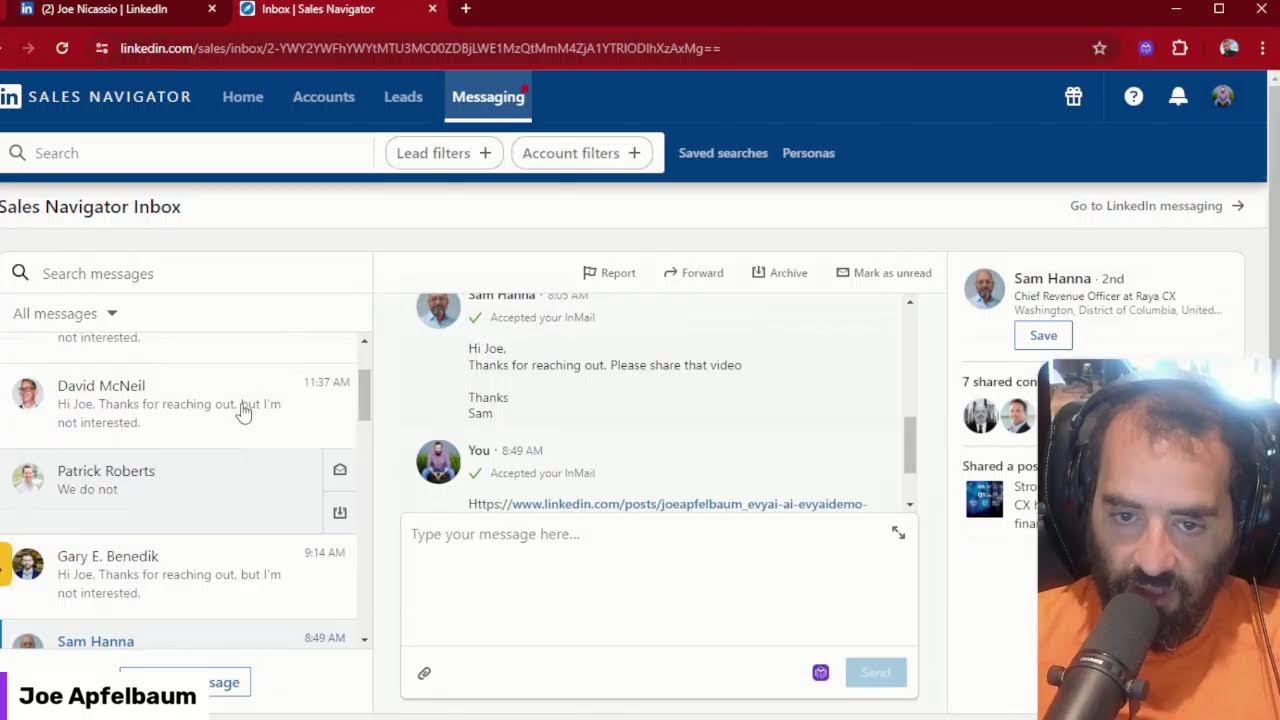
Joe Apfelbaum shows how to build 60 evergreen LinkedIn posts from 10 content ideas, then automate engagement with AI-drafted comments and templated outreach. He walks through a multi-hundred-message Sales Navigator campaign, using AI to personalize replies and filter responses by interest level.
Chapters
Going on. We are live again, and I'm really excited about today because I put out some really great articles and newsletters. So check out this ten ideas right here: LinkedIn content ideas. So this is like the crystal ball predict the next six months. Who's lighting up your world? Mention somebody. Two truths and a lie. Hidden gems. Share your journey. Book corner. You know, I recommend my books. Of course, why would I not recommend my books? High energy networking. High energy marketing. Uh, behind the scenes, offer a glimpse, feedback fiesta, share feedback from a recent project, learning moments. So this, this is called a carousel where you can kind of swipe, swipe, swipe. But what I wanna show you is this article that I wrote and that I published yesterday, which is Automate Your Social Media. And I walk you through what is the step-by-step process to automate your social media. And I show you all the different ways to be able to create evergreen content. And you can use AI to help you be able to kind of just create 6 pieces of content in each one of these areas. And if you do that, you'll have 60 pieces of content, which means daily content for the next 90 days. And then you can replicate those 90 days over and over and over using automation, and you never have to create content again. So a lot of people are like set on creating content over and over and over. And what I always tell people is you don't have to create content over and over and over. You can create the same content and just keep kind of flying through. And being successful with that content. And I have a lot of really great resources. So definitely go and check out this article on my profile. If you want to know how to get there, you just click on Joe Apfelbaum on LinkedIn. You just find me right over here. And then you scroll down to where it says see all activity here. See, it says featured, and then it says activity. And on the bottom of the activity, click on share all posts, see all posts. And then on the top, you'll see more, and then you'll see articles, newsletters, events. If you want to see my LinkedIn Lives, you click on events. You'll see all my LinkedIn Lives like the one that's happening right now. And if you want to see my newsletter articles, you click on newsletter and there are my newsletter articles. Hey, it looks like Richard Moore just hit me up. He said, Joe, how are you? I'm going to say I'm well. Okay. And now as you can see, I am live right now. And one of the things that I really enjoy doing is leaving comments on my clients' posts. So Mordechai is one of my clients. I'm going to go ahead, I'm going to have AI draft a short little comment on the post over here. And the reason I do that is to stay top of mind with my clients. Most people are just not doing that. PS, left the group, felt a pity party. Well, and you know, I check my notifications very frequently and in my notifications I see mentions. I get mentioned all the time. You see there's a mentions thing here. And so if somebody mentions me on their post, I will then go ahead and like and comment on that mention. As you can see, I get a lot of mentions over here. You see that? These are all the different mentions. So I'm going to click on this right over here, and I'm going to reply. You see, he's, he said, love that we got such great feedback from the LinkedIn summit that we did. I'm going to go back here and I'm just going to keep the conversation going. Across this, I'm gonna reply. So I can reply by hitting the generate button right here, and that just creates a quick comment. And then I hit reply and then boom, the comment is there. If I wanna reply to direct messages, I can do the same thing over here. Um, loving life. Tell me how I can support your goals. I'll share mine with you too. Okay, so that's me using just manual, just manually doing that. But if I wanted to then, you know, use AI or use templates to reply, I'll give you an example of how I, why I would message somebody. So let's say I, I see my profile viewers over here on the left. I have 4,961 profile viewers. I see this guy, Lawrence Jordan, the president of Master the Workflow, 10 minutes ago checked out my profile. I want to send him a message. He's in Agoura Hills. He has 1,900 followers. The last time that he posted was reposted 2 days ago. He's not really posting on LinkedIn. So I'm going to click on message. And now what I'm going to do is I'm going to click on this little over here, this little button here, and I'm going to click on my templates. See, I clicked on the little template button that loads all my templates. And then I'm going to type in profile view. Thank you so much for checking my profile. Did you find what you needed? Let me know if I can serve you in some way. So I'm gonna press insert, I'm gonna press send. And so now I just use a template instead of actually using, instead of actually using AI. I could use a template in conjunction with AI, but I just use this cute little template over there to kind of start the conversation with this guy. Um, if somebody, if somebody Oh, look at that. It looks like people are commenting over here. Great stuff. I get terrible results from LinkedIn. Oh my gosh. Okay, great. This is perfect. So he gets terrible results from LinkedIn. Tell me what types of results you are looking for. Okay, so I said, tell me what types of results you're looking for. Would love to help you come up With a strategy. Yeah, I just sent him that manually. But if I wanna send him a template, I can choose the AI or I can have the AI actually write something based on a persona. So I could select a specific persona and just reply. So when he replies to me, I can reply back to him. This also works inside Sales Navigator. So if I go into Sales Navigator over here, you'll notice that I have quite a few messages waiting for me. Not interested, not interested, not interested. Look at that, all these not interested messages. Not interested. Um, interested. Yay, this guy's interested. Please share the video. Okay, so most people that reply to me, you might think are not interested, but if you click on this thing and it says accepted, you're gonna see how many people actually are super interested. And I replied to all these people. So I did a campaign where I sent out Um, several hundred messages. I think it was like 300 messages to people that I'm not even connected to. And I got so many incredible replies. Um, and I highly recommend you use Sales Navigator. Um, who do you work with? Now I can use AI to help me reply to this. I could just click on this little AI button here. Who do you work with? Generate. It's gonna read the conversation and it's gonna write a reply. Thank you for reaching out. I work with B2B companies. Da da da da. So it kind of just writes an entire thing for me if I wanted to write it down. Anyway, that's the idea. Hopefully you guys got value from this and you enjoyed watching this. If you want more, you can go to evyai.com. Check out our LinkedIn assistant. It's really, really powerful. Hit the like button. Hit the repost button. Let me know what your questions are. I'm always happy to help.