How to enrich all your LinkedIn Connections! 088 LinkedIn Live 2024 with Joe Apfelbaum
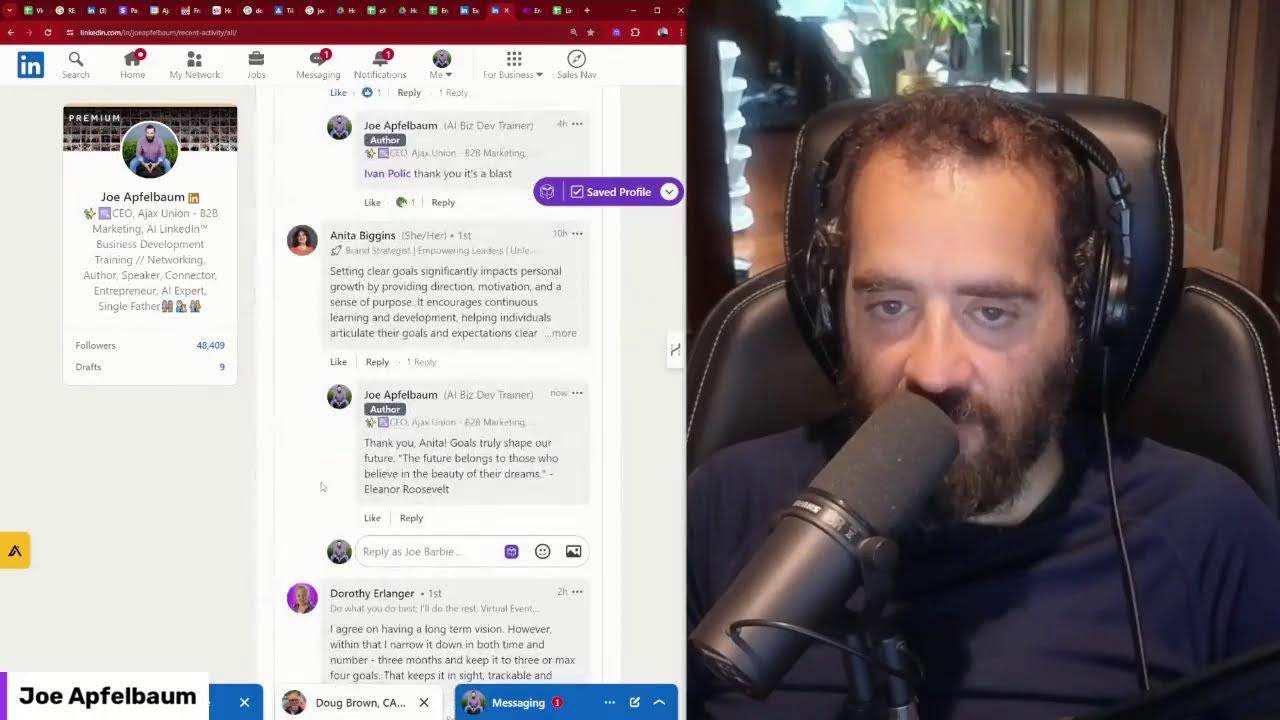
In this live tutorial, Joe Apfelbaum, CEO of Ajax Union and founder of Evvy AI, walks viewers through a complete, no‑code workflow for enriching LinkedIn connection data. He begins by explaining why enriching contacts is valuable—LinkedIn often lacks emails, phone numbers, and other firmographic details. He then shows how to export a LinkedIn connections CSV, import it into Google Sheets, and build a Make.com (formerly Integromat) scenario that routes each LinkedIn URL through multiple enrichment services (Snov, DropContact, People Data Labs, RocketReach, Apollo, Reverse Contact, etc.). The demo highlights each provider’s data coverage, cost per lookup, success rates, and how to handle API delays and errors by toggling routes and adjusting wait times. Joe also demonstrates his Evvy AI tool for automatically generating LinkedIn messages, comments, and posts using customizable personas. Throughout, he discusses cost‑optimization strategies for bulk enrichment, how to feed enriched data into a CRM, and where to obtain a ready‑made Blueprint and community support. The session ends with a call‑to‑action to join his LinkedIn automation community and to request the Blueprint.
Chapters
process to start enriching your data on LinkedIn. I don't know if you know this, but LinkedIn has a billion people and you might have hundreds or thousands of connections. So how do you use no-code automation to help you be able to find data in different sources? And I'm going to walk you through this step by step, but first let me tell you who I am. My name is Joe Apfelbaum. I'm the CEO of Ajax Union and the founder of Evvy AI, a software that helps you be able to use LinkedIn more effectively. And I have close to 50,000 followers on LinkedIn and my is to help give people a voice with artificial intelligence. And part of doing that is helping them understand how to create automations like this that allow you to be able to enrich your LinkedIn connections. So if you haven't exported your LinkedIn connections, don't worry. I'm going to show you exactly how to get everything into a spreadsheet. And then I'm going to show you how to use this tool called make.com, which will allow you to automatically read the spreadsheet that you pulled from linkedin.com. And then enrich the data so that it can look up just from a LinkedIn URL with whatever information you get directly from LinkedIn, say, you know, the address of your connections, you'll be able to pull in first name, last name, email address, cell phone number, and lots of other points of data. And I'm going to show you the limitations of each data source and exactly what you can get from each data source and also what it costs. So stay tuned, we're about to get started. So first, why is this important? Why is it important to get data? When you download your LinkedIn connections, and you can see I have lots of LinkedIn connections, let me just quickly go into my network over here. You click on my network on LinkedIn, and then you click on manage my network, and then you click on connections. You'll see over here it says 29,993 connections. You see that? I'm going to zoom in just a little bit here so you can see what I'm talking about. 23,993 connections I have here. Now, if I just look at someone's profile over here, I may not be able to get all the information about who they are. I have their first name, their last name, maybe over here I have their company name, but how do I get their email address? Not everyone's going to put their email address in their about section, and even if I click on contact info, often there'll be a personal email like a Gmail, but not their business email that's associated with like his company. And yes, there are Chrome extensions that you can click on and you can save their contact and then find their email address, but often they fail you or they give you the wrong one. So how do you do this using an API where you can just quickly click a button and all of a sudden, boom, be able to just do— pull the information? So let's copy his LinkedIn URL. Let's put it into this spreadsheet. I'm going to just remove this filter over here. Let's see, I'm going to click on remove filter. Let me click here and remove this filter. Okay, so I just removed this filter. I'm going to go to the way top and I'm just going to add a new row here, insert one above, and I'm just going to put in his LinkedIn URL. You see, I just put his— I didn't even put in his first name, his last name. I didn't put in his email. I didn't put in anything. The only thing I'm going to tell it is say yes, to enrich. Okay. So what I'm gonna want this to do is I'm gonna say in this second tab here, put in his first name, his last name, his LinkedIn URL, his ad— his, uh, his email address, his company, his industry, his website, and a bunch of other information. So let's see if this automation will actually work. And I'll explain to you step by step why I have so many different arms here. And each one of these are essentially just a different service that I was testing out. And I plan on testing out many other enriching services because they all cost different prices. So let me just hit run once, and what this is going to do is it's going to search the records to see if anything says yes by enrich. Then it's going to send it to this one, it's going to upload it, and then what it's going to do is it's going to look through here to identify— and this did it 10 times because over here I told it to do this see down here I said 10 times. So in this case, I'm going to change it back to 1 so it doesn't use up all my operations. Okay, so now this— from now on, this is going to check 1 time. Then what it's going to do is it's going to send the URL to this company called Snov. Then it's going to check to see— first has to send the LinkedIn URL, then it's going to enrich the LinkedIn URL with all the other information. And if it was successful, It then places it in a row, uh, on the second tab of that spreadsheet. And then it goes to the first tab and it writes that it was enriched by this company. Now I'm gonna click here and you can see all the different operations over here. You could actually see the details. It says success true data, and you can see it says David Botnamov, and it says he's in the hospital and healthcare industry. He's on LinkedIn. United States, Brooklyn. It has his LinkedIn URL over here. If you click on social, it has his LinkedIn URL here too. And if you click on emails, it actually did not pull his email here. Let's see. It did not pull his emails, but it does have his skills and his other information. So for whatever reason, Snov was not able to pull this guy's email. So what I'm going to do is I'm just going to right-click over here and I'm going to do disable route. And now what I'm going to do is I'm going to enable this route to see if this organization can actually find it. Okay, so I disabled this route and I can have it automatically check. If it doesn't find it here, it could check here. And if it doesn't find it here, it can check here. If it doesn't find it here, it can check here. And it can go on and on and on until it actually finds it. Now, different organizations need different data points. So I use this as the first line of defense because this is actually going to fill in their first and last name and company name into the spreadsheet, even if I don't have it. Which I love. In this case, it didn't do anything over here because it really, uh, it didn't have an email. And I said, if it doesn't have an email, don't do anything. So I'm just gonna quickly just add his first and last name to the spreadsheet here, which automatically comes when you export your LinkedIn connections. And I'll show you how to export your LinkedIn connections in a minute. I'm also gonna add his company name cuz sometimes people have multiple company names. And if you're gonna use a specialty company, which happens to be much more expensive, than, um, than some of these other services. It's going to give you a lot of data about this person. So let's go in here and put in his company name over here. And now it still says enriched, yes. Now let's see if it'll actually go ahead and enrich it if we just hit run. Now instead of going down here, I disabled this route, I enabled this route, and it searched for him in that company. And if you go to data, it's going to say I got his first name, I got his last name, I got his LinkedIn URL. I see his title, I see how many employees he has. I see all this information about him. I see where he's located, I see his home address, I see his business address, I see his phone numbers. Actually, there's no phone numbers there. His phone number and email are empty over there. His interests, his skills, all empty. I see his location, his region, New York, countries. Street address empty. Experience. So it actually pulls his experience. So it shows the different companies he worked at. MJHS. So this is, look at that. His education pulls up his education over here. What school he went to, the degrees that he has. You can see he went to Excelesior College. You can see his profiles. If there's multiple social profiles, it'll pull them up over here. It only pulled up LinkedIn. And the, the vision status over here. Okay. So it pulled all this information over here, but it failed to get his email address. And so if it failed to get his email address, it's not gonna keep moving forward cuz I put a little filter that says if you fail to get the email, don't move forward. Okay. So now what I'm gonna do is I'm going to, uh, disable this route and I'm gonna, gonna enable this route over here. So now this route is enabled. I'm gonna run this once again. And this time it's going to take this route over here. So this, this tool tells me to wait 37 seconds until it does its research and it actually scrapes the guy's information from the internet. So it's running an API. I'm going to click on this here and you can see I have a request ID here. This is automatically going to wait 37 seconds and then it's going to put the request ID in here and then it's going to try to request it from there. Okay. That's what it's doing. It's waiting 30 seconds, but this one is called People Data Labs. The first one that— the second one that I use, the first one that I use is called Snub, and this one that I use is called Drop Contact. And if you need all the different resources, okay, this one actually failed over here. It said, oh, it said try again in 30 seconds. Okay. So we're gonna try again in 30 seconds because, and I'm gonna do run once over here, run this module only. I'm gonna put the request ID. It said to wait 37 seconds, but it still didn't finish. This is the, by far the slowest one. So sometimes it takes longer to do it. I'm gonna hit run this module only. Wait a little bit more. Try to grab it. It's still not done over here. Um, we will disable this route for now, and now we're gonna enable this route over here. Um, and let's see if RocketReach could find it. RocketReach is by far the most expensive one. But let's just see if RocketReach can find it and let's see what happens. Boom. RocketReach. Let's see what it did. It looked like it picked up his first, last name, his LinkedIn URL, his state director of SNF services. It picked up his current company, his website. Check out his job search. Okay, so good. It picked up that. It picked up his education and it, it put it in a nicer way. His birthday was empty. Did not get his birthday. Let's see, emails. Look at that, it picked up his email. It picked up email 1 and it picked up email 2. So it gave me 2 separate emails. One, let's see which one. This one got it. They both got a grade 8 and they both are valid. It seems they both were validated on June 4th. It tells you when the phones, when they were validated and there's no phone number for him here. So RocketReach was the one that actually gave me an email for him. So both Apollo and RocketReach gave me an email. For him, but it failed to get an email from PDL. It failed. Did it fail to get an email from PDL? I think it failed to get an email. Um, let's see if this one over here works now that we waited a little bit longer. I'm gonna hit run mod— just module only. Let's see, picks it up. Yep, it looks like it picked it up. And drop contact took a little bit longer, but it picked up his email. Look at that, it did it. It picked up his email. Amazing. So now what I'm going to do is I'm going to disable this one, disable this route. I'm going to re-enable this route. And let's see, let's see if I can just run this, see if it'll run and go through drop contact again. And this time it's going to wait, it's going to do it, and then it'll just pop it in the spreadsheet in the second row. So that's what I'm asking it to do. I'm asking it to go run this. And now that it already has it, it should work because it's The system already pulled it. It was just waiting for the API to get it. So as you can see, Drop Contact worked, Rocket Reach worked, Snov did not get the email, but it got a lot of information about the guy. And then this one got— and this one, and then there's another one down at the bottom over here called Reverse Contact, which does not get you the person's email address, but it'll get you every little bit of their profile. Every tiny little bit of their profile. And it looks like it's failed again. I think what I need to do is I need to, instead of make it delay 37 seconds, I think I need to make it delay 60 seconds. And then this way it'll kind of run and actually work in the future. Okay, but as you can see, this is the way the system works. So step number 1 is you get a spreadsheet. You need your connection spreadsheet. So how do you get this spreadsheet? Well, let me show you. Let's go on LinkedIn. So if you go on LinkedIn And you click on my network and you want to download all of your connections, you can't just download your connections. And I don't want you scraping LinkedIn because that's going to be a problem. You don't want to be scraping LinkedIn. Instead, what you want to be doing— by the way, if you're watching this and you're enjoying this, write value in the chat so that I see that you guys are actually live and watching this and you're getting value from this. If you're on YouTube or Facebook or somewhere else, or you're watching the replay, just hit value so I see that you're here. And also give this a like, take a minute. And just give it a heart or a round of applause or something, just so that I see that you're here and that you're watching it. So if you go to my newsletter, okay, so you go to my, my recent activity, you click on newsletter, and then you scroll down. I actually wrote a newsletter about how to download your LinkedIn connections and put them into a spreadsheet. And I actually have it step by step here how to do this. So this, I call this backing up your contacts. So everyone should have this anyway. So this is the step. Step number 1 is go to this thing called Settings and Privacy under Me. So I have a little screenshot that shows you how to do that. So you click on Me, you click on Settings and Privacy. That's step number 1. So let's do this together. I'm going to go here. I'm going to click on Me. And by the way, I just put up this poll on LinkedIn asking people, um, if they want me to enrich all their data. And I'll tell you how much it costs to enrich your data. There's a different price depending on how many contacts and what you want. So could you imagine, you know, RocketReach charges $1, okay? Snov will charge like 25 cents and Dropcontact will charge like 5 cents and People Data Labs will charge 25 cents depending on how many credits you get or whatever, but it's like 30 cents, 25 cents. And so if you put it all together and you try every single one, it's going to end up costing you like maybe $1.50 or $2 for every contact. But if we use third-party sources and we buy it in bulk, we might be able to get it down to like, let's say 75 cents or 50 cents to try all the different providers and put all the information together for you. And then once we collect the information, we can offer it to you for even less because the information's already in a database. So we can take all the popular people in specific industries, put them into a database for you, and then you can scrub against our database for free, and then eventually scrub against those paid databases if you need, you know, like, and you can pay just whatever they charge. Anyway, if you want, uh, if this is important to you and you want to, you want to be put into some type of beta program where we try to enrich all your data, just write yes over here and vote. All right, so let's go back to what we were talking about. You click on Me and then you click on Settings and Privacy right here, okay? Just like that. So that's step number 1. Step number 2, let's go back to the article. Step number 2 is click on Data Privacy and Get a Copy of My Data. So let's go back over here. On the left side it says Data Privacy, you see that? You just click on that and then over here on the top center, the number 2, is you click on Get a Copy of Your Data, just like this. All right, now let's go back to the article. Step number 3, click the Connections box and then press Request Archive. All right, so let's do that. Let's click on Connections and then let's click on Request Archive. And what this is going to do is it's going to say, your request to download a large Data archive, basically 30,000 connections, 29,900, whatever. This includes connections, verifications, contacts, account history, and information we infer about you based on your profile and activity. And it was made on June 30th at 11:14 PM. And it says, we will send you an email when your download is ready. Now you don't have to wait for the email. You can just wait right over here. So the URL is linkedin.com/mypreferences/d/download-my-data. So you just wait over here, and then in about 15 minutes, you just refresh this page and it'll just say download. That's basically what's gonna happen. And once it says download, and I show you an image of what that looks like right over here, you see request archive, and then it says download archive. Then when you press download, you're gonna download something called a zip file or an archive file. You take that archive file and you unzip it. Do you know how to unzip a file? Just write, I know how to unzip. I know how to unzip. Right, I know how to unzip in the chat. I'm curious to know if you guys know how to unzip a file. Let me just see if you guys are, um, let me see if anybody's commenting over here, if you guys are talking to me or not. I don't want to ignore you, so I want to acknowledge the people that have been commenting. If anybody's been commenting, uh, I'm going to click on Show All Posts. Sometimes it doesn't load right away, so if you're watching this live, just write live in the chat so that I see that you're alive. I'm going to give myself a heart. Okay. It doesn't look like anybody commented. I'm gonna refresh this page just to kind of see if anybody left a comment here. Oh, looks like a bunch of people are watching, but people are not commenting. Okay. Um, somebody said, Joe, what is make.com? Make.com is a no-code platform that allows you to do workflows, automations, and tasks and put together about 1,500 different tools. So if you click on apps and services, you can see which apps and services you can bring together. So for example, if you wanna bring Google Sheets and connect Google Sheets with OpenAI, with ChatGPT, and then with Anthropic Claude, and then with Pipeline, and then with Calendly, and then with Gmail, and then with Notion, and then with Google Drive, and then with Slack, and then with Telegram, and then with Google Docs, and then with Monday and HubSpot and Instagram, you can do that. And you can combine any unlimited amount of combinations between Google Forms and LinkedIn and Twilio. And Line and Make and, and so many, so many, so many, so many more. QuickBooks and ManyChat and GoHighLevel and WhatsApp Business and Facebook Insights and Blogger. And there's like an endless amount of things that you can just connect here, which is really phenomenal if you think about it, because now you're able to API all these things together and do some pretty amazing stuff. I had no idea that they had Strava here. That's pretty cool. But if you go through this, you'll see everything from Basecamp to Mixpanel to Google Chrome to Zoho Creator to Sellsy to Unbounce to anything that you can API. You can go back and forth with APIs, and this is extremely powerful what you can do, um, using these tools, which allow you to basically connect different tools together. And when you connect these tools together, you then are able to simply automate things because you can create agents that do things on a regular basis. So let's say if you want to send out an email every single day using Gmail and you want the email to be written by ChatGPT, you can do that using this tool called make.com. It's a no-code platform, really powerful. All right. Uh, more on this later, but once you have your connections and you import it into a spreadsheet, how are you going to import it into a spreadsheet? Well, let me walk you through how to do that. Once you have it and you unzip it, you'll have something called the connections.csv. You go to sheet.new. Okay. So sheet— sheets.new. So if you go to sheets.new, it simply just opens up a new Google Sheet, just like that. You see that? And when you open up a new Google Sheet, then you click on the more button. Then you click on import, and then you click on upload. And then you can click on browse and find that CSV file that you unzipped. Remember, this is a really important step. You have to unzip the file. If you don't unzip the file, it's not going to work. So you got to unzip the file, then you upload it. When you upload it, you're going to have to format it and make it look nice and tidy because it's by default, it's not going to look nice and tidy. And then you're going to have different columns. You're going to have first name, last name, LinkedIn URL, which is new this year. This is a new feature that they have. They had in the past, they didn't have LinkedIn URL. But because they have LinkedIn URL now, now you can do a lot with this LinkedIn URL. Because you can see, you saw the way I was able to simply just take this LinkedIn URL and enrich it with the person's first name, last name, company name, and so many more details like industry, position, company name, website. And once I enrich contacts, look how much, look how many points of data I could have over here. I can have their location, the country, Um, I can put in their cell phone, their birth year, when they were born, Twitter, Facebook, how many employees they have, and so much more information. Then I can take this information and then I can enrich it further using artificial intelligence. I could research this person. So I have other automations that I set up that will then go into this sheet, find the people that are already enriched and further enrich them, and then add all the enrichment data. To my client relationship management program, my CRM, which is pretty freaking amazing if you ask me. So this thing didn't work over here because it didn't have enough time. I updated it to 60, but if you want this blueprint, we're actually giving this blueprint away to our clients inside our LinkedIn Automation Community. We have a community and school. I'll be linking it in the comments of this post, this video. So if you want to check that out, definitely let me know. Just type in automation in the chat and I will reply with LinkedIn automation blueprint. So what is a blueprint? A blueprint is the ability for you to click more and then click on import, and then you can import this entire automation right in and then just start putting it together. So if you want the details of how you can get this, So that you could just import this and start using it instead of spending 20 hours building this out yourself, then, um, then definitely let me know that you're interested in this. Just type in automation in the chat and I'll be more than happy to provide you with the details of how you can access our school community. Then it gives you all the instructions, all the details. And then we also meet on a regular basis to coach you and guide you on how to do automations related to LinkedIn and how to be able to send out connection requests. How to be able to send out messages automatically, birthday messages automatically, be able to do so many incredible automations with LinkedIn specifically. So if you're interested in that, just write automation inside the chat. So I promised I would show you how to export your connections. I showed you how to do that. I'm gonna refresh here just to see if it's ready. You see it wasn't ready yet. It's not ready yet. We still need to wait a little bit longer because the download is not ready. But I already have a copy of my download over here, so you can see exactly what it looks like. Now, one of the things that I love to do is to have a Search Google option over here. Now, this Search Google option, when I click on Search Google, what it does is it will search the person's first name, last name, and their company name with one click of a button. And so you can see there's a lot of details about this person on Google already. And then I can have an agent inside make.com be able to research every one of these SERPs. It's called the search engine results pages, and then create prospecting data for me to start reaching out to these people and then create automations automatically that will email this person talking to him. I could also check out his Google reviews and then I can read his Google reviews using a Google API automation. And because he has terrible reviews, he probably needs some help with his reviews. So you see, 3 months ago he got a terrible review. Um, so I'm actually going to message him here on LinkedIn. I can have it automatically do it, but I'm just going to message him manually and just kind of show you how you message somebody on LinkedIn. I'm going to click on message right over here, and I'm going to have Evvy AI Write a message. So this tool, Evie AI, is a tool that I built that helps you be able to write things. David, great to connect with you. I checked your Google reviews and they need help. Want to chat about reputation management? I'm going to hit generate. And let's just see what it does. I'm offering him a service. I'm having an educational tone. David, thanks for reaching out. I'd love to chat with you how we can enhance your Google reviews and manage your online reputation. Let's set up a time to discuss your goals. And I'm going to press open. Okay. And now I sent him a connection request. He accepted it. And now I sent him this because his Google reviews are total crap right now. And he needs some help. Um, that is very powerful. Okay, I'm gonna click on notifications. Let's see what he wrote. Empowering. Oh, looks like Kwame gave it a like. Thank you, Kwame, for checking this out. I love having a great— let's see what Kwame wrote over here. Oh, he liked this post that I did as well. So he liked my page and he liked what I did over there. Oh, it looks like somebody sent me a connection to connect over here. Look how many people are waiting to connect with me on LinkedIn. This is crazy. I have over 1,000 people waiting to connect with me on LinkedIn. Who are these people? I don't know who these people are. It's crazy. I don't know why these people are sending me these connection requests, but if they actually wanted to connect with me, they would leave comments on my posts and then I will know who they are. So how do you leave a comment on a post with artificial intelligence? Well, let me show you. Let's say, for example, Ari. I'm going to click comment. I'm going to click on the little AI button here, and I'm going to press generate. And I just generated a comment just like that. You see that? It said, Ari, your insights on natural chemical release through meditation are spot on. I'm going to press@ and tag him so he gets notified and post. You see that? I just left him a beautiful comment on his post. Helena Baker, I'm going to do the same thing. So I could choose one of these comments here, like love it, or I can use Evie AI and I can choose a different persona because I have many different personas over here. Personas essentially are programming where you can program the AI to do specific things. So for example, if I wanted to have a short comment that's under 20 words, you see that I just have a little short comment that's under 20 words. If I, instead of a short comment, I want to leave a quote, I click on this little dropdown button over here, and then I just select the Joe Apfelbaum quote, and it's going to pick a quote. It's like a popular quote. It's going to include a few, a few words, include the person's name and just a couple of words. And then it'll put a quote by someone famous like Peter Drucker, Tony Robbins, and so on. So Evie AI is really a lifesaver when it comes to you wanting to drop comments on people's posts. The more comments you leave on people's posts, the more likely you are to be successful at what you're doing on LinkedIn, because people will notice you when you're dropping comments on people's posts. Most people don't have any comments on their post. So think about this. This guy over here, he's a top headhunter in supply chain. I leave a comment on his post. Now I have shelf life exposure on his post, and I'm the only person that did this. I'm literally the only person that left a comment over here. So because I'm the only one that left it, I get automatic exposure on his post. I'm attaching myself to him. Now, if I click on his name, how many people are following him? He has 50,000. Wow. 1,000 people that are following him on LinkedIn. The chances of dozens and dozens and dozens of people to see my post because I took the time to leave a comment is very high. Most people are posting and ghosting. They post and leave. And The rest of LinkedIn don't even do anything. They're just lurkers. They're literally doing nothing. So if you can go to this website, evyai.com, get your LinkedIn assistant right now, install the Chrome extension, get the web app, and start using it to do the following: leave comments, write posts, drop recommendations on people's profiles, send messages the way I showed you how it writes a DM. Optimize your profile. I actually have a video on my YouTube channel. If you go to youtube.com/@JoeApfelbaum and you click on videos, you're going to see I have a video here that I did. This video shows you step by step how I optimize someone's LinkedIn, your LinkedIn profile. If you click on shorts, you can see my short little videos. If you click on live, you can actually see this live and many other lives. I can see over here one person's watching right now. That's cute. If you click on playlists, you can see the various playlists that I have there. And if you click on home, you can see all this other stuff that we have going on over here on the homepage of my profile. And if I click this little bell, I see Emily Carter commented. Mark Filth said my haircut is a giveaway. And you can see people are replying to my comments on YouTube as well. Okay. So we talked about make.com. We talked about LinkedIn connection dashboard. We talked about this enriching automation and I walked you through it step by step. And I told you that if you want the blueprint, you can go to our LinkedIn automation community. We talked about how to export your connections and I walked you through step by step. And I told you where you can find this in my newsletter, the step by step. So definitely go check it out. And you can also repost this if you like it. And if you want to find my content, you could just go to my profile on LinkedIn, scroll down to the section under feature that says activity, and then see where it says show all posts. You click on show all posts and you can see all of my posts. I'm going to check out who liked over here. I see Kwame liked and Chase liked this. If you scroll down, you're gonna see my polls. You're gonna see videos that I post. I'm gonna give myself a like. You're gonna see, actually you can give yourself a like from a company page too. I don't know if you know that. You see that? I'm gonna give myself a like from Barbie. Um, you could, you could reply to people's messages. So all these people left me messages. So I'm going to reply. I'm actually not going to reply from Barbie. I'm going to reply from Joe, but you could use a company page to reply. And it's really fast to reply with Evie AI. Most people don't even acknowledge the people that comment on their posts because they don't have time to do that. But with Evie AI, you have plenty of time to do this. Very powerful tool. See that? I'm replying to all these people here. If you're not replying to people that post on your comments, then you're posting and ghosting. I make sure to go through this every single day and reply, but often I'm busy and I don't have the time to do it. That's why I use Evie AI to do this, and I'm just dropping quotes, dropping quotes. And I make sure to read the person's posts and I make sure that the quote is relevant and that it makes sense just like this. Okay. So look at this. I left a comment on all these posts. I replied to all of them. Extremely, extremely powerful. So what do you think? What do you think of this? Do you like it? Do you love it? Do you want more tips like this? Let me know in the comments below. Thank you very much for watching this. I appreciate you. Definitely go through my content. You'll get content ideas for things that you can do as well. And let me know what you wanna see me talk about on my next videos.
More from Joe




How to Beat the Algorithm: Remove Hidden Watermarks & Scale Content with evyAI






