How to get clients on LinkedIn FAST - 175 LinkedIn Live - Joe Apfelbaum
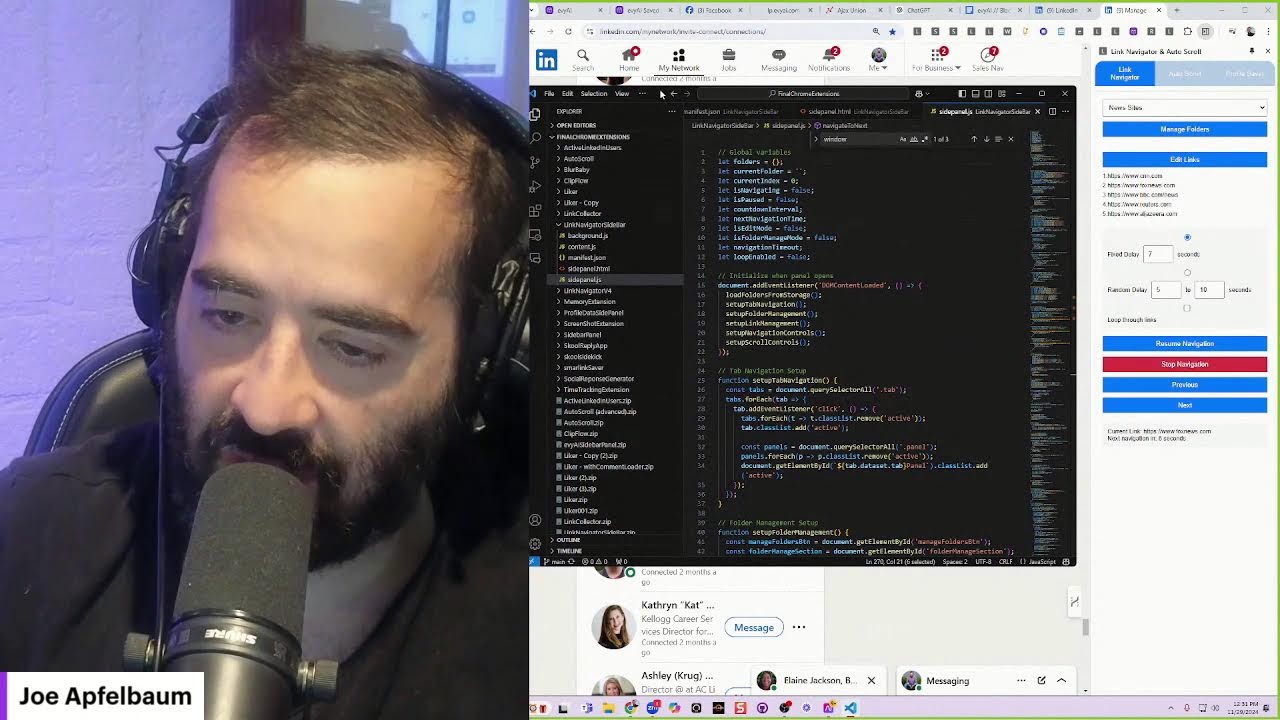
In this 175‑minute LinkedIn Live session, Joe Apfelbaum showcases his Evvy AI platform and promotes a Black Friday special worth $20,000 in bonuses. He outlines three core LinkedIn tactics—posting, engaging, and daily messaging—to acquire clients quickly, then walks through live demos of Evvy AI’s features: auto‑commenting, AI‑generated connection notes, profile saving, influencer tagging, auto‑scroll, CRM integration, email/snippet templates, and a sales‑navigator‑style link navigator. Joe makes a real‑time phone call to Eli Yitzkowitz to demonstrate adding contacts to the CRM, sending a personalized follow‑up email generated by ChatGPT, and discussing the affiliate commission structure. The session then shifts to a technical deep‑dive with developer Naveed, where they review the Chrome side‑panel extension architecture (manifest.json, background.js, content.js, side‑panel HTML/JS), discuss modularizing multiple extensions into a single master extension, and explore implementation options using plain JavaScript versus React components. They troubleshoot UI issues (tab styling, panel width), examine tab‑creation APIs (chrome.tabs.create vs chrome.tabs.update), and outline a workflow for prompting AI (Claude) to generate modular code snippets (HTML divs, JS functions, manifest entries) for new features. Throughout, Joe emphasizes the importance of building relationships quickly, leveraging AI to save time, and iterating on the product with community feedback.
Chapters
Getting clients on LinkedIn fast? Is that even a thing? Can you really get clients on LinkedIn fast? We're having a Black Friday special coming up very soon, and I want you to know about it because we're giving away $20,000 worth of bonuses for people that sign up to this Black Friday special. So if you want to get clients from LinkedIn fast, check out evviai.com/blackfriday and check out our app. We have incredible features that allow you to be able to take your LinkedIn experience to the next level. There are 3 things you need to do on LinkedIn to be successful. Number one is you want to be posting. Number 2 is you want to be engaging. And number 3 is you want to be messaging every day. A client just called me up and he said, Joe, Evvy AI has changed my life because it saves me so much time. If you're in business today, realize that time is the ultimate thing. It's the only thing that you really have is your time. So let's listen to some music and watch me be able to leverage LinkedIn. Right now I'm going to show you how to do this. I'm going to put on my headphones so I can hear the music that I'm playing for you. I'm going to be using AI-generated music. Let's do this.
You ready?
Here we go. First thing I'm going to do is I'm going to go to my dashboard, click on saved profiles. Then I'm going to go to the pages. Oh, that's cool. Of the people that I saved their profile to identify if they see what they're up to. And with Evie AI, I just create just like that. Look at that. Boom. I just left a thoughtful comment on Greg's post and it took me just a second to do it. Now I can also go to Greg's profile and see what he's up to. I see he has 140,000 followers. That's very impressive. So if I wanna connect with him, I press the connect button, I hit add a note, and then I have Evvy AI draft my note for me. This includes his name, where he works, what he does, why he should connect with me, and maybe a little call to action at the end. And so I hit send, and now he has the opportunity to build a relationship with me and connect with me just like that. Now on LinkedIn, there's a lot of different things you can do. There's the LinkedIn homepage where you can see the feed. And if you use certain extensions, like for example, I have an auto-scroll extension, I can set it on fast and then auto-scroll, and it just starts scrolling down by itself. And if I want to find someone that I like, for example, this guy, I'm going to click on stop scrolling, go back up to this guy right here, which I appreciate so much. And by the way, I want to save his profile, so I'm going to click on his name. And then I'm going to hit save profile, and this is going to save the profile into Evvy Then I'm going to switch here to influencers. I'm going to tag him as an influencer, and this way I can stay top of mind with him. I absolutely love this guy. This guy is an amazing, insightful, just an incredible dude. And so I want to, I want to be in front of him. I want him to notice me, and I want his audience to notice me as well. So what I'm going to do is I'm going to use my Black Friday comment. I actually have a Black Friday comment. If you go to Evy AI, E-V-Y-A-I, Black Friday, and I'm gonna leave a comment with my Black Friday deal for his audience, just like that. And I'm going to press comment and it automatically does it. I don't have to do much here. And, you know, he doesn't have a crazy amount of high-quality followers, but, you know, like his ideal client is my ideal client. So I want to make sure that I'm following him. I want to make sure that I added him to the place. I'm going to go back into the feed and I'm going to keep auto-scrolling. And this way, if I find something that I like, I don't have to actually scroll. I can just auto-scroll. Isn't that cool? If you want the auto scroll extension, just write auto scroll. I'm giving it away for free to anyone that is interested in the auto scroll extension. I'm gonna hit stop. I'm gonna go back to this EOS implementer now, and I'm going to go ahead and leave a comment. I'm not gonna do the Black Friday deal for him. Instead, for him, I'm gonna use my optimized, um, my optimized persona. So you could have different personas with Evia. You can, you can do your goal, your tone, your perspective. and go ahead and really connect with people meaningfully. Now with Eli, what I'm going to do is I'm actually going to go to his profile and I'm going to give him a call. Why am I going to give him a call? Let me see if I can find his phone number here. His phone number's not there, but I think I have him in my CRM already. So why am I going to give him a call? The reason I'm going to give him a call is because I want to build a relationship with him. I want him to get to know me. I want to get to know him. And so, I'm gonna look him up here to see if I have his phone number here. I think I, I think I have— I think his brother-in-law gave me his phone number. Here you go. Here's Eli Yitzkowitz. Let me go into my personal contacts, my Google contacts I should say, and get his phone number. Here's his phone number right over here. I have a 347 number. I'm gonna add it right here, and then I'm also gonna add his email address to my CRM. And by the way, on Black Friday we're giving everybody access to the CRM as well, so you get a year access to this as a trial. Let's go ahead and call him. I'm going to refresh this page. I'm going to click on the little call, and I'm going to stop the music. And the reason I'm stopping the music is because I don't want to— I don't want to get interrupted in that way. So I'm gonna go back to his profile. This call will be recorded for quality purposes. Hey, Eli, it's Joe Apfelbaum. How are you? I just dropped a comment on your post. I don't know if you saw that.
Yeah, no problem.
Did you see that, Eli?
Huh?
Did you see I left a comment on your post? I saw you were in your car, so I figured I'd say hello.
Hey!
How's it going?
I don't have your number saved.
Oh, this is my— this is the number in my CRM. You probably have my number saved on my cell phone, but I'm calling you from my CRM.
Ah, nice. Now I'm not sure if I'm speaking to you or the one Well, you can test me.
You can ask me a Shailen Gemara, you know, like and see if I'm really an AI, you know what I mean? You could ask me to quote some, some, uh, some Pirkei Avos.
I can ask you something about Menachem's private life and let's see what they answer.
Exactly. You could ask me something about Menachem Mendel ben Yosef Yitzchak's private life.
Ah, how you doing?
Good, baruch Hashem. Everything is fantastic. I wanted to let you know that we have a Black Friday deal going on right now. Where we're offering $20,000 worth of, um, of tools and access and training and many different things. I know you were interested in LinkedIn training in the past, and so I figured I'd call you, let you know about it, and maybe you, some of your clients can benefit from it. And we do pay 20% commission with our affiliate program. So it's less than $1,000 and you get a full year worth of training. You get a CRM, you get social scheduling, you get support, a community, and so many more things. You get the list of the Inc. 5000 fastest growing companies in America, which would be perfect clients for EOS implementers. Um, just that alone is worth $5K. So, um, if you're interested, I sent you the link to learn more via DM. You with me?
Yes, I'm listening. I'm listening.
So I highly recommend that you grab it while we have it. If it's something that you're interested in.
Let me, I'm going to be, I'll have to go. I'm in the car, but I'm going to take a look at it in a few minutes.
Okay.
Let me, let me see it. Let me see it for sure.
Yeah, I think, I think you can benefit from it. And I think a lot of your clients that have salespeople can benefit from it as well, um, because we're doing a full year worth of live training. So it's 2 hours per month of strategy and so on. And, um, and if you want to join me on Zoom, I'll be on Zoom talking about it at 1:00 PM. I'll send you my Zoom link via DM as well on LinkedIn. So you have it. And this—
When is that? Today you're saying?
That's today. If you're available at 1:00 PM, you can join.
Yes, 1 PM is not going to work. I'm probably going to be in the car at that point and with my family. Oh God, I don't think that's going to work. Okay. Yeah, so, but, um, yeah, I'm going to take a look at the DM you sent. I didn't see it come in yet, so I'll take a look at it as soon as we hang up the phone. Okay. And let me, let me see, let me see what exactly that is for sure.
All right, excellent, excellent. Everything else is good with you?
How about you? How's everything with you?
I feel very blessed. I'm, I'm making an impact for people. I'm helping people out. Like, what else can I ask for?
Building relationships.
Fuck.
You know, like that's teaching people how to properly build relationships on LinkedIn is something that I'm very passionate about. I'm very, very passionate about teaching people like all the little hacks and all the little things. And AI has changed my life completely. So I'm just, you know, I'm, I built a little Chrome extension that does auto-scrolling on the feed. That's kind of like how I even saw you, 'cause I'm not gonna sit down and scroll the feed, but if I have an auto-scroller that will automatically scroll the feed for me and I can decide how fast I wanna scroll the feed, That's epic. And then I stopped by the people that I care about, and I saw you, and I care about you, so I stopped and figured I'd give you a call.
Nice, that's cool. That is cool, man. Yeah, I like it. I like it. I love it. Truth is, when you are— when you make an impact, and for everyone that looks different, for everyone making an impact means something else, whatever that might be to an individual, if they get— if they do it, there's nothing more fulfilling. No money in the world is ever going to give them that. Feeling that inner feeling.
100%, 100%. All right, so thank you very much. I hope you enjoyed. Thank you again. Yes, we'll talk soon.
Thanks for checking in. Okay, I'll take a look at it. No problem.
Have a great one. Sister regards. If you speak to— you speak to your sister, send her regards.
All the best. Have a good one.
All right, bye-bye. So that conversation was just 4 minutes Just 4 minutes. It didn't have to take very long. It doesn't take very long to build a relationship with someone and to connect with them and to make phone calls like that. And he didn't have my phone number saved. He still picked up the phone. And most people are just not willing to do that. If you want all the things that other people don't have, you have to be willing to do all the things that other people are just simply not willing to do. I am very likely to be able to get referrals from that client as a result of me having that conversation with him. You get what I'm saying? Building a relationship in that way is gonna be key. Now check this out. I'm gonna copy all the information that's here just like this. I'm gonna go into ChatGPT. I'm gonna take a moment and say, The following. Please create an email to someone I just had a conversation with that is interested in learning more about the Black Friday deal we have going on. Here are some details about what we're going— what we're including to our Pro users that upgrade from Premium to Pro. Today on Black Friday. Okay, I'm going to hit go and let's see what ChatGPT does. Exclusive Black Friday deal, upgrade to EVI Pro today. It's a pleasure speaking with you earlier. I'm thrilled to share more details about the exclusive Black Friday deal we discussed upgrading to EVI Pro. It's a once-a-year offer, gives you access to EVI Pro for just $984, unlocking the best value. Why upgrade? Save time and effort, improve visibility, build credibility. What's included in Pro? Advanced LinkedIn training workshop, accelerator training, evergreen networking course, Sales Navigator bootcamp replay, goal setting masterclass, 1,000 LinkedIn connection list, Inc. 5,000 dashboard, office hours, unlimited digital marketing tools, email, social media automation, and more. And then exclusive Evvy AI forum. How to claim this deal, claim it now here. Okay, so I'm going to go here just like this. I'm going to copy this and I'm going to go into here and I'm going to click on marketing. I'm going to click on snippets. I'm going to click on add a snippet, add an email snippet. I'm going to add the email snippet right here. Okay, I'm thrilled to share more deals about the Black Friday deal. It's a once in a lifetime thing. Here's what you'll gain, improve visibility. Okay, and over here the subject line that it gave me was Exclusive Black Friday Deal Today. I'm going to copy this, I'm going to paste it here. Snippet name, Black Friday Deal. From email address, I don't need a test, it'll just come from me. Okay, it's a pleasure speaking to you earlier. I'm thrilled to share the detailed Black Friday deal. Okay, why upgrade? Save time and effort, improve visibility, build credibility. Um, I upgrade to Evy AI Pro, um, save time and effort, build credibility. I want to give you all the tools you need to Get to your goals with LinkedIn this coming year. What's included in pro training? December 4th, Jan 8th, Feb 5th, Advanced live LinkedIn training. Accelerated training program. Replay. On demand. I'm just going to say on demand. And I'm going to delete the replay on demand. Okay, 1,000 lists with emails. Profile and support, office hours and marketing experts. Unlimited digital marketing tools, $3,000 value. This will give you a CRM, social scheduling, email automation. And so much more. Monthly consultation with Ava to brainstorm topic ideas and Evie AI forum. How to claim this deal. Join Evie AI Pro deal. Claim the Black Friday deal now. I don't know where this leads. Where does this go to? Let me just see where this goes to. It doesn't go anywhere. I'm going to copy this. www.evi.ai.com/blackfriday. Black Friday to learn more. You have any questions? I'm happy to help. Looking forward to achieving your goals. Test snippet. Test to email address joeajaxian.com. What's this? To email address. We don't need the test snippet. Please enter a valid email. Save. Okay, so now that I have this, I'm going to go ahead and email him this right now. So we're going to go back to search, Eli Itzkowitz. We're going to click on this little template here. I'm going to type in black. Actually, it's an email, so I click on email, click on templates, type in black Friday. No snippets or results. Let me refresh and see if that'll fix that. I think I saved it. Turn off the auto scroll. I don't need the auto scroll on. Let's put on some music just to help you guys out. By the way, if you're watching live, say I'm watching live. Here it is, Black Friday deal. Just sent this to him, but I want to take this to the next level. So I'm going to go back to the snippet under marketing snippets. We're going to open this up, edit snippet. We're going to control A, control C, and search for the. Black Friday promo. Let's see. Yo, log into Zoom, it's time to bloom. 5 professionals in the room, got your content locked and loaded. If not, don't stress, we'll get it coded. AI assist, quick brainstorm list, 2 minutes prep, you get the gist. Clean URLs, no UTM, drop it in The chat. Let's start the stem. Most engage. That's how we rage. I love that. I love this music that Suno is creating for me. Just so cool. Okay. It was a pleasure speaking to you earlier. I'm thrilled to share more details about the Black Friday deal. WAP with ABR Pro. Safe. Create engaging content in seconds. Create unlimited engaging content in minutes without hours. Improve visibility by boosting your job and networking opportunities. Improve, optimize your profile, boost to boost your opportunities on LinkedIn. Use heavy AI tools to promote yourself as a trusted advisor in a field, like leaving comments, messages, and notes, like leaving unlimited. And I want to give you all the tools you need to know coming year. Pro is an upgrade from Premium, and we will be adding many more features in the coming months. I wanted you to get in now with these incredible bonuses for Black Friday. Friday in the bonuses for every— okay, so this is what's included in the bonuses. I'm gonna copy this right now and I'm gonna paste it in here. Make sure it all looks good. Make sure the link is in there. Link is in there. Hit save. And now I have it saved properly. Okay, fantastic. Let me just go into my Zoom room real quick and just see if I have a developer that I was meeting with. Let's see if he's on. Jen, did the developer join?
He's joining.
Okay, great. Fantastic. All right. That's wonderful. Okay, Ellie is off.
He's here.
Hi, Naveed, how are you? Hello, what's cooking, good looking? How's life? Everything cool? Hello, I know you can hear me.
Yeah, I can hear you. How are you? How are you, Joe?
I'm doing fantastic. I'm doing fantastic. Was there something specific that we were going to work on today, or are we kind of just chilling and talking on the phone? I want to show you—
I'm not sure because no, I don't think we decided on anything in our last meeting.
Recording in progress. Okay, no worries. No worries. Okay, so I wanted to show you some things that I've been working on. And we don't have to do a full hour now because I may have somebody else joining the call soon. Um, I may have to hop on someone's call, like a sales potential guy. Um, but I wanted to show you, do you know anything about the, the new sidebar extension, the new sidebar feature, the panel feature where you can have a panel on, on Google Chrome?
Uh, no.
So now Link— now Google Chrome has the ability to have like a panel that you can kind of like, so it used to be, so LinkedIn doesn't allow iframes. Right? That's something that they break out of iframes. So instead of having an iframe, you can actually have a Chrome extension that shows up as a panel on the side. So for example, if I want to, if I want to say, uh, auto scroll on the LinkedIn feed, I can press auto scroll and it's just going to start auto scrolling. You see that?
Oh.
That's an auto scroll function that allows, um, allows me to just auto scroll and keep auto scrolling and auto scrolling and auto scrolling and auto scrolling down. You like that?
Yeah, this, this looks amazing.
So, um, I also integrated this with tabs in the extension over here. You see that there's the sales, the link navigator, and then there's the auto scroll. What I want to do is I want to add an additional tab with this extension. So I have another extension here called the LinkedIn Profile Saver. So if I want to save somebody's LinkedIn profile, I press save. And it kind of goes through all their information and it organizes all in a little, in a little box over here for me to be able to send to a CRM, to a webhook or whatever I want. I wanna copy this and paste it into ChatGPT. I can do it. You see that?
Yeah.
So what I wanna do is I wanna review this. I wanna review the code and because I keep adding new extensions, I keep doing new things. Like for example, I have, I have this really great extension here called the Social Media Response Extension. So if I'm on Facebook, Let me show you. I go on Facebook and I want to create a response for a specific person. Bitcoin. I only want comments from those who do not own any. Why not? Genuinely curious. Okay, so I'm going to right-click over here. I'm going to hit here. I'm going to hit generate response. I'm going to hit Facebook posts. I'm going to hit comment, and then it's going to send it to ChatGPT. It's going to create a response. And then once the response comes in, I can just click copy and then I could paste the response in here just like that. I'm curious why some folks don't know Venmo. Personally, I'm open to the idea that they might consider accepting it as a payment in the future. What are your thoughts? Okay, so I just, um, I just created this reply here.
Mm-hmm.
But this reply works everywhere, this reply tool. So I, what I would want to do is instead of having a million different extensions, do you see how many extensions I have? Instead of having a million extensions, I want to keep adding functionality to this one extension. Like I want to have a one master extension that has all the other extensions built into it. And then I just keep adding functionality to it, but I don't really know how to do that properly. Like I want to, I want to almost modularize the extension and I want to learn how the extension works. 'Cause there's not a lot of details to this extension. You see, look, there's a background.js. There's a content.js, there's a manifest, there's a side panel HTML, and there's a side panel JS.
Mm-hmm.
So, so the side panel JS essentially has, you know, like we could break it down and kind of identify what it has here. But if I can figure out a way to modularize it, then all I needed to do is to create either additional HTML files or additional functions inside the JS. You get what I'm saying?
Yeah, yeah, I get you.
So if we were gonna break— you're a developer, so if we were gonna break this down together and we're gonna say, okay, explain to me what the heck is going on over here. Like, how do— how does it— how does it switch from tab to tab like that? There's 2 extensions I added here. I had extension 1 and extension 2. These were separate extensions before, and I combined these 2 together.
Yes.
So what is— what we are in the code. Let's go start with the manifest, obviously. Where in the code does it kind of separate it into 2? So, this is the single manifest. This is the manifest version, the name, the description, the permissions. Then it says make it a side panel with the side panel HTML. And then do background and content scripts. Okay?
Okay.
Then— so, the first thing that we'll do is we'll go into the HTML. So, we go into the HTML. And we look at the HTML. And the HTML has Um, a header with a name, right? And then it has a little bit of CSS for everything. And then it says div tab container, active tab. And then it says the active tab should be the navigator one when you launch it. And then there's another tab called scroll.
Mm-hmm.
So technically speaking, I would, I would create an HT— I would create the HTML and keep adding other divs, and that's how I would do it? Is that the idea?
Well, I'm not exactly sure, but give me a minute. I'm looking through the code.
So, there's a data— there's 2 data tabs. One data tab called navigator and one data tab called scroll. How does it know what to put into which tab?
This is something very specific to HTML. I'm not sure. I haven't actually worked with data tabs. But like if you want me to give some time to this codebase, maybe you can share this with me.
Yeah, I'm happy to send it to you. I'm happy to. It's actually in our community already. Um, okay. So over here, div ID equals scroll panel. Mm-hmm. So this would be the whole scroll panel situation, the whole thing, the whole entire scroll panel's right here. So what I would do is I would, I would, I would create a separate div.
Mm-hmm.
A div is essentially a whole separate HTML file, possibly, right?
It's, it's a division. It's a division. So you, you gather, uh, you get the multiple, uh, elements into one division. So based on that, uh, grouping— so you're just grouping HTML tags together. And like using divs, you can like, uh, style all of the elements in a group or add functionality to a specific group and stuff like that. Yeah.
So if I wanted to say take my Save profile extension, I would just add another button here. I would literally just go in here, add another button. I would call it tab.
Can you, can you add, can you add another button?
Yeah, I can copy. I can go in here and paste. I can call it tab instead of scroll. I can call it profile saver or profile saver.
Also give it a different name.
Profile saver. Okay. So now I added the profile saver button here. And when I hit save, it should add a third button here. Is that all I need? Or do I have to actually design the button somewhere?
Oh, no, you're like, I think you have already been adding CSS to the tab, right? So there's a class called tab. I think you're adding CSS based on that. I'm not 100% sure, but maybe. Yeah.
Yeah, I do. Yes, I have one here.
Yeah.
Tab container and tab. So that's already there.
Already adding styling based on that.
Okay, amazing. So now all I need to do is relaunch the extension. So I go to extensions, manage extension, and then I go to Link Navigator. Link Navigator and autoscroll and refresh. It'll take away the Link Navigator extension. I go in here. Now I have a third one. But do you see the way that the background is white? When I click on this, all these disappear. How do I, how do I make sure that they don't disappear when I'm like, when that it still shows me what it is and it's not white on white?
Is that something related? Okay. Can you do like Command+Shift+C? Okay. Or if you're on Windows, you can do Control+Shift+C and select a button that is not active. Control+Shift+C.
Control+Shift+C. It says unable to create clip. And the meaning to create a recording.
Oh no. You can just inspect the inspect, open up the inspect tool.
Can you inspect the side panel?
I'm not sure. Can you not?
I don't know. Let me try. Yeah. I inspected it.
See? So, okay. Now we have 3 buttons. And the specific thing about the active button is that it's called— it has another class called active, right? Maybe now try changing an active tab and see how the classes change.
Okay.
Go to the second button. And see, now see the class active has shifted from first button to the second button. This means that the class— the button that has an active tab is getting a specific styling, right? So now go into your CSS.
Got it.
And the other— the other buttons are just called tabs. So based on this information, I am guessing, not 100% sure, you need to add extra CSS to the tabs.
class.
See if you can scroll up.
Yeah, tab over here. Background is none. I'm going to say background is, um, let's just say, how do we say light blue?
Uh, you can, you can just go, uh, background color. You can call it background color similarly how you're doing, doing with, uh, tabs activity.
So I just go here, I do background-color.
Mm-hmm.
But you need to remove the background none property. That's at line 21. Okay.
Because that would conflict with background color?
Well, yeah. You need to give it a background color. A different color. So that you can differentiate between the active tab and the non-active tab.
Can I— okay. So how would I—
Just click the blue popup that's here.
Oh, nice. So this allows you to kind of just Just do it just like this.
Mm-hmm.
Okay.
Now also you give the text a color. So, we are not giving the text any color, right? So, do, do color. Yeah, yeah, similarly how maybe add a different color. You can do black or any of the colors as of your preference.
Oh, got it, got it. So, instead of white, I can select, um, gray or something.
And check to see if this reflects.
Okay, save. And then I just refresh the extension, and then I'll go into Facebook or whatever, turn the extension on, and now it reflected. We fixed it. Look at that.
Wow.
Why is there so much space on the right here? Like, why can't I go further to the right to make it smaller? Like, for example, With this extension, I don't know if it allows me to go further. Is there like a minimum for a side panel extension? Is there like a minimum size?
Go into that extension and see what's taking up that space. Again, you can inspect the side panel and see like what's taking up that space. I'm sure— I'm pretty sure that it could be a stranded div or something.
No, but look, all of them have the same size.
All of them, right? But the first— the last extension has like some empty spacing on the right side.
Okay, I hear what you're saying. This one over here has some empty spacing. This could be a little further wide. So where would you go to check that? We do inspect?
Yeah, do inspect.
And then what?
Well, I'm using inspect because I'm not aware of the code base. So like, I'm just finding out everything myself.
You know, I'm also learning as I'm going. So what would we do? We'd go to body. Oh, look at that. The body, the navigator panel is 300 by 500. The scroll, and then that's 300 by 61. And this is 300. Okay. So the tab container.
Uh-huh. Can you, can you like, okay. So this is the tab container, but not everything falls into the tab container. The parent is like—
But they're both 300, right?
I'm not sure if they're 300. Well, the Chrome is just guessing that it's 300. So currently, it's not explicitly defined in your codebase that it should take 300. Or maybe it is through CSS, but we can increase that.
Okay.
Okay.
So if you go into your codebase, Let's see.
Progress, delay, loop, margin.
Go to, like, search for tab container specifically for the class.
Got it.
There is no— okay. The body has been defined with 300 pixels of width. See? Can you comment that out?
Okay.
Do/.
Once over forward slash?
With, with a Ctrl forward slash. So hold down the Ctrl and then push forward slash.
Oh wow, I had no idea you can do that.
Oh, now check to see if it reflects.
Oh my God, this is great, this is great if it'll work. Let's click on the side panel now. Oh wow, look, it fixed it. Now it's full. That's a full width. So if I go wider, it should automatically— oh, look at that. That's cool. Same with auto scroll. Okay, now it looks so much nicer. No?
Yeah, this looks much nicer.
Wow. Do you know what Link Navigator does? Did I ever show you? I want to check out these LinkedIn influencers every 30 seconds. I just hit start navigation and it'll start popping up new windows. Every 30 seconds with the Bill Gates, and it'll go through all the different influencers on the list here. And it has a countdown timer counting down to the next influencer.
So what does it do? Like, does it—
It takes me to the page. It just takes me to the page.
Okay. Okay.
It just opens a page in a new tab. So when I'm done in 9 seconds, it'll open up the next tab. Or if I close it, even if I'm doing whatever, I'm like doing something else, I got carried away, but I need to get through all this workflow. Look, it opened up the next tab now.
And you interact with their LinkedIn for 30 seconds.
Yeah, I just interact for 30 seconds or for less, whatever. I'm going to leave them a comment over here. You see, and then I press boom, go, and I have 15 seconds left. Now if I want to stop the navigation, I could stop it. If I want to interact with news websites, I hit news and then I hit start navigation and I can change this from 30 seconds to let's say 7 seconds. Start navigation. Every 7 seconds, it's gonna open up a new news website.
Okay, can you pause the timer? Yeah, let's say—
Pause it.
Okay, so like, let's say it takes you to someone's website and you find something interesting, right? And maybe you want to stay on that, on that profile for more than—
So I could pause it if I want. Okay, but it stays there in the same tab. The tab stays. It just opens up a new tab every time. So, I initially was in the same tab. I said open up a new tab every time. So, now in the code, I wrote, you know, open up a new tab every single time. So, if you go to sidepanel.js, do Ctrl+F, open— let's call it target. Target underscore— is it— I don't know. Target.
Target.
New window. Uh, new— where's the new window? What would I write?
New window, uh, to open up a new window.
Yeah, current window. Yeah, what would current window— send message, current window, true. How do you, how do you say open up in a new window?
Uh, I'm not exactly— I don't actually remember how do you say that in an extension, but let me, let me look that up.
It's just where it should open up the link when I click on the link, you know. Let me see. Link management. Navigation controls. Previous button. Next button. Control scroll control speed. Navigation function. Start navigation. Current folder length is navigating true. Is paused. Current index document style display none. Da da da da. Pause navigation, stop navigation, navigation to next, link, get link, current link, create current link, delay current countdown.
Oh, so this is how you create a new tab. Line 270, right?
270. Okay. Oh, tabs create. Got it. Open in a new tab. Got it. So if I wanted to not open in a new tab, what would I do here?
You're creating a new tab, so it's definitely going to open a new tab.
How do you say open it in the same tab?
Uh, open in the same tab basically means that you're going to a different website. You're just redirecting yourself.
Right. So would you change it here or would you have to create a separate function? Is this a function? What is this right here? What is this right now?
The Chrome is an object, right? And all the functionality that you see, that's called tabs, creates, this is only available in extensions. So all of this functionality is provided by Chrome. So this is very specific to Chrome.
Got it.
So I don't actually remember the function names on top of my head, but like I would also like just ChatGPT or search it up.
Got it.
Because this is something specific to JavaScript. This is something specific to Chrome and how Chrome Team decided to build that, build this object.
Got it. Got it. So, I'm accessing the Chrome object, the tabs.create object, and I'm saying current URL, make it the current URL. And whatever the current URL is, is defined by whatever the current URL is. Got it.
Mm-hmm.
Wow.
Isn't it crazy that AI wrote all this in like minutes? Mm-hmm.
Yeah.
And I have so many extensions that I built that I would love to integrate into here. And to make this into one massive extension. But, you know, you gotta do all the work and getting all the functions together and organizing it all because AI's— it's AI's too— it's too much for AI to kind of do it for me. You know what I mean? Like to combine it all. It's too much. Like it's not, unless I learn how to use Cursor properly, then Cursor can do it, which I haven't learned. Oh, have you used Cursor a lot?
I have heard about it, but I have never used it.
I would love to do, um, I'd love to work on Cursor together with you and kind of mess with it and, and spend time learning it and, and using it, because I would love to really become proficient at it. And I don't know how to use it, but I, I would love to do it with you as a buddy, you know, kind of.
Yeah, yeah, it would be a new learning experience for both of us.
But also, but you understand the functions and you understand you know, like the clauses and how things should be open, how things should be closed, and all that type of stuff, you know?
Yeah, yeah, yeah.
So that's important.
Also, also, just to answer your question, instead of doing chrome.tabs.create, you would do chrome.tabs.update. So that just updates your current Windows URL.
Got it. That's a great— that's a great one. That's really, really great.
I love that.
Yeah, so these are the types of things like I come up with an idea and then I'm like, okay, let me build a Chrome extension for that. Like for example, I came up with an idea that I wanted to check to see who's online and who's not online on a particular page on LinkedIn. And so if I hit check connections, it'll go through all the connections on a particular page and check who's online and who's not online. Like who's currently there and who's not there. So for example, I go here, I click on this, I click on check connections, it says 4 of these people on this page are online. But what I would love to do is I would love to add an auto-scroll to this so that, you know, start the auto-scroll and I can do turbo and it'll just keep going down and down and down and down and down. You see that? I just have to click show results one time, stop the auto-scroll, restart it, and it'll just keep going down until it loads all 30,000 connections.
So you have to click show more people one time only?
Yeah, show more people one time. And then when I click on here and I do check connections, it'll tell me how many are online and how many are offline.
Nice, nice.
But I would have loved to take this extension and throw this extension into here if I knew how to move these functions from here to here, you know, without going crazy, without losing my mind.
I understand. Right now you just want— so you just want to find out a proper way or a proper structure format for your Chrome extension where you can like Keep on integrating new extensions, modularize it, right?
Exactly. And also, uh, communicate with AI. Like if I'm, if I'm talking to Claude and I'm talking and telling Claude, okay, what I want to do is I want you to create a function that does this and just gimme the div and the HTML associated with that div and tell me where to add it. And then it'll just add it, you know, like I give it like the bare bones and saying, here's a modularized extension. I need you just to gimme the information I need to add to sidepanel.js, and I need you to gimme the HTML to add to, to sidepanel thing and anything that you need me to add to JSON, to the, to the manifest.json. And that's it. And don't gimme anything else that you need to do. And then I just give it the, the, the, the initial framework. I wanna create a framework for an extension that could be modularized so that AI—
Mm-hmm.
So when I, and then I create a special script, a special prompt. that every single time I tell it to make me an extension, I tell it to make me an extension as a div and as a function that goes into the structure. So, I drop in the— I don't need to give it all the information about all these other extensions. It doesn't need to know every extension.
It just—
Makes sense, yeah.
It just needs some basic information to be able to create the button, to be able to give me the function that I need to add to the functions, and to be able to tell me what I need to add To background.js or to, um, or to any, or anything else. And then I'm thinking this through as I'm talking to you about it, but it would be cool to be able to just, and this way it gives me a lot less code.
Excuse me. I'm joining the other call to see if he, if the person is joining. I'll let you know.
Okay, cool. But do you get what I'm saying?
Yeah, I exactly, I understand what you—
Um, so I would love to create a framework. So if you thought of creating a framework for an extension. What would you— a modularized version of an extension, would you strip out— would you kind of like take this extension and use this as a model? Or would you—
Well, if I were— I would have to build something like this, I wouldn't be building this with just plain HTML, CSS, and JavaScript. I would be doing this with React. Because like what you're asking for already comes with React. So, React is all about Creating separate components that have their own separate concerns.
But then you need to render the React to turn it into an extension, right? Does that make sense?
Yes, it makes sense.
So, who's going to render that React and make it an extension every time?
Well, there are 2 ways. I'm not sure how we can automate this. But like, if you have to do it manually, you would have to build the React app. And like re-add it as an extension.
But, okay, but what's the process of— because I did tell it to make me an extension and it made me a React app and I didn't even know what to do with the React app. I said, just make it a Chrome extension. Stop it already with your stupid React because I have no idea what to do with it. You know what I mean?
You can ask, ask the AI like, okay, I got the React app. Now how do I add it to Chrome? So the normal process, as of I remember, is to like build the app. And then go into your Chrome extensions and add an extension and just point to the build folder. So the folder itself is literally called build. So yeah, you open that up in the Chrome extension.
So once I'm done building the React, then I need to actually build it. And then I have a build folder from the output of React.
Well, there, what happens is that when you're running the React app, by just doing npm run start, it just runs the React app without building it.
Right.
So it's easier for the development purposes. But when you know that you're going to be shipping it to production or something like that, you're going to build the app. And building the app means like just npm run build. So it outputs a new folder, which is again, at the end of the day, is just another very long JavaScript file. Yeah, I'm on with the other guy.
All right, so we'll continue this conversation, Navid. I'll have Jen reach out to you and continue this conversation. I appreciate you spending time with me today.
Thank you for the meeting.
We'll do it again.
Okay, there's one last thing that I want to mention if you have like one minute on your watch.
Yeah, go ahead.
Well, we have been doing these meetings for quite a long time now.
I can't, I can't, I don't have one minute because The guy's waiting. Let's we'll we'll go on WhatsApp and discuss this, or I'll get in another call. I think we're meeting Sunday the first.
We're meeting on Sunday.
Yeah, I just the guy's waiting for me, so I'm gonna hop off Zoom, Navid. And if you want to continue on WhatsApp or you want to talk again after I'm done with the guy, we'll do it. Okay.
Okay, that makes sense.
Thank you. Okay, let me quickly go to meet with the guy. Right now. Where is he? Where is he? Where is he? Okay, here he is. Calendly. Uh, all right, I'm looking for the Calendly. Please go on high energy Zoom. I was on high energy Zoom. Oh, I have to go to his Google. Allow microphone and camera access. Use microphone and camera. Allow.
Join now.
Hello, hello. Hi Frank, how are you? It's Michael. It's okay.
More from Joe




How to Beat the Algorithm: Remove Hidden Watermarks & Scale Content with evyAI






