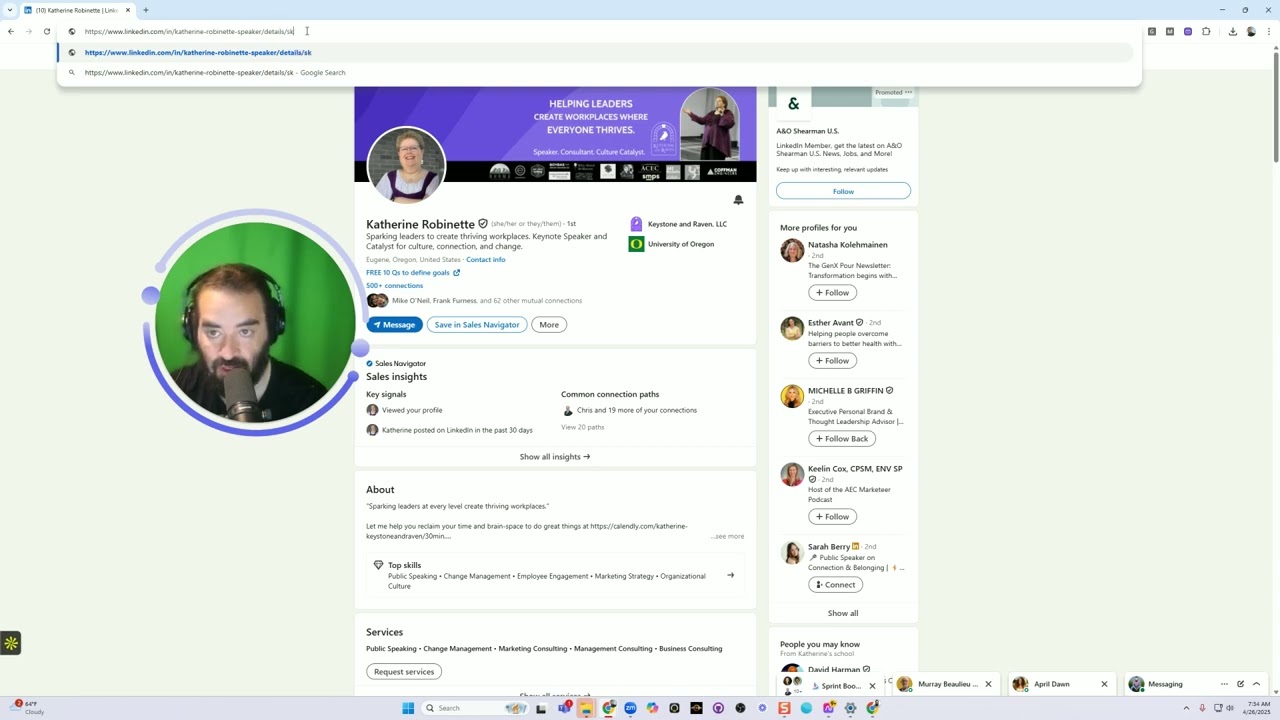
In this tutorial, the presenter walks through a comprehensive LinkedIn endorsement strategy, beginning with a clear distinction between endorsements (thumbs‑up for specific skills) and written recommendations. He demonstrates how to access the skills and recommendations pages via direct URL patterns (e.g., /details/skills, /details/recommendations) and shows how to view, reorder, and configure endorsement settings. The core tactic is the “endorsement party,” where a group of connections mutually endorse each other for targeted skills to push those skills to the 99+ threshold, which boosts visibility. He explains the need for mutual connections, how to manage connection slots by messaging and removing non‑responders, and how to monitor endorsement notifications. The video also covers how to associate skills with companies, education, licenses, projects, or volunteer experiences, and how to prioritize the top two skills that appear on the profile. Finally, he demonstrates using an AI tool (Evvii/Evvy AI) to generate and insert a written recommendation, detailing the selection of goal, tone, and persona, and the workflow for generating, editing, and sending the recommendation. The tutorial ends with a call to action for viewers to request endorsements or join an endorsement party.
Chapters
Hey, good morning. Have you ever wondered how to get endorsements on your profile? I'm going to give you a quick endorsement strategy. Keep in mind that endorsements are different than recommendations. Okay, so let's go down to the bottom of your profile. These are called skills. These are called recommendations. So endorsements are people giving you a thumbs up for a particular skill that you have. Now you can have about 50 skills on your profile. As you can see, my top skills here are Prompt engineering, artificial intelligence, LinkedIn training, Sales Navigator, LinkedIn Sales Navigator. Then I have many more. And what you want to do is you want to make sure that all your skills get at least 99 thumbs up because then it just says 99+. You see that? My recommendation is moving skills around. And I'm going to show you how to move skills around, but skills are different than recommendations. Okay, so skills. I'm going to go back here. Skills are linkedin.com/in/your profile/details/skills. So if you add /details/skills to anybody's skills, that's how you kind of get there. We can even test this out. I'm curious to know if it actually works or doesn't work. But check this out. If you go down to recommendations, you're going to see somebody's recommendations. You press on show all recommendations. It tells take you to /details. /recommendations. I wonder what happens if you do 5 here. Tab index 5. I don't know what tab index does. Oh, it takes you to different tabs. So there's tab 1, tab 2, tab 3. Got it. Okay. All right, so I go to somebody's profile. So we had a little endorsement party, and an endorsement party is essentially as everybody decides what they want to get endorsed for, and then we all go off, connect with each other, because you have to be connected in order to endorse somebody. So let's see people that recently endorsed me for Sales Navigator. I'm going to go down and okay, I already have 99+ for this. We're going to move it around in a second. I'll show you how to do it, but I'm going to go down to— I asked people to endorse me for Sales Navigator because I only have 75 and I want to try to get to 99+. Okay, so I got this guy named Vince Warnock and I have Penny. So let's look at Penny's profile real quick. We're going to try to go to /detail. What was it? Slash detail slash skill or slash endorsement? I don't remember. Maybe slash endorsement. Okay, that didn't work. Let's go back down over here. Slash detail. The devil's in the details. Let's go down over here. Skills. I'm going to click on show all skills. Slash details slash skills. Okay, so that's slash detail. Again, the devil's in the details, details, skills. Okay. So here are her top skills. So I'm gonna endorse her for her top one, strategic human resource, but I can endorse her for all of them. If someone has a lot of skills, don't endorse them for all their skills at once. My recommendation is endorsing people slowly because every time you endorse them, they get a notification that you endorsed them. So in the notifications, you'll scroll down and you'll get a notification. Oh, Evan just endorsed you for whatever. You can't really filter your notifications by that. You can filter it by jobs, by my posts, by people that mentioned you. You see that? I can see the people that mentioned me over here. But you do get notifications that somebody endorsed you. And let me see if I can pull up how that looks. Give me a second. All right, I found it. I had to scroll down a little bit. So Catherine Rabbinette endorsed me for Sales Navigator. So this is how it comes up on the notifications, you see? So I can click on say thanks and it automatically says a thanks just like this, like loads a DM. So you want to be able to get into people's notifications by endorsing a skill for them, which is really, really helpful. So I'm going to go ahead and endorse Catherine. So I just go to /details /skills, and I press enter and it takes me directly to her skills. You see that? So I can endorse her for this right here, and I just endorsed her back for her first skill. But only your top 3 skills show up on your profile. So if I scroll down over here, it's going to show my top 3 skills or my top 2 skills. Now they changed it to 2 skills because they show other people and other things. So it only shows your top 2 skills. So What are your 2 most important skills and how do you kind of pull them to the top? So I'm going to show you how to do that. So I'm going to go to my profile, view profile. That's how you get to your profile. You click on me and view profile, and then you go down to your skills right here. My skills. Then you click on the pencil, and when you click on the pencil, it takes you to /detail/skills. Then you'll see 3 little dots here. Do you see the 3 little dots on the top right corner? And then in there, there's endorsement settings, because these are really called endorsements. And then there's reorder. If I click on endorsement settings, it'll take me to the settings and it's going to say, manage how you receive and give endorsements. I want to be endorsed, include me in endorsement suggestions for my connections, and show me suggested people to endorse. Okay. So these are 3 separate options. You can hit yes or no on them and hit save. So if you don't want to deal with the whole endorsement thing, you could turn it off. Now, if I click on these 3 dots over here and I click on reorder, I can reorder what shows up first. So right now I want Sales Navigator to show up second, and I want LinkedIn training to show up first. You see that in prompt engineering, you can move down. I don't need that there to be first. LinkedIn strategy, we can move up just a little bit. You see that? And if I want something else that's down here that maybe only has, I don't know, 80, and I want to get to 99. So for example, for Sales Navigator, I want that to get to 100. I want to get to 99+, so I need 25 more for that so that I moved it to the top so that I can get 25 more. And you can see now it's on the top. Now for each skill, you can also decide what company it's affiliated with, that skill. So for this, I said do it for Evvii AI, do it for Ajax Union, do it for Evergreen. You see that? Boom, boom, boom. But you can do it for your education, you can do it for your licenses, you can do it for your projects, you can do it for volunteering. You can do it for so many different things here for your organizations. And then people can endorse you related to those skills related to those things on your profile. Really interesting, right? Okay. Hopefully you learned something today. Let me know what you learned. And also, if you want to get endorsed for something and we're connected, make sure that A, you have to be connected to whoever you're endorsing. And so just connect. I don't have that much more room. I only have room for one. More person. That means I have to remove somebody. So this is what I do when I get a new person. I search for people with that same name, Trish. And then I go ahead and then I message all the Trishas using my messaging hack. And then, and then I remove the ones that don't reply to me. So for example, this one over here, if I click on this and she doesn't reply to me, what I'll do is I'll just click on this little button, these 3 dots, and then I just hit remove and remove. You see that? I just removed the person. I message somebody, they don't reply to me, boom, I remove them. And so you can quickly message all these people named Trish and then remove the ones, and then it makes more room. So now I have an extra slot. You see that? So I'll go ahead and remove all the people that are with that first name for the person, for whoever I just invited to join, and then I'll kind of clean that up. Anyway, I hope you guys got value from this today. If you did, and you're constantly getting value from me, if you haven't left me a recommendation on LinkedIn, I do want to get a few more recommendations. So the way that you go to leave a recommendation for somebody is you find a person you want to recommend. Let's say, for example, I want to recommend Sandra. I go to their profile, I click on more, and then I click on recommend, and then I can decide what am I going to recommend them. So maybe you're a client of mine. So you were a client of Sandra. The position, you can pick the business, maybe Evvii, whatever. And then you could write the recommendation. If you want to use artificial intelligence to help you write the recommendation, you can use Evvy AI and it'll write a recommendation very quickly. So if I click in here, do you see now it changed to recommendation? I can choose my goal, my tone, my persona. So over here, I'm going to click on goal tone whimsical, provide feedback. In the bottom here, I can use a microphone. Sandra is amazing at singing when she does her elevator pitches. I highly recommend her. For people who want to grow their business because she really stands out and knows how to be able to make other people stand out as well. I'm going to hit generate. Now once I hit generate, it's going to take what I said here and it's going to generate a decent recommendation. Then I click in here and I press insert. I had the pleasure of working with Joe Apfelbaum. Oh, it thinks, it thinks that it's, it's doing it for me. So if that's the case, if that happens, what you want to do is you want to change the model to a smarter model. Sometimes the model gets confused. Sandra's really awesome. She always sings during elevator pitches. If you really want to stand out, I highly recommend that you use Sandra. Okay, I'm gonna hit generate. Let's see, I'm gonna use a little bit of a smarter model because sometimes the other model— okay, I had the working with Sandra, so now this one works. I press insert. I had the pleasure of working with Sandra. I can definitely say that she's a great marketing professional, blah blah blah blah blah. She'll partner with you, blah blah blah. Okay, so I press send. And I just left Sandra a recommendation. Now the benefits of leaving people recommendations is you appear on their profile. So as soon as she accepts it, because she's going to get a DM, I will appear here and she hasn't even received one this year yet. So that's exciting. Anyway, thank you for watching this video. I wanted to keep it short, under 10 minutes. Hopefully you got value. If you did, just let me know that you got value and let me know if you want to be endorsed and what you want to be endorsed for. And if you want to come to an endorsement party, boom.