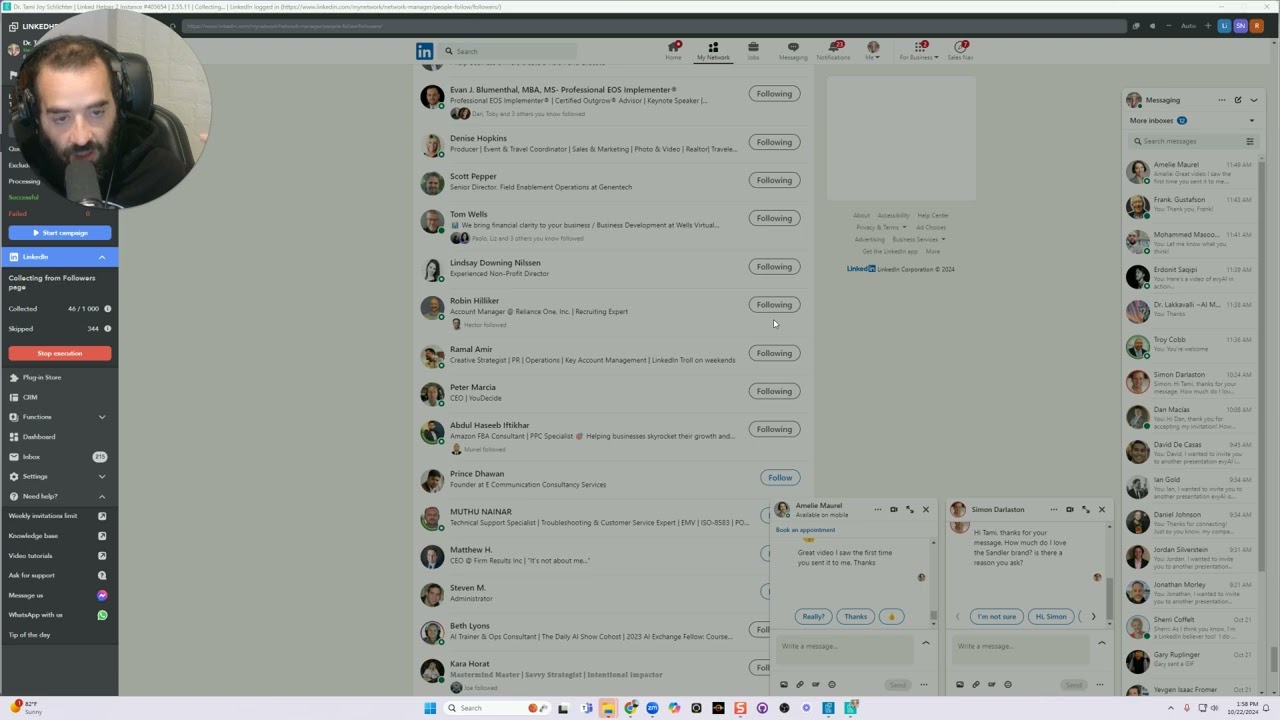
In this tutorial, Joe Apfelbaum explains how to discover LinkedIn followers who are not yet connected to you and how to engage them. He shows that by visiting linkedin.com/feed/followers and continuously scrolling, you can see which profiles lack the “following” label, indicating they follow you without a connection. He then demonstrates using an automation tool to automatically differentiate followers who are connections from those who aren’t, allowing you to segment them into lists. With these lists you can send connection requests, InMails, or personalized messages using tools like Evy AI. Joe also mentions a separate filter that isolates followers who are currently online (green dot). Throughout, he stresses systematic, term‑compliant automation that avoids excessive profile views, and he offers further training sessions for those interested in mastering LinkedIn automation.
Chapters
So are you wondering how to be able to find out which ones of your connections are following you but are not connected to you? To be able to go ahead and add them to a list and then send them a message saying, hey, thank you for following me, let me know if you checked out my content. Or just identify like, who is following me? Like, who are your followers? If you want to find out, let's say, 1,000 of your followers that are not your connections You can actually go to linkedin.com/feed/followers, and then you can essentially keep scrolling down, down, down. And the people where it doesn't say that you're following them typically are people that are following you, but you're not following them either because you unfollowed them, or most of the time you didn't unfollow them. They're just following you, but they didn't even connect to you. So when you connect to somebody on LinkedIn, they automatically follow you and you follow them. But if they follow you instead of connecting with you, which is an option on LinkedIn, you can click the more button and hit follow, then you don't, you're not connected to them and you can't send them a message, but you might want to send them a connection request if they're already following you. You might want to send them an InMail. You might want to add them to a list or something. And so I'm using a tool here, an automation tool that allows me to be able to go through all of these and identify the followers on LinkedIn on my profile that are not yet connected to me. And this way I can put them into a list and I can either comment using Evy AI or I can start identifying what type of relationship I want to have with these people. Let me know if you want to learn how to use this tool. We have tutorials. We meet 6 times a month and we teach LinkedIn automation. So if you want to learn LinkedIn automation, just write automation in the comments. And I'll be more than happy to teach you how to do this in a way that doesn't use up LinkedIn profile views. Like I'm not viewing anybody's profile. I'm not loading a million pages. I'm literally just scrolling down and scrolling down and scrolling down on the same page, linkedin.com/feed/followers. And then I'm using a tool that will help me identify which one of these followers are actually connected to me and which one of them are not connected to me. So I can segment, sort, and organize a list. And do something with that list. LinkedIn doesn't have that in the filters right now as an option in the search. They may add that one day, but for right now, I recommend learning how to use these automation skills without getting in trouble and always with complying with LinkedIn terms and not doing things automatically, but doing things systematically. So the same thing, it's like if I want to identify who's online and who is not online, do you see these little green dots. Whenever somebody has a green dot, that means they're online right now. So I created a little tool that automatically just filters out all the people that have green dots on them, and I can show you how to use that tool as well. Anyway, thank you very much for watching. Then let me know if this is something that you would want to learn how to do, and I'll see you on the next video. Boom.