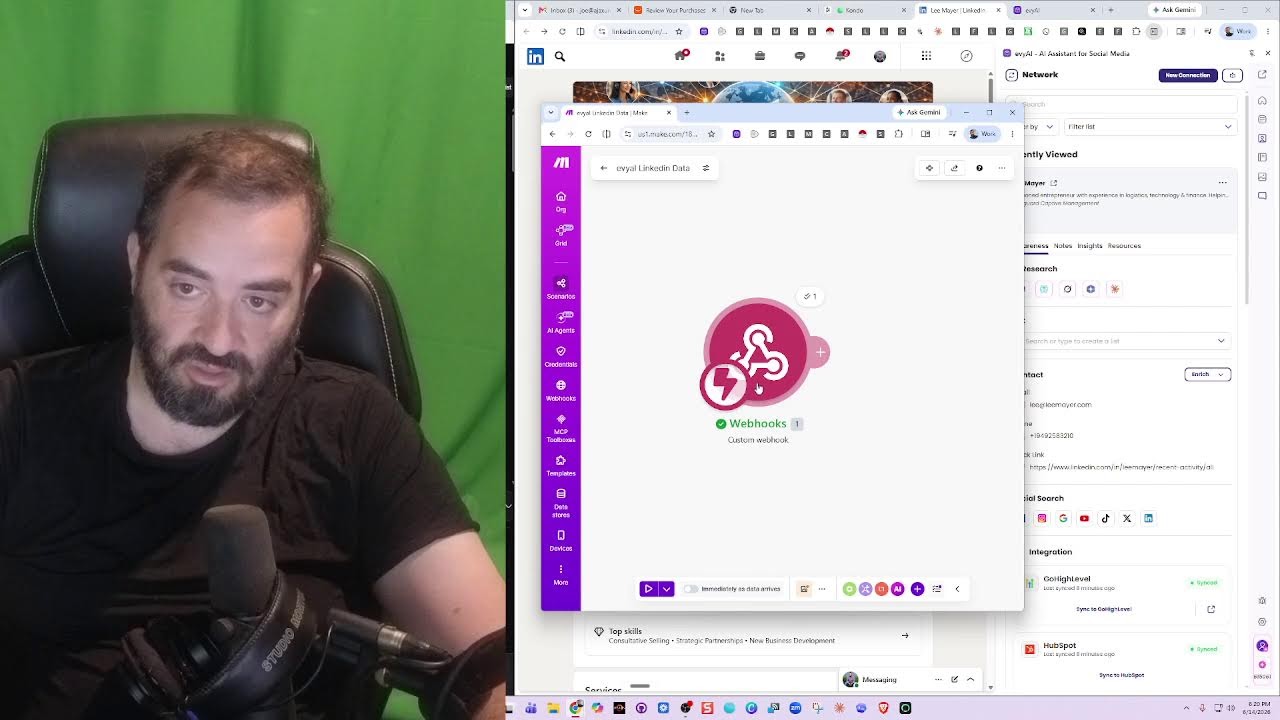
In this tutorial, Joe Apfelbaum demonstrates how to export LinkedIn contact information from Evie AI to a Make.com custom webhook and then route that data into a Google Sheet (or any other service). He walks through creating a custom webhook in Make.com, linking it in Evie AI’s Settings → Integrations, populating a contact profile with fields such as name, email, phone, headline, company, LinkedIn URL, quick link, and notes, and then sending the record to the webhook. The received payload is shown, highlighting all included fields. Joe then adds a Google Sheets module in the Make.com scenario, maps each contact field to specific columns, and configures the scenario to run automatically with a rate limit. He also notes that the same webhook can feed any CRM, email, or automation platform (e.g., HubSpot, Zoho, Pipedrive). The video opens with a short poetic rap by Speaker A that sets a high‑energy tone.
Chapters
Pull it fast, webhooks lit, now the whole thing snaps. HubSpot linked and the lane stays clear. Go high level, got the pipeline here. I find the names and I find the spark. LinkedIn pages in the after dark, all over the web, let the agents roam. Bring the lead back home. You type the line, I shape the reply. One click closer, watch it fly. Search the map, then I trace the trail. Every contact, every email. Best in the game. Say the name. We finally We move the room. Every day coming through. Every day best in the game. Every day say the name. You write the words. We make it live.
All right. So what I want to do here is I want to send information from LinkedIn to a webhook. This is a make.com webhook. So you could just say, give me a webhook. And then you can say, give me a custom mail hook or a custom webhook. I'm going to click on custom webhook. And then I'm gonna get, then I could just create one by instead of choosing a hook, I can just press create new. When I'm creating a new webhook, I can call it whatever I want. So I'm just gonna say Evie AI LinkedIn data. Okay. Now when I press save, I'm gonna get a link that I can save into Evie AI. Okay, so now I have a webhook. I have a link. It's very simple. It's a very simple link. Now what I'm going to do is I'm going to go into Evie AI and I'm going to go to the section called Settings. Then I'm going to go to the section called Integrations, and I have something called Custom Webhook. I'm going to press Connect. I'm going to call this eviaitomake.com, and then I'm simply going to put the webhook URL right in here. I'm just going to paste in whatever I got from make.com. Okay, now I'm going to press save. Okay, now we have the custom webhook installed. It's right over here, nice and easy. Okay, now what I want to do is I want to push information about this guy Lee, and I want to send it to make.com. So it says data structure not determined. I'm going to go ahead And right-click on this, and I'm going to say run this module. So this is actually going to be waiting for the data to come from Evvii AI. So I have the data here. I have his first name, last name, email, phone number. If I want to add additional data, I can send— I can attach his headline. I can copy and paste information from here. I can press edit profile. I can add his headline. His company name. Actually, I'm going to delete the how are you that. I'm going to call his company name Vanguard Captive Management. I'm going to press save. Okay, so I have him saved over here inside Evie AI. I'm going to save his quick link here as well. Okay, so I have this information. I'm also going to Create a test note, test note 1. Okay, so I call that test note 1. I have a note, add some information about him here. Now I want to sync this with Make.com. So watch what's going to happen. I'm going to go ahead and press send to webhook and it automatically sent it to Make.com. You see when I press send to Make, well, it sent it right here. So what did it include? What did it send? It sent it a bundle. Okay. The bundle included tons of information over here. His LinkedIn URL. It included his email address, his phone number, his company name, his quick link. Let's see what else it included. It included any lists that I'm part of. So if he was part of any lists, it would include his lists. Let's see what else. His headline, whatever I put in there as headline, his name. Pretty cool. Any notes that I have here? So here I have a note, Test Note 1. Love that. So this is what I received. I received this webhook. And so this webhook could be pushed into any CRM or anywhere on the internet. So if I push Send to Webhook, it automatically sends it to the webhook. And that's it. And then I can report back. That it's synced. If I want to report back that it's synced, I could report back that it's synced. But that's, that's kind of like how you do it, how you set up a webhook inside Evie AI, and you're able to send data from Evie AI anywhere you want. So let's say I want to send it to a spreadsheet. I would click in here and click on add a module, and I would add Google Sheets, and then I would say Add a row to a specific sheet. So let's say, for example, add a row. Then I can tell it which Google Sheet to add it to. I could do by path or choose a file here, a spreadsheet name. I can go ahead and create the spreadsheet. And then I can attach, you know, where the first name is to what column I want it in. First name, LinkedIn URL, email, phone number, whatever I want on the sheet. And then every time I press the button over here, it'll go into that sheet. And that's it. That's the whole kit and caboodle. I'm going to delete the sheet because I don't need the sheet right now. Um, I'm going to call this Evie AI LinkedIn data. But I could literally do anything with this. I could send this as an email to myself if I want to send LinkedIn data as an email. If I want to send it to Zoho, Pipedrive, any— anywhere I want to send this to, now I can send this information In any which way that I want, I could even have the information be optimized somehow. Really powerful stuff. I'm going to go ahead and save this. Have the scenario open. If I want this scenario to be ready to go anytime I send something to it, I press immediate send. Maximum runs per minute. I'm going to say ten runs per minute max. Save. And Save. Okay, so now this is running. If I want to send information to this, I can. If you want to see me create a spreadsheet right now, I'm going to just call this sheets.new and I'm going to say Evie AI LinkedIn data. I call it Evie AI LinkedIn data, and then I'm going to create the columns that I want. So for example, I want name, I want headline, I want, let's see, connection URL, I want, let's see, email, phone.
Phone.
What else? Company, quick link. Yeah, I'm not gonna put in the notes just for the sake of doing this. Now I have all this information, it's just, I'm just gonna have it add a row each time to this particular spreadsheet. Okay, so how am I gonna do that? I'm gonna get the spreadsheet ID. That's the fastest way to do it. So I'm gonna find the spreadsheet ID, which is this right over here. And that's the spreadsheet ID. Ctrl+C. Now that I have the spreadsheet ID in here, I could just say add it to the spreadsheet. So how do I do that? Click on Google Sheets, add a row, and I'm going to say enter manually. I'm going to put in the ID here, the sheet name. What's the sheet name? Sheet 1. Sheet 1, column range A, Z, Z. Okay, so I have it all set up here. Now what I needed is I need to map each thing. So you see I did Sheet 1, column A to Z. I got to map each thing. So the first thing is I'm going to map his name, then I'm going to map headline, then see his connection URL. I think that's it. Then D is email. Let's see, where's email? Then E is phone. And F is company. And then G is quick link. Okay, boom, I have it done. I'm gonna press save. I'm gonna press save. And let's see what happens. I should be able to push send to webhook here. And then the data just appears here. That is insanity. That is insanity. And I can do that for any contact I have inside Avi.ai. Now I want to send it to a spreadsheet. Rhonda Scher, want to send to the spreadsheet. Boom. Rhonda Scher appears right there. And that's instant, instantaneously. Unbelievable. Why? Because I built it inside make.com just like that. Anyway, if you want to create something like this, just come to our next session. We'll be more than happy to teach you how to do it. We integrate with HubSpot, with make.com, or with any, any, anything Zapier, n8n. We'll integrate with Claude. We'll integrate with whatever you want me to integrate with now. So that's pretty cool. Um, yeah, I hope you understood what I just did. Hope you got value from it, and we'll see you on the next session. If you have any questions about Evie AI, please go to evieai.com, sign up for free, test it out. If you like it, use it, enjoy it. Boom.