How to use AI to get clients on Linkedin
In this tutorial, Joe Apfelbaum demonstrates the Evy (also called Evvii) AI browser extension for LinkedIn. He walks through signing up, installing the extension, and the three main interface sections—Content, Profiles, and Templates. He shows how to generate post ideas by setting a goal, tone, persona, and style, then creating, copying, regenerating, and publishing LinkedIn posts. He explains profile management: adding connections, enriching them with LinkedIn data, notes, email/phone retrieval, conversation starters, and auto‑drafted emails. The demo covers automated commenting and messaging directly from the extension, using keyboard shortcuts, and the built‑in image generator (Gemini and ChatGPT) with options to upload, regenerate, pin, and compare outputs. Joe also highlights the vetted community of 1,700 members, the process of verifying LinkedIn activity, and the news‑jacking feature that turns current headlines into ready‑to‑post content. Throughout, he emphasizes speed, ease of use, and the ability to stay top‑of‑mind with prospects.
Chapters
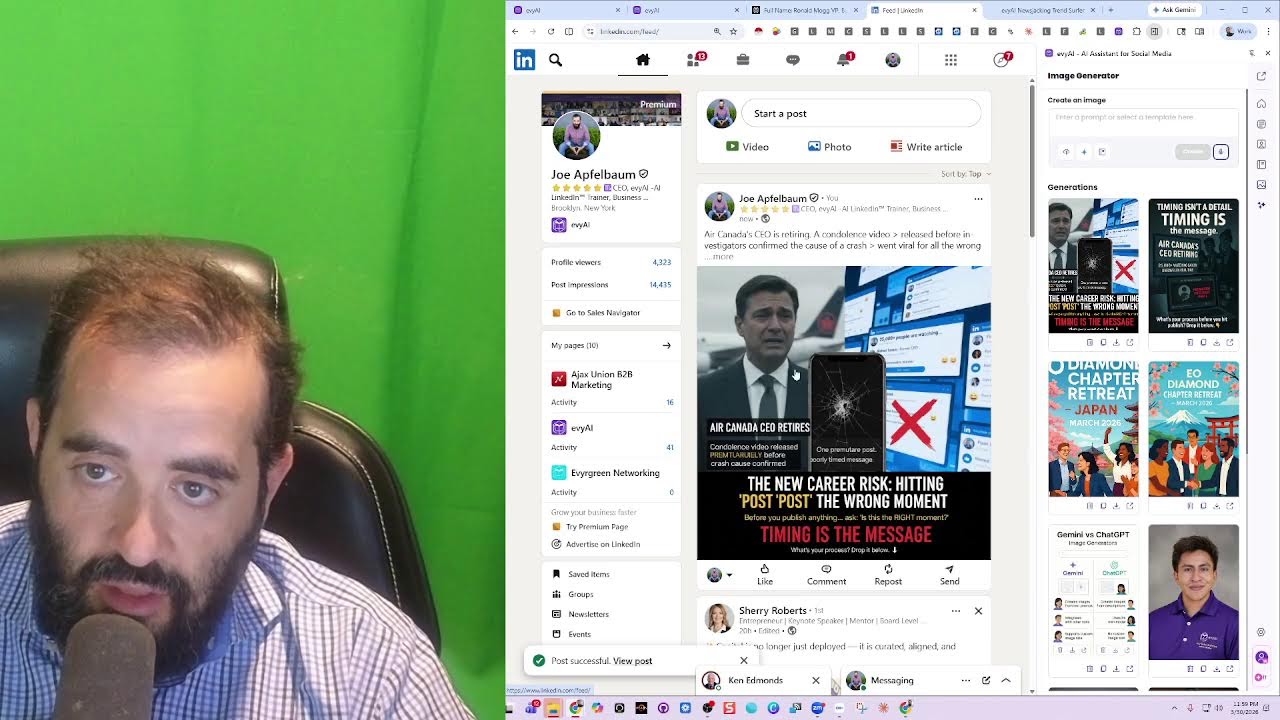
of Evy AI, and today I'm going to show you how to use Evy AI. So the first thing you want to do is click sign up for free or install the extension. You'll get a cute little extension that sits on the side of your browser that looks like this. There are 3 sections. There's content, there's pro— profiles where you can save your profiles and organize them, and then there's templates. These are templates that you could use to be able to push, um, pre-created text into places, whether it's DMs, comments, messages, and so on. We also have an image generator built in here on the side that allows you to be able to generate images off people's faces. And there's some really amazing updates that we just added to Evie AI. So I'm really excited about this. I'm excited here. I'm going to click login. I'll show you what the new interface looks like here. So you have content, connections, and templates. So content is where you can generate, for example, ideas. So you can choose your goal. So over here, maybe your goal is going to be something like provide value. Choose your tone. In this case, I'm going to do happy. Your persona, which is like your background and history, and then your style. And you can have many styles if you want. In here under enter a prompt or topic. So I'm going to say how different cultures can impact your business. And I'm going to hit generate and it's going to generate a few ideas for me. So here are the different ideas. The power of cultural stories. I first started expanding globally. I realized that a simple gesture in one country could be offensive in another. Nope. Don't like that one. 85% international businesses failures are due to cultural misunderstandings. Nope. A myth that all size fits one. All marketing is globally. Many believe the single approach in all markets. Contrarian statement, why this works. And then the last one is how to quickly adapt your business to different cultures. Start by researching local customs and communication styles. I kind of like this one. I'm going to press create post. And what this is going to do is it's going to simply start creating a post and you see the post was created. And this allows me to be able to, I'm going to copy this post over here and send it to the team so they could look at it. This allows me to be able to create a post that says, unlocking the secret to thriving across different cultures is like mastering a universal language. It begins with research, understanding local customs, communication styles, and values. Think of it as tuning your instrument before a concert. So this is pretty cool the way it came out. I don't like that it has this like LinkedIn post create here. And otherwise it's a really good thing. So what I can do is I could press the copy button on the bottom here. If I want to change this post, I can easily click the regenerate button. I'm going to press regenerate and it's going to go ahead and regenerate this post. You see that? If I want to change this to like saying something else, I can kind of change the text up over here. To something else and then kind of change the goal to something else, the tone to something else, and regenerate it. And boom, I have a different one. And then I can go ahead and post this if I like this post. Okay, if I want to see all the profiles that I saved, I can go ahead and see all the profiles that I saved. If I want to add a new profile, I just press new profile. I could add a single connection. I put in their name, their LinkedIn URL. So for example, if I'm on LinkedIn, I'm gonna just go grab a random person from LinkedIn. I'm gonna go here, grab this person's profile, just to see if there's somebody else there that I would wanna add. Okay, so I'm gonna go here and find somebody new in her comments here, maybe that I don't know very well. Let's see, Gabe Eihorn I know. Andrew Goldman, Director of— Head of Construction. Not bad. Let me see if there's anybody else. Robert Fencemaker. I help sellers at the hospital prices on finding buyers and properties. I kind of like this one here. VP of Business Development. This one's pretty good too. I'm going to right-click on this, open in split view, just to kind of look at these profiles. Capital Structure and Risk Decisions. Let's see what's going on here. I'm going to copy this LinkedIn profile here and then I'm going to go ahead and add it. I'm going to go back to profiles. I'm going to press new profile, add a single connection, and then I'm just going to go ahead and press the connection here and I'm going to press enrich. And what this is going to do is it's going to pull his first name, last name, his headline, and his company name just like that. I can add him to a specific list if I want. So I am going to say, for example, I'm going to add him to prospects and I'm going to hit save. And this will save him right over here. You see that? Now I can enrich him further. If I click on enrich all insights based on his LinkedIn profile, this will go ahead and pull down his entire LinkedIn profile and grab an introduction about him, a summary, company, target market, connection tips. Content styles. It's going to add conversation starters. It'll draft an email out that I can send them. It'll have all those achievements over there. If I don't have his email address and I want to grab his email address and phone number, I can do so by clicking on enrich on the top right corner here, and I can enrich it based on his LinkedIn profile or based on notes that I save about him. Because with Evie AI, you can easily click on the notes button over here, and then you can add as many notes as you want about anybody on LinkedIn, and you're gonna see that this does not require a Chrome extension or anything. You could use this just straight from the system, and it'll gimme all the information that I need about this person, often giving me information about him that's not available on LinkedIn because we're kind of researching him online. So for example, if you're gonna see how Perplexity works, when you click on any of these 7 AI agents on the top over here, it'll go ahead and start researching him online, pulling up all the information about his business. It'll include his location, his direct email address, conversation starters, potential business opportunities, notable achievements, and it'll also give you a professional summary, target market, and the key services that he provides. And as you can see, it kind of organized everything right over here. You see his email address is located right here, and you can see it put his email address here as well, his phone number, and everything nicely organized and summarized right from his Profile. Again, very interesting the way it kind of put everything together here. Company role, target market, connection tips, content style, his achievements, conversation starters. And again, it even drafted a full email for him that I can use to communicate with him. This is a really nice feature that Evvii AI has that you can't find anywhere else. And if I want to see all of his recent profile— well, all his recent posts, I can click on this. And this is where the extension comes in. If I want to leave a comment on his post, all I have to do is click into the comment box of his profile, and then I can click on these 3 little dots, and then the comment just appears just like that. You see the comment just appeared. Again, this allows me to be able to do things with this technology that most people can't do, and we're improving it every single day to make it even better. I just see somebody posted something over there. Let me quickly go back here and see what was posted here. Let's see. Cape Rio, Japan, Diamond Bridge, retreats, blah, blah, blah. Okay, good. I commented on it already. Amazing. Let's go back to the homepage of LinkedIn, see if Don Gelostino's posts are still there. I saw them for a second. Here's Rene Russo's post again. I'm going to click into the comment box. I'm going to click on these 3 dots, and then the comment just appears. Again, saving me a ton of time, now allowing me to stay top of mind with people that I care about very, very much. Super fast, super fast and super fly. Now you want to be careful to make sure you hit that more button here, you actually read the post, see if you will like it and you actually want to comment on it. If you do want to comment on it, you click on that comment box and you just drop a simple little comment just like that. See, I mentioned his name and everything in there. Let's see what Ken wrote. Looks like Ken just sent me a message. Um, and Jean, let's see what Jean says. Hi, are you available next week? Yes, would love to chat next. Wait. Okay, great. All right. As you can see, we did that. So we did the content generator. We did the post writer, the idea generator. The image generator is actually really cool. You can generate all different types of images. So over here we put a picture of my shirt, a picture of my face, and then it went ahead and took that and made a picture of my face inside my shirt, which is really cool. And you can do that in many different styles, many different ways. You see, look at that. Depending on the base photo that you use, it'll kind of change what you have going on there. And if you like— if you don't— if you like this, you want to regenerate it, you could press regenerate, it'll go ahead and keep the same photos. It'll keep the same prompt and you could hit regenerate. You can choose if you want to use Gemini or if you want to use ChatGPT, and we're going to be adding more image generators here as well. And then we have a little pin icon that allows you to pin the, the prompt so it doesn't go away. You could also copy the prompt out and delete the entire prompt and all the images associated with it. If you want to upload more images, you click on upload and it'll use those images as a reference. We also have a really great community of people. So we have a community of 1,700 people here in our community. And it is growing rapidly every day. You can see there's a bunch of people waiting to join our community right over here. We do make sure that we vet every member of our community to make sure that they actually are using LinkedIn. So for example, this person here, we're going to go ahead and check to see if she's on LinkedIn, if she's actually using it. And it looks like she only has 21 people on LinkedIn and she's not— she hasn't posted in 4 months. So this might not be a real LinkedIn account. So I'm going to message her and ask her what the deal is. Also, she's coming in with a Yahoo account and so on. So I'm not really sure if this person is actually a real person. I see she's only connected into 3 places and this is her website over here. So who knows if this person is real or not. So I'm definitely going to look into her more. It looks like she does have a— email address and phone number right here. So I might reach out to her, give her a call and ask her what her deal is. She actually might be a real person, but from her LinkedIn, I can't tell that she's actually real. Yeah. So that's, that's what we have going on. That's Evvii in a nutshell. You can save profiles, you can organize them, add them into lists. You can research them. You can leave comments, messages, notes. And overall helping you be able to grow your business is very, very quick with Evie AI, allowing you to leave comments. Very powerful, very quick, very easy to use. We also have keyboard shortcuts that allow you to do things fast as well. I just left a comment there with a keyboard shortcut. And of course, if you want to be able to jack the news, you can easily go ahead and jack the news using our news jacking technology. strategy.avi.com/newsjacking. You paste this in here, you hit generate, and now you have, um, an entire prompt that you could use to just jack the news. And once the news is jacked, then you're ready to go and you're able to pick any of these stories that you want. For example, Uber acquires Blackline, a boost in luxury ride offerings. Iran's chokehold on the strait pushes oil to $116 a barrel. TSA officers receive back pay, easing airports' wait times. Netflix eyes bigger NFL game package amid rights talk. Unilever closes on a deal to form a $60 billion food biz. And Cisco buys Jeshro Foods for $29 billion distribution. And then Labor Department rules would be okay to alternate assets in 401. NASDAQ accelerates large-cap IPOs. So the ones that are best for me would probably be the Air Canada CEO retiring, um, Uber acquires Black Lion, and Cisco buys Jetro. So those are the 3. So I'm going to have Evie AI go ahead and build out one for me right now. I'm going to go ahead and do that now. Boom. Okay, so now Evie AI just created it. Now that I have the post that Evie AI created with the post writer, I'm going to go ahead and paste the post in here. Let's see. 25,000 people on LinkedIn are watching a career unravel in front of them. One premature post, one poorly timed message. And AI-generated content. Hitting post at the wrong moment could be a new career no one was training for. Before you publish anything, AI-written or not, ask yourself a question. Is this the right moment or am I just reacting? Boom. Timing isn't the detail, timing is the message. So what's the process to hit publish? Drop it below. Okay, I'm going to go ahead and delete this. And what I'm going to do is I'm going to actually copy this, click on, um, image generator here. I'm going to select the ChatGPT image generator. I'm going to hit create. And let's see what it does from an image generation standpoint, if it does a very nice image. See what type of image it generates for me. ChatGPT's image generator takes a little bit longer than Gemini's image generator for some reason. But for, for social graphics, I've liked the one that it's been creating for me. Okay, good. So now I have this image here. I put it in here and boom, I have this one here. Timing is in a detail. Timing is the message. What's your process before you hit publish? Drop it below. Premature post. This post goes viral. Not perfect. Don't love it. Let me try it. Let me try Gemini's. I'm going to just copy the post into Gemini image generator and just compare both of them, see if it creates a better one or a worse one. Again, that's why we have multiple image generators to be able to check. Oh, look at this. We have this one over here, much, much faster. Man. I'm gonna delete, I'm gonna delete this one over here. I'm gonna press copy and I'm gonna paste it in here and see what happens. Look at that. I think that Gemini's was better than ChatGPT's. That's my opinion. Also, it hit the text better. I don't think there's any mistakes here. I'm gonna go ahead and hit post and boom. Yeah, insane. Anyway, I appreciate you guys watching this. Thank you very much. For checking out how this technology works. Hope you really, really enjoyed it. And I look forward to
More from Joe




How to Beat the Algorithm: Remove Hidden Watermarks & Scale Content with evyAI






