How to use LinkedIn Live Step by Step Tutorial
In this live tutorial, Joe Apfelbaum walks viewers through the entire workflow for leveraging LinkedIn Live to attract clients. He begins by explaining that LinkedIn Live requires a third‑party streaming service and demonstrates Restream.io’s interface, pricing tiers, and basic setup (free plan, paid plans, multi‑stream, AI clips). He shows how to connect Restream to OBS, monitor live streams across platforms, and engage viewers via real‑time comments and likes. Joe then covers scheduling a LinkedIn Live event: creating a future stream, designing a thumbnail in Canva, generating an event description with Evie AI, and publishing the LinkedIn event automatically through Restream. He illustrates promotion tactics such as sharing the event link in Zoom chat, sending calendar invites, and using templates (Loom videos, resource lists) to streamline follow‑up. The tutorial also highlights advanced features like adding up to ten guest co‑hosts, using lower‑third graphics, captions, and QR codes, and checking LinkedIn Live eligibility on the LinkedIn dashboard. Throughout, Joe emphasizes practical tips for increasing visibility, fostering engagement, and repurposing content through templates and automated tools.
Chapters
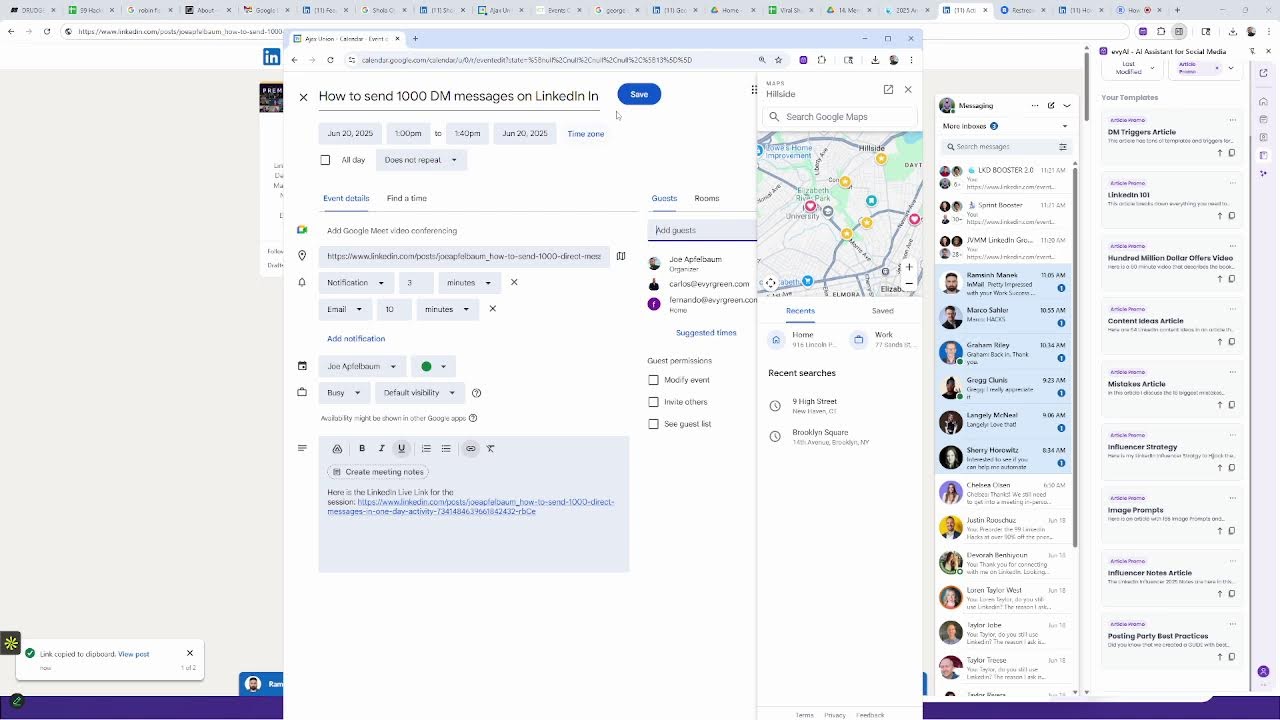
show you how to use LinkedIn Live to get clients by streaming. And this way you could learn how to leverage LinkedIn Live. For those of you that have never used LinkedIn Live before, you need to be able to use a third-party technology to use LinkedIn Live. And the third-party technology that I like to use is called restream.io. Most people don't know that you need to use a third party. So I'm just going to go to Restream's website just to show you what the technology looks like. This is the one that I'm specifically using called restream.io. And you could click on pricing to see the pricing. You could use the free plan, which allows you to stream to 2 channels, say, let's say LinkedIn and YouTube. And it allows you to be able to also do local recordings soon capable. I pay the $190 a year or whatever. I think I got a Black Friday special on it for like $150. Something dollars. Um, and it allows you to stream on 3 channels and then it gives you no watermark because this one will say the Restream watermark on it and it'll give you unlimited cloud storage apparently. Um, and you could also add AI clips, which will turn that into AI clips for $19 per month for 50 clips. If you want the $39 option, that's multi-stream to 5 channels. And they changed their pricing around because since I got, since I got it, I, I have more access. So my, my plan is a little bit different than this plan over here. Um, I think I'm, I think I might be on a $19 plan and I think I might be able to stream to 10 channels or whatever. But you know, they, they kind of changed their plan around. So this is the annual and the monthly, just FYI, but it's really easy to use. You just press sign in, you get started with a free account, test it out. I do recommend you test out Restream. And try it out. And if you want to connect it to your OBS, there are plenty of tutorials on how to use OBS. I'm not going to sit here and teach you how to use OBS right now. Um, but what does Restream look like? I'm going to pull up my Restream account. So right now, this is me live while I'm live, which I know is really weird. I'm live while I'm live. Um, if I want to view it on any of these streaming places, as you can see, it's currently streaming right now in all these areas. It's streaming on, on YouTube. It's streaming on Facebook. It's streaming on LinkedIn. It's streaming on X. And if you want to view it, you could just click the little view button on the top right over here. And it'll take you to my page where it's actually streaming right now in real time. Now I do encourage you guys to go ahead and leave a comment on it. So go ahead and leave a comment right now. I'll put the link in the Zoom so you can leave a comment on this just to kind of show you how it works. And you'll be able to see the comments come up in real time on the side here. Now, one of the things that a lot of people don't know is that if you click on the me button and you click on show posts and activity, You'll actually see all your recent posts here. And as you can see, I'm going to go ahead and leave a like for myself. And I see there's 2 people looking at this. I'm actually going to leave a comment using somebody else's account. I just got access to a friend's account. I'm going to say, got it. I'm going to go ahead and check out all the activity over here. And I'm going to give it a like from this person's account just like this. And I'm gonna say, way to go with this live tutorial. It's pretty cool. Okay, so I'm gonna hit go. And now George just left a comment here. Okay, so now I'm gonna go here. I can't see that George left a comment until I refresh. So I'm gonna refresh this page here. And now it's gonna show that George left a comment, by you saying, showing one comment here. If I click on comment, I'll be able to see that George left a comment. I'm going to hit like on the comment. I'm going to say, thanks for being part of this. And then I go hit reply and boom, there we go. That's extremely powerful. So if you guys want to learn how to use LinkedIn Live, this is the method to use. But think about it, go ahead and leave a comment right now. Hi Brian, how are you? Good, Joe, how are you? Good. I'm actually doing a LinkedIn Live right now. Can I call you as soon as I'm done? I'll probably be done in about 15 minutes. Sounds pretty good, thank you. Okay, I'll call you in about 15. Thank you. All right, so now that you guys have taken a moment to leave a comment, the question is, how do you get people to notice your LinkedIn Live once you do your LinkedIn Live? Now keep in mind that there are 2 different ways to use LinkedIn Live. There's LinkedIn Live where you just go live randomly like I just did. I just went live randomly and I'm live right now. Um, the other way to go LinkedIn Live is for you to schedule the LinkedIn Live. So if you're in your Restream dashboard, I'm just going to go to restream.io. It's going to log me into the dashboard. I have the ability to schedule something into the future. So if I want to schedule something, say for tomorrow, I can click on new stream or I can take any existing stream that already exists. Like for example, this one. And I can open it up and then I could schedule it into the future. I can type, click on Enter Studio just like this. And then I could say, okay, I'm going to schedule this into the future by clicking on Schedule. I can name it and schedule it. So I click on Schedule on the top right and I could schedule this into the future. And then later when I want to go live with this one, like for example, how to send, I'm going to say how to send 1,000 direct messages in 1 day. Okay? So this is how to send 1,000 direct messages in 1 day. I can pick the date and time to do this. So say for example, if I want to go live tomorrow, say at 1:00 PM, I can schedule this for 1:00 PM tomorrow. I could schedule this for Sunday or for whenever. I'm just going to do this for tomorrow at 1:00 PM. Watch this. I'm going to go 1:00 PM tomorrow. And then I would have to pick a thumbnail. So I would use Canva for the thumbnail. I don't know if you guys ever heard of Canva. No. But this is where I would go to do the thumbnail. I would find, um, a thumbnail like this one over here, and I would just kind of duplicate it by clicking on the little duplicate button up here. I'm going to click duplicate, and then over here I'm going to say how to send 1,000 direct messages to your connections. Okay, the right strategy will save a duck in. Let's, let's send out and get conversations. Okay, so now I have this, and over here I'm going to say send 1,000 messages. Okay, so now I'm going to say send 1,000 messages. I'm going to hit share. I'm going to click on download. I'm just going to do page 1, and then it's a PNG file. I'm going to press done, download. So now this is going to download this particular graphic. You guys see that? So now that it downloaded this graphic, I can go ahead and replace the one that's already there, which is send 1,000 messages. I'm going to press crop, how to send 1,000 messages in 1 day. This is for tomorrow, June 20th, and I'm going to press next. And now I'm going to say, okay, where do I want to stream to? I want to stream to all these channels. I can remove the channels if I want. In this case, I'm just going to leave it. I'm going to hit create event. As soon as I hit create event, what this does is this will actually create the LinkedIn event. So if I go in here and I go to me and then my profile, and I go to my recent content, you're going to notice that I now have an event for tomorrow. You see that this is the event. So now this event was created through Restream. I didn't actually create this event. Restream created the event. Now I can talk about this. I can write the description of this. I would use Evie AI to write the description. I'm going to say I'm hosting an event tomorrow at 1:00 PM Eastern to let people know step by step how to send out 1,000 direct messages in one day using LinkedIn. Please write me a description of the event. Because most people risk their account by opening too many profiles. And I'm going to show you how to make sure that your account is not at risk and without automation, how to send out 1,000 messages to your connections without even opening up their profiles. Okay. I'm going to hit generate and let's just see what this does. Okay. Join us for an informative session tomorrow at 1:00 PM. I'm going to press copy. I'm going to paste this in. I'm going to put @JoeApfelbaum. Um, speakers, Joe Apfelbaum. Okay, I'm going to press go. So I just tagged myself as a speaker. I'm going to make sure this is coordinated universal time. I'm going to find Eastern time over here, because if I'm editing it, I want to make sure I don't by mistake put it in some random, or some random time. So it's 1 PM. I already set it at 1 PM, so it's set, but over here it converts to universal time. So this is the time. I don't have to add an end date and end time and date. That's fine. And then I'm going to hit save. And now I just saved it and I added a description to it. So if you click on details, you'll see a description of this event. Now what I can also do is I can send this to you guys in the chat. I can also put it into group sessions over here like this so people can get it. You see that? I'm gonna put it in here. I'm gonna put it in here just like this. I'm sending it to people in different groups and so on. Are you good? Do you guys have any questions about this, or is this pretty straightforward what I just showed you how to do? I showed you how to schedule it. I showed you how to go live impromptu. I showed you how to connect it with OBS briefly. I showed you what's possible. I showed you how to create an image of it and upload it and schedule it and promote it. And so on. So I'm gonna get out of this. We don't need this. So tomorrow I just come back to this here and I just press go live at 1 PM, and then I'm live and it starts in one day and then it just goes live. And I would just share my video. So I could either share my video directly here by clicking on my webcam. So in this case, I'll just click on InstaLink 360, and that's me right over here. Hello everybody, I'm live, blah, blah, blah, blah, blah. If I wanna add all these little fancy things on the bottom here like I am here, I would just click on where it says on the right, It says chat, notes, music, QR codes, captions. And here's the lower right, so I can, I can promote the bundle there. I can promote the demo. It's called the ticker. I could also add a lower third. You see that? It adds a little lower third there, and you can remove it and add it. Or you can just remove the captions completely from it. You could also change the views depending on how many people you have. And if you want to add somebody to your stream, you click on this little plus person here. And then you can add up to 10 guests to your stream, and then you can check this off, and then they can stream it to their own LinkedIn too. So you can have 10 people that all stream it to their own LinkedIn through Restream, which is really powerful. And so all of a sudden it's streamed on everybody's LinkedIn and you have 10 people going live at the same time and all their connections are getting notified and so on. It's actually really innovative to be able to do strategies like that. So it might be worth it for us Carlos to kind of do this as a group. I'm going to go over here. And as you can see, George got a notification that I'm live. So you can see on the backend how George got a notification that I'm live. Really powerful stuff over here. It looks like Derek's calling me now. One second, guys. Derek, I'm on LinkedIn Live right now. Everything okay? Yeah. Call me back when you're done. I'll call you back in like 30 minutes. All right, so that's, that's kind of like how you do these types of things. I'm just gonna X out of this, but, um, one of the things that I told, um, that I told Yasi, one of my new clients, is that I have something called Loom, and I made a Loom video on how to send out 1,000 messages. So if you guys are interested in this Loom video, I'm happy to send it to you. I'm gonna go ahead and send this to Yasi right now. I'm gonna put it in the chat of Zoom so you can watch it later. What I'm also going to do is I'm going to add it as a template here. I'm going to click on new template. I'm going to say send 1,000 DMs, send 1,000 DMs like this. And I'm going to, I'm just going to paste the Loom video. And then I'm going to call this Loom because I have a lot of Loom videos that I save. So I have the Loom video saved here. So if I ever need to send this to somebody, I can even write a description. In this video, I share how to send 1,000 direct messages without visiting people's profiles and without using automation. Enjoy. Okay, so you see that? I have it right over here. So Yasi, did you see it in the chat? Hopefully yes. Yeah. Okay, good. So I just, I just sent it to you. So if I could always copy it. So this is one of the features that Evvii AI has is you could have templates for everything that you do. And then I can inject those templates into different places. So to know if you have LinkedIn Live or not enabled, you have to go to linkedin.com/dashboard and then you scroll down to where it says LinkedIn Live and it says available. That means it's available on your account. If it's not available on your account, it's usually because you don't have enough followers. So if you want more followers, just add more connections. That's kind of like how you do it. So I'm going to go ahead and go back to my recent activity by clicking on Me and then Posts and Activity. And then if you scroll down over here, you're going to see I have lots of different things. Over here I can see who's been commenting. This is the only place that you can really see who's commenting on your posts. I see Carlos, Rosie, Jen, Fernando, George Orlando. Hi Orlando. And I'm going to go in here and I'm also going to send my business networking one sheet. You see, here's my business networking one sheet. I'm actually going to edit this because it says here, should say here. Um, okay, here's my business networking one sheet. So I just injected this template into here and I like to inject templates with lots of resources. So I have lots of different resources available. Um, so if I go into, say for example here, and I do article promo, I can send you guys the LinkedIn 101 article as a comment over here. You see that? So I have a really great article called LinkedIn 101. I have the $100 Million Offers one right here. I have the DM Triggers. And so now I'm kind of just commenting on my own post right now at this point. And then I have other ones here that I can comment on this post as well. So it kind of creates this illusion where, you know, it just shows a lot of comments on the post and people kinda wanna get involved and build relationships. And, you know, you have— if you have lots of different articles and resources, you can add all the different resources to every one of your posts. And now all of a sudden your post automatically looks very popular. It looks like you have tons of, um, tons of stuff there that people can kinda get. And, you know, they're like, oh, there's a whole world of stuff under this post. This post is a super valuable post. Post. And so I highly recommend making a list of your favorite articles that you published yourself and then sharing a link to those articles and saving them as templates. So you see, I just loaded a bunch of articles here under this particular post, which is nice. It's nice to be able to do that. And then I— what I can do is I could also create a calendar invite. So one of the things I love doing is when I go live, I love creating a calendar invite, letting people know where the live will be. So I go in here and And I go to my calendar and I press new event. And this is what a new event will look like. So you see I'm here, new event. And then over here I'm going to say how to send 1,000 DM messages on LinkedIn in one day. Okay, I'm going to go in here in the location, I'll put it in here. Actually, that's not the right link. This is the right link. Copy, copy link to post. This is the right link up here. Copy. So I'm going to go in here, paste that. Here is the LinkedIn Live link for tomorrow, the session. Okay, so now when is the session going to take place? It's on the 20th at 1 PM. 20th at 1 PM. I'm going to take off invite others. I'm going to take off see guest list. And then what I can do is I can take a list of email addresses. We're going to do this for 45 minutes. I could take a list of email addresses, say as many as I like. So maybe let's say 100 email addresses and then add them over here. So maybe Fernando, maybe Carlos. Carlos. And then I can add 100, 200, 300, 500 email addresses of people right here. And then those people can join my LinkedIn Live. That's how they'll know about the LinkedIn Live. They'll get an email and they're going to be like, yeah, I want to attend this thing. So, you know, who are the people that you have? Who are the 100 people that you would invite to an event that are likely to say yes? You know, some might want to invite Tina Larson, Evan Messman, maybe Murray. Maybe Virginia. Maybe I want to invite, um, B. Randall, if I have his email or something. No, that's not him. Um, or I want to invite Steve Green. I don't have his email here. Elisa. I want to invite, you know, whoever I want to invite. I'm going to go and invite a bunch more people there, but that's the idea. The idea is me doing a LinkedIn Live on how to send DMs and then boom, there we go. And then I put it all together. Okay. Hopefully you guys learned how to be able to do this. And if you did, thank you for being here. I really appreciate it. This concludes our session. For me to stop the recording, I literally just hit stop streaming right over here and the streaming stops, and then this recording is done. If you enjoyed this, give it a like, hit that repost button.
More from Joe




How to Beat the Algorithm: Remove Hidden Watermarks & Scale Content with evyAI






