How to use workflows to automate Linkedin
In this tutorial, Joe Apfelbaum walks Zach through the Evy AI platform, demonstrating how to create a LinkedIn automation workflow using the Campaign Scheduling template. He explains naming conventions, AI‑generated content strategy (objectives, audience, pillars, CTA), image generation, post length, emoji settings, and coin costs. He shows how to edit, regenerate, and batch‑generate posts, save them as templates, and schedule or immediately publish them, including email‑approval options. Joe then reviews pricing plans ($15/yr, $29/mo, premium), the affiliate commission structure, and the upcoming removal of the Pro tier. The demo shifts to the Network module, highlighting reverse phone and domain lookup, employee search for companies (e.g., ADP), AI‑driven research agents that compile contact details and background info, and exporting to CRMs like HubSpot. He showcases the Inc. 5000 database integration, lead scoring, and the Bundle Plus offering that bundles the Inc. 5000 list, a 480 M contact database, training, and tools for a single annual price. Finally, he lists auxiliary utilities (bulk link opener, timer, timezone tool, URL cleaner, engagement saver, template manager, image generator) and mentions daily office‑hours support. The overall narrative emphasizes a low‑effort, AI‑driven system for consistent LinkedIn content, prospecting, and sales outreach.
Chapters
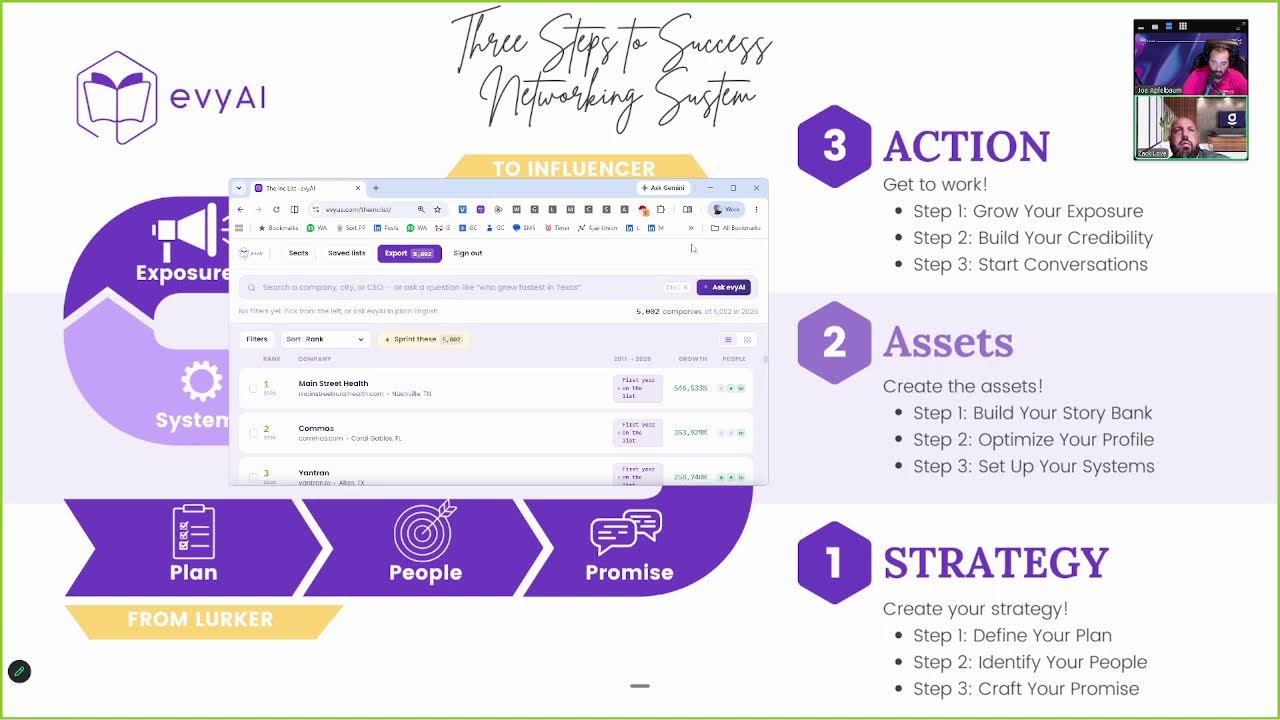
with, um, with this little workflow here, right? This, this little workflow where you see, um, that we have all this little jazz going on. Do you see what I'm talking about? The, the plan, the people, the promise, the story, the profile, the systems, the exposure, credibility, and conversations.
Yep.
The ex— the exposure piece is what I'm gonna show you real quick. I'm gonna also show you conversations and systems and other things, but I just wanna talk about the exposure for a hot second with you. So let's say, for example, I want to post on a regular basis on a profile on LinkedIn. So, and I'll show you how to create this yourself if you want to, but the idea is right now, most people are not posting regularly on LinkedIn.
Mm-hmm.
We have, we have this thing called workflows. And on workflows, what you could do is you can create workflow on the top right over here. You see it says create a workflow. Then what you can do is when you click on create a workflow, you can choose from one of many workflows. For example, if you want a daily nurture list or a Dream 100, all those are coming soon, but we have one right now called campaign scheduling, which will automatically create your posts for you every day, every week, every month. And then it will actually go ahead and post it on your behalf on LinkedIn automatically. So it'll create it and then post it for you.
Cool.
So how does that look? How does that work? So I'm going to show you step by step how to do this so you can replicate this yourself. And anyone with an Evy AI account could log in and do this themselves. Okay. So step number 1 is you log into Evy AI and on the left side you click on workflows. Then on the top right, you click on create a workflow and then you choose campaign scheduling and then you give your workflow a name. So what are the names that you should give your workflows? So I like creating workflows by, let's say, topic or by day. So there's Sunday, there's Friday, there's Tuesday, there's Wednesday, whatever. So the day that's missing is Monday. So I'm going to create a Monday tip for a real estate agent. So I'm going to click on campaign scheduling and I'm going to call it Monday Motivational Quote for Real Estate Agents to Power Through the Week. Okay? So that's called Monday Motivational Quotes. Create a Monday motivational quote specifically targeting real estate agents to help them power through the week. Use popular real estate agent quotes like from Gary Keller and Barbara Corrington and create a motivational quote as the hook. And then in the body, explain why real estate agents need to be motivated. They're really in marketing and sales and promotion. but they're really connectors. Real estate is the most expensive property that anybody could ever buy, the biggest expense. So we need to get motivated and often real estate agents works on commission only. So we need to make sure that there's a good motivation happening every single Monday. Okay, so I'm going to press generate strategy here. And what this is going to do is it's going to read her post, read this description of what we want together with her entire LinkedIn profile. And together with the name of the campaign. Okay. So once you read that, there are 3 things that it provides. It provides a primary objective, motivate real estate agents, position Sarah Atlantic Grand Realty as an agent, and then drive engagement. Target audience is real estate agents, agents in Florida, investors, REOs, and team leaders. And then content pillars, Monday Motivation, Real Estate Mindset, Florida Confidence. Call to action. Then there's the post format, how it should look. And then it should give you, you know, Monday, option 1, Gary Keller, Barbara Corrington, Gary Keller. You see that? And it kind of goes on and finds all the popular people.
Yeah.
Okay. If I want to change it, I can change it. Instead of Gary Keller, I could talk about, you know, maybe somebody else. So maybe the first one will be Gary Keller, then it's Barbara Corrington, and then instead of option 3, It could be, let's say for example, Mike Ferry. You see?
Mm-hmm.
Find some quotes related to Mike Ferry. Okay. And so if I press next, now it asks me, what size do you want the posts to be? Do you want it to be super short? Do you want it to be a medium, 900 characters? Or do you want it to be super long, 1,800 characters? We're gonna do super short because People are ADD when it comes to real estate. Then I'm going to turn off emojis. You see, it says turn off emojis. I'm going to turn off emojis and then I'm going to turn on images. Now images allow me to be able to take my face and put it in here. So in this case, I'm going to find my mother's face, which this is what my mother looks like. You see, I'm going to right-click on her image. I'm going to hit save image as, I'm going to save it as My mother, and I'm going to put it in downloads. And then I'm also going to grab her logo from her website, Atlantic Grand Realty. Okay. I'm going to see if I can get her logo. Here you go. Here's her logo. I'm going to save her image, Atlantic Grand Realty. Actually, you know what? I'm going to save it as a screenshot. Like that. Okay. So now I have her photo and I have her logo. Now I'm going to go ahead and add her photo and her logo to the workflow. So her photo goes here, my mother, and her logo goes here, which is going to be probably under screenshots. Okay. So I'm going to go to the screenshots folder. I'm going to go to the last screenshot I took, which is this one and boom. So I got her photo and her logo. Create a quote card with a quote that features this person's face and the logo. Make it real estate-centric. Keep the colors of the logo throughout the quote card. Don't include hashtags in the photo and don't write Monday Motivation. Just include the quote from the post itself. Okay. And now I'm going to create 4 posts for the next month and we're going to do them on Mondays. We're going to do weekly. We're going to I'm gonna switch to Monday, you see? So 4 posts. If I wanna change it to 5 posts, just to show you, I could press 5 posts, 'cause maybe next month has 5 days. I do 5 posts and apply. You have to press apply when you change it. So if I change it to 6, I have to press apply. If I don't press apply, it's not gonna work. Okay?
Okay.
Now it does say that it takes 25 coins, 5 coins each. So every Pro user gets like 60,000 coins a year or some ridiculous amount. So you get a lot of coins, um, and free users get 400 coins. So even if you're a free user and test it out, you can still get coins. But you know, if you have a subscription, we give you quite a few coins. So now it created the first post. You see, I don't love this post. I'm gonna hit regenerate with AI and it's gonna regenerate the post, but it's also going to include an image on the post. So Zach, remember the way you used to have to create the post and create the image separately and all that stuff?
Yeah.
Now it creates the post and the image at once. You see that?
That's pretty freaking cool.
So now if I wanna create the next one, I just push one button and it creates the next one. If I wanna create all of them, I could just press generate all of them at once and it creates all of them at one time. You see?
Oh, damn.
Now, now I don't like, I don't love this image, so I'm gonna hover over the image and I'm gonna press regenerate. And I regenerate the image and it regenerates another image. So you have to, you can't click on top regenerate with AI, 'cause that'll regenerate everything. But if I just wanna regenerate the image, I click on regenerate image, or I can choose my own image, or I can download the image, copy the image, delete the image. You see? If I wanna change the text, if I wanna change the text, I could just click into the text box here and just change the text right here. You see? So if I wanna remove the hashtags, I can remove the hashtags, whatever. You see?
Yeah.
I can format the image or text or whatever. So what I'm gonna do is I'm gonna go in here, tighten this up a little bit. I want to, I like this image a lot. This one's very good. I'm gonna do the next one here. Generate with AI. Generate with AI. It'll generate the image and the text. And over here, the date's on the right side. So if I want, what I could do is I can change the date. Now I could also select from a template. So if you have templates of, of posts that you've already created. So over here on the right side, you can create templates. You see new template? So I can name this post. I can put the content of the post and the image of the post here, and then I can select it into here, something I already created. You know what I mean?
Yeah, of course.
And so I can go through here and create as many of these as I want. Now, if I want to create all of them, I just press generate all with AI. And it'll go ahead and generate them all with AI. It'll generate all of the posts. It'll do them one at a time and then create all of the posts. And when it's done doing the posts, you could press save changes on the bottom left if you don't want to post them right, if you don't want to schedule them now, or you can create the next button over here. You see, I could easily create the next button here.
Mm-hmm.
So I'm going through this. It's adding her images, it's creating everything, finishing everything up. Once it's doing everything, the next button will light up here, you see? And I'm gonna say post automatically, and then I press next, and then automatically it's gonna start posting all these images. How nice is that?
That's really nice.
If I wanna post this right now, I can just click on this little dropdown here, and I could press post now and unschedule, or post now and keep schedule. So I'm going to show you what this looks like. I'm going to press post now and keep schedule. I just pressed it, post now and keep schedule. And now it says posted. So I'm going to press view post and it'll show me the actual post live. You see, if I don't like this post for whatever reason, I can click on the 3 dots and edit the post on LinkedIn, or I can just delete the post.
Oh.
I just deleted the post. You see that? Pretty nice, right?
That's really nice.
With Evie AI, you can still leave comments on posts. So for example, if she wants to leave a comment on my post, she can push a button and a comment appears inside Evie, inside LinkedIn. Mm-hmm. But now she has the opportunity to be able to create workflows that allow her to be able to publish these posts automatically. So she doesn't have to sit there and do this herself. Everything is already done and ready to go with the images and everything.
Yeah.
If she, if she needs time saver and if she wants to save this as a template, she just hovers over here and saves it as a template so she can reuse it later. You see? So I'm gonna go ahead and press save as a template. It saves this post as a template. That means it'll show up here on the side. You see?
Yeah.
So then I can repurpose these posts as often as I like, cuz I don't have to even generate them. I can save a bunch of posts as templates and then automatically just post them and have a good day. Yeah, very nice, right?
That's really nice.
So this is a very powerful way to be able to publish content and to be able to have it posted on a regular basis without you having to do anything. Um, it only takes a few minutes. You have to read the posts. Now, if you wanted to have the post be emailed to you instead of it posted on LinkedIn right away, under the delivery option, you can select approve by email. And then it'll send you an email and say, hey, approve this. And then you approve it and it goes out. You know what I mean? Okay. But right now it's active and scheduled and ready to go. If you wanna see all your workflows, you just click on workflow and you'll see this workflow we just created. And you'll see how many were deployed, what was done. If you wanna see it in calendar view on the top right, you click on calendar view. And it shows you that Wednesdays she has no posts going out and Saturdays she has no posts going out, but all the other days of the week she has posts going out.
Yeah, that's awesome, dude. That's awesome.
By the way, Evie AI, evieai.com is where people can go to get this technology. And if they click on pricing, they'll see the pricing is currently just $15 a month if you pay for the year. So it's $180 a year and you have unlimited posts.
Yeah.
If you go monthly, it's $29 a month. Let's say someone doesn't have the $180, they could still pay $29 a month and get unlimited posts, unlimited comments, unlimited messages, unlimited recommendations. We also have the pro option right now at $497, but that's going away. We're only gonna have premium. Pro is gonna be like behind the scenes. They have to apply. We're not gonna show pricing for that.
Oh, cool.
They have to qualify. So that's kind of go away. And we're gonna be, we're gonna have the option of, hey, buy it for $29, get in. And then they could upgrade for the year if they want and get half price. But the whole pro thing, we're gonna push away so that people can focus and they just sign up.
Love it.
That's the idea. And so our goal is to be able to get more clients. We do have a great affiliate program. We pay 20% for 3 years. So if you had a sales team that has 10 people and they wanted to get 10 licenses, that's $5K a month. And for you, I'd pay you $1,000 a month for 3 years. That's $36,000 a year over 3 years for a team of 10. Not a bad deal.
No, not at all.
Um, the other thing that we added to Evii AI is that we added a whole network. So under network, we have find prospects, and then you can do a reverse search on any phone number. So if I have a phone number, say 510-20, okay, so I just put in a phone number. It tells me who owns this phone number if it has it in the network. I put in too many 9s. That's too many phone numbers, too many 9s in the phone number. Okay. So it tells me Dr. Schlichter owns this phone number. It also does a lookup to see what company she's part of and everything else. I could also look up any domain. So give me a domain of a company that you like, that you want to work with. ADP.com.
Yeah. That would be nice.
So I click on ADP.com. It shows me the 73,000 people that work at ADP. You see?
Yes.
And then you could do AI research on any of them. You could also click on show filter and filter by like first name. So for example, if I want to see Maria that works at ADP, it shows me all the, out of the 73,000 people, it'll show me who the Marias are. You see?
Yeah.
It'll show me all the Marias at ADP. Very nice, right?
Yeah, yeah, absolutely.
Maria, Maria. Oh, Maria Black is the president and CEO of ADP. See? Tells me everything about her. Her executive profile, ADP leadership overview. So if I go here and I type in Black, Let me go in here. Black. Maria Black. I'm gonna press search, see if Maria Black comes up. Look, she comes up. She's the CEO. I wanna save her to Evie AI. I click on this checkbox. I press save. This will automatically save her into Evie AI. Now what I could do is I can click on any of these AI agents here, and these AI agents will start researching her all over the web.
Mm-hmm.
Um, Maria Block, Maria Block.
Wow.
These AI agents will search her all over the web, and once it finishes finding all the information about her, it'll compose it in a way that makes it all readable. So for example, Now we have Maria Black right here. We have it saved here. You see, Maria Black is saved, but now we have tons of information about Maria Black. We have who she is, her target market, how she helps people, her LinkedIn, her Twitter, her Facebook, her YouTube, her email address, maria.black@adp.com, her phone number.
Mm-hmm.
Conversation starters, all of her achievements. She joined ADP in 1996. She worked her way up, became CEO in 2023. She was born and raised in Sweden. She's married to Carlos Rodriguez, API— ADP's former CEO, board of directors of Delta Airlines. Wow. She advocates for women in leadership and STEM. And you see everything about her, all the websites. You see?
That's cool.
Now, if I want to copy this, I can copy it and add it as a note here into Evvii AI, and then I could push it into HubSpot. You see?
Oh, okay.
I could push it directly into HubSpot and to GoHighLevel.
Okay.
Makes life really easy.
Yeah, absolutely.
I got her cell phone number, her email address, everything about her. Boom. 2 seconds. Nice, right?
That's beautiful.
Now, Evvy AI is a whole suite of tools. We have the bulk link opener, we have a timer, we have a time zone tool. We have a post URL cleaner. We have an engagement saver, a My Network saver, a poll saver. We have all these different tools that everyone can access, a markdown cleaner. And we keep adding more and more tools to help people be able to be more effective on LinkedIn. We also have the ability to save and organize your templates. We have the ability to get access to hundreds of prompts. And we have the new image generator. Have you seen the new image generator?
Other than the ones you showed me, no.
So if you click on image, show image, I'm gonna go to the downloads. I'm gonna grab my mother's face and I'm gonna, just gonna click on candid laugh. Then I'm gonna click on speaker on stage, then podcast interview, then hero headshot. Do you see the way it just did it?
Yeah.
And it did it. And it did it.
Yeah, that's amazing.
And if I want more, I could do the, the point, the pointing hook, direct a camera, holding a book. You see?
Oh, that's, that's awesome. Yeah, that's really cool.
Pretty nice, right?
Yeah, it's really nice.
The coffee chat one. Writing and planning. Celebration winning.
You see?
Yeah. She's winning. Walking in motion. The thinker. The power pose. You see? My mom's winning.
It's amazing.
She's wearing pants, but she's winning. Lifestyle and personality. I can keep going on and on. Behind the scenes, a whiteboard one, working with a client, and so on and so forth.
That's, that's incredible.
You don't need prompts. You just click buttons.
Click buttons. Yeah, that's, that's, yeah, that's incredible though.
And anybody can access this. If you want an idea generator, you go here, real estate agents in Florida, you press generate ideas and it generates all the ideas that you need. And it only takes 5 seconds. You click on any of these ideas and you can turn these into posts. You see, we, we even have an agent. So what type of companies are you looking for?
Um, Manufacturing companies, uh, technological companies between 100 and 500 employees.
I'm looking for technology companies in Massachusetts. Is it, is it in Massachusetts?
Doesn't matter. It could be anywhere.
I know it could be anywhere, but where would you rather that be? Where are you located?
Uh, I'm located in Pennsylvania.
Pennsylvania. Let's just see what it comes up with. So it's going to automatically find you the database of people that you need to be talking to. You see, there's 31,000 people in Pennsylvania that you need to be talking to. Now, what you also need to do is if you're looking for people, you got to find that specific title of these technology companies.
Yeah.
But what we like to do is we like to go to our company tool. And then we need to look up your ICP based on your LinkedIn profile. So you can put in your LinkedIn profile right in here, and then we'll automatically pull up your ICP. Technology companies in Pennsylvania that have more than 1,000 employees. Okay. I press that. And then it's going to take what I just said here, and it's going to make me an actual, a list of companies I can target. And when it makes me a list of companies I can target, I can then click on that link. Boom. Now what I could also do is I could search Google Maps.
Okay.
Did you say manufacturing?
Yeah. Manufacturing.
Manufacturing companies. Pennsylvania. Is any specific city in Pennsylvania that you're in? Philly?
Philadelphia.
Philadelphia, Pennsylvania. So let's look for all the companies in Philly. That are manufacturing companies. You see all the manufacturing companies in Philly? They're all here with their phone number, their address, how many reviews they have on LinkedIn. You see?
That's awesome.
And if you want to see who works there, you just push a button and Evvy AI will give you all their employees for each company. It's all included.
That's incredible, Mo. That's such a time saver because now you don't need tools like Apollo or anything else like that.
Yeah, ZoomInfo is like $15 grand. We'll just give you all this. Yeah, no credit card required, just log in and do it. And if you want training and support and all that, they could sign up to the Bundle Plus. We have an option called the Bundle Plus. Have you heard of it?
Yeah, of course.
We just upgraded the Bundle Plus and now we give you the The entire Inc. 5000 list. We give you the strategy, the tools, the community, the training, the accountability. And now we give you 480 million contact database. We give you the past 15 years of the Inc. 5000. That's 33,000 companies with all the CEOs' names and their email addresses and phone numbers and all the employees of all the companies.
Hmm.
And we give you our $10,000 training program and $73,000 worth of proven value. All for the bundle for one low price for the year. And we throw in a bunch of extra licenses as well. So for the people that want the bundle, it's a really, really good deal, Zach.
Yeah, yeah, absolutely.
Um, yeah, if you want to see, if you want to see something else, I can show you what the list looks like. Do you want me to show you what the, what the actual Inc. 5000 list looks like?
Yeah, for sure.
So this is the Inc. 5000 2026. It came out a few days ago. So we have all the companies. If you click on this right over here, it'll show you how many years they were on the list. It'll show you the CEO's email address, cell phone number, LinkedIn, how many followers they have on LinkedIn. And if you want to see if they posted, you could just click a little button over here and then you could see it side by side and actually see all of their recent posts if they actually posted. You see?
Yeah.
This guy, this guy didn't even post, but any of the CEOs that are here, You could just click a button and you could just load it up right here in real time. And if their posts, if their LinkedIn works, this guy has 19,000 followers here. LinkedIn's not working right now. Something's going on. But do you see over here, this guy has 19,000 followers.
Mm-hmm.
You can see he's posting regularly. So I can go through here and fix all these things. Look at everybody, build those relationships with the people and see how many employees they have. How much revenue, $25 to $50 million, where they rank on the list.
This is such a time saver.
Everything is here and you can ask Evvy AI questions and you can filter. For example, if you wanna filter by marketing agencies or by med spas. If I wanna see all the med spas on the list, I can even sprint them. You know what sprinting is?
No.
Where you basically just pull up all the companies in real time, but have the whole information about the CEOs on the left side. As you're looking at the companies.
Oh, whoa.
So if I click here and I click on the right arrow, it'll go to the next company. It'll go to the next company. It'll go to the next company. You see? With the CEO's information, how many followers they have, everything right there.
That's sick.
And this guy has your last name. Look at that. Omlove.
Yes.
And there's a timer on the top right corner. You can mark it as a good lead, bad lead, whatever. Everything loads in real time. It's a real website. It works perfectly. You see?
Yeah.
Pretty nice, right?
That's really nice.
So if anybody wants to get started with this, they could just go to evviai.com, register for a free account, get the Chrome app, and then they can come to office hours. We do, we do office hours. Every single day at 12 and at 7. So if you want to learn how to do something, just come to office hours.
I love it.
Okay.
I absolutely love it, Joe. I really love it.
Well, thank you so much.
More from Joe




How to Beat the Algorithm: Remove Hidden Watermarks & Scale Content with evyAI






