LinkedIn Dashboard Connections Enriching 093 LinkedIn Live 2024 with Joe Apfelbaum
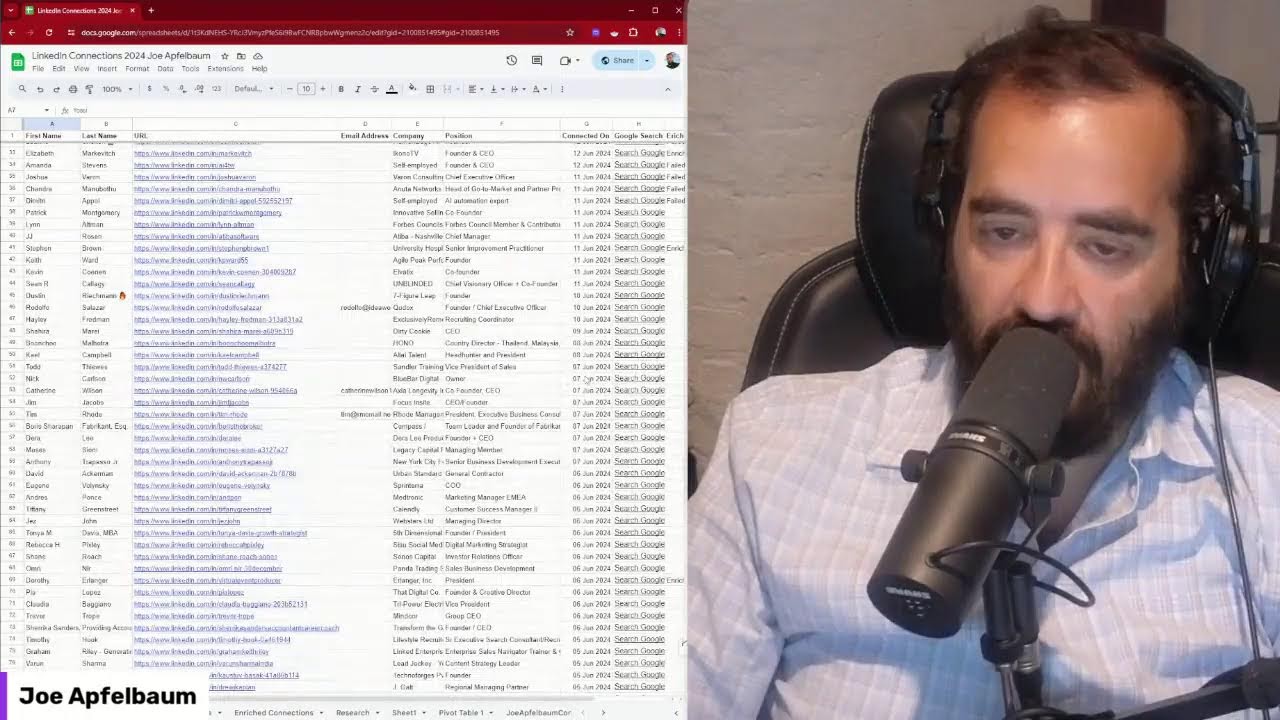
In this 1‑hour‑plus LinkedIn Live, Joe Apfelbaum walks viewers through the recent changes to LinkedIn’s data export capabilities, demonstrates how he built a comprehensive LinkedIn Connections Dashboard (originally the Ajax Union Dashboard, later rebranded as Evvy AI Dashboard), and shows step‑by‑step how to enrich connection data using no‑code tools (Make.com, ChatGPT, Linked Helper) and push it into a CRM. He explains how to extract key fields (name, email, URL, position, company, headline, location, industry, phone, website, followers, premium status, photo, mutual connections) and how to automate the workflow with pivot tables, scripts, and AI‑generated content. The session also covers creating a funnel for dashboard requests, automating email/SMS follow‑ups, and using the Evvy AI Chrome extension to generate LinkedIn posts, comments, and outreach messages. Throughout, Joe engages the live audience, answers questions, and promotes his AI automation community and subscription service.
Chapters
I noticed that LinkedIn was about to make a major change. And one of the changes that I noticed that LinkedIn was about to make is in your ability to export your connections. You see, LinkedIn has made many changes over the years, and one of the changes is they did not allow you to be able to pull out people's information from LinkedIn. For example, if you go to someone's contact info, you see this guy's email address is right here. But it used to be that you can pull it out all as a CSV file directly from LinkedIn. And now they don't allow you to pull people's email address due to GDPR and other issues. So the information is still here, not for everybody, but for some people. For example, for this person, Jennifer, I don't see her information over there. Although sometimes people do include their information. right over here, or in some cases, I might want to be able to use additional technologies that allow me to be able to pull information about people. Let's see if I can pull her information with this LinkedIn Prospector tool. Let me see, I'm going to press save and go to list and see if it pulls up her information. Yeah, it looks like, but it's not a verified email address. Um, you see it's red, has a red dot over here. It's not verified. Um, so one of the things that I encourage people to do is to create a dashboard. So what is a LinkedIn dashboard, John? So I'll show you what I built out for over 100 people. So this is a LinkedIn dashboard. I call this the Ajax Union LinkedIn Dashboard Report. And I did this for 100 of my LinkedIn connections. My goal was to get to a million connections. And I didn't get, I don't believe I got to a million. I got really close to a million, but I don't got, I didn't believe I got to a million. And so this is what my dashboard basically looked like back in the day. And I was able to show connections of growth over time, how many they had per position, their annual growth, and so on. And this is kind of like what the connections actually look like. Yeah. You see, you got everybody's email address, first name, last name, email, company, position, connected on date, tags. And then I had all these other filters that I would add as well to kind of help the person understand how well they knew the people they were connected to. And what happened was, shortly after I did this, I was correct. They actually stopped allowing you to export everybody's email address. And they just pulled out all the emails. And it was really sad for some time until 2024. 2024, I became very, very happy with LinkedIn. Why? Because if you go to LinkedIn, you'll notice— I don't know what's going on with my throat. I probably need to drink something. Hmm. Here we go. If you go to LinkedIn, you'll notice on anybody's profile, there's something called a profile URL on the top. You see that? It's also in their contact info. You see there's a profile URL. So while this guy's sharing his email and his birthday's on June 11th, I'm gonna say, OMG, I missed your birthday. I'm going to say, OMG, I missed your birthday. Okay. OMG, I missed your birthday. As you can see, this guy's over here. I'm going to click on posts. I have his LinkedIn URL. Once I have someone's LinkedIn URL, I can get a lot more information than I can by just having their email address. So I believe that having someone's LinkedIn URL— only connections can comment on this post. What the heck? He doesn't allow people to comment on their posts unless they're connections. That's so strange. Why would someone do that? Why would someone limit comments only to connections? Isn't that the strangest thing that people do that sometimes, that they don't allow people that are not connected to them to comment? By the way, if you're watching this live, watch live. And if you want a dashboard, just write want a dashboard in the chat. Um, because I'd love to show you how these dashboards over here work. So what I'm going to do now is I'm going to show you what the new export looks like. So this is a new CSV file from LinkedIn. Okay. This is a really important thing. I want everyone to pay attention right now. This is really important. Having a LinkedIn connections dashboard with first name, last name, URL, email, company, position, connected on date, And I have all these other stuff over here that we're going to enrich as well. So headline, location, photo URL, creation date, followers, connections, email, phone, position, schools, list of skills, their summary, recommendation, website, about the company. All this information needs to be enriched. So we're going to go ahead and I'm going to show you how I do this. And it'll be a step-by-step little thing that I show you. And I'm actually going to make a separate video about this as well and put it on my YouTube channel. So if you haven't been checking out my YouTube channel, go to youtube.com/@JoeApfelbaum, click on videos. You're going to see I have a lot of videos over here with a lot of tutorials. I also have shorts that you can watch, and I also have lives. All these lives go into my YouTube as well. So you can easily go here and watch all these different lives and all these things that I'm teaching and I'm showing and I'm sharing and so on. So definitely go check that stuff out. Um, all right, so let's go back into the dashboard over here. So this is the new dashboard. This is the updated dashboard. And if you go down over here, let me go to the last, the last step. He has 10,000. So he grew his connection where before, uh, he had a total connections of 4,744. Now he has 10,000 connections. So let's kind of break this down and see what we did over here. So I'm going to create Dashboard 2020. I'm going to just build out a new dashboard. I'm going to say Dashboard 2024. Okay. So now we have Dashboard and we have Dashboard 2024. And instead of, instead of Dashboard, I'm going to copy. Let's see, Ctrl+Z. I'm going to copy this like this. And see if it allows me to paste it. So instead of Ajax Union Dashboard, now we're going to call this Evy AI LinkedIn Dashboard, and we're going to change the background color to more of an Evy AI style color. Okay, so now we just changed the color a little bit, made them nice, nice and beautiful here. I'm actually going to extend— okay, actually we're not going to extend anything, we're just going to leave this as is. I'm going to click on position. So I'm going to find his new, um, his photo. So let's go get his photo. Let's go to, uh, let's just look him up on LinkedIn. John, right here. He's right here. So let's go get his— oh, look at that. So he changed his profile completely. Actually going to save his profile. And instead of having, instead of having it look like this, Chief Revenue Officer of Ringlead. Now he's the founder and CEO of SpringDB. Amazing. So now we're going to capture what that looks like right now. And I'm going to use this tool called Snagit. It's a little, um, a little capture tool. I'm going to press Snagit. I'm going to grab it from the top LinkedIn. I'm just going to pull it down like this. And now I'm going to copy, press copy, and then I'm going to try to paste it in here and see if it actually works. Oh, look at that. It worked. Okay, so now we have a beautiful new screenshot of his profile. And if you scroll down, you see this beautiful screenshot of his profile. Oh, I love this so much. This makes me very happy. Okay, so now I have a screenshot of his profile. Um, I can make the screenshot a little bit smaller, put it on the top left over here. So let's compare that. This is what it looked like before. This is what it looks like now. So how are we going to get this information about annual growth? How are we going to do that? So let's go look at how we did it before. So what we did before was we took the connected on date. It has a date and we kind of split it up over here on the right and we got the year out of it. So I'm going to teach you how to do this. So if I go into Connections 2024, we still have the year. You see this? We still have the year. So how do we, um, how do we pull the year out so we can see how many he has for each year? So very simple. We're going to go here. We're going to actually copy this annual growth, and we're going to paste it here. Oh, it didn't copy the actual pivot table. This is an actual pivot table. I'm going to copy this like this. I'm going to paste it here. So now this pivot table was copied. You see, now I have this pivot table. It still has all the data in it. I'm going to click on this little edit button here, and now it allows me to do something called a pivot table editor. You see this? And it asks me, where do you want to pull this information from? So over here it's pulling it from columns A, C, And so I'm going to, instead of doing columns AC from there, I'm going to say pull it from a different range, from a different range. You see that? I'm going to close this out, click on this again. And now it says, okay, so where do you want it from? Do you want it from dashboard, connections 2024, all connections? I'm going to say connections 2024. Okay. And I am going to press OK. Connections 2024. Now it's going to say, okay, well, Connections 2024, what you want? What do you want? I'm going to do connected on. I'm going to do connected on. Okay, so connected on. So what do you want to look at connected on-wise? Okay, so the rows connected on, we're going We're going to sort it by count of first names, ascending, descending. I'm just going to delete all this because there is no first name over there. Okay, so this is your growth. This is your growth. This is your— let me see. Let me go over here to the right a little bit so it sees. Okay, so what are the values? The values are going to be based on LinkedIn URL. Okay, so this is going to show you— it's not going to show you the annual growth, it's going to show you the growth by day. You see that? Showing you the growth by day. It's not showing you the growth by year. So in order for me to do this, I need to create a supporting column called year. So what I need to do is I need to go in here and I need to go to the very, very end over here. I'm going to go to the right here And I am going to do column 1 right, and I'm going to do column 1 right, and I'm over here, I'm going to do a year. Okay, and now what I'm going to do is I'm going to tell it to pick the last 4 digits of G. So how do you do that? Well, you can go into this section here which says All Connections And you can see exactly how I did it here. You see it says Write L 166 and then comma 4, Write L 166. So what was L? L was the date. You see Write L, L the connected on date. So we're going to go back there and we're going to do the same thing. We're going to copy the Write L like that. We're going to go into here. We're going to go to the first one here under year, and we're going to paste the same code, but instead of L, we're going to adjust to G, G2. So we're literally going to change this. I'm going to do G2. Okay, so now it says 2024. Now we're going to press Ctrl+C on this, Ctrl+Shift+Down, and paste. You see that? We just pasted it. And now if we go back to the pivot table on the homepage and we refresh this puppy, we're gonna press edit. And instead of selecting connected on here, we're gonna click on columns and we're gonna select the year. I'm gonna type in year. Let's see, was it— did we call it year? I think we called it year. So we're going to go back here, we're going to click on Connections 2024, uh, we're going to go back over here and we're going to click on Connections 2024. Oh, it's— it is here. Oh, it's not allowing me to go to the end. Connections 2024. And we're going to escape. We have to find what column that is. We're going to go back to the other one. Dashboard 20. It says Dashboard 2024. It's supposed to be Connections 2024. 2024. And then we have to pick year, but it only— it's only going till U, which is skills. So we're gonna have to find out where that one is. So let's go back to the dashboard. Let's click on edit this puppy here. It says B:J, and this one over here says A colon C. See A colon C dates A colon C. So we're going to call it. Let's go back. Dates A colon C. We'll just copy this, and we'll just go here. Not dates. It's not dates. It's AC year. AC year. Doesn't exist. That's dashboard. I'm going to do connections. AC connections 2024. Not the right range. There was a problem. Connections 2024. Okay. And instead of U, we're going to do AC. A, AC. Okay, we got all these extra columns over here. Column year. I'm going to pop year into columns. Oh, we're going to put it into rows actually. Let's see if— oh, there you go, we did it. Values, URL, there you go, we did it. All right, took a couple minutes to do this, but we figured it out, we figured it out. Now we have the annual growth per year. So look, in 2021 he added 2,000 connections. Look at that. Now once this is set up, it's set up for life. You don't have to like set it up all the time and you could just keep adding your connections to this. And then there you go. So we did this. By the way, if you want a dashboard like this all done for you, I'm happy to create one for you. Just let me know, say I need a dashboard in the chat and I will make you a dashboard like this. Okay, so this is annual connections growth per year over time. Now we could also see their top, his top, what do we call these? The top positions. So if you want to see his top positions, again, same thing as over here. You want to see the top positions, we can copy this here. We can go into the dashboard, we can paste it, we can edit this. We can, right now it's looking at all connections. So instead we're gonna— oh, we're gonna go back into this one here. We're going to click on— I don't know why it's not letting me edit this. I'm going to close this out. If I click on edit this I'm going to copy this also. I'm going to edit this one. I'm going to paste this. And instead of having— oh, is title still the same? Let me check. An error occurred. Reload. Cancel. Let me go into here. Now it's called position. It used to be called title. Now it's called position. So we're going to— We're gonna click away. Did I just break it? Let me click on this. I think I may have just broken— I think we have to refresh the whole thing. Reload, reload this puppy. There we go, we fixed it. Okay, so now what we're gonna do is we are going to Identify where this is. So this is, uh, position is F. So we're gonna go back to the dashboard. We're going to change this to A:F. Okay, so we don't need any other information. And then we're gonna go here and we're gonna call this Connections 2024 so we know where to pull it from. A through F. And now the position is going to be under rows. We're going to remove title because title doesn't exist anymore. And then the values are still going to be URL. And then you could filter it by a certain amount. So let's say filter by condition, by values. We could just say do less than or equal than a certain amount. So I could see how many I did over there. Let me just see how many we have here. This is position count. I don't know why it disappeared from here, but let's pull this back here. And then we could do count ascending, descending. We're going to do ascending and then do count by URL. And then this one is count A. Okay. Wow, look, it like breaks down every single position. But let me see how many— the top positions. So we only want the top positions, we don't want every position. I'm not going to show totals. We're going to do position count descending. So we're going to do descending. So the most he has is founder, chief executive officer, CEO, co-founder, owner. President. So this is how many he has per position. These are the unique, the unique, uh, positions that he has. And if we want to limit it, let's just see how we did it over here. I'm going to click here, hover. So it says showing 5 items, title showing 5 items. Let's just see what that looks like. Filter. So you could only filter for certain items. Okay, good. Filter by values. I'm And then you can clear all and then only show those values. So what are the values that you want to show? Let's go back in here. And then we could add a filter. And we could say, add a filter for position, and then only show certain values. So in this case, I'm going to do sales. I could do people that have the word sales, maybe sales manager. Maybe Director of Sales. See that? I could press Select All, press OK, and it'll show me all the people that have the words Director of Sales. It'll filter it out only by that. So if I want CEO, I'm going to do Clear. I'm going to do CEO, press Select All. It'll show me all the people that have the word CEO and how many unique ways that people write CEO. You see how many CEOs he has total in all these different ways. Pretty cool that you can do things like this. And you can— I can pick certain positions if I want. I'm not going to filter it for anything. I'm just going to leave it open here like this so you can see every single position. So you do count by position over here so you can see exactly how many positions he has. And I could also do by company as well, so I can pull up the top companies. In this case, we can also create graphs and we create summaries as well. But as you can see, this person's over here, his connections changed over time. And this does an analysis of this. We're going to build this into Evvy AI, this connection dashboard, so it happens automatically. But I just want you to know, like, this is how you analyze your data. This is really important. Analyzing your data on LinkedIn is extremely important. And most people just don't do this. So how do you enrich things? All right, let's go, let's go to enriching. So I'm just going to pull up my Joe Apfelbaum one. Joe Apfelbaum LinkedIn. Oh, I'm going to call it LinkedIn Connections. LinkedIn Connections Joe Apfelbaum sheet. All right, so let's pull this one up over here. All right, so this is my connections dashboard over here. You see this? This is my connections dashboard. So I want to add a new row over here, top row. And then I'm just going to go in here just to kind of show you something real quick. So I'm going to go in here, I'm going to click on My Network. Actually, you know what, maybe I should enrich information for the people watching this live. Um, by the way, let me know what city you're dialing in from. I'm curious to know. And let me see if any— oh, look at that, we have 6 comments. Oh my goodness, let's go see who commented. Looks like— oh, Ivan said preach. Denise Said, here in Houston, nothing is impossible. You look as tired as I am. I'm actually not tired. I'm very rested. Just early in the morning. I haven't spoken to anybody. But let's take a look at Shmuel for a second. Let's click on this, Shmuel. And let's, let's look him up. Let's see if we can find him. Uh, Zand. Control F, Zand. Let's see if we can find a Zand anywhere. Oh, look at that. We found a few Zands. in my connections. Let's see if we can find another Zand. Zander. Shmuel Zand. Look at that, Shmuel Zand, ESQ. Okay, so we connected back in January of 2019. How cool is that? If I want to do a Google search for him, I just click on the little Google search button over here, and I click on it, it'll actually Google him, which I love, Googling people and looking them up. And look how much information I can find on this person. Okay, not a ton of information about him, but let's say I wanted to learn more about him. So I would just go in here and I would write yes to enrich. You see it says column I is enrich, yes. And then I would go into a tool called make.com. Now make.com is a no-code automation tool that I teach inside my AI automation community. So if you go to, um, school.com/ai-automation. I have an AI automation community over here that you can join, and then you can ask all types of questions and we can support you to help you use no-code automation softwares like this. Okay, so I'm going to press login. I'm going to log into my make.com, and then what I'm going to do is I'm going to go to my scenarios. And I'm going to go to, uh, let's see, Ctrl+0. I'm going to go to my completed automations, and then I have one called Enrich LinkedIn Connections with Profile Data. I actually was working on one yesterday. I'm going to click on All Scenarios. Let's see the one I was working on yesterday. I want to show you that one. I think it's this one here, Dashboard Enriching. Uh, actually, that is not the one I wanted, the HTTP dashboard enriching. Let me just pull that one up. Oh, actually, I ran out of credits with that company. Oh, I have to go pay. Okay, so this is the dashboard enriching. So what I would do here is I would look up the connection that needs enriching from my dashboard. I would send it via API to pull all the connection data out of a software, out of a system. Out of LinkedIn, basically using an API. Then I would put it into ParseIn and parse the data, send it to ChatGPT, organize it, and then take the organized data, put it into my sheet, and then update the dashboard, and then put it into my CRM. And then, and then put a note in my CRM with all the information about the person. Just like that. Boom, boom, boom, boom, boom. Um, and this can happen automatically as soon as I just put in the word yes here. Yeah. It could automatically just take all his information and enrich. So what would that look like? What information would I be able to get from this person here on LinkedIn? Well, if I just scraped all his information from LinkedIn, just like this, I'm just going to do this like this just to kind of show you. And by the way, Shmuel, if you need your profile updated, I can update your profile. Your profile desperately needs to be updated. Um, and you definitely need some help updating your profile. So if you need help with this, I'm happy to help you. I'm going to press message and I'm going to be like, let me know if you want, if you want a profile revamp, would be happy to help you revamp your profile. Okay. I'm going to click on that. Now what I'm going to do is I am going to go into ChatGPT and I'm going to use my CRM helper prompt with all his information. And look what it's going to do. It's going to give me a contact overview. He's located in Jackson, New Jersey. His email and cell's not located over here, but I believe it's going to be in his contact info. Look at that. His information's right here. So It is available. It just didn't pull. I just didn't paste it in with all this stuff. So about Shmuel. Shmuel is a real estate attorney with over a decade of experience specializing in blah blah blah. About his company, it offers a comprehensive real estate transaction service blah blah blah. Who's his ideal client? Shows me multifamily real estate transactions. Fun things about him: luxury yacht, supporter of Israel, attends networking events. He went to this school. These are the skills he has. Here's a blurb of how I can introduce him, something about him personal. He loves yachts. He's deeply committed to his clients, engages in networking. And here are 5 questions I can ask him. So look at that, it just built this whole thing out for me. So what I'm going to do is I'm going to copy all this information. Again, make.com will do this automatically and put this into your CRM, but I'm showing you manually how it's done. So I'm going to go in here, I'm going to go into my CRM. And now what I'm going to do is I'm going to look up Zand here. Z-A-N-D. Um, here he is. I'm going to click on notes and I'm going to pop a note in with all this information in my CRM. So you see all this information is right here. I'm also going to go in here and grab his email address and add it here. And again, using automation, you can do this automatically. You don't have to manually do it, but this is a manual process. if, um, if you have— if you don't have automation set up. Okay, so I'm going to save this here. I have his phone number, I have his email address, I have all his information here, and all this came from the dashboard. I'm going to do enriched manually. Enriched manually. And now it's kind of enriched manually over here. So what I could technically do is I can pull his email address into here. Along with all his other information. Ooh, that's not a bad idea. That is not a bad idea. What I can do is I can do an inline scraper that automatically— you copy and paste information into a tool and it'll automatically write his headline, his about section, and organize it and put it all into a CRM. Oh my goodness. Oh my goodness, what information would I want on a person inside my CRM? Oh my goodness, what information would I want on a person inside my CRM? All right, so let's build this out. So I want first name, last name, email, phone, date of birth, contact source. I would just say networking here. I would want business information. Like his city, state, his website, his calendar. I want his Calendly if he has one. His goal for LinkedIn, his challenge for LinkedIn, and then a bunch of additional information over here. Um, I could use also another tool that we teach called Linked Helper that allows me to be able to enrich his information and then push it to this CRM with a click of a button. I'm curious to know if it would work and how quickly that would work. So let's go into Linked Helper real quick and just pull it up. Let's pull up Linked Helper for him. All right, so this is what Linked Helper looks like. Actually, what I'm going to do is I'm going to pull up my account. I'm going to assign an— oh, It just closed. I don't know what happened here. I don't know what happened, why it closed. Let me just assign a license in use. I'm going to assign this one right over here and assign bottom right here. Okay, now that I have this going, I'm going to click on play. And let's see if this works. All right, it logged in as me. I'm gonna press allow. It logged in as me, what do you know? Okay, who viewed my profile? It can pull all the people who viewed my profile. Let's just see if it does that. Start campaign. Let's see if it can do this. Um, what can I do to people who viewed my profile? What's it doing? Oh, it can scrape all the information, view and extract profiles for all the people that view my profile. I love that. Let's see what it's gonna do. Actually, I'm going to tell this tool to go and view and extract a specific profile. So I should build a campaign out that does that, just views and extracts specific profiles. I like that. Oh, that's such a good idea. So I'm going to stop this camp— let's see if it does it successfully. Trying to navigate the profile page. I'm going to do that. I'll just, I'll just kind of show you guys how I do that in real time. By the way, if you're enjoying watching me work and doing automations like this, just let me know. Say, Joe, I'm really enjoying these, this automation, these automations. See, it just loads the entire profile and it kind of opens up each section and it's doing this automatically, which I love pulling the info. It's kind of like me reviewing everything. It also pulls all the info from here. It opens up the contact info. Okay, and it's done. Let's see if it's done. Yep, done. Okay, now I'm going to press stop campaign. I'm going to go ahead and create a new campaign. So I have 23 different campaigns I can create here. Again, we teach this in our LinkedIn AI Automation School community. So if you want to learn how to do this, I'm going to call this campaign extract specific profiles. Now I'm going to go to the bottom, view and extract profiles. And then I'm going to say create campaign. And it's going to say continue. And then I'm going to say external file. And then I'm going to say CSV. And it's going to say, give me the LinkedIn URL, the person you want to extract. All right, let's pull up Shmuel's, Shmuel Zand here. Let's pull this one up over here. I like this. And I'm going to press import. So I just gave it one profile. That's it. Nothing else. You see, just one profile. I'm going to say start campaign. And it's just going to go and find Shmuel Zand. It says it's going to do it in 50 seconds. All right. Well, we'll let it go do that. So what it's going to do is going to pull all his information from here. And then I'm going to tell it, take this information and ship it into my CRM. So if I want to do one person at a time or just a group of people from my connections dashboard, I can use this tool to do, let's call it 150 a day. Okay, so if I want to do 30,000, it's going to take me many days. If you do 150 a day, it's going to take many days, but a lot of people have 1,000 connections. You can do your connections in 10 days, have all your connections extracted from LinkedIn. And into your CRM perfectly. Pretty cool. I'm curious to know how many connections do you have on LinkedIn? Do you have a lot of connections or do you have a few connections? I love extracting people's connect, and I can add more people to here to the list. So let's see who else we have here. If you find this interesting, write interesting in the chat. Curious to know if you find this interesting or not. And let me also let me know where you're dialing in from. It looks like Anis is dialing in from Dubai. Shmuel is. Booming me. AI Miller or Al Miller, I'm not sure if it's an L in your first name, is dialing in from Raleigh, North Carolina. Denise is from Houston. Welcome, Denise. I wanna look at Denise's profile. I love that Denise has a top voice badge. She has 12,000 followers. Denise, you would really benefit from a dashboard. I'm gonna ask her if she has a dashboard. Do you have a dashboard? I'm clicking message and it's not working. I don't know what's going on. And because LinkedIn is doing stuff in the backend. Oh, look at that. It's pulling up his profile here in Jackson, New Jersey. By the way, my daughter is living in Jackson, New Jersey, Sam. So I, I went out to dinner with her and we went to Glot Bite. Was it Glot Bite or something like that? Something like that. It was really cool. It was my first time going to Glot Bite. All right, let me just click on view. It's not quite working. I'm going to close this. I don't need make.com open right now, although I do want to build out a scenario right now. I'm kind of like itching. To build an actual scenario that does something. Um, I would love, I'm gonna say discard changes. I, I didn't make any changes to this. Um, I would love to build out a scenario that takes information from a LinkedIn profile and then organizes it and then puts it into a spreadsheet nicely. So what, so let's plan this out right now. Okay. So it did this, by the way, it already did this. So if I go to here, send to GoHighLevel CRM. It says the person has been sent to my CRM. So let me go into my CRM and check what it sent over here. I'm going to type in Zand and see what information is in here. Um, Shmuel Zand. What information did it send? Let's search. Oh, Samuel. Samuel T. Let's just go to search. Samuel T. Did it send anything? It has one here. I don't know if it sent anything here. It should have all this filled out if it actually sent it. Let me click this. Oh, it's asking me for the tags. Let's click again. Person has been sent to your CRM. Okay. Let's see if it actually sent it. Send. Escape. Maybe it didn't come in as send. Send. Maybe came in as something else. Dashboard, Contacts, Zend. Oh, look at that, it actually put everything in here. So what do we have under Additional Info? We have his LinkedIn URL, founding member, current company, full name, public ID, member distance, his headline, his entire summary, his work phone, his other phone. That's all the information I have over here. Interesting. Oh, his address was added. His business name was added. His website was added. Look at that. All that information was not there before. We just literally looked at this. All that information was missing. Where's his phone? His phone number is over here as well, but he has 2 phone numbers. Does he have 1 phone number or 2 phone numbers? Let's go down to here and see if he has— oh, his work phone. So now it says work. Cool. Okay, so that's the information that was added, his headline, a summary. It doesn't say how many followers he has or anything like that, but that would be cool. All right, so let's open up a new doc. drive.google.com. Let's click on New. Let's click on Doc, and let's make a list of things that we would want. List of things we would want on a LinkedIn profile, from a LinkedIn profile. A LinkedIn profile for a CRM. All right, um, so what do we— what would we want to enrich? I'm going to press Ctrl+Shift+1. Okay, so what would we want inside a CRM? I am curious to know what you would want. So let's chat with ChatGPT about this. All right, so let's go into ChatGPT, create a new chat. And saying, give me, let's say, give me, give me a list of things I would want from a CRM. Okay, so look, it's building this out for me. Oh, look at this. All right. All right, let's do that. Let's copy this. Let's paste this in here. Okay, so what do we want? We want the full name. First and last. We want their current job title, current company, current website, LinkedIn URL, email address. I'm not gonna say if available. We want this. We wanna figure out how to get it. Location, industry, professional summary, professional summary experience, education, skills, certifications, recommendations, mutual connections, profile picture. LinkedIn posts and activity, groups, languages spoken, projects, honors, volunteers, interests, connections, number of connections, and notable. I would want followers too. Okay. Um, I would definitely want followers bold. And I would say let's prioritize like 10 things that we would want. Okay. Cause there's a lot of things over here. So if we wanted 10 things, so let's, this is a good start. So the first thing I would want is first name. The second thing I would want is last name. Then I would want company, email, phone. This is in order of importance. Position, website. I would say headline. Summary, industry for sure. So let's see what we have here so far. How many items do we have here as primary, primary things? These are the 10 things that we have. Okay. We don't, we have the company name, company name, email address. Phone number, position, website, company website, headline. Okay. Summary, professional summary, and current industry. Are these the 10 things you guys would want? I would want these things. So let's build out a little prompt that will pull this information from LinkedIn. That would be cool to pull this information, but let's just assume we have the basics already. Let's say we, because we have, we have this already. So we got first name, last name, LinkedIn URL, company, position, connected on. So we already have that. So let's, let's say other than that, what would we want from there? So we're gonna nix. This, this, this, this, this, this. So what else would we want? What else do we want that is not available in company dashboard? All right, so for sure industry. So we're gonna pull this here. What else? We don't have the summary and we don't have the headline, but we can, we can pull that information. Hang on a second. We can pull that information already. Um, we could pull that information from their profile, but in an organized way. Let me just see something. Location. So for sure, location. Okay. So let's do a couple of things. So number 1 is location. Number 2 is company website. Number 3 would be headline. Then would be professional summary, company overview. Location, summary, company overview. Anything else besides these 5 things? Current location. Company website. LinkedIn headline. Professional summary. Company overview. What else would you want to see about a person? Let me go into the chat and see if you guys are chatting with me now. Let's go into LinkedIn and just see if anybody's chatting here. Looks like people are commenting. So this is how you look at your LinkedIn Lives. Unfortunately, this is how you have to do it. You go to LinkedIn Live, you click here to show all posts, and then you can see what posts— I don't know why it's not loading this right now. There we go. I'm going to give this a like. Preach. Okay, it looks like we— no one's interacting with me here other than these couple people here, which by the way, I should Ctrl-click on these people and add them to the list of people that I want the tool to enrich, just to kind of see if it actually adds them. Let's do that. Let's go into here and let's add a couple more. Let's click on this current page. Actually, I'm going to do it right here. Choose a source. So it's going to say, where do you want to choose the source from? Copy and paste URLs. Oh, it says right here, copy and paste URLs. So we're going to pick one at a time. So we're going to do this one. Copy, paste, collect. And it's going to go ahead and collect it. Oh, that's cool. You could just do one at a time. And then I can send each one to the CRM if I want. And look, and, and this person's not even connected to me. You see AI Miller or Al Miller? He's not connected to me. So I'm gonna press send to CRM and let's see what information's in the CRM now for Miller. Al Miller. Look at that. Oh, I wanna see information. Okay, so what do we have here so far? Oh, we don't have his LinkedIn URL in here. RxMeds. No, wrong one. Wrong Al Miller. All right, let's just see what happened. Let's go to contacts. Let's go here. I'm gonna go back. Contacts. Miller. Al Miller, July 12th. Okay, so let's see what we pulled here. We pulled up— so that's the right one over here. You see that? Remember, distance, location, summary. So I was able to put his headline and a summary in here and his LinkedIn URL. That's all it really gave me. Huh. Content source LinkedIn Helper. You see that? So if I want to get his contact information, um, I might use this data source over here, access email. And look at that, I have his email right over here. I'm going to copy this and paste. I wonder if I could send this to this CRM from here. It doesn't let me do this. That's what we're going to add to Evie AI. We're going to have the ability just to throw it into the CRM this way because This is so backwards that I can't do this. Let me see if I could find his cell phone number. Let's see if it'll give me a cell phone number. Oh, look at that, it gave me a cell phone number. I'm gonna press copy and paste it into the CRM. And then what I'm gonna do is I'm gonna do attended, attended LinkedIn Live. LinkedIn Live. Live. And I'm going to have my CRM helper, which right now is a manual process, do this. I'm going to copy this like this. I'm actually going to click on this. Okay. You also need help with your LinkedIn profile, by the way, Al. Omega Man. I'm going to go down over here. Just grab all this information from here. He has no recommendations. Look at that. Copy, go into chat, open up a new chat, use my prompt, paste it, and there you go. It's going to build out some notes for me, like proper notes. Oh, look at that, it has his email right over here. Okay, so I'm going to copy this information. It's a blurb of how I can introduce him. Something that's personal, details about him. 5 questions I should ask him about networking. Boom. Copy. I'll put this into my CRM right here. Add a note. Paste, save. So now I have lots of really great information about him, about his company, who his ideal client is, some fun facts about him. Now I'm gonna say, can you give me Can you give me this info? Can you give me this info? Let's see. Oh, look at that. It gave me his current location, his company website, um, his LinkedIn URL, his LinkedIn headline, his professional summary, his company overview. That's pretty cool. Um, let's see, let's, let's— so should we add this? Does it have his location over here? Oh, it does have his location here. It doesn't have his company website here, so we have to update the prompt. So let's take this prompt that I have here and let's update that prompt. Okay, so I'm going to work on updating the prompt. But what I want to do is I want to say, okay, put in this LinkedIn URL here. It'll take it. It'll grab all the information from the LinkedIn URL and it'll kind of like organize it all into like, you know, details that are kind of like this. That's what I want to do. I want to take it and make it into make sense. And then I want to do it for a list of a few hundred people at a time. And then I want to build out emails for those people automatically. So for example, if I wanted to send an email to him saying, thanks for checking out my LinkedIn Live. I'm gonna say create an email thanking him for checking out my LinkedIn Live. I am Joe Apfelbaum, CEO of Ajax Union and founder of Evvy AI. Ask him to check out the demo of Evvy AI. All right, let's see. Oh, look at that. It's building out a whole draft. Checking out. Thank you for checking out my LinkedIn Live. Hi Al, hope this email finds you well. Thank you so much for taking the time to check out my LinkedIn Live. I really appreciate your support. I'm Joe Apfelbaum, CEO of Ajax Senior, founder of AI. I'm excited to share a new demo with you for a powerful tool. I would love if you can watch the demo and let me know your thoughts. Once again, thanks for your support. All right, let's, uh, Let's send him this email. Let's do it from LinkedIn directly. So how would I do that from LinkedIn directly? I would use this extension again. We're gonna try to build this out from Evy AI. I'm gonna click on this little email button. It'll open up an email box inside LinkedIn so I don't have to leave LinkedIn. Um, I'll just Ctrl+V. I'll delete the signature cuz the signature's already there, so I don't need it. And for some reason it didn't put the spacing in properly over here. So I'm just going to fix up the spacing. I'm going to grab the subject line from ChatGPT. Gave me a good subject line over here. Thank you for watching my LinkedIn Live. And of course you can build this all in as a template to do it automatically, but I just wanted to show you how you can do this manually. Okay. And I'm going to press send now. And I essentially just sent him, I sent him an email just like that. Boom. All right, we did that. So that's very time-consuming to do all that. I want to do that automatically using a tool. So if someone looks at your LinkedIn Live or whatever scenario, someone looked at your profile, um, we're going to be building that out into Evie AI Pro. All right, so let's check this one out over here. I'm going to copy this. I'll do the same thing over here. I'm going to copy this, all this information from here. Actually, I want to open these up before I hit copy. Again, no recommendations here. You definitely need help with your profile. And, um, and you can have Evie AI rewrite your profile. I don't know if you guys know that, but Evie AI can redo your whole entire profile with a click of a button. But if I wanted to go in there, I'm going to go in here. I'm going to click this. I'm going to put this in. I'm going to ask it for the@. Um, so act as a CRM helper and create a contact overview, include details. Name, location, email, cell, LinkedIn URL. I'm gonna do website. About, contact, about their company, what skills they likely have, other details, blah blah blah. Okay, paste, go. Let's just see if it adds their website this time. Oh, look at that, it added a website here. What's the website it added? Let's click on this website. Oh, look at that! Who we are. Let's see if it has her contact information here. Las Vegas, Nevada. Is this you? I don't even know if this is you. Our team. Okay, so our team is missing there. All right, well, at least they got a website out of this. Contact. Okay, they're in Las Vegas, Nevada. I don't even know if this is the right website. This might not even be the right website. Maybe it is, maybe it's not. But look at all this information I have about this person here. School not provided, a blurb about them, 5 questions I could ask them. Love this. This works so well every single time. I'm just in love with this. All right, let's close this up over here. Let's refresh this, my activity, just to kind of see if I have any new activity here. Uh, see what I have cooking here. Okay, no new activity. If you guys want to leave comments, leave comments. I'm happy to answer your questions. Um, so okay, so somebody said, Joe, can you show us how you comment with Evie AI? Of course. I'm going to click on this right here, just like that. I'm going to click on Generate Quote. I'm going to hit Insert. I'm going to hit Go. So what is Evie AI? How does it do this? I'm going to right-click on the extension here. I'm going to do Manage Extension. And then I'm going to go to view in Chrome Store. So look at this. We have a Google Chrome extension. You see this? We have 5,000 users. Oh, congratulations. We just hit 5,000 users in this new extension here. That's cool. The version is 2.2.04004. As you can see, we have very, very happy people that are using this. I highly recommend this tool. I struggled to stay consistent with engaging with my target audience on LinkedIn. Evvii AI has solved this problem. Okay, so what does this do? Let's go to evviai.com. This is a LinkedIn AI assistant that will help you write posts, leave comments, and so on. So if I click on login on the left side, I click on post writer. If I want to write a post about anything, I have little templates that I can use. I have all these templates. I just put in a bunch of tests to test out the templates. I'm actually going to delete all these. Templates here. I don't need them. Delete templates, delete templates. I just created just to kind of fill it out to see the limit of how many templates I can have. I'm just deleting all these extra templates. I don't need them all. I went ahead and created a bunch of extra ones. All right, here we go. I'm almost finished deleting them. You got a couple more because I want to show you my actual templates so you can actually see what I'm doing. Okay, I deleted these templates. All right, so I have all these amazing templates over here. You see this? All these incredible templates. So I have this thing called the PECSR writing method. Create a LinkedIn post about a topic using this particular writing method: problem, empathy, cost of inaction, result, rebound, whatever, right? So if I want to write a post using this method, I go to the post writer, I click on the template, and then I can scroll down to this method here, and then it automatically puts in this prompt. So the topic that I'm going to be talking about is going to be enriching LinkedIn connections. I'm going to press generate with, with a LinkedIn connections Dashboard. I'm gonna press generate. It's gonna write a hook, main points, call to action, and a hashtag. So now what I'm gonna do is I'm gonna go into here and I'm actually gonna pull up John's dashboard and I am going to screenshot this. Just like this. I'm going to go to File. I'm going to do Save As. I'm going to call it John K Dashboard. I'm going to save it in my pictures. I'm going to close it. I just screenshotted this. I'm going to close this as well. I'm going to pull up the post that it created. Ever since— why I suddenly seem to fade away in the background, some flourish. Da da da da da, the problem, empathy, the cost of inaction, the result, the impact, LinkedIn Connections Dashboard transformed how. Okay, so now I have this. I'm going to press copy. I'm going to go to LinkedIn's homepage. I'm going to click on start a new post. I'm going to paste the content in here. You see, I'm going to start with a different hook. I'm going to say, do you have a LinkedIn Connections dashboard. Let me know if you want one. Ever wonder why some LinkedIn connections seem to fade into the background? In the fast pace of digital marketing, I faced a challenge. I'm just going to delete in the fast pace. I changed— I faced the challenge many professionals encounter: managing and enriching connections. The problem was clear. Too many connections, not so many meaningful interactions. Not enough meaningful interaction. With thousands of connections, with thousands of connections, it became nearly impossible to track who mattered. Important conversations were buried. I knew I wasn't alone. Many professionals struggle with the same issue. Um, I'm gonna say, even if you only have 500 connections. We all want to build valuable relationships, but the sheer volume is overwhelming. Ignoring this problem won't— wasn't an option. The cost of inaction was missed opportunities, lost business, weakened professionals. Not addressing it meant we're staying stagnant. When I decided to create the LinkedIn Connections Dashboard, this tool helped me and my team analyze, prioritize, and manage connections Efficiently. You leveraging AI could identify key connections. The impact was immediate. We saw a significant increase in meaningful engagements and booked more qualified meetings. Our network became a powerful asset, transformed the way we interacted. It's about nurturing them. Have you faced similar challenges with your LinkedIn connections? Share your experiences below. If you found this helpful, Give it a like and repost to help others enrich their connections. Let me know if you want me to make you a dashboard. Let me know if you want me to make you a dashboard like I did for John. Okay, I'm gonna say connections dashboard. Okay, I'm gonna press go. I'm gonna go to my photos. I'm gonna do John, John Dashboard. I'm gonna press next, and I'm gonna press post, and I just posted on LinkedIn. Now, if I didn't have Evvy AI to write 80% of this post, it wouldn't have been a great post. And I wouldn't have— I would've procrastinated 'cause I have a call coming up in a few minutes, so I would've never done it. But now that I have Evie AI on my side, I'm able to write this post up in a matter of seconds using Evie AI right here. And then all I gotta do is just edit it a little bit. You saw the way I put in a little bit of a different hook. I added this, I changed the lines around a little bit. You see the way I did that? So it's not just about having AI write it and just having a good day. It's about spending a few minutes after that and just modifying it and making it good and perfect. And even maybe changing the hashtags, adding a little image, which essentially was just a screenshot. That's all I did. And I took a screenshot of the idea of what I wanted to post about. So if you're not po— and by the— and you can go to my profile and check out this post. This post is gonna get 1,000 people to view it. So if you're not posting on LinkedIn, I highly recommend you start posting. Highly recommend it. In the chat, actually what I'm going to do is I'm going to create— huh, should I create a little funnel right now, show you how I do this? Okay, so this is a tool we give our clients access to. So if you click on sites, I can actually create a strategy funnel right over here. So this is request a LinkedIn strategy. Okay. So I'm gonna go in here on the comments of this post and I'll be like, want AI? Do you want AI to create a LinkedIn strategy for you? Let me know by filling out this form. We will give you a select few access to talk to our AI that builds a LinkedIn strategy for you. Okay, so now I'm going to press post and it's going to post this little call to action here. So when you click on that, it takes you to this particular form. But what I want to do now is I want to build a separate landing page. I want to build a separate landing page that requests, do you want a LinkedIn connections dashboard? Cool, right? So I can build that out right now and then I can give you instructions on how to get me the CSV file and then how to send it to me. So how would I do that? So I can build it in this flow. I'm going to start a whole new funnel. I'm going to create a new funnel. I'm gonna say Request LinkedIn Connections Dashboard. Then I'm gonna press Create. And now I have a brand new funnel. I have no steps in my funnel, so I'm gonna add a new step. I'm gonna say Request Connections Dashboard. Okay, I'm gonna press Create Funnel. So this is the first step in the funnel. You see that? I'm gonna press Edit and it's gonna edit the page. It's gonna give me a page to edit. Now I have to first add a section. I'm gonna add a full-width section, then I'm gonna add a row inside that section with one column. And I'm going to say, I'm going to put a headline in there, and I'm going to say, want a LinkedIn connections dashboard? And then I'm going to add another subheading, fill out the form below to request your dashboard. And then I'm going to add another paragraph. I'm going to add a paragraph. I'm going to be like, the LinkedIn Connections Dashboard is a way for you to see all your connections in one place. If you want a dashboard Fill out the form below and we will create a dashboard for you. Thank you. Okay, so now we have to add a form. So we're going to click the plus sign, we're going to scroll down to form. Let's find the form right here, form. Now we can select a form here or we can create one. So if you wish to add a new form, click here. So it's going to take me to the form builder. So I got to build out the form now. So here's a new form, add a new form, start from scratch. I'm building out a new form. I'm going to call the form Request LinkedIn Connections Dashboard. Okay, first name, last name, email, phone. I'm actually gonna add LinkedIn URL. Let's see what we have here. Website, so you just website URL. First name, last, custom fields. LinkedIn URL. Let's see, general information. Goal for LinkedIn. We're gonna add a goal for LinkedIn. We're gonna add challenge with LinkedIn. Why not? Why not request that information from people? Okay, I consent to receive SMS notifications. And, and marketing communication and occasional marketing communication from Ajax Union and Joe Apfelbaum. Okay. And I'm going to delete that. You can reply stop anytime or unsubscribe. Okay. Terms and conditions. I'm going to press save. Privacy, we're going to click on— oh, that's the wrong privacy page. So we have to click on this link over here. You see this? I'm going to click on the link. We're going to edit the link. It's going to be ajaxunion.com/privacy. I'm going to press confirm. I'm going to click on terms, click on this line here, click on this. I'm going to do ajaxian.com/terms. Press OK. So you see I built this out. I'm going to press save. It's saving. Now it's saved. I'm going to go back. So now I have a form here called request length and strategy. I can close this. I can click here, I can pick. I'll try this again. Add a new thing, add a form, request LinkedIn connections dashboard. So now I'd put this whole form here. Now the question is, what is the thank you page? So now I gotta create a thank you page. So I'm gonna press save and we're gonna go back. So let's just check out the settings of this page. Select the domain, strategy.joeapelbaum.com, request-linkedin-connections-dashboard. So that will be the name of the URL. I'm going to press save. And now I'm going to add to this another step in the funnel. Add a step in the funnel, name the page, I'm going to say Thank you for requesting the dashboard. I'm going to press Create New Step. Now I could use templates for all this. I'm just showing you how I'm doing this manually, but I technically can use templates for all this. So Use Existing, I could use an existing funnel. You see that? The current action will not import products. Request Connections, the funnel step. I can copy the funnel step. So I'm going to copy the funnel step. I'm going to do import, and it's going to import all the data from that funnel step. I'm going to press edit. So if I had images and graphics and all that stuff, I just did that over here. I'm going to delete this form from here. On a LinkedIn Connections dashboard, I'm going to say thanks for filling out the form. LinkedIn Connections Dashboard. I'm going to say there's a way. Next step is to send us your dashboard. Okay, I'm going to delete this form here completely. I don't need a form there. Um, here are instructions on how to download your connections. You will get this as an email as well. Okay, so how do you do this? I'm going to say download connections Joe Apfelbaum. I just Google it, comes up right here, first page of Google. I'm gonna pop this here just like that. Um, and I'm going to say one of the most important things to protect your data, blah blah blah blah blah blah. Okay, so here's how you download your connections. Let me see if I could just copy and paste all this. All right, let's just see if I can copy and paste this into here. It did not let me copy and paste this. Okay, here's how you download your connections. Link above has photos. Note, you can only do this on your website browser. Step 1, step 2, step 3, step 4, step 4, step 4 again, step 5. Um, okay. Email us the file and we will make you a dashboard. Okay, I'm gonna press Save and I'm gonna press Publish. And now I gotta go back to that page, the first page, and tell it When you're done going to this page, go to the second page. So I gotta go to edit, and I gotta go to say, at the end of this form, send them to the next step. Publish, save, publish. So if you wanna test this form out, you can test it out really easy. Just go to this page right here, test it out. Now I gotta build an email. Oop. Unable to find form, it says here. Why can't it find the form? I built the form. Let's go back over here, press edit. Maybe there's 2 forms. You do not have any forms yet. Okay, so there's 2 forms there. Save, publish. So I saved it and published it. I'm gonna go back, I'll check it again. And then I'm going to create an automation to automatically send you an email. Okay, here we go. So this works. I'm going to copy this, put this into the— here I'm going to say, want a LinkedIn Connections dashboard? Click here to request one. Okay, I'm going to press post. And now I have a link to the place where you can go. And if you fill this out, it goes right into my program with your information here. Now I'm going to build out an automation. I'm going to build out an automation. And I'm actually just going to duplicate this right here because I have one that's built out. Duplicate workflow. And I'm going to call this LinkedIn Connections. Dashboard Request. I'm going to press Create, and now I'm going to go into the LinkedIn Connections Dashboard Request automation. I'm going to say if the form was filled out, the form is going to be the LinkedIn Dashboard Request. That'll be the trigger. Okay, so if this form is filled out, that's the trigger. I'm going to press Save, then it's going to say add a tag. And the tag is going to be connections, connections dashboard request. Add a new tag. So I added a tag called connections dashboard request. So anybody that asks for that will get that tag. And it's going to say thank you. Thank you for requesting the LinkedIn connections. Dashboard. And then I would say, thank you for requesting the LinkedIn Connections Dashboard. Um, please reply to this email with your connections.csv. I'm going to grab the link to LinkedIn. And then I'm going to say, here is, here is step-by-step instructions on how to export your connections from LinkedIn. Okay. I'm not going to say please don't share the link. You can reply to this email with your connections to get the dashboard created. Okay, I'm going to press save action. I'm going to double-check this again. This makes sense. I'm also gonna try, I'm gonna send this text message as well. Thanks for requesting the LinkedIn strategy, the LinkedIn Connections Dashboard. We sent you an email, email with instructions. Do this from desktop. Does not work. Do this from desktop. You need to do it from a desktop computer, please. Let me know when done. I'm just gonna say thanks. Press save. So now I send you a text, send you an email, add you as a tag, and then when done, I could also add a new tag that it's done, tag you as done, and then it'll trigger a whole email as well. Okay, so that's automation right there. Oh, you wanna save it, save it, and then you wanna publish it, publish it. So now this is a live automation that we just created, and we can do many, many other, otherwise I could send you Instagram messages, I could send you WhatsApps, I can make phone calls to you. I can have the AI call you. There's so much that we can do with this. Very, very powerful. So if you fill out that, you saw the way I created the form. And if you fill out the form, you see what happens. If you want access to the system, all you got to do is go to unlimiteddigitalmarketing.com. We give you access to the system and then we also teach you how to use it. So we have 2 meetings every single month and you get all the recordings of all the meetings. It's $249 a month. You get unlimited access to this. You get unlimited emails. We'll import all your connections in there and everything. So I'm gonna go into LinkedIn right now and I'll put the link here in case you guys want it. And let's see where that, here. Want access to this unlimited digital marketing CRM? Fill out the form, then fill out the Stripe page, and then give us more business info and my team will set you up. I'm going to press go, post, and there you go. Now you're able to do that. You just click in here and you go for it. How cool is that? I think that's cool. I don't know if you agree with me, but I think that's cool. All right, what else do we got over here? It looks like we got another comment there. Let's see who commented. This is great show, but you sound really low. Oh, I sound low, Jen? I sound low. How can I sound low? I gotta fix the volume. I gotta fix the volume. I wonder why I sound low. You know what, let me check my Restream settings. Let me go into Restream and let me go into settings. Let me go into audio. Mic check. 1, 2. Yeah, it's coming in low. Show advanced options. Auto gain control. Hello, hello, hello, hello. Wow, looks like a— looks like it maybe increased my volume just now a little bit. Noise suppression. Hello, hello, hello. Echo cancellation. Oh, look at that. What does this do? Reduce the echo when talking without headphones. No, I'm talking with headphones. It looks like it's— it's— I turned on echo cancellation. Oh, because echo cancel— oh, that's why, because there's echo cancellation. Oh my goodness. Jen, tell me if this sounds better now. I just turned on a setting here that hopefully made it sound much louder. Does it sound better now? Let me go into the comments. I don't know. Guys, let me know if this sounds better or not. I'm gonna say, let me know if it sounds better. I turned on echo cancellation. All right, let me know if it sounds better. Oh, a lot better, she said. Thank you. I guess I could redo this whole LinkedIn Live. Okay, so let's just assume these hour and 23 minutes that I was just on LinkedIn Live was a complete Complete waste of time because you couldn't even hear me. No one was even able to hear me. How ridiculous is that? Ay vey, my computer audio is maxed out. I'm really low. All right, it is what it is. Okay, I have to do something for Diana, and I'm on LinkedIn Live right now. She said better now. Okay, so let's just assume we're restarting. Let's just restart the whole thing. An hour and 23 minutes. Guys, did you enjoy this? Would you do this again? Oh my goodness, I can't believe it. All right, so I posted on LinkedIn. I showed you how to do that. Um, we spoke about this. This is something I'm gonna need to get back to because I need to take that. I need to take this. Oh, it doesn't even let me do it here, but I need to take, um, I need to take this tool and, um, I need, I need to build out a better, a better solution to be able to get better data from people's LinkedIn profiles. Yes, I can get first name, last name, company name, email, phone, position, company headline, industry, but then I want current location. I want the company website. You know, I would also want their followers. Followers, if they have premium, like do they have premium? Do they not have premium? Do they have premium? LinkedIn Premium. This is important to me because people that pay pay attention. Um, what else? What else? Maybe their photo so I can use it in some automation. Their LinkedIn photo. I like that idea. So current location, company website, LinkedIn headline, professional summary. Let's see, well, I have professional summary here. This is basic info. Let's see, company website. Do I have company website here too? I'm gonna delete company website from here. Position, so this is information I get. I get position, first name, last name, company, email, phone, position. I'm going to say LinkedIn URL. That's for sure important. And the industry that they're in. Can I get their industry just like that? I'm going to say gender. I don't know their gender. But it's good to know if they're a man or a woman. Gender. 1, 2, 3, 4, 5, 6, 7, 8. 7, 8, 9. What else would I want about a person? Hmm. I would say mutual connections. Like, how many mutual connections do we have? That's a good indication. That's a good one. But I don't know. That's— I would say that that's kind of like a separate, a separate thing. That would be like the next thing, you know? All right, so we'll move on from that. Next, I'm gonna close this. We have the LinkedIn Connections dashboard thing that people can fill out. We showed you how to do that. I'm going to leave this. I'm going to close this out. I'm gonna close this out. I'm gonna close this out. This is me live on my YouTube channel. I'm gonna close this out. I got Denise here. Let's see if Denise replied to me. I'm going to go to my messages. What's over here? Does 10 AM MST work today? Thank you so much for following up. Um, does 10 AM MST work today for you? I'm gonna ask Jen to look into this. Jen, I wanna talk to her today. See if I could talk to her today. Let me know if I can talk to Donna today. Okay. And my colleague, and also this, look into this. Sounds good. We'll have Jen set up a call. Okay, also set up a call with this guy here. And Shmuel says, would love to hear more about the pricing, please. Okay, happy to get on a call with you to discuss pricing. Okay, so Jen, here's another one. Another one! You know, they say like, another one! So yeah, so that's what's going on over here. I have a lot of stuff going on. I have a lot of stuff. Ooh, let's go into Sales Navigator real quick. I have a call starting in a few minutes, but let's go into Sales Navigator and just kind of see the results. Let me click over here and see accepted. Bump. Oh, I bumped this. What is— I just said bump. Let me know if you saw this. It was great talking to you. Okay, Beth said, okay, yeah, that's a good one. Um, July 3rd. These are accepted messages, uh, awaiting response. This is on Tuesday was the last message. I should, I should keep sending messages to these chief revenue officers or start a new campaign. I'm gonna do that. I'm gonna start a new campaign. I sent out hundreds of messages to chief revenue officers, and I got 70 of them to respond to me. That's crazy. That makes me so happy when that happens, when people respond to me. Okay, moving on. Oh, look at that, we have a cell phone number here. That's for Shmuel T. Actually, what I should do is I should take his cell phone number and add it to my CRM. So I'm gonna quickly do that now. I'm gonna go to the CRM. I'm gonna pull him up here. I'll just drop his cell phone number right here. Boom. Uh, let's see where he is. He's here. And now I'll just, uh, save. Okay, it's saved. And I will send this to Jen as well to set up a call. Okay, I'm gonna close this here. Um, I can close this. I can close this. I can close this. So this is my connections dashboard. This is what I have. This is how I enrich things. If you want one of these dashboards, just leave a comment on my recent post. Let me know that you want one of these dashboards and I'd be happy to support you on your journey. I really appreciate you taking the time to watch this live. Please like it, leave a comment. Let me know if you got value from this and let me know if you watched the live or the replay. This was an hour and 23 minutes of me going through my thinking and showing you how this works. And I didn't have any AI support today, but I might go now that I, my, my microphone is so much louder. What I think I'm gonna do is I'm gonna go live again later today and I'm gonna have an AI-assisted live to kind of talk this through with an AI. In real time. I think that would probably be really helpful. Okay. All right. Thank you so much. All right.
More from Joe




How to Beat the Algorithm: Remove Hidden Watermarks & Scale Content with evyAI






