LinkedIn Live Tutoral with Joe Apfelbaum and David Schnurman
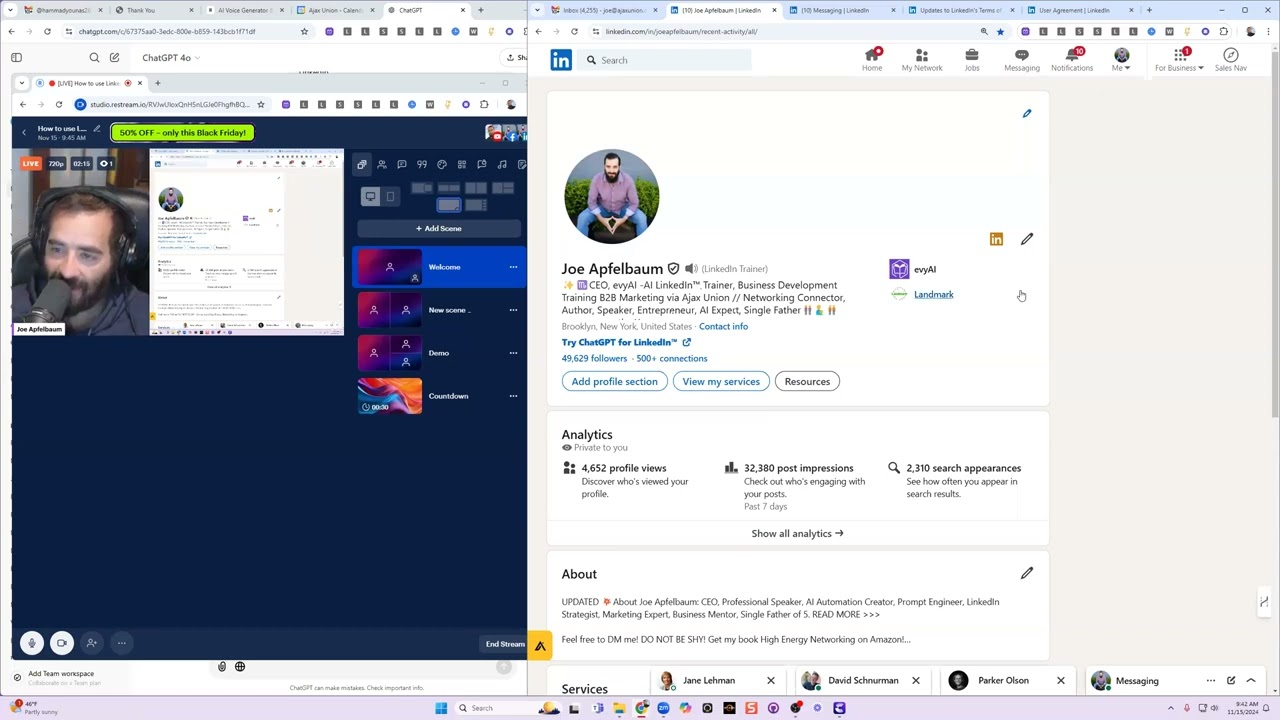
In this live tutorial, Joe Apfelbaum walks David Schnurman through the end‑to‑end process of creating, broadcasting, and repurposing LinkedIn Live streams. They start by confirming LinkedIn Live eligibility via the LinkedIn dashboard, then choose a third‑party streaming service (primarily Restream) and set up a Restream account, highlighting the Black Friday discount and referral code. Joe demonstrates two streaming workflows: (1) using OBS to send an RTMP feed to Restream and (2) using Restream’s virtual camera to capture a mixed OBS layout. He shows how to name the stream, enable auto‑captions, add thumbnails, and start broadcasting simultaneously to LinkedIn, Facebook, and YouTube. The conversation shifts to live‑interaction tactics—how to comment during a live, the “recent activity” hack for replying, and the preferred repost method (without added thoughts) to consolidate engagement. Joe explains his content strategy: many lives are for practice rather than pre‑promotion, aiming for 200 lives a year, and he leverages the evergreen nature of the recordings. He then demonstrates repurposing the live video into Shorts, using AI tools (Evvy AI for copy, Opus for video editing) and feeding the assets into his proprietary Unlimited Digital Marketing platform, which automates cross‑platform posting (LinkedIn, YouTube, X/Twitter, TikTok, etc.) with custom captions per channel. Throughout, he shares pricing details for Restream tiers, channel limits, and the value of OBS for high‑quality recordings. The session ends with a brief Q&A on the value of live vs. pre‑recorded content and a reminder to use the referral link.
Chapters
You are now the co-host, so you can record the meeting if you'd like. Hello, Joe. Hello, how are you? Good morning.
I am fabulous. I'm gonna do start summary. All right, it looks like we're getting right into business. I like it, I like it.
Yeah, um, are you recording to your computer, to the cloud, or does it matter? Cloud. The cloud. Okay.
I did AI somewhere too.
Yeah, I'll, I'll send you a recording of this as well. I'll probably upload it to YouTube or something.
Cool.
All right. Welcome.
Welcome.
So today you asked a question. You were like, Joe, how do I, how do I do a LinkedIn Live? What's the best practices? What should we do? I'm looking at the LinkedIn user agreement over here because they just Said they updated their terms and it's gonna take into place November 20th. And I'm always kind of like monitoring their agreement just to see, you know, like what we comply with, what we need to continue complying with, and like what the deal is over here.
Okay.
Um, but in terms of like LinkedIn Live, the way that you know, so if you wanna get on LinkedIn Live, the way that you know that you have access to LinkedIn Live is you go to your, your own profile and then you scroll down to the analytics section and you click on show analytics. I don't know if you ever go here to this page here. If you scroll down, there's a section called Weekly Tracker. Uh, it's the URL that you can check out is called linkedin.com/dashboard. Under the Weekly Tracker, there's something called Creator Tools. Do you see how many comments I left this week so far?
Wow. Okay. So I'm, I'm going, I'm actually doing it as you're, you're here. So I'm on my page, show analytics. I'm clicking on that now.
Yep. linkedin.com/dashboard.
Okay. I see creator tools, LinkedIn Live available.
How many comments did you leave this week?
10.
Okay. Um, so LinkedIn Live. So as long as that's available and checked off here, then you can, then you can do a LinkedIn Live.
Okay, cool.
Now the only way to really do LinkedIn Live is through third-party tools. So if you click on available over here, it tells you LinkedIn Live will bring you more professional community. You press learn more, it takes you to their help page.
Yeah.
Tells you LinkedIn Live is eligible to members and pages to broadcast, and then you can't stream directly on LinkedIn. You need a streaming tool to broadcast on LinkedIn Live. The right tool depends on your level of expertise. So it says new broadcasters use third-party tools. Choose from the following preferred partners: Restream, Social Live, StreamYard, Switcher, and Vimeo. I've used, uh, both Restream and StreamYard, which are the most popular ones. I like Restream better. It's less expensive and I like it better. And they have a Black Friday special now.
Oh, and are we ready to do Black Friday specials? Amazing.
I know, I know. I just saw it today. It popped up. And so if you want to do LinkedIn Live, um, just open up a Restream account. So you go to restream.com, you can sign up for free. Do you already have an account or do you need an account?
I'm signing up. You want to send me a referral link?
Let me see if I even have one.
Um, I don't know if I have an account. Let me see. Like, I know I was testing out a couple of these. I do have an account already.
Yeah. Sorry. Okay, cool. I don't even know if I have a referral link. Thanks for asking me about that. But a referral program here. Let me see. Referral.
I think I like this one the best too when I was messing around with it.
Yeah. Here is a referral. Sign this $10. When they upgrade, they get a $10 credit.
Well, I haven't paid for it yet, so send me a link anyway.
I'll pop it in the chat. So when you click on that, And you, you get a $10 credit. Um, when they upgrade, you get a $10 credit. Cool.
Okay.
Um, that's the idea.
So, um, all right, I'm in. And actually I have a stream that I called Lawyers Who Learn to Raise. I guess I was messing around, but I didn't get too far.
Okay. Very nice. All right. So once you, once you get into Restream, um, once, once you hop into Restream, Let me go into Restream again. I just closed it. restream.io. Once you get into Restream and you upgrade, you'll have something called Streams, which is brand new. This is brand new, this Restream thing. Um, let me just see what the Black Friday special is. Oh, so it's usually $41 a month for Professional. Now it's $25 or $300 a year. So I just have the, the annual for $190. This is the annual that I have.
Yeah.
Because I, I'm— I don't need more than 5 channels, but if you're gonna do over 5 channels, Um, then I would get this. That's really the difference between these 2. Um, how many hours of recordings and, um, and how many channels.
Okay.
Um, if you want, uh, 20 channels, you would pay $2,000 a year for 20 channels and you get many more hours of recordings and many more viewers and many more assets and so on. But, you know, I think the standard one's enough for me and that's the one that I have.
Okay.
You create a new stream. I have different streams. I have a stream coming from the RTMP of Restream, of, um, of OBS. So if I'm in OBS, you can actually create streams directly from OBS and they have really great help files that explains how to do that. Um, and you know, once you, once you do that, you can just click on start streaming over here under controls.
Okay.
It'll start streaming directly to this RTMP server.
Um, so you've already copied. So that's the part you, you missed me. The RTMP server is—
You could set up the settings inside OBS in order for it to stream directly from OBS right into Restream. And it'll go to this particular stream.
Can you show that real quick or is that more complicated to show?
It's more complicated to show, but you just, you could just literally go to their help files and it's, it's not, it's not rocket science. Yeah.
It's not. There's probably a video on it.
I'm sure. Yeah. There's a process, but just knowing that there's a process to do that. Um, is gonna be key for you to know that. Okay.
Mm-hmm.
Now, um, I'm gonna show you the simpler process, which is setting up your virtual camera right over here. You see?
Yep.
It started virtual camera. So now it starts streaming into my virtual camera. And then once I do that, I can open up their studio. Now I like using their studio, even though this is easy to do here. You can open up the studio. So I'm gonna hit enter studio here. Okay, so now I'm in the studio and the studio, I'm gonna pull this out here, pop this out. So in OBS, you see, you could see the preview of what's going on. You see that?
Yeah.
So we'll discuss LinkedIn Live best practices in a second. So it asks me what my name is. It's gonna go under my face. I press enter studio. Once I'm in the studio, I select, I can select my, uh, the name of what I wanna call this. So if I hit, if I just hit go live right now, so right now I selected this camera, right? It's the OBS virtual camera, right? On the bottom here, you see it says invite guests. You can invite up to 10 guests.
Yeah.
You can invite up to 10 guests. You could just, this is the invite link that you send the guests.
But I, when I'm doing this, let's say I'm, uh, normally I do my podcast interviews over Zoom. Um, can I just sort of record my Zoom?
You can do an RTMP from Zoom into Restream, and you could record your Zoom meeting, and then you could, um, you could upload the Zoom file to Restream and then go live like that. So you don't have to actually be live, live, live.
But if I want it to be live, live, right?
If you want it to be live, live, you could either, uh, be on Zoom like we are and then have your OBS see your Zoom, see what's going on on Zoom.
Right. So your virtual camera would somehow connect to your Zoom instead of your—
It's like, it's like right here. So like if I wanted this to show the full meeting over here, look at this. You're on my, you're inside my virtual camera now. I'm gonna, I'm gonna take off the participants, take off the chat, make this bigger. I can have a part of my screen pick you up and then put you right next to me. You see how you're right next to me, but I can adjust it so that you're exactly the way I wanna see you. However I wanna see you. I could adjust it, move it. I can put you on the bottom right corner with OBS. You could do anything, right? It's full. You have full capabilities. I can strip out all this other stuff and have a mask and show you properly. And now what I'm gonna do is I'm actually gonna lower this so it shows LinkedIn Live right on top of your head. And now what I'm gonna do is I'm just gonna hit go live on the top right corner. When I hit go live, it asks me what you wanna call it. I'm gonna say how to use To use LinkedIn Live to grow your business. Episode 165, a short episode. Joe Apfelbaum, let's discuss ways to get clients on LinkedIn with LinkedIn Live. With LinkedIn—
So are you just gonna restream this live, not do it live?
Is that how it— No, no, I'm actually gonna go live right now. We're gonna— I'm gonna have to change the character limit over here. To grow business. Um, to grow your business. Okay. Now I can add a thumbnail here if I want. I can enable auto captions if I want. Um, I'm gonna enable auto captions. I'm gonna press save. I'm gonna press start streaming. And when I hit start streaming, it's gonna go live on Facebook, LinkedIn, and YouTube.
Don't you have to create an event on LinkedIn first?
Oh, it automatically does it. You know, the beauty of this. So I'm right now—
So you've connected this to LinkedIn already, and then when you create something here, it creates an event.
Yeah. So right now, and I'm going to show you something really cool here, a lot of people don't even know this. First of all, say hello to everybody. This is David Schnurman. David Schnurman is my good friend all the way from Brooklyn, New York. I'm in New Jersey, but I'm going to be driving to Brooklyn soon. And he asked me a question. He said, Joe, how do you, how do you do LinkedIn Lives? Like, what's the best way to do it? And I said, I like using Restream. They have a 50% off sale for Black Friday. He asked me for my referral code, very kind of him, very generous. So I give anybody $10 off the already 50% off. So if you guys want that Restream link, I'll pop it in the chat. So your question might be, Joe, how do you pop it in the chat while you're on LinkedIn Live? So if you're on LinkedIn Live, okay, I'm on LinkedIn Live right now. And if you guys wanna see if you have LinkedIn Live, go to linkedin.com/dashboard, scroll down to your creator tools, see if it's available for you. And there's more information there. But if I go to my profile, Mm-hmm. You're gonna see right now that I'm on LinkedIn Live here. I'll show you what that looks like in real time so you can see, cuz a lot of people don't even know how this looks. So if you're on my profile, if I'm on, if I'm on my profile, you're gonna notice over here it says in my recent activity, how to use LinkedIn to grow your business, LinkedIn Live to grow your business. Joe Apfelbaum. Let's discuss how to get clients from LinkedIn Live. You see that? That's a video that's live right now. So if I click on that live video, it opens up the actual live event. Now, David, the problem is when I try to comment, I'm gonna try to leave this here. I'm gonna press enter. It says failed to post this comment. Do you know why that happened?
'Cause you're already connected to LinkedIn through the—
'Cause I'm, because I'm in LinkedIn as live, so I can't post while I'm live. It's not gonna work, but I can if I do it the right way. In the event it doesn't let you do it, but if I want, what I can do is check this out. I'm gonna go to LinkedIn. I'm gonna click on me again. I'm gonna click on view profile. And instead of going to the actual post, this is the hack. You ready for the hack? Let me know if you're ready for the hack.
Yes. Yes. I'm trying to see, I'm trying to find the— oh, there it is.
Okay. Let me know when you're, when you're ready.
No, I was looking for the live stream.
I can't post while I'm live. It's not gonna work, but I can if I do it the right way. In the event it doesn't let you do it, but if I want, what I can do is check. Okay, great. Thank you for turning that off.
Um, oh, I didn't realize that was you talking. Sorry about that.
Yeah, yeah, yeah.
Go ahead.
So I'm on my profile over here. For some reason it's not loading. I'm gonna click on settings. I'm gonna click on view posts and activity. I'm gonna click on enter here just to kind of see if it works there. Okay, I refreshed the page. So you click on see all your activity. You know how to see all your recent activity?
Yeah, I do.
Okay, so on the bottom here, I'm gonna give myself a like, and then I'm gonna click on here, get 50% off right now. Black Friday special off Restream. Okay. I'm gonna press comment. And do you see that? Um, I commented.
Yep.
50% off Restream, but it successfully commented here. Whereas before I was not able to comment. So if you wanna comment and reply to people's comments while you're on there, that's the only way to do it, is to go to recent activity. And from here you'll be able— and then if you wanna see all the recent comments, so check this out. I'm gonna go to Tammy's profile now. Here, watch this. I'm in Tammy's profile now. I'm just gonna go to LinkedIn's homepage just to see what comes up first on LinkedIn. Do you see that this live showed up first for Tammy?
Yep.
So Tammy's gonna go ahead and give it a like. Thank you, Tammy. Now Tammy's gonna use Evie AI to drop a comment. So Tammy just dropped a comment. Tammy's also gonna tag Joe. You just tagged Joe. And then Tammy's also gonna repost this. Okay. Repost. Now there's 2 ways to repost. I want you to instruct your users how to repost. You could either repost with thoughts. I don't like that. I like to repost without thoughts. You wanna know why, David? Because this way it brings along all the likes and the comments into the other person's feed versus creating a new post.
I always thought you should LinkedIn, you should, it always does better when you add thoughts.
No, no, it does terrible when you do thoughts. It does nothing. When you do repost, it's the best way to do it without thoughts.
Because then if somebody likes it, they're actually liking your, your—
Exactly. And so all the engagement gets collided into one. And so that's the way to make something go viral if you get everyone to repost that way. So, and also it doesn't, it doesn't take much. It's not like a separate post. It's all the same post getting promoted through someone's feed. So that's, that's the way that I would do it. I would do it like that. And now if I wanted to respond to her comment, I'm gonna close Tammy's profile out. If I wanted to respond to her comment, how do I know if she commented? I'm gonna refresh this activity page, this recent activity page, David. Then, and then I'm gonna see her comment appear, but her comment didn't appear. So I have to click on the 2 comments and then if I wanna actually see her comment instead of most relevant, I gotta switch it to most recent. And this way I see that Maaz also commented here. You see that?
When you do live, um, directly live on there, are you trying to engage people to comment and interact with that or you don't even mess with that? Like, 'cause it's not— I do.
I, if people are watching it, give me a second. If people are watching it, I would definitely ask them a question. Like for example, if I see there's a lot of people watching right now, it's just basically 2 people. So it's me and Maaz or me and you Or whatever. But if I see there's like 10 people watching or whatever, I will ask them questions like, hey guys, if you're watching this live, just write where you're dialing in from. Um, just so that I know where you're at.
Do you think it's, um, worth, from your experience, you know, right now I'm doing my podcast, I'm putting on YouTube, I'm putting on Podbean. Uh, do you think it's worth adding LinkedIn Live, uh, and Facebook? But you know, that's—
I, LinkedIn Live is a medium that's very powerful. It's the only way to get a video on LinkedIn that could be 4 hours long. That could be more than 15 minutes long. If you want a video natively inside LinkedIn that someone could sit there and really go deep, then this is the only way to do it. There's no other way to get a 20-minute video into LinkedIn unless you're embedding some YouTube or whatever.
But besides that, do you find because it's live, more people are seeing it or not necessarily?
I think because it's live, LinkedIn puts it in the notifications in more places. Like, you know, people will get bottom left notification, top right notification. When they go to notifications, they'll see it. And so I do think that it's worth testing to see what type of response you're gonna get. You're not gonna get millions of people to look at your live. Let me go into Julia Pimsleur's profile real quick just to kind of— oh, looks like it got me logged out of that one. Okay, so I'll go into Jennifer's or whatever. I'll go into here just to kind of see what it looks like from that perspective. So you see, whereas Tammy's profile loaded right away, in Jennifer's profile, it's It hasn't, um, Joe hasn't loaded over here, but if she pulls up my profile over here and looks at my profile, if someone happens to drop on my profile, they might see the live in my banner. Let me refresh. Usually they have the live in the person's banner. For some reason it's not showing up in the banner right now, but usually in the banner, the live becomes the banner.
And I know, yeah, cool. So this, so this is helpful cuz what this taught me Was I don't need to create a LinkedIn Live event, which I thought you had to do. Do you ever— because it doesn't seem like your personality— oh, can you hear me?
Yep, I can hear you.
Oh, I was watching you talk 10 seconds behind on the video. Um, my question is, do you ever actually create events and then promote those events and to help get more people ready for it? Or are you just kind of like, when you're ready to do a LinkedIn Live, you do it and you don't like do any pre-promotion?
So, yeah, I would, if I was going to do something with you and I wanted promotion on it, if I wanted people to actually show up, I would do pre-promotion on it. The purpose of these particular ones that I'm doing right now, the goal is not to get people to show up. The goal is for me to just to get reps in. And I actually don't mind if nobody shows up because for me, I wanted to get to 200 LinkedIn Lives this year. I'm at 165 right now because I have a life. But thank you for letting me get to 165. You asked me a question and we went live again. This is the second time I'm going live today.
Just real quick, but if you were to create the event ahead of time, would you still do it through Restream? Or then if you're doing it a week in advance, you would actually do it through LinkedIn?
I would do it through Restream and I'll show you, I'll show you how. So go into Restream. This is Restream right here.
Can you make it bigger?
Yeah, I'm gonna go into studio.restream.com. Um, let me see if I can open up another one. Studio. I'm gonna make it bigger for you. Make it bigger. Let me see if it'll ruin— let's see if it'll ruin my live if I go here and join. Yes. Oops. Okay. It had a heart attack over there.
Okay. Sure.
Let me, let me see if I could open up restream.io. Oh, it's app.restream, not studio.restream. So you go to app.restream and then what you can do is I'm gonna do new stream. So you have different options of what you can do and you can actually schedule it into the future. So you have—
Whenever you click it, you, which one do you click?
So personally I click on Restream Studio because that's the one that, um, that I use. I use their studio. But if you'd rather just go directly from Zoom or OBS or vMix or something else, You can do the encoder.
You're saying you actually, you only, you don't, what do you, if you're using their studio, what are you using OBS for?
I'm using OBS to make it show up a certain, a certain format. So even in their studio, it's limited what you can do over here with OBS. I could put my face on half the, half the video and then pull you in and everything.
You just like, you like Restream 'cause it's just simpler. Yeah, I use Restream Studio 'cause it's just simpler, but Sometimes you still need, you still need OBS to get the stream from your computer to there, correct?
I don't need it. I could just use my regular camera so I can stop the camera coming from OBS. I can stop the OBS camera. So if I, if I went into OBS, this is OBS. If I go into OBS and I hit stop virtual camera, Restream now no longer shows the camera. If I press start virtual camera, Restream now shows the camera.
Yeah.
But all the camera went off. Now I can switch to this. I can, I have a few cameras. I can switch to different cameras. And I can, instead of showing OBS, I can actually show my camera and show my mic, or I can have OBS pick up the mic and the camera and everything, uh, Restream pick up everything from OBS directly.
What's the advantage if you're not using OBS for the studio to even have OBS do the virtual camera?
Because I could record it on my computer separately. So if the stream dies or I want a high quality version. Got it. So I have, I have a lot more control on OBS than any, you know, that, that On my computer, I can do things. So a lot of times I'll just record videos on my computer and then I'll also click on the video file thing and I'll schedule a video that is a live and it goes through the live system, but it's just a video that I scheduled.
It's a prerecorded video.
Prerecorded video, exactly.
Do you have a preference for yourself personally? Do you like doing things live because of the energy?
Yeah, I do like doing things live because of the energy. And also what I do is in real time, I'll make phone calls to people while they're on the live. So I'll see someone live, I'll go to their LinkedIn profile, grab their cell and call them while they're on live and then get them on the phone and then just have a conversation with them. And they see themselves talking to me and I'm on their profile doing whatever, giving them advice. And then, and then people are watching. The thing about live, I'll tell you something crazy, is that most of the juice I get from live is from the fact that it also streams to YouTube. So if you go to youtube.com/joeapplebaum, check this out. This is crazy. You ready to see this?
Yeah.
You go to youtube.com/joeapfelbaum. There's a separate tab in YouTube called Live.
Okay.
This tab shows you all the lives I've ever done. Now, every single time this goes live, I change the words in the headline here. The most viral LinkedIn posts, how LinkedIn posting party—
On YouTube.
Yeah. And not a lot of people see this, but the 22 people that actually sat there and watched this. Some of those people watched the entire thing to the end. I can see the analytics. Some of those people spent, uh, uh, 3 hours with me on YouTube and they searched ways to post on LinkedIn on Google and this came up.
So, so when you're streaming, you, you, you, you went into LinkedIn or to YouTube Live, you, whatever you did, whatever you did, you connected the 2 manually at some point.
And this will, and this will keep performing for me. No, I, I connected it to in Restream. So in Restream you can add multiple channels. So when I'm going live, I'm going live to Facebook.
You just give it your login or whatever you needed to give it to.
Yeah, you just click connect and it just connects it. It's literally that. You don't even have to give it a login. You just press connect file. It just says, which YouTube channel do you want? You press this one and it's done. It's saved. You saved it one time, but you can connect up to 5 with the, with the, with that one. You can connect, you can connect multiple YouTube channels as well. So other people's channels, you can connect to company pages. You can go crazy with what you want, but every single one of these videos, I have now 165 of these videos that I did this year. Every one of these videos will keep performing for the next decade for me.
For sure. For sure. 2, 2 more questions and then I'll let you go. Is, do you, do you mess with, this is actually off of LinkedIn Live. Do you mess with, um, put any of these videos and convert them to Opus? No, to, to LinkedIn, to YouTube Stories or whatever you call it on YouTube.
Shorts, of course. So check this out. I go to Shorts. This video right here from— If you want to write 1,000 posts, you can write 1,000 posts really quickly. Let me just quickly share with you how to create a post for the posting party. You go to evviai.com. On the left side, you click on Post Writer. Now you pick your goal. There are 30 different goals you can choose from. My idea would be to provide value. And I'm going to say, click on this. What are the benefits?
You think Descript does this?
What?
Are you using Descript to do that?
No, no, no, no. I'm using Opus. So check this out. I'm using opus.pro. So this video is a— how often should I be following up with my prospects on LinkedIn? I'll show you here. I'll show you one that's a little simpler. This one here.
Is Opus similar?
A lot of people wanna know, how do you decide your pricing?
How often do you post a story? All right, level 2.
How often do I post Shorts?
Yeah.
My goal is gonna be posting it 3 times a day. So I'm collecting 100, Um, 100, uh, of these, and then I'm gonna put it into a spreadsheet. I'm gonna put it into Unlimited Digital Marketing. So Unlimited Digital Marketing allows reposts. So you see, I have this software called Unlimited Digital Marketing.
Okay.
From Unlimited Digital Marketing, which is our, which is our software, Ajax Union has Unlimited Digital Marketing. You log in. So check this out. I'm gonna log into Unlimited Digital Marketing. You get an account for $249 a month. You get unlimited posts to all the platforms on a recurring basis. So I've set it, I set all my Shorts up one time and then they automatically reoccur as often as I want. So I can find any of these Shorts that I have here, unlimited Shorts, and then I can, it'll just reoccur as often as I want it. So I can—
Isn't this like what tools like Hootsuite or things like that do?
Exactly. But Hootsuite limits you as to how many channels you could have and how many you can have. This will do unlimited channels and unlimited posts, unlimited everything, unlimited automation.
So you can have— You do Reels, you do stories, everything. You do TikTok, you do the same, same exact video that you put on Short.
But different, but different text. So for example, on YouTube, so that you see this video over here, wanna grow your business using LinkedIn together with AI? You see this? This is, uh, YouTube, this is Twitter. This came all the way from Ajax Union's, uh, Unlimited Digital Marketing. So anybody can create an account and then basically they'll stream here. But when I streamed it to X, I put different text than when I streamed it to say LinkedIn. So let me show you the LinkedIn version of that. I'm gonna go to my LinkedIn posts just to kind of show you the LinkedIn version of that same video that went to X had something else. You see this video here?
Yep.
Um, how do you know when it's time to write another post on LinkedIn? First I get to my goal. Um, and then all this was written by Evvy AI. By the way, did you see this video that I wrote with Evvy AI? This video over here, you're doing your very best. I love that.
I love that video.
Evie AI did, uh, wrote this content and, um, look how many comments and reposts.
Holy shit. Share that with me.
Uh, yeah.
Okay. I got, I, I appreciate you. You are a wealth of information. Everybody's lucky to have you in their, their lives who know you. I, I, I need to figure out ways to actually to take advantage of some of the tools you have. I will see you soon. I'm actually hosting a podcast in 3 minutes, so I will see, I'll speak to you soon.
I sent you, I sent you something.
Awesome. And we'll— I'll make— click on that quickly, and I'll see you, I think, in, uh, 2 weeks in my office.
Looking forward. All right. All right.
Better.
David. Bye.
Bye. Thank you.
More from Joe




How to Beat the Algorithm: Remove Hidden Watermarks & Scale Content with evyAI






