A short Anvil product demo (YouTube) that explains how to convert a PDF into an API-fillable template. The presenter shows uploading a PDF, tagging the auto-detected fields and specifying field types/formats (e.g., two-line address, dollar amounts with dollar sign and cents), then obtaining a unique template URL and calling Anvil’s API (demonstrated via Postman and an API key) with sample data to receive a completed, populated PDF. Contact/learn-more info: useanvil.com.
Questions this video answers
February 6, 2020.
useanvil.com
Chapters
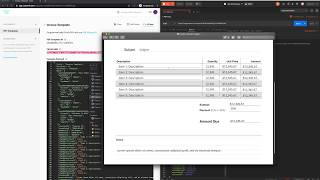
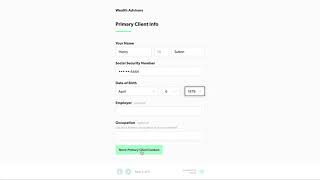
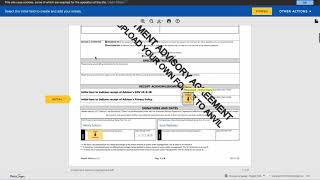
In this video, I will demonstrate how easy it is to create API fillable PDFs with anvil. First, upload the PDF you would like to convert. Next, tag each of the fields in the PDF that Anvil has found. By tagging the fields, you can select the type as well as specify the corresponding format for for that specific field. Here we are specifying that this field is part of an address and that it is formatted over two lines. The fields in the amount column are dollar values. Once we select the dollar type, we can specify the format to include dollar signs and cents. I'm going to speed up the video.
For the rest of these fields. Once all the fields are tagged, Anvil provides a unique URL to reference this PDF template, as well as some sample data for you to populate this PDF with On the right I have set up a Postman session with my Anvil API key to test the PDF generation. I simply direct the request to the unique PDF URL, provide it with the sample data payload, and then make the request. Anvil responds to the request with a completed version of the specified PDF populated with the data provided in the payload. Learn more about our document workflow and PDF generation APIs@useanvil.com.