Mary Schiller walks through Divi, a WordPress theme that lets you build and edit websites visually, right on the page. The front-end editor and drag-and-drop layout system make it fast to learn. The catch: once you commit to Divi, switching themes later is hard.
Chapters
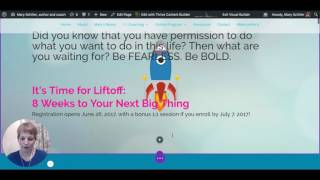
Hello, Mary Schiller here with a video featuring one of my favorite transformational tech tools. That is the Divi theme by WordPress. D-I-V-I. I'll put a link in the description with this video. So if you are considering using WordPress for your website, if you're thinking you want to change your site or you want to change the theme if you already have WordPress, I really would highly recommend Divi. I will tell you the one and only drawback I have ever seen to this theme. And that is if you switch over to it and then you decide to switch out of it. That process can be a little bit tricky. Not impossible, but a little tricky. But for me, I have switched to Divi and never looked back. So I wanted to just show you a couple of the features that I really enjoy about it. So as you can see on the screen, I am logged in to my maryschiller.com site and I'm on one of my pages. And I'm on this page because I want you to see that you can have a really cool video in the background and you can put video anywhere in your site. And normally to edit a page, I would click up here, edit page, and I would go into the backend. And I can still do that, but I want to show you something else. So ignore this edit with Thrive Content Builder. I have a plugin for, uh, something called Thrive that I use for some pages. So just ignore that one. I want you to look at enable visual builder. So if I click on enable visual builder, you will see something kind of amazing happen. So suddenly I am able to edit right on the page. So meaning if I want to type something right on the page, I can do that. And it's there. Now obviously I don't want to say that right at that point, but you can see I can type directly onto the page. And then to save it, I would go down here and click Save. So that is one amazing feature. So if you want to make simple changes like that, it's very easy to do it right on the front. You can also do more complicated things like, for instance, if I wanted to go in and edit this and change the background, I can click on this little settings button and the settings for this header will come up. So I could change the image, I can change the content, I can do anything like that. Without having to go into the back, and I can see my changes right in front of me. So this is a new version of Divi that was just released a few months ago, earlier in 2017, and I think it's absolutely brilliant. So I'm going to exit the visual builder, and then I'll show you what it looks like on sort of the traditional back end of things, which is another reason I like it. Now, pretty much everything that I can do from this view, I can also do from the front. But you can see that everything is organized into blocks, and I can move things around just by dragging and dropping the blocks around. I can add a row very easily and decide how many columns I want. It also has a feature where you can add a full-width section or what they call a specialty section, which has really fun layout combinations. So there's just all kinds of things you can do with Divi, and it's very, very easy to learn how to use, and it's very easy to customize your site and your pages. Another thing you can do is if you come up with a layout that you like, you can save it to the library and then it's like a template and you can just use it anytime you want. So those are just a couple of the things that I really like about Divi. I will answer any questions you have and I can do more of these kinds of things and even show you some tutorials if you'd like. So if that's of interest, you know, click yes or let me know and, or type yes and let me know and I'll be back again soon. Bye!