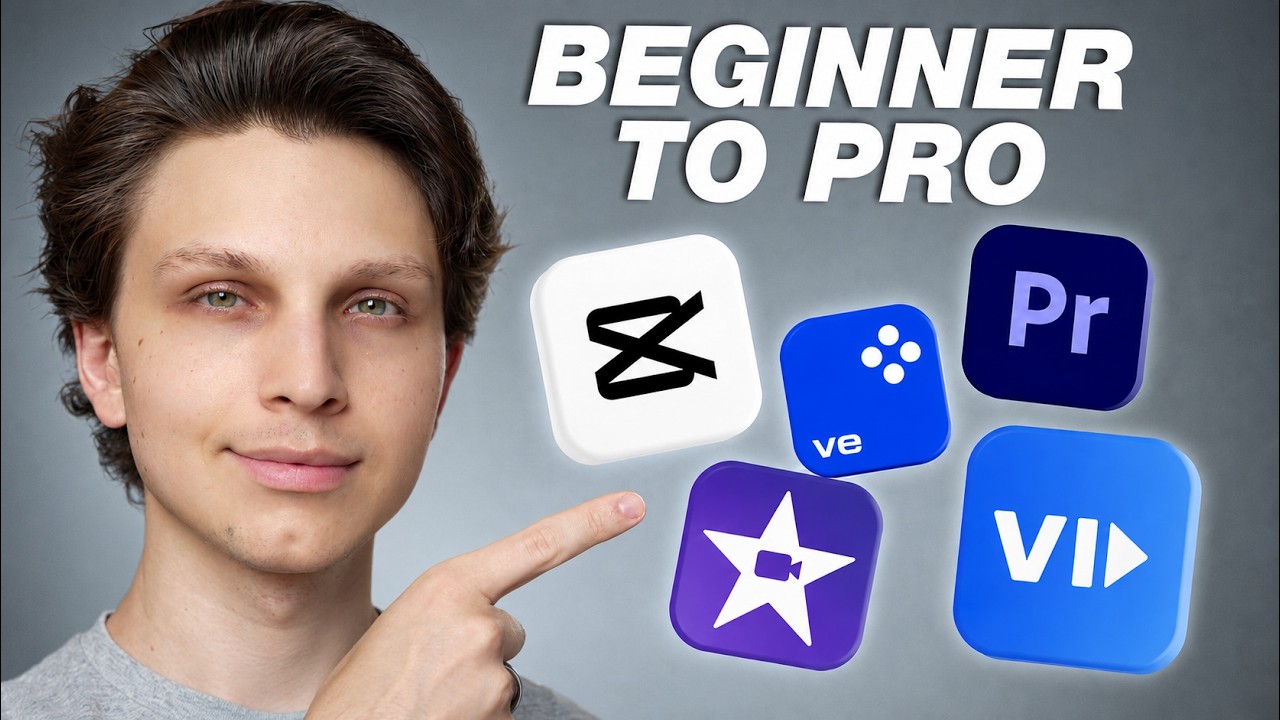
Best FREE Video Editing Software for YouTube (Don't Choose Wrong)
Matt Parr, a 10-year YouTuber, compares nine free video editors for different operating systems. He covers OpenShot, Shotcut, VSDC, iMovie, Kdenlive, DaVinci Resolve, and PowerDirector Mobile, detailing each tool's strengths, system requirements, and real-world stability.
Chapters
Are you looking for a great free editor for your YouTube channel? If so, you're in the right place. It's really important that you don't choose wrong when it comes to getting a great video editor for your channel. And in this video, I'm going to show you how to choose the absolute best editor and give you a bunch of options, but then distill them down into what is the best option for you personally, because it's going to depend on your situation, your operating system, and the device that you're using. Now, I'm going to show you these editors in the context of doing YouTube because I've been doing YouTube for the past 10 years. I've tried every single video editor out there when it comes to editing videos. For my channels, and I personally have edited hundreds and hundreds of videos myself. Obviously, I have a team now that edits a lot of my videos for me, and also I run a software company called VidAI that helps faceless YouTubers generate full 20-minute videos using AI completely. But the thing is that VidAI is limited to just stock footage types of videos. So if you're doing those types of videos, it's amazing for that, but it's not free, so I'm not going to be including it on this list. I'm going to only be showing you free editors on this list. So without further ado, let's get into my first recommendation, which is OpenShot. Now, OpenShot is a traditional-based editor that you can download on your computer. It's available for Windows, Mac, Linux, and even Chrome OS, which is pretty rare for a video editor. And it's a very basic editor. It's timeline-based editing, so you can drag clips onto a timeline and then split them, clip them, add titles, music, sound effects, B-roll. And one of the cool things about OpenShot is the fact that you can put unlimited layers on your videos. Now, a layer is simply a track that could handle, for example, music, a video, pictures, etc. You can put unlimited of those tracks so you can stack a lot of things on top of each other, which is kind of cool. There are also a bunch of different transitions like 3D transitions. Honestly, those are kind of cheesy, so I don't really recommend using them that much for YouTube. Really, the biggest transitions that I use for YouTube are going to just be a simple crossfade that almost any of these editors I'm showing you today are able to do. But to be able to run OpenShot, you are going to need at least 4GB of RAM. And now, while I've used OpenShot, I actually really like it. The UI is not the most modern thing in the world, but the issue I had when I was testing it out, and I had a very good computer when I was testing it, was the software was crashing occasionally, which is incredibly frustrating. You have to make sure to save your work, and then if it crashes before you remember to save your work, boom, all of your progress is gone. So I really didn't like that, and I saw some people having the same experience online as well, but I saw a lot of people saying that it's never crashed for them. So I guess it just depends on your experience with that, but I don't think it's the absolute best editor in the world, but I think it's pretty darn good for a completely free editor. And when I say free, I mean literally costs nothing for editing videos for YouTube. Now, the next free editor is one that's been around forever, but nobody really talks about it much. And this next one is extremely stable, unlike OpenShot. And as we discussed, stability matters a lot. You don't want your video editor crashing. And that editor is Shotcut. Now, Shotcut is available for Windows, Mac, and Linux. It's completely open source. It's also timeline-based editing. It looks pretty similar to OpenShot, honestly. Now what I really like about Shotcut is the fact that, as we discussed with transitions, my most used transition is a simple crossfade. And what you can do on your timeline is you can drag one clip overlapping on the other clip, and you can set it to automatically do a crossfade when you do that. So that way you're not having to go to a transitions tab and then drag that onto it. It will automatically do that, which I absolutely love. It's also got color grading tools built in. Honestly, I don't really even use that for YouTube. It's got chroma key ability, which allows you key out things like a green screen. Again, I personally don't really use that. It can handle almost any file format, which is nice, and it looks a little bit more complex than OpenShot when you initially open it, but it's very easy to get the hang of. And overall, I think it's a very good editor, and in my experience, it's crashed a lot less than OpenShot, so I prefer it personally. So feel free to check it out. Now, the next editor is VSDC. Now, VSDC has a built-in screen recorder, which is kind of cool, so you can just record your screen and then go straight into editing your videos. But personally, I don't really love the UI on VSDC due to the fact that it's kind of overwhelmingly feature-packed, like like if you're looking for specific features, you're doing super advanced edits, this could be a good tool for you. But for me personally, when I'm making faceless YouTube videos, I don't need all these crazy tools really. So I personally find it a little bit overwhelming. Another thing is that VSDC is only available for Windows. But like I said, almost any feature you can imagine, VSDC probably has it. Like you can export videos up to 8K, which you can't do with a lot of the other free editors I'm showing you. And if you're doing tutorials or gaming content, having that built-in screen recorder is really nice. But honestly, I prefer to just use something like OBS to record separately and then use a separate editor. And VSDC isn't as plug-and-play as OpenShot or Shotcut, but it is surprisingly lightweight. Like, I've seen people saying that they use it on computers that have 4GB of RAM and they're able to run it. And since it's optimized for Windows specifically, it takes full advantage of your computer's hardware. Now, another thing is that there is a free and a paid version of it, and sometimes the free version does show upgrade prompts, which you can close and just keep working. All the pro version does is just add a few extra effects and removes those prompts. But honestly, 99% of people will never need those features. So if you're on Windows, you want something super in-depth and professional, you might want to look into VSDC. So we talked about Windows. Now let's talk about Mac. I personally think if you are using a Mac, this should be your free editor, and that editor is iMovie. iMovie has an amazing UI. It's very clean, it's very easy to get the hang of and very easy to use. Plus it's optimized for Mac. So if you're using a Mac, this should be your go-to editor. And it's also perfect for the editing workflow that I teach, where you drop your voiceover on the track, you layer your B-roll on top, you add your music, add some occasional titles throughout the video, and you're done. And iMovie is genuinely free forever. You don't have to worry about upgrading or anything else, probably because you already bought a very expensive computer. And if I personally used a Mac, I would use iMovie. I've tried iMovie out on a few of my friends' computers, and honestly, I love the UI, but I personally don't have a Mac, so I don't use it. Now, next up, we have Kdenlive, which is available for both Mac and Windows. It's a really great all-in-one editor. It's really good. My only gripe with it is that it is a little bit complex, and it can be a little bit intimidating when you initially open it up. But if you're coming from some expensive paid software like Adobe Premiere or something, this can make the transition easier if you're transitioning to a free video editing software. Plus, it utilizes something called proxy editing. So if you're working with 4K footage and you want to tax your system less, what Kdenlive will do is it will create smaller versions of those videos for editing to make the editing a lot easier. And it's not until you do the final export of your video that then it will include those 4K files. So it's a super professional editor, honestly too professional for me personally. But if you're looking for a lot of tools, it is still timeline-based editing as well, which is nice, then feel free to check it out. Now, this next tool is one that has literally been used in Hollywood productions, but somehow it's completely free. Now, yes, this does have a learning curve. A lot of people say it's very worth it. I've experimented around with it a little bit again for myself personally. Maybe I'm just dumb or I didn't put enough time into learning it, but there is definitely a learning curve and the software is DaVinci Resolve. Now, DaVinci is one of the most reliable editors out there. So if you're worried about a video editor crashing, DaVinci is one of the best. With the free version, you can do everything that you would ever want to do for editing for your YouTube channels. And like I said, it's been used in Hollywood productions. Movies like Dune and Blade Runner 2049 were color graded in DaVinci, but you are going to want a pretty good computer for this. I would recommend at least 8 to 16 gigabytes of RAM. There are tons of great free tutorials as well, and Blackmagic, who makes the software, has an entire training series on them. It also uses proxy files just like Kdenlive. But what about if you don't have a computer at all? If you want to do editing directly on your phone, my recommendation for the best free editor would be the PowerDirector mobile app. It's available for both iOS and Android. Amazing app for editing videos. I'm literally not affiliated with them at all, by the way, but it's great if you want to edit on your phone and there's literally a timeline that you can drag clips on and everything. But what I am associated with is vid.ai, which again, like I said, is my own software, which is a paid software. But I think it is worth mentioning that if you do want to create stock footage-based videos as easily as possible, That is what I've designed vid.ai to be able to do. So if you're making faceless videos for YouTube, yes, it's not free, but if you want to check it out, it will save you so much time as opposed to doing all the work yourself. And I'll leave a link down below if you want to check out vid.ai. But making videos is just half the battle when it comes to growing a successful YouTube channel. It's really important that you also understand the secret for growing really fast and more importantly, monetizing correctly to make YouTube into a real business. And in this video next to me right here, I'll go over exactly how to do that. In fact, this video right here is essentially a completely free course where I'll go over my new way of building a huge business on YouTube right now. Check it out. My name is Matt Parr. Hope you got value from this, and I will see you there.
More from Matt

I Let GPT-6 Astra Run My Faceless YouTube Channel For 60 Minutes and THIS Happened

Stop Waiting for 1,000 Subscribers to Make Money on YouTube (Do THIS Tonight)



I Tested Letting Claude Fable 5 Create a YouTube Channel for 1 Hour and THIS Happened