An AI Camera Filmed A Robot Playing Basketball
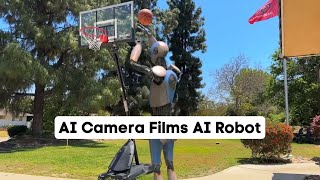
Matt Wolfe uses an Insta360 Flow gimbal to auto-track a person, then Wonder Dynamics to replace them with a robot in post-production. The Wonder Dynamics process takes 3.5 hours to scan and transform the actor across frames, turning a simple basketball shot into a robot playing the game.
Chapters
So today I made this video of this robot playing basketball in my front yard. Now, it's not perfect. The ball kind of disappears behind his hands sometimes. Sometimes the ball actually just disappears completely. But it's pretty impressive what you can do these days with AI tools. Now here's the thing about this video. Notice how the camera is actually following the robot around. I didn't have any help with this video. I recorded this video entirely by, by myself. There was not a second camera person there. There was nobody helping me. This camera was actually following me around. And I want to show you exactly how I made this video and the tools that I used to do it. Because it's some pretty cool tech that I'm excited about. Ahead to curry Curry. Sets, fires, puts it up. So to make this video, I used a thing called an insta360 flow. And this is a cool little gadget that connects to any smartphone and actually uses AI to follow you around. So the way it works is I've got an iPhone here. They give this little magnet clip. You take your phone and you stretch this little magnet clip around your phone like this. And then you take the Insta360 and then just snaps into place using the magnet. Now, to turn on my insta360 flow, I flip this thing down and then it turns on. And now you can see as I move this around, it keeps my phone steady. It's got a little button panel here that I can change the settings on. And if I double click this button here, it flips it to landscape mode. Now I can hold it here like this. If I press the button, it'll lock the camera in place. And no matter how I move this gimbal around, it tries to keep the camera level to exactly how I had it set. Now, most people have probably seen a gimbal. There's nothing super special about the gimbal portion of it. There's a lot of gimbals out there that hook up to your phone that can do this. What's really cool about it is the AI built in tracking feature. And that's what I use to make this video completely by myself with no extra help. I'm going to shut this thing off, go ahead and fold it up here. And now it's in a small package that I can carry around and put my backpack. Now here's where the AI features come in. I set it up on a tripod. The little handle of this actually has a little port where you can screw it onto any tripod here. Now, if I Walk in front of my camera. All I have to do is put my hand up like this. It detects who it's going to follow. And then the gimbal starts to follow me around. You can see as I move around, the camera follows me. You can see the little sensor box that it puts over my face as I actually move around. And I just took some video of myself playing basketball. And as I'm playing basketball, you can see the camera follows me around. The little sensor on my face always sees where I am, no matter where I'm going. And I don't need a second cameraman. I could just set this up on a tripod, move around as much as I want, and it acts like a cameraman that just follows me around. When I go off camera for a second, it stops trying to detect me. And then as soon as I come back on camera, it finds me again and starts following me around again. This has made it really, really easy for me to create content completely by myself. I don't need anybody's help. I don't need a camera. I could just set this up on a tripod and then it follows me around. Once I had my video clip, I headed over to Wonder Dynamics, clicked on open the app, clicked to create a new project, and then set it on live action. Easy. Then it was just a matter of dragging and dropping the video into Wonder Dynamics, dragging it down to the timeline, clicking next, and then scanning for actors. It'll take a look at the frame there and then try to figure out where the person is. I click on myself in the frame, open up the characters here, and then pick the character I want to use. In this case, I'm using the ASC character. I scrubbed through the video a little bit more to find myself in another frame, scanned for actors again, assigned it to the same actor once again, and then found another spot. I like to have a few different spots throughout the video where I assign the actor just so it knows it's the same person throughout. I don't know if it's necessary. It's just how I've always done it. So I found another spot here where I'm looking into the camera, Scanned it for actors one last time, and then assigned it to the same actor. Once I was done, I click next, I click the button to start processing, and then it takes about three and a half hours to process the video. Once the video is done processing, I have it here under my projects, inside of Wonder Dynamics. I can press play and watch it here, can see the whole video again. And then I just click on export video to download it to my hard drive. And now I have a cool video clip of a robot playing basketball in my front yard and it looks really cool. Now this isn't a sponsored video, but Insta360 did send me this little gimbal thing to play around with and I thought I would use it as an opportunity to create a cool video using it to plus wonder dynamics. Now the Insta360 gimbal, while it doesn't use generative AI like most of the AI videos that I make, it uses computer vision AI to track and follow around the subject. Now I myself am not a very good tech gadget reviewer. There are so many other better channels out there for that kind of stuff. But I am someone who likes to figure out cool ways and exciting new ways to create interesting content and to leverage AI to make that content even cooler. And this little gimbal has helped me do that. And Wonder Dynamics is a really, really cool platform to do visual effects. If you want access to Wonder Dynamics, head on over to wonderdynamics.com click Request Access and they are slowly allowing more and more people in. From what I understand, if you request access, most people are getting in pretty quickly. If you want to learn more about this insta360 flow gimbal, I will put a link below this video where you can learn more about it on their website. I know this is a much quicker video and a totally different style video than the style of video I usually make, but that's one of the things I do with the YouTube channel. I've got to experiment with new styles of videos, new styles of editing, testing out new tools, testing out new techniques. I just want to explore it all. I want to dive deeper and deeper down the AI rabbit hole and using gadgets like this allow me to do that. And I'm excited in the future to make more videos where I show off cool AI enabled gadgets and technology and combine it with cool tools like Wonder Dynamics. And if you want to stay in the loop with all the latest and greatest in the AI world, make sure you check out FutureTools IO. This is where I show off all of the coolest AI tools that I come across. I'm adding new tools every single day. I also keep the AI News section up to date every single day with all the latest news AI. And if all this is a little bit too overwhelming and you just want the TLDR for the week, join the free newsletter and every single Friday I'll send you just the five coolest tools that I came across, a handful of news articles, a handful of YouTube videos, and one cool way to make money with AI. Again, it's the TLDR of the week in AI. And if you want to see more videos in your YouTube feed about AI and all the latest cool technology and advancements in AI, make sure you like this video and subscribe to this channel and I'll make sure videos like this keep on showing up in your newsfeed. Thanks so much for nerding out with me today. I really appreciate you. See you guys in the next video. Bye bye.
More from Matt




AI News: Dots, GPT-6.1 Sol, Sonnet 5.5, Gemini 4, and everything you need to know




