Free Tool Generates WILD MidJourney Prompts For You
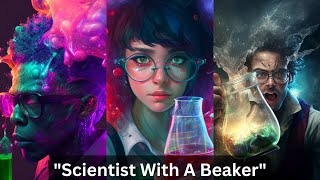
Matt Wolfe shows a free tool that generates MidJourney prompt modifiers, letting you stack style codes like pixel art, anime, and Andy Warhol onto a single base prompt. He starts with a scientist in a lab and applies different visual styles to see how each one transforms the image while keeping the core concept the same.
Questions this video answers
"a scientist with crazy hair in a lab holding a beaker filled with red bubbling liquid."
prompt.noonshot.com
January 16, 2023
1:1, 3:2, or 2:3
Matt Wolfe
Chapters
So I just found this really cool tool that gives you all sorts of styles that you can use inside of Mid Journey. And it's really awesome. Just check out some of these images that I just made with it using the exact same prompt, just different styles for every single one. So the prompt was a scientist with crazy hair in a lab holding up a beaker filled with red liquid. And that one prompt made all of these images that you're seeing right now. All I did was change some little style elements using the free tool that I'm going to show you in this video. It is really awesome. You're going to love it. Let's dive into it. Hey, what's up, Matt Wol here. I wasn't actually planning on making another Mid Journey video so soon after my last Mid Journey video, but I came across a really, really cool tool that I had to make a video about because I was just blown away by how awesome this was. Now this tool is called Mid Journey Prompt Tool. You can find it over on Future Tools here. I actually came across this tool, this Data Chaz GPT. He's at Data Chaz. Highly recommend following him. He is an awesome follow on Twitter. Shares a lot, a lot of cool stuff in the AI space. Check him out for sure. But this tool you can find@prompt.noonshot.com or if you head over to Future Tool Tools IO, you'll find it under Generative Art section or just search Mid Journey and you'll find it towards the top. So let me show you how this tool works. It's basically something that helps you come up with all sorts of ideas to get more creative with your prompts. So in my last Mid Journey video, I showed you a GitHub repository where there's all sorts of prompt ideas. This actually has all the prompt ideas built in and you just copy and paste them into Mid Journey. All right, so let me show you how this tool works. Let's go ahead and enter a prompt prompt into the tool and kind of get like a baseline image here. Let's go. A scientist with crazy hair in a lab holding a beaker filled with red bubbling liquid. So this is my prompt here. And you can see down here, it gave me a prompt that I can easily just copy and paste. So if I just copy this prompt, jump over here to Mid Journey, I'll go ahead and paste it in here and let it run that, and we'll get kind of a baseline image of what this prompt would look like without any extra parameters added to it. All right, so here's kind of our baseline image of a scientist with crazy ha holding his beaker filled with red liquid in the lab. And really figure out the lab part. But that's fine. This is a good image to start with. Let me just show off what this tool does now. Just click on the styles here. It'll give me all sorts of inspiration of additional things I can add to the prompt here to give it a completely different style. So let's go ahead and scroll through and see what we got here. Let's go ahead and add pixel art to it. Continue. And you can see it updated our prompt. Let's copy the prompt jumped into mid journey and I'll paste this prompted now and let's see what happens now that we added pixel art. So check this out. Now we have a completely different style. They look nothing like the original original images. Now we have a video game looking pixel art style. Let's jump back over here and let's play with a different style in here. Let's go ahead and add the anime style to it and continue that. And this time let's also add some interesting lighting to it because we've got this lighting button here where we can add some exciting cool lighting to it. Let's put. Let's go ahead and add quantum dot display. Let's go ahead and see what that gives us. So now we've got anime and we've got quantum dot display here. And let's copy this prompt. Let's jump into mid journey and we'll paste this prompt in and let's see what this gives us. So check that out. Now we have an anime style with quantum dot display. Completely different style from what we've created already. Let's go around and play with some more stuff. I'm going to go ahead and clear all the styles here and let's pick a brand new style to start with. This time I want it to be in the theme of a graphic novel. So let's select graphic novel. Let's continue. Let's get some creative lighting in here. So this time let's add dusk. Let's go ahead and continue and let's pull up the camera. We have some different camera styles that we can add here. Let's go ahead and add a wide angle lens and see how affects the image. Copy the prompt, jump back to mid journey. Just go ahead and paste it in and let's see what this gives us. Here's what it came out with this time. Definitely got the graphic novel. Definitely got the dusk. I don't really think it did much with the wide angle lens. But you know what, I am kind of giving it a lot of information. So let's go back here and try something else. Let's go ahead and remove the style of the graphic novel. So we'll go ahead and clear this and close it. Let's go ahead and change the lighting from dusk to electric art and continue. So now it's a scientist with crazy hair with electric arc lighting. And let's go ahead and mess with ultra wide angle lens. And let's continue with this. Copy the prompt, jump over to mid journey. We'll paste this one in, and here's what we got from that completely different style from all the rest of the images we've came up with. And so far, this initial prompt, a scientist with crazy hair in the lab holding a beaker filled with red bubbling liquid, has been exactly the same. Let's go ahead and clear all of this stuff here. And let's see, we can look at artists. There's different artist styles in here that we can pick from. Let's do it in the style of Andy Warhol. Let's go ahead and continue here and let's mess with some colors. There's some different color options that we can mess with here. And let's say we want it be in pastels. All right, so now we're going to do it in Andy Warthall style with pastels. Let's copy our prompt, jumped in the mid journey. Paste this in. Let's see what we get. Once again, we have a completely different crazy style. Look at that. It's nothing like any of the images we made so far. Let's go ahead and clear all of this stuff here and let's play with some of the materials. Look at this. You can do bronze, carbon fiber, ceramic, fabric, all sorts of cool stuff to play with here in the material side of things. Let's do paper. This. This is the weighting here. So let's say we really want to make the paper, you know, a dominant trait of this. We can increase the weight that the PA is. So let's go ahead and increase it to two and click continue. Copy the prompt, and let's paste this in and see what happens. Now we've added the exact same prompt. We added paper with a weight of two to the end, and we got something totally unique and totally different from what I was even expecting to see from that prompt. So much cool stuff here. This mid journey prompt helper is really, really awesome. Let's go ahead and Clear this. We've got the size, so you can mess with the various aspect ratios here. Some of these aspect ratios won't work in mid journey version 4. And version 4. You can only do 1, 1, 3, 2 or 2, 3. If you're using mid journey version 3, a lot of these other aspect ratios will work. So just keep that in mind. You've got your height and width that you can mess with. You've got various depth of field. So let's go deep depth of field. We can mess with our quality setting. Let's make it the 2x detailed quality setting. You can mess with the stylized setting where you let Mid Journey kind of take over the styling a little bit, or lowest, where it tries to follow your prompt even closer. Now, this says version three. This tool was clearly made for version three, but it works just as well for version four as we've already demonstrated with some of our examples here. So let's try this with the deep focus and equality of 2. We'll copy this prompt here, jump back to Mid journey, and let's see what this gives us. And here's what we get when we do a deep. Keep focus with the quality setting of two. Once again, completely different results. So it's just kind of crazy what you can do with this. You enter one prompt up here and then you can just mess with all sorts of really cool options that you can just play with. Let's get really, really crazy with it this time and see what happens. We'll use our same exact original prompt, this time with style. Let's go for. Let's go for galactic. Let's click continue. Let's pick some crazy lighting. Let's do fluorescent lighting on it. Let's continue. Let's go into the colors and let's go rgb. Let's go ahead and continue. Let's go into the material materials here. Let's add slime just for fun, see what we get out of this. Under depth of field. Let's go deep, see if we can get some. Something in the background there for quality. Let's go to the 2x quality. And if you want, you can even add negative prompts. But I'm just gonna. I'm not gonna do that right now. Go ahead and feel free to play with that. Obviously when you start messing around with this. But let's go ahead and just do this kind of crazy prompt here and see what it gives us. And we'll copy the prompt and we will jump back over to Mid Journey and paste this prompt in and let's see what we get out of this. And check that out. We just got some crazy wacky images with slime and RGB color and all sorts of cr craziness going on so you can get really, really creative and come up with some crazy art styles. This tool also has the ability to upload an inspiration image and try to play off the image that you uploaded. I'm not going to experiment with that on this video. This tool is completely free, so I'll let you get in here and play with it yourself and see what kind of other stuff you can come up with. Also add negative prompts in here that you don't want to show up in the image. Just all sorts of cool stuff. You know, in my last video I showed you a bunch of cheat codes. This tool even shortcuts the cheat codes. This is the cheat code to the cheat codes. So really, really, really cool stuff. Hopefully you enjoyed this video. If you're really, really into cool AI tools, make sure you check out FutureTools IO. FutureTools IO is a site where I curate all of the cool tools that I come across. It's a site where pretty much every day I'm looking into between 15 and 20 different AI tools and the ones that I really like I put up on the website and share with other people. I also share cool news in the AI space right now. This tool is designed to really help you find whatever you're looking for. Whatever you need help with your business or your life, you can just come up here to this little search bar. Let's say that you're in E commerce. Come up here, type in E. It's going to give you 12 tools that are going to help you with your E commerce business that leverage AI. Let's say you're into content marketing. Come up here, type content marketing. It's going to generate 14 different tools that you can use to work with you in content marketing. Let's say you want to figure out how to do some cool stuff with Twitter. Come up here, type Twitter. See what it brings up. 12 different tools that are going to help you with Twitter. Let's say you only want free tools that will help you with Twitter. Come down here, leave Twitter in the search box, click free. It's going to narrow it down to two tools that you can use for free with Twitter. Maybe add in freemium into the mix and it'll update it to six tools that you can use with Twitter. And also I have a newsletter that I send out every Friday. If you go to Future Future Tools IE newsletter you can get on this newsletter for free and every single Friday I send you a list of 5 cool AI tools of the 100ish that I look at every single week. I pick the coolest five and I share them with you in this newsletter. I share three cool news articles with you in the AI space, three cool YouTube videos, and one new way to make money with AI every single week in this newsletter. Totally free goes out every Friday to Future Tools IO. To find that and of course come check out this mid journey prompt tool over@ prompt noonshot.com it's literally hours of fun just adding in little additional cheat codes to your prompts and seeing what they come up with. It's really really cool. You're going to dig it. Thanks so much for tuning into this video. If you like this kind of video. If you like nerding out over cool tools around AI and automation and Internet marketing and how to make money online and all that kind of cool stuff, I nerd out about that. I make videos where I nerd out about that stuff on camera. Come join me. I'm making videos a few times a week, putting them on this YouTube channel. Subscribe like you'll see more of them. Appreciate you guys. Thanks so much for tuning in. See you in the next video.
Sam.
More from Matt




AI News: Dots, GPT-6.1 Sol, Sonnet 5.5, Gemini 4, and everything you need to know




