How To Animate A MidJourney Image (For Free)
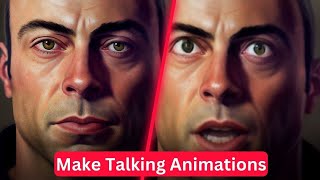
Matt Wolfe shows how to turn a MidJourney image into an animated video using free tools. He walks through generating an image, creating a voiceover with Voice AI, and combining them in DaVinci Resolve and D-ID to make a talking head video.
Chapters
Ladies and gentlemen, welcome to the main event of the evening.
Want to know how I made this exact video that you're watching of my fake Joe Rogan with a fake Joe Rogan voice? Well, I did the whole thing in about 15 minutes, and I did it with completely free tools that anybody can use. If you're a tech nerd like me that likes to create stuff like this, well, then check out this video, and I'm going to show you how to do it right now. Hey, what's up? Matt Wolfe here. Earlier today, I came across this video from Riley Brown. This guy makes really, really cool videos on TikTok all about how to do cool AI. And I saw this video where he basically made a talking animation here. And let me just play a quick second of it. I'll make sure I link up to his Twitter and his TikTok below this video, so you can check them out for yourself. But check this out.
All right, I'll take over from here. The first step is to create your.
Character so he walks through really, really quickly in this tutorial how he made this talking animation guy. And a few hours later, I came across this really cool video from Rodrigo, who was doing something very similar, but used kind of a different process to get there, where he has this talking animated avatar.
Here we have to worry about things we never imagined before.
If check out my profile here, you could see I made a clip similar to this back in November of 2022, where I did something similar, and I was doing some silly voices with it here.
So it's a really, really fun thing to play around with. And I haven't seen a lot of other tutorials talking about how to do this yet. So I wanted to show off how to make a video like what I made back in November and what Rodrigo and what Riley made here. And each of these people kind of had their own separate process. And the way I'm going to do it's going to be slightly different. But in this video, I want to try to make a sort of silly, deep fake of Joe Rogan talking. So that's what I'm going to attempt to do in this video. But I'm going to walk you through everything I'm doing as I do it. So the first thing we're going to need is we're going to need an image of Joe Rogan's face. And I don't want to just download one from the Internet. I want to create one. All right, so the first thing I'm going to do here is I'm going to fire up Mid journey and get inside my Mid journey bot. I'm also going to open up Chrome and let's pull up our Mid journey prompt helper here. Let's do candlelit, just for fun. And let's go realistic portrait of Joe Rogan looking into the camera. Let's do a shallow depth of field. Let's put no cutoff, see if that stops it from, you know, cutting off the top of the head. Copy this prompt, see what we get out of this one. Didn't quite get it, what I was looking for. This one turned a head into a candle in a jar. That's not creepy at all. And none of these really seem to be looking too much like Joe Rogan, which is kind of disappointing. So we're gonna have to get something that's like, close enough here. Let's, let's jump back over to our prompt helper. Seems like when I'm adding this funky lighting, it's. It's kind of messing stuff up. So let's get rid of the funky lighting. We'll just use shallow focus and realistic portrait of Joe Rogan looking into the camera. Let's put realistic portrait of young Joe Rogan looking into the camera because he's wanting to make him a little bit older. And let's go ahead and up the weight of this a little bit here, see what that does. Copy the prompt and let's pull this one in and see how this turns out. All right, so of these, I would say that this one down here is probably the closest. So let's go ahead and upscale this one here. And also let's go ahead and make four more variations of this one. But with the variations, what I'm going to go ahead and do is tweak the aspect ratio to a 2, 3, and see if I can prevent it from cutting off the head right there. All right, so here's my upscaled version, the one where I switched the aspect ratio. What it basically did was just stretched out the head instead of actually, you know, fixing the image. So what I'm going to do is I am going to grab the seed of this image and I'm going to try to re prompt it with the same seed. So if I add the reaction, I come and press this envelope. You'll see. Look, now it just gave me the seed here. So what I'm going to do is I'm going to grab this exact same prompt that I use last time. Let's copy this prompt. I'm going to do imagine and I'M going to paste in the exact same prompt, but I'm also going to attach the seed to it, and then I'm going to add seed to the end to try to get it to use that same sort of styling and the same sort of algorithmic number that's going on behind the scenes there. And then I'm going to add my aspect ratio to three to try to get it, you know, taller without cutting off the head. And hopefully this time it won't squeeze in the head while it tries to make it. So let's see what this generates for us. All right, so this is where we're at right now. I actually think this top right one is even closer, but it's still too zoomed in on him. It's still kind of cropping out his face a little bit, but that actually looks closer to Joe Rogan than the original one that I was working with here. This one down here got further away. This one's black and white. This one looks the closest to the original, but it kind of aged him or something. This one up here is looking pretty dang close, though. Let's go ahead and upscale number four here. And you can see when it comes to mid journey and trying to get the exact image you want, a lot of times it is just iterating and iterating and iterating until you finally hone in on that image that you really like. So this one's close up here. So let's go ahead and let's do a variation of number two here. And I just remembered that I put this depth of field here. Let's go ahead and get rid of the depth of field and see if maybe that backs off on the face a little bit. And so let's run some variations of that one minus the depth of field, and let's go ahead and see how that works for us. Well, I feel like we're getting closer here, but it didn't really do anything when I removed the depth of field. Feel like this bottom left one right here is the closest to what we're actually going for. But still, it's kind of. Honestly, it's giving him too much hair. This one, he's got the more shaved head, but I feel like the jaw area looks more like him on this one here. But you know what, we're not trying to get perfect, so let's go ahead and upscale this third one here and see where this gets us. All right, so here's what it came back with. That's not too bad of an Image of Joe Rogan. You know, he doesn't have that much hair anymore, but not too bad. Let's see what happens. I always like to do the beta upscale redo, because sometimes it actually fixes it up and makes it a little bit better, sometimes it doesn't, but I always like to do it anyway and see what I come up with and don't have to use it if I don't like it. So let's see what that does. All right, so this is the new image it gave me. This is the original. I actually think the new image looks a little bit closer. Honestly. It's kind of got his features a little bit better. I think the best one we've got is probably this variation right here. So I'm gonna go ahead and work with this one. I think this will do for our Joe Rogan deep fake that I'm gonna do. Not very well done deep fake, because it's clearly not really Joe Rogan. But this is gonna do for now. So let's go ahead and open this in the browser, and I'm gonna save this image. I'm gonna save it in my AI Eric folder, and let's put a new folder for talking Joe Rogan. All right, so we'll save our Joe Rogan image there. And our first step is complete. We have the image that we're gonna make animated here. So for our next step, we need to figure out what we want Joe Rogan to say. So for that, I'm gonna lean on my good friend and I'm going to say, write a story about a crazy UFC fight in the voice of Joe Rogan. Right? So we've got our story here. Now we need to record this story. So to get the voice of Joe Rogan, I'm going to fire up this voice AI tool, which I made a previous video about, and I'm going to go ahead and use the voice of Joe Rogan. So now what I'm going to do is I am going to swap this over to Joe Rogan's voice. So let me switch to the voices I've got trained here, and we'll use Joe Rogan's voice here. Now, I need to switch this to live mode here, and then I need to record the voice into something. So for my audio, I'm going to fire up DaVinci Resolve, which is a free audio or video editing tool that is both on Mac and PC, completely free for anybody to use. So I'm going to go ahead and record it straight into this. Let's Go ahead and create a new file here. So in DaVinci Resolve, what I need to do is I need to create a new timeline and I need to jump over to this little audio tab over here, and I need to patch in Voice AI voice changer here to make this work. So what I'm going to do is I'm going to come up to my input up here, select my input. You can see it says microphone array, Voice AI audio cable. I'm going to go ahead and select this here and I'm going to select patch. And now it's going to patch in the Voice AI audio cable. So now if I hit arm for record here, I need to mute it first, otherwise I'll hear my voice back in my own headphones. But if I arm this to record now, I should be able to record with the Voice AI. So let me come over to Voice AI here. And on the voice changer, you probably still hear me normal because you're getting the feed from my microphone, but this is getting the audio from Voice AI. So I'm going to just going to start recording real quick to make sure that there's some audio waves coming through here. That's telling me that the audio does seem to be working. Let me go ahead and stop this, take it off the arm for record, and let's listen back to it just to make sure that it's actually giving the voice. I want it to start recording real.
Quick to make sure that there's some audio waves coming through here. That's telling me that the audio does seem to be working.
There you go. Now you can hear that it was coming back out as the voice of Joe Rogan here. So now I'm going to delete this, come back to the beginning here, make sure I have this track muted. I'm going to arm for record. And one thing I like to do is I like to hit record and then I like to start talking a little bit. So it starts to learn my voice, because the more I talk, the better. It sort of starts to train on the voice I'm trying to get it to do. Now what I need to do is come back to Voice AI. These settings are good. I'm just going to kind of leave it in the middle here and let's go open up our Chat GPT script. All right, so I've got this prepared here. I'm going to go ahead and start the record here and I'm going to actually continue to talk just for a moment so that it's starting to learn My voice. I'm going to chop all of this out when I'm ready to actually use this audio file. And now I'm going to jump back to chat GPT and I'm going to record the script real quick. Ladies and gentlemen, welcome to the main event of the evening.
All right, and there is my record. Let's go ahead and stop that. Turn it off, arm for record. Unmute it here. Now we have an audio file of Joe Rogan. So let's. I believe it starts right around here.
Ladies and gentlemen, welcome to the main event of the evening. This is going to be one wild ride.
All right, so let me go ahead and crop out everything. Before this here, I hadn't delete all of this and then I'm going to go ahead and delete everything at the end here.
Madman passed with flying colors. What a night, folks. Folks, what a night.
Not perfect audio, but, you know, it's pretty dang close. There's little bits of clicks and pops and stuff like that. And so what I'm going to do is I'm going to go ahead and render out this video. The way I'm going to do this is if I come over here to this section of DaVinci resolve, this little rocket ship up here, I come up to the top and there's a selection for audio only. I only need the audio for this thing. So I'm going to go Joe Rogan voiceover. I'm going to pick where I'm going to save it. I'm going to go ahead and save it in that same folder called Talking Joe Rogan. So we'll save it next to this image here. And then I'm going to select audio, just make it an MP3 file data rate. I'm going to bring this down to 128 and then I'm going to add to render queue. And then as soon as I hit this render button, it's going to render out the audio. Okay, cool it rendered it with no issues. So happy to see that. So now I'm going to go ahead and close out of DaVinci resolve here and I'm going to close out a voice AI. And now I've got my Joe Rogan voiceover and my Joe Rogan image. All right, so my next step, I'm going to come over to future tools here. If I come over here to Generative Video, I'm going to use a tool called D ID or D id. I'm not quite sure how they like to pronounce it, but I'M going to use this tool here, and this is the tool that's going to take our voiceover file, file, our video file, and smush them together. So let's go ahead and do a free trial here. So let's go over here and click Create Video. Let's add our own presenter here. I'm going to grab this image of Joe Rogan ish that we created earlier and pull this in as my image. All right, it's saying, image must be less than 5 megabytes. Let me see how big this image is. So it's barely over 5 megabytes, but it's a PNG file, so it's. That's easy to fix. So I'm just going to open this up and I'm going to save it as a JPEG file, and that should compress it enough that it's way below 5 megabytes. So go ahead and save it to that same same folder. All right, so now let's take a look here at this JPEG version. Now it's under a megabyte. All right, so let's go ahead and try this one more time. Make sure I grab the JPEG version of it. And now it uploaded this image. And then the next step up here, you can either type a script and it'll show this person speaking that, or you can upload voice audio. So obviously I want to upload my voice audio here, so upload your own voice. I'm going to go ahead and grab our Joe Rogan voice over here and open that up. And now it's uploading that, so we can just double check it.
Ladies and gentlemen, welcome to the main event of the evening. This is going to be one wild ride, folks.
All right, so let's go ahead and click Generate video up here. The video length is going to be 1 minute and 47 seconds, and it's going to use eight of the 20 free credits that I get on my free trial here. So let's go ahead and click generate. Now it's generating my video. I don't know exactly how long it's going to take, but I'll go ahead and pause the video and let you know how long it took once it's done. All right, so it says, my video is ready. It took maybe two minutes. Like, it was shockingly fast. I was expecting it to take much longer than it did. Let's go ahead and download it and let's preview. Preview this here.
Ladies and gentlemen, welcome to the main event of the evening. This is going to be One wild ride, folks. We've got two fighters in the Octagon tonight who are ready to go to war. In the red corner, we've got the juggernaut. A 6 foot 5 inch heavyweight with a record of 15 1. He's a powerhouse, folks. He's got a jaw dropping knockout ratio of 90 and he's here to make a statement. But in the blue corner, we've got The Madman. A 5 foot 11 inch lightweight with a record of 12, 2. He's unorthodox, unpredictable, and he's got a chip on his shoulder. He's here to prove that size doesn't matter. The bell rings and the fight is underway. The Juggernaut comes out strong, throwing heavy punches and trying to take down the Madman. But the Madman is quick on his feet, dodging and weaving and landing some fast jabs on his own. Round one ends and it's a close one. The Juggernaut is landing some heavy shots, but the Madman is showing some serious grit and determination. Round two starts and the Juggernaut is getting more aggressive. He's throwing the haymakers, trying to end the fight early, but the Madman is still moving well and he's starting to find his rhythm. He's landing some quick combinations and he's starting to wear down the Juggernaut. And then it happens. The Madman lands a spinning back fist out of nowhere. And the Juggernaut is down. The crowd is going wild, folks. The Juggernaut is trying to get back up, but the Madman is all over him. He's landing punches, knees and elbows. And finally the referee has to step in and stop the fight. Ladies and gentlemen, your winner by tko, the Madman. This is one of the craziest fights I've ever seen, folks. The Madman came in as the underdog, but he proved that anything is possible in the Octagon. This is the beauty of mixed martial arts, folks. It's a true test of skill, determination and will. And the Madman passed with flying colors. What a night, folks. What a night.
I mean, there was some funky stuff going on with the eye once you get into it. You can see his left eye is getting a little bit funky. The audio is obviously not perfect. There's a little bit of like crackling from, you know, it. Trying to process my voice into Joe Rogan's voice, but pretty cool stuff. I mean, really, the point of this is to show you how quickly this technology is advancing, how easy it is for anybody to kind of do this stuff. Now. This whole process took me maybe 20 minutes to make. From start to finish. And if I wasn't, you know, explaining myself as I was doing it, I probably would have done it even faster. So really, really cool tools out there. All I did was I used Mid Journey to get the IM, which you can do for free if you're using one of your free 25 credits when you first sign up. If you don't have midjourney, you could build your faces in Blue Willow or Stable Diffusion or Dall E or any of the free image generators that are out there. Once you've got that, you could use the free Voice AI tool, use the credits for whatever voice you want, take that voice into something like DaVinci resolve to record the audio, which is another totally free tool, and then bring it into the did tool, which you get 20 free credits to use if you just want to mess around with it. And that whole process can be done for free with any face, any image, and almost any voice that you can think of. So pretty dang cool. Hopefully you really enjoyed that. If you really enjoy cool tools that use AI and cool future tech, check out FutureTools IO. This is a site where I curate all of the cool tools that I come across and it's searchable and it's easy to find anything you're looking for. If you're a video person, come up here, type video, and you can see there's 68 tools that'll help you mess with video in here. Are you a podcaster? Come up here and type podcast. It'll give you 17 different tools. It'll help you be a better podcaster using AI and cool future technology. If you only want to use free stuff, you can check the free boxes down here. All of these will get you free tools. There's 13 different free tools that you can use for being a podcaster. Know what you want to search? Come up here and click on Text to speech and check out one of the 21 cool text to speech tools that are in here. Click on Productivity and check out one of the 54 different productivity tools in there. Need a new avatar? Come up here and click avatar. There's 15 different tools in here that'll help you come up with a really cool avatar. Want to know what other people on the site really, really dig on future tools? Come over to the Sort but box, click Most Upvoted and see the tools that people seem to like the most on this site and check those out next. Don't want to sift through the hundreds of cool tools to find out which ones are the best ones you don't have to go to FutureTools IE newsletter. Join the weekly newsletter and every Friday I'll send you the five coolest tools that I found that week. Also send you three cool news articles that I came across that week, three inspiring videos that I came across on YouTube or that I created for you, and one cool new way to make money as a side hustle using AI. That email goes out every single Friday. All you gotta do is go to futuretools IO newsletter letter and I'll hook you up starting this Friday. Thanks so much for tuning in. Make sure you like and subscribe if you like nerd not over cool AI tools and stuff as much as I do. It really helped the algorithm and helped some of these videos get in front of more people. I really appreciate you tuning in and hopefully I'll see you in the next video. Thanks so much. Bye.
Sam.
More from Matt




AI News: Dots, GPT-6.1 Sol, Sonnet 5.5, Gemini 4, and everything you need to know




