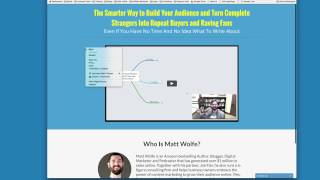
Matt Wolfe shows how to reveal hidden buy buttons on sales pages using Chrome DevTools. Right-click, Inspect, search for "display: none" in the CSS, change it to "display: block", and the button appears. Works on any sales page that delays checkout links to keep you on the page longer.
Chapters
Hey there, Matt Wolfe here. I want to go over a real quick little tip for you. I'm going to be doing a series of videos that are kind of, I don't really quite know what to call them. I guess they're kind of, you know, marketing hacks, ways to sort of spy on other people's marketing. You know, it's. I'm going to be teaching some tips on how you could kind of get sneak peeks into what other marketers are doing and you know, kind of use it as a swipe file and really understand what other people are doing. Uh, so today's tip is gonna be how to show any sort of like hidden buy buttons and stuff that are on the sales page that you're looking at. So this page that you're looking at is actually one that I built myself. Um, and it's got a little sales video here and just a little bit of a bio about me, but nothing else. There's no buy buttons or anything. Well, this is actually one of those sites that has a timed delayed buy button. And you know, some people might give me some flack for showing you this and teaching you this, but I'm gonna go ahead and show it off anyway. There is a way to actually unhide any of the buttons. A lot of times if you have like a 30 minute sales video, the buy button doesn't pop up till minute, you know, 25 when they finally announce the price. So if you want to get around those little hidden buy button pop ups, this is how I do it. Now it's a little bit technical so you might need to keep up. And I only know how to do this in Chrome. I'm sure you can do it in other browsers, but I'm going to show you how I do it in Chrome on Mac. So there might be some translation needed if you're using a PC or a different browser. But this is how you do it on Chrome in a Mac. And I'm pretty sure it's the same on Chrome on a PC. Alright, so here's the page. It's got the sales video, it's got a little bio, but it's got no buy button. Now if you land on one of these pages and you go, man, I know this is going to have a delayed buy button on it. I want to know the price, I want to see what's hidden under the delayed buy button. Here's how I would do it. So in Chrome I would right click and I would come over to this little button that says Inspect. Okay, this will bring up a little window down here in the bottom. Now if I on my Mac hit Command F. On a PC, it might be Control F. On a Mac it's command F. You could see it open this little search box down here in the bottom. Here's what I'm going to type. I'm going to type display.
Colon none. You're going to search for that little bit of code and you can see it found it 17 times. So where you find that, that's the code that's hiding whatever is on this page. That's the code that's hiding the hidden buy buttons or whatever is hidden. Alright, so what I'm going to do is I'm just going to tweak this code right here where it says display colon none. And I'm actually going to type display block over here. I'm going to type display colon block. Then I'm going to click out of here, I'm going to close this little box here and boom, here's all the information that was hidden. All I did was I searched the source code for display colon none, change that source code to display colon block and it shows up everything that's hidden on this page that it had a time delay. Alright, so now I can, you know, click on click here to enroll now and see where that actually takes me and you know, see the price point of the product. And yeah, it works really well. You can see I come back to the page and it's all hidden again. Now let me show you on another page, I actually just randomly clicked on an email that was in my inbox this morning. It was for this webinar here. And as you can see, there's no sort of buy buttons or anything like that on this webinar, but just got the headline, a countdown and a video. No buy buttons. Obviously it's a webinar. You're used to being pitched on webinars. So there's most likely a buy button that's going to pop up at some point. Let's go ahead and try it on this. This is a random email. I clicked on my inbox, right click click on inspect on my keyboard. I'm going to hit Command F again. If you're on a PC, I believe it's Control F. And then in this little search box down on the bottom left, I'm going to type display colon none. I'm going to find where it's got this little bit of code. See it's highlighted display colon none. I'm going to go ahead and select this code and change it to block. Select this code here, change it to block. Click out of this. Close this box here. Now you can see I've got buy buttons on the screen just like that. It's unhiding whatever was hidden. Now if it doesn't work the very first time, if you find a display none code and you change it to display colon block and it doesn't make anything pop up, then just hit the little next button. So when I went to inspect and I did command F and I typed display none, you could see that it actually found it 20 times on the site. So what I did was I just changed the very first time it was shown. And if that doesn't work, you'll just hit the little down arrow, find the next time it's shown and change the next time it's shown until the stuff pops up. Basically this little code that says display colon none is the code that's hiding, you know, whatever's on the site. So by going through the various display codes and typing in block instead of hide, it actually unhides anything that was on that page. Alright, so now I could close out of this. Click here to join SocialSonic. Actually see the price point of the site, see their checkout page, get all the details without having to watch the whole video. So hopefully you found this helpful. I've got a whole bunch more videos like this one on the way that's going to kind of show you how to be a little bit sneaky and kind of take a peek at what other people are doing. Again, I'm pretty sure I'm going to get some flack from people about showing this stuff off. These are kind of some of the little hidden secrets they don't really want you to know about. I mean, I use them myself on my own website. I do a lot of the hidden buy buttons, buttons where the buy button doesn't pop up until you know the price is displayed on the product. So, you know, I do it myself and you know, since you're probably watching this, you're probably a marketer, you know, I'm not too concerned with you knowing this stuff, but you know, the general public's never going to really, you know, know these sort of marketing tactics that are being used. But now you know how to go and view the hidden buy buttons that are on videos. Hopefully you found that helpful and I'll see you guys in the next video.