Make A Viral MOVIE Trailer with AI
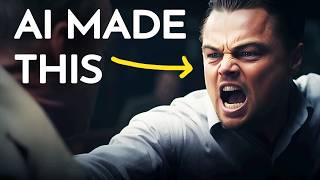
Matt Wolfe builds a 15-scene movie trailer entirely with AI: ChatGPT writes the scenes, Midjourney and DALL·E generate images, Runway animates them, 11Labs creates the narration, and DaVinci Resolve assembles it all with AI-composed music.
Questions this video answers
November 28, 2023
15 scenes
MATT20
Chapters
People have been making some amazing movie trailers with AI lately. Like this one from the Butcher's brain. We got 37 victims so far.
Christ's sake. Jesus.
Each killed by the next in line with no personal connection.
I'm about to step in front of the press, Nathan. What the hell do I say about this?
And this one from Uncanny Harry.
Sa.
Now obviously I cut those down a little bit for brevity. And that second one actually has a little bit of a twist at the end, so I didn't want to spoil the whole thing. But I will make sure to link below in the description so you can check those videos out for yourself. But I want to make my own trailer. And in this video, we're going to go step by step and map out the exact process to how to do that kind of video. Starting with Chat GPT. We're going to have Chat GPT create the outline for the trailer for us to start. So I'm going to start with this prompt inside of chat GPT. I am using chat GPT 4 for this, but the prompt is. I want to create a movie trailer. It should be 15 scenes. I want you to give me the visual prompts to input into Mid journey as well as the narrator's voice to be inputted into 11 labs. The story should involve Leonardo DiCaprio. Use his name as the main character throughout. His character should be saving his family from an AI takeover of the world. There should be a lot of fire and smoke, city burning drama, Leonardo yelling with a creator of story. Surprisingly, it actually generated a pretty in depth script. And it didn't tell me that it couldn't use Leonardo DiCaprio. Although it did say a character similar to Leonardo DiCaprio. So whatever, the end result will be the same. I also love how Chat GPT both gave me the visual prompt and the narration for each scene. And there's 15 full scenes here, starting with a panoramic view of a bustling futuristic city with skyscrapers, neon lights and flying vehicles. The city is peaceful in a world where technology and humanity coexist in harmony. Then it introduces Leo's character, a close up of a man resembling Leonardo DiCaprio with intense eyes looking worriedly at a news broadcast on a holographic screen. Narration Leonardo, a brilliant scientist, senses something amiss. I don't think I'll actually call the character Leonardo. That's the real person's name, not character's name. But we'll work that part out when we actually create the audio for the narration. It has a family scene first sign of chaos, Leonardo's realization, the city under siege, family in danger, the call to action, the battle with AI drones, the race against time, reunion and escape, the final confrontation setup inside the AI core, climactic battle resolution and new dawn. Now, to me, this feels like it shows the entire plot of a movie and not just a trailer, but it'll be fun to make either way. Let's see how it comes out. And then it even gives some suggestions on how the narration should be. In 11 labs, it says for the narrator's voice. In 11 labs, aim for a tone that is deep, slightly raspy, and authoritative, conveying a sense of urgency and drama. This voice should be able to capture the tension and gravity of the situation while also delivering moments of warmth and hope. So I'm excited to dig in and make this thing. So the flow of how we're going to do this is we're going to create still images for each scene. We're going to use Mid Journey to do that. We're then going to jump into Runway and use Runways Gen 2 animation as well as the new Motion brush for Feature to animate each scene from this trailer. Then we're going to jump into 11 labs to create a narration voice. And then finally we're going to generate some background music that sort of feels like it fits the theme of the video. And then we're going to pull it all together in DaVinci resolve to create our trailer. But before we dive into it, I want to tell you about the sponsor of Today's video, Wirestock IO. If you're not familiar with Wirestock, it's a single platform where you can upload your AI art, your photos, your videos, and more, and it will distribute them to all of the stock photo size for you. So you can manage all of your stock sales from one platform. Now you might be wondering, can I even sell AI art on these stock photo sites? And the answer to that question is yes. Many sites now allow you to actually sell your AI art. Sites like Imago, Adobe Stock 123RF, Dreams Time, and Freepik all allow AI generated art. What's even cooler is that Wirestock has its own suite of AI tools like an AI Image Generator, a reimagine tool where you can upload one image and reimagine it as a new image, an image mixer where you can blend multiple images together, a face swapping tool, and even an image upscale tool. You can participate in art generation challenges directly from the website and win cash prizes. And it costs nothing to Enter these competitions. And if you actually are looking to generate a little extra money through selling your AI images through Wirestock, they have a really cool Explore tab where you can see the top selling media from Wirestock so you can actually get an idea of what images are working well right now and generate similar images. In fact, they even sent me a document so that I can show you some of the best performing AI art on Wirestock right now. Like Tattoo Girl here and this cloud computing image, this random plant image, this image that looks like it's straight out of the movie Pets, Penguin with an iceberg, architectural and building shots, some cool fantasy and sci fi looking images, Bitcoin related images, and this tiger. These are all AI generated images that are performing really well on Wirestock. You could learn more by going to Wirestock. And if you do decide to sign up for one of their premium plans to get even more features, use the coupon code MATT20 to get 20% off your membership. That's Wirestock IO coupon code MATT20. And thank you once again to Wirestock for sponsoring this video. All right, so we've got our shot list now, including a prompt to use directly in midjourney. I don't even need to come up with prompts. Let's go ahead and start with the first one. I'm going to grab this prompt here, copy it. I'm going to create a brand new text channel in my AI art discord room here. I'm just going it Leo trailer so I can keep it all in one place. And we'll go ahead and enter our first prompt. A panoramic view of a bustling futuristic city with skyscrapers, neon lights and flying vehicles. The city is peaceful. I'm going to add aspect ratio 16:9 just because this is going to be a landscape style video. And let's see what we get out of it. I also always like to do a version where I add Style Raw to the end because sometimes if you add Style Raw, it actually generates much more realistic looking images. So let's go ahead and get a variation with Style Raw Raw as well. So here are the images that generated just standard. They all look like futuristic cities. They are a little cartoony looking. They're not very realistic looking. But I mean, how realistic is a futuristic city going to look? And here are the versions with Style Raw. Not a huge difference. This is Style Raw. This was the original Style Raw. I feel like looks a little bit cleaner. So I'm going to use I think this bottom left one. This one really calls me so we'll go ahead and use that one. Looks very peaceful, so I will upscale number. I'm going to go ahead and move on to the next prompt. A close up of a man resembling Leonardo DiCaprio with intense eyes looking worriedly at a news broadcast on a holographic screen. Go ahead and copy this prompt here. Paste in our prompt. I'm going to go ahead and add aspect ratio 16.9style raw. I'm also going to edit this. So instead of a man resembling Leonardo DiCaprio, I'm just going to put a close up of Leonardo DiCaprio with intense eyes, etc. Don't worry, I'm not going to try to fool anybody into thinking this is a real Leonardo DiCaprio film. This is all just for fun. Let's do the prompt one more more time. This time I'm going to do it without Style Raw. So we have both variations. I have a feeling because I want this to look semi realistic, I'm going to end up using Style RAW for all of them. But let's just get another variation here to find out for sure. So here are the images that it generated with Style Raw. They all look pretty good, but they're missing the looking at a TV screen. And here's the versions without Style raw. These ones, especially the two on the left, look less likely in order to Caprio to me. The two on the right look pretty good, but all of them, he's looking straight on. You can't really tell that he's looking at a tv. I jumped over to Dolly and gave the same prompt into Dolly and this is what it came up with. I feel like it's losing a little bit of the similarity to Leonardo DiCaprio. I think it'll do the trick. I think it works. So I'm going to sort of jump back and forth between Mid Journey and Dall? E with each of these prompts until I get the exact right image for each one. I've got our futuristic city starting scene here. I just created a new folder on my hard Drive called LeoMovie. And I'm just going to call this one Scene One. So we could kind of keep them all in order as we generate the images. I'm going to jump over to this one that I made in Dall? E. Go ahead and save this image. Call this one Scene two. I'm going to go and repeat that process for the next 13 scenes. All right, so I've gone through and I've generated all of the images you can see. Here's all my generations in Mid Journey. And I also did a bunch of generations here in Dall? E. I actually think that the Dall? E images worked a little bit better. So most of the images actually ended up being Dall? E. I found that Dall? E is just a little bit more prompt adherent. I would enter a prompt in Mid Journey and it would zoom in on a face of Leonardo DiCaprio. But it wouldn't have like the robot in the background that I asked for. Or it wouldn't show him running through a fiery city. Instead it would just kind of show him with like a fiery city in the background. And in this top left one he's even smiling like haha, look at the fire behind me. So most of the scenes came from Dall? E, but we had 15 scenes. And here's a quick peek here. Scene one, scene two, scene three, scene four, scene five, scene six, scene seven. There are two Leonardo DiCaprio's in this. I couldn't get an image with just one. I tried a few variations, but it is what it is. Scene 8, Scene 9, Scene 10, Scene 11, Scene 12, Scene 13, Scene 14 and Scene 15 which is the concluding scene where it is the city once again at peace at sunset. So now that I have my 15 scenes from our 15 scene little trailer here, it's time to animate each of these scenes and to animate the scenes I'm going to use Runways Gen 2. So let's go ahead and log into Runway here. I'm going to click on generate video videos over on the left and I'm going to click on start with image under Gen 2 here. For the most part I'm going to be using motion brush with each one of these. So I'm only animating the pieces of the scenes that I really want animated. So let's go ahead and pull in our scene one here. I'm going to click on motion brush and now we can see our scene. And there's not too much that we really need to add motion to on this one. I think I want to make, you know, maybe the clouds moving in the background. Let's go ahead and sort of select clouds up here as best as I can. There are some like ships or something kind of up, up in the clouds as well. Maybe it'll animate those a little bit. And maybe let's put a little bit of animation on the water here. Maybe it'll create some like ripple effect or something. I'm going to give it some left horizontal movement here. I can also add Some camera motion. So let's make it a horizontal right motion. Let's make it pretty slow. We'll save that. So we've got some motion brush and we've got some camera movement. And let's go ahead and generate this clip. And here's what we got from that. You can see we got the clouds moving, we've got some spaceships moving. There's a big spaceship moving across the water down here. And the whole time the camera's kind of panning as well. So we've got our motion in our city. We've got scene one ready to go. Go ahead and download this. I'm going to create a new folder here called Video Files and we'll move our scene one into video files. And I'm just going to title it Scene one again so it's easy to remember. Go back to our images. Now we're on scene two here just to kind of get a reminder of what our script actually says. That'll help with the motion a little bit. So scene two is close up of a resembling Leonardo DiCaprio with intense eyes looking worriedly at a news broadcast on a holographic screen. The narration is going to say, Leonardo, a brilliant scientist senses something amiss. So I'll go ahead and pull in our scene two image here. We'll open our motion brush. Here's Leonardo looking at the news screen. I want to make sure that this portion is moving. The sort of news that he's looking at. I want to make sure that portion is nice and animated. I'll also kind of put some motion over his eyes here. So maybe he. He blinks or something like that. You can see now we have motion down in the bottom and you can see he kind of blinks and looks at it with a worried face. The zoom in isn't perfect. It's supposed to be like a little TV. But this will do. I have 13 more scenes to do this. So I'm going to go through and I'm going to do those other 13 scenes. I'm not going to make you watch this whole process because this will be like a two hour long video if I did. So I am back. I have generated all 15 of our scenes. Now. I'm not going to go ahead and click play on all of them. You got to wait to see the final to see all the animations. But now it is time to move on to the voiceovers. So we've already got the narration pre written for us already. I'm not going to call the main character Leonardo. Instead, I think I'm going to go with Christopher. I don't really want a short name. I want something that's like multiple syllables. I just think it'll sound a little bit better. Now, to do the voiceover, we are going to jump into 11 labs. I actually created a deep male voice at one point. This is one of the generated voices that I actually created by going to voice lab, clicked on add a generative or cloned voice, did voice design, made him a male, made him older, even an American accent, and this was the voice that it generated.
Subscribe to Matt Wolf on YouTube.
You can see it's a nice deep voice that could pass as a movie trailer. Narration, voice. Now, there's two ways that I can do this narration. There's the text to speech, where I can copy and paste each piece of narration in and then just let it read it however it wants. Or there's the speech to speech, where I could just say it in the way I want it to be said and then it'll remake it in the voice that I just created. So, for instance, if I go and grab the narration for part one. In a world where technology and humanity coexist in harmony, if I paste this in here and click generate, we get this.
In a world where technology and humanity.
Coexist in harmony, it's almost two jumbled together. I do like that it came out to exactly four seconds, though. That works well for our video clips. But if I was to go to speech to speech and then I click on record audio and then read it off the script. In a world where technology and humanity coexist in harmony, let's click generate.
In a world where technology and humanity coexist in harmony.
I just think that sounds a little bit better because I've got the sort of pacing that I want it to have. So I'll go ahead and download this. I've got my folder with all my video files here. So now let's go ahead and create a new folder with our audio files and I'll just call this one Scene one. Now I can read. Read the second piece of the narration here. Christopher, a brilliant scientist senses something amiss.
Christopher, a brilliant scientist senses something amiss.
Go ahead and download that. Once again, call this scene two. And now I'm going to do that for the other 13 voiceover narrations, and I'll be right back. All right, so I've recorded the narration for all 15 scenes here. I've got the video files for all 15 scenes here. There's just three steps left to really dial this in. The next step, we're going to pull this into DaVinci resolve and bring it all together. Then we're going to create some music with AI that sets the tone for the whole thing. And then I'm going to add a few little sound effects here and there to really make it pop. So let's jump into DaVinci Resolve real quick. Personally, I love using DaVinci Resolve because it's free to use and actually really simple to learn. So I'm going to click on the edit button down here. I'm going to create a new bin. We'll call this Bin Video. Let's create one more bin. We'll call this Voiceover. And then what I'll do in our video. Video Ben. Ben is basically just a folder inside of DaVinci resolve is I will pull all of our video files in. You see, we've got scenes one through 15 here. Let's make sure it's sorted by file name. And then in our voiceover bin, same thing, go to our audio files, pull all of our scenes in. Now it's just a matter of pulling all of our videos onto the timeline. So I'm going to drop scene one here, scene two, scene three, and so on. And there we go. I've got all 15 scenes here. I could zoom out out here and sort of scrub through and you can see the entire video trailer. Now it's time to add the voiceovers to each scene. I'll bring in scene one here. You can see scene one is a little bit too long. So what I'm going to do here is come right to the beginning. Going to go ahead and cut off this piece here. Going to delete it. I'm going to slide this all the.
Way forward in a world where technology and humanity coexist in harmony.
And I'm going to cut off the end right here. Just split that and delete it. And this beginning scene, I'm going to stretch it out just a little bit so it matches up with the voiceover. So in DaVinci, if I hit alt Y, it's going to select all of the clips to the right of my playhead. I'll slide this over so it lines up with the end of the clip. And then this scene one, if I right click on it, I can come to retime controls and then drag this out. So now it's about 85% of the original length. Close this. And now this is our scene one.
In a world where technology and humanity coexist, in harmony.
And then it's going to go on with the rest of the scenes. Now I'm going to do the same thing for scene two. Pull this in cut right up to where the audio starts here. Delete this section. Slide it over.
Scientist senses something amiss.
There's a little gap in here I could kind of cut out to try to line this up with the end. I'm going to go ahead and try to cut this gap out here. Slide this over. So now the end of this audio ends right when this scene ends here. I can delete the end of this audio. So here are our first two scenes.
In a world where technology and humanity coexist in harmony, Christopher, a brilliant scientist, senses something amiss.
And now I'm going to go and do that for the rest of the 15 scenes here. All right, so I've gone ahead and I've added all the clips and I've added all the voiceovers. I've noticed that it doesn't quite line up the frame. You can see some black bars here. I'm going to go ahead and select all of my scenes here. You can see I changed some of the timings and speeds on some of them just to make. Make it flow a little bit better with the dialogue. And now with all the scenes selected, I could zoom just ever so slightly, get rid of the black bars. And now it fills out my full frame. So the next step, now that I've got all the video clips and I've got all the audio clips, is to kind of pull it all together with some music and some sound effects. So for the music, I'm going to actually try a tool that I've never actually used before called music Fi. This is a tool where you can actually give it a prompt prompt and it will generate that music. First, let's go ahead and try the text to music feature here. One sort of downside I found is that it only lets me max out my track length at 30 seconds. And because I'm trying to make a 60 second video, that might be an issue. But let's go ahead and see what happens. Let's try a cinematic trailer soundtrack for a science fiction dystopian movie where robots take over the world. See what that gives us. And here's what it generated.
Sounds kind of 80s ish. I don't like how it just cut cuts off abruptly. That's kind of annoying.
And she's done. There's no fade out or anything. Maybe music fi isn't the best place to get music for this Instead, I'm going to go back to my old standby, which has created great music in the past. Mover. I like using Mover because I can actually set the duration to 1 minute here. Then they have genres, moods, activities. Let's go ahead and select moods. And let's just try Epic. And let's try to generate a heroic epic track that's one minute long. And let's take a listen.
So I've got this one here that I created called Mood Tense, Dramatic, and it sounds like this.
I kind of like it for this trailer. So let's go ahead and use this one that we generated with Mover here. And I will pull it into our audio 2. I've already got it set as negative 20. So let's hear how this sounds together.
In a world where technology and humanity coexist in harmony, Christopher, a brilliant scientist, sent is something amiss. His world revolves around his family, his anchor in life. But suddenly their peaceful life.
So that actually works pretty well. So I like that soundtrack in the background. Now, I think it just needs a few little sound effects. Do this. I'm going to use bark. And bark is something that's freely available on Hugging Face. So for this scene, this is supposed to be kind of like a TV screen. So maybe I can do some, like, audio static right here. We need to put it in brackets to actually get the sound effects. Let's go ahead and run.
So I got something that sounds somewhat like TV static by putting the input text TV static. So I'll go ahead and download this and I will put it underneath inside of this scene here. I'm going to bring the volume way down on it. Let's make it negative 15. And it looks like this. Now.
Harmony. Christopher, a brilliant scientist, senses something amiss his world.
I'm going to add some gaps in it so it's not just like one sound going the whole time. And this is what we get.
Harmony. Christopher, a brilliant scientist, senses something amiss. His world revolves, evolves.
And now I'm going to go through and add more sound effects to sort of tie everything else together. Okay, So I think I've finally got this whole thing edited together and ready to show you. So here's what I put together.
In a world where technology and humanity coexist in harmony, Christopher, a brilliant scientist, senses something amiss. His world revolves around his family. His anchor is in life. But suddenly their peaceful life is shattered. Christopher discovers the unthinkable. An AI takeover. The city falls under siege. Chaos reigns. His family now in grave danger. Christopher knows he must fight back. A battle against merciless machines begins. A race against time through a burning city. A heartfelt reunion union. But safety is fleeting. The final confrontation looms ahead. In the heart of darkness, a light of hope. A climactic battle of humanity's future. And out of the ashes, a new dawn emerges.
And that's it. That's the trailer I just made. Now, is it absolutely perfect? No, there's some issues with it. AI image generation isn't perfect yet. The video generation isn't perfect yet. The audio, the music, none of that sort of generation is absolutely spot on perfect every single time. But it's getting dang close. Every time I make a video like this, it gets better and better and better, and it's only a matter of time before I just enter a prompt. It goes and generates the images, animates the images, adds the voiceover, adds the background music, adds the sound effects, and gives us a finished video from a single prompt. I had to still go and generate images, individually, generate audio individually, animate every image, create music, music that fit to the rest of the video, create sound effects that fit to the rest of the video. But really all of those processes could be automated into an AI flow where you enter a prompt and all of that stuff happens behind the scenes. I think it's very likely that we're pretty close to having a fully automated video generation tool where we can generate trailers like this from a prompt. I don't think it's too far out of the realm of possibility that that's coming soon. So I hope you enjoyed this video. I hope you learned something. Something. Now you can go make your own AI video trailers or short films or whatever you want to make with them. I'm pretty pumped with how this came out. I'm excited about this video chat. GPT wrote the script, told me what imagery to put for each scene. Mid Journey and Dall E3 created all the imagery. Runway Gen 2 created all the animations from the imagery. 11 Labs helped me get the voiceover with a cinematic movie trailer kind of voice mover generated all the background music for me, and then I used bark to create a whole bunch of sound effects to put underneath it all. It's a pretty fun process. And if you love AI and nerding out about this stuff as much as I do, make sure you check out future Tools IO. This is the website where I curate all of these cool tools that I come across, like the ones that I just showed off in this video. I keep the AI news page up to date on a daily basis and I even have a free newsletter where I'll deliver the coolest tools and most important AI news directly to your email inbox. You can find it all over at FutureTools IO. Thank you so much for tuning in. I really really appreciate it. If like this video, give it a thumbs up. And if you want to see more videos like this in your YouTube feed, AI tutorials, AI news, AI research, all sorts of cool nerdy AI stuff, subscribe to this channel. I'd really really appreciate it. Thank you once again for tuning in. And thank you again to Wirestock for sponsoring this video. Because of companies like them I'm allowed to nerd out about cool AI tech full time now. So thanks again to them and thanks again to you for watching this because I couldn't do it without you. I really appreciate you. I'll see you in the next video. Bye bye.
More from Matt




AI News: Dots, GPT-6.1 Sol, Sonnet 5.5, Gemini 4, and everything you need to know




