MidJourney Just Got Some Major Upgrades!
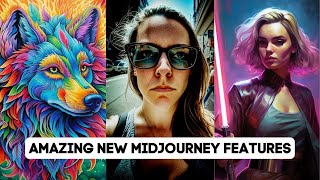
Matt Wolfe walks through MidJourney's latest updates: version 5.1 with sharper images and a RAW mode that strips auto-added details, permutations to generate multiple prompt variants at once, and a Describe feature that uploads an image and returns suggested prompts to recreate it. Niji mode focuses on anime with cute and expressive styles.
Chapters
Midjourney just rolled out a brand new update and well, since the last time I made a video about Mid Journey, they've actually rolled out a whole bunch of updates. So in this video I'm going to break down all of the cool stuff that has recently come out from Midjourney, including Midjourney version 5.1, Midjourney permutations, Midjourney's newer Niji mode, the recent Describe feature, and the improved moderation AI that they've built into Midjourney. I'm also going to talk about some of the stuff that they said is coming in the future on their recent office hours call. So a lot to cover around the topic of midjourney. Let's dive in and take a peek. So the most recent news is that Midjourney just released version 5.1. Version 5.1 is more opinionated, meaning that you can actually give it less context and it will kind of make up its own additional things for the image. They also claim it's much easier to use with small prompts. So with Midjourney 5, if you remember when we talked about it in previous videos, you wanted to give more natural language, longer, more detailed prompts. With 5.1, theoretically you should be able to go back to giving more fragmented, shorter prompts, and Midjourney will kind of fill in a lot of the gaps for you. Now, if you don't want Midjourney to fill in a lot of the gaps for you, you can either use version 5 and not 5.1, or you can use 5.1 new RAW mode. And the RAW mode is less opinionated and Midjourney is not going to add as much of its own flair to it. Additional changes include higher coherence or accur to text prompts, fewer unwanted borders and text artifacts, and improved sharpness. They've also enabled in AI moderation, which we will talk about later on in this video as well. So in order to set up version 5.1, you'll come to Mid Journey, I created my own channel to run Midjourney. I talked about how to do that in a previous video, but you can also do it directly inside of Mid Journey's Discord or just send Midjourney a direct message. Also, if you happen to be in the future Tools Discord, we have some Mid Journey rooms here which you can use as well. So in order to turn it on we can type slash settings. We'll get our little settings dashboard here and you can now see there is Mid Journey version 5. One here. We'll go ahead and select this. And now it will start to default to version 5.1. We can dismiss this message. And now we can test an image. Let's do Imagine a psychedelic wolf in a colorful wonderland. You can see that it automatically added version 5.1 here. If you don't want every single image to be generated with 5.1. 5.1, you can always generate your prompt. This is my prompt. And then add dash, dash, viv 5.1 to the end of the prompt to get the same effect, while keeping the default set to Mid Journey version four or Mid Journey version five. And here's our images of a colorful psychedelic wolf. I think they look pretty awesome. I'm going to grab the seed on this so I can compare it to version 5. Don't get hung up on the seed thing. You don't need to do this. This is just me basically saying, all things being equal, I want to use the same prompt with the same seed so that I can compare them side by side. I know whenever I about seeds in my videos, people always go, why did you use this specific seed? It's just because I want to do a direct comparison. When I generate a prompt here on Mid Journey, it generates a random seed. And I want to make sure if I generate another image, I use the same seed and only change one element. Like Change it to version 5 or add the RAW mode. So I'm going to grab my seed for this most recent image here. But again, this is not likely necessary in your everyday prompting. This is just for comparison sake. Sake. Let's do Imagine a psychedelic wolf in a colorful wonderland, but this time let's just go version five straight up. And then I'm going to add this seed to the end just so that it is a direct comparison. And here's what we get when we generate it with version 5. So on the left here you can see version 5.1. On the right here you can see version 5. Honestly, I think both look great. So it's really just up to you which style you like better. Version 5.1, they added a little bit additional creativity to it. You can see it added, you know, leaves and flowers and sort of bubbles in the background and all sorts of additional stuff that weren't in my prompt, where you have a little bit less of that in version 5, but still, you know, a little bit of its own creativity as well. I would say the Differences between version 5 and 5.1 are very, very nuanced. Now let's try this same prompt again, but let's try version 5.1 raw, I'll enter my prompt, just copy and paste the same thing here. I'm going to get rid of the V5, so it'll just default to 5.1 and then at the end I'm going to put dash, dash, style and then add raw. And here's what we get from version 5.1 in raw mode. A completely different style. Once again, it did add its own little flowers and extra stuff to it that I didn't ask it to, but definitely a little bit less detail than the previous two. So using the same prompt, same seed, and only changing between version 5.1 version 5 and version 5.1 raw, we get three pretty drastically different images here. Now I want to do a few more tests with version 5.1, but before I do, I want to save use some time. I also want to save myself some time. So I want to talk about permutations. So from the mid journey documentation, permutation prompts allow you to quickly generate variations of a prompt with a single imagine command. By including lists of options separated with commas, with curly braces in your prompt, you could create multiple versions of a prompt with different combinations of those options. So for example, here you've got Imagine prompt a red, green, yellow bird. So this will actually create three separate mid journey jobs to process. One with a red bird, one with a green bird, one with a yellow bird. Here's another example. Imagine a naturalist illustration of a pineapple, blueberry, rambutan, banana bird. You can see here's a naturalist illustration of a pineapple bird, a naturalist illustration of a blueberry bird, a rambutan bird, and a banana bird. You can also have it generate permutations of various aspect ratios here or various versions. So for future testing, if I want to test version 5 vs version 5.1 vs version 5.1 raw, I can do one prompt with a permutation at the end and test all three of them at the same time. You can also add multiple permutations to a single prompt. So for example, a red green bird in the jungle desert will give you a red bird in the jungle, a red bird in the desert, a green bird in the jungle, a green bird in the desert. So for example, if I want to generate a prompt and I want to test against version 5 version 5.1 and version 5.1 RAW, I can do it like this. Imagine a beautiful mid century modern house sitting on a cliffside overlooking downtown Los Angeles at sunset. Now, I want all of them to be the same seed so that they're all compared evenly so I'm going to go ahead and enter a random seed here. Doesn't really matter what you enter. I'm just going to put a bunch of random numbers there. That'll just make sure that they all use the same random number behind the scenes. And then for my permutation here, I can go ahead and put a curly bracket and I could put v5 comma dash dash v5.1 comma dash dash v5.1 style RAW. So it will generate one with version 5.1 with version 5.1, one with version 5.1 in the style of RAW. And if I hit enter here, it will allow me to see all of the prompts it's about to generate. And if we like these, we can go ahead and hit yes. Now it's telling Discord to generate all three of these in various three styles. And there we go. Now we've got all three of these sets here. Here's what we get with version 5.1. Here's version 5.1 style raw. And here's just straight up version 5. Now when I look at them side by side inside of the browser, this one here is version five. And it seems like it lacks a little bit of detail. The detail isn't quite as sharp in any of these images to me as when I look at version 5.1. This definitely has a clarity boost. To me, the details are just so much cleaner and a little bit more crisp. There's definitely a difference here. And this is the 5.1 raw here, which I also think lacks a little bit of detail compared to the straight up 5.1. When I look at the 5.1 not raw, this, to me it just screams Los Angeles in the background. Maybe not so much this image, but there's definitely some subtle differences. I can definitely tell there's a difference in clarity with version 5.1. Now here's another really quick time saving trick that I want to share with you. You can actually create little shortcodes for prompt that you add all the time. So let's say you often do something like imagine a woman on a city sidewalk, but you like to add a bunch of extra add ons for context. Like you like to add realistic wide angle lens f 1.4 camera shot. Let's say you like to add that to a lot of your images instead of typing it out every single time. We can create a shortcode for this whole thing. I can copy this entire addition to my prompt here. Let's copy that. I'm going to delete my whole prompt here and If I type prefer and then click option set here, I can say, let's just give it the shortcode cam C A M and then click on this one more here, click on value. And now I can paste this entire value in here. Realistic wide angle lens F1.4 camera shot and then hit enter. Now it just saved a short code with the word cam and it will automatically add this entire thing to our prompt. So now if I go imagine a woman on a seat, city sidewalk, then I put dash dash cam at the end and hit enter. It will automatically append all of this additional info to the end of the prompt. So now instead of having to type wide angle lens F1.4 camera shot realistic every single time, I just type dash dash cam and it will add that to my prompt automatically. Just another little time saving trick for you there. Now, another newer feature that was recently added into Midjourney is the newer Niiji mode. I think that's how it's pronounced. I'm not 100% sure, but if I come to my settings here, you can see that there's Niji version four and Niji version five. And this version five is a recent addition here. If we look at their documentation, this is a collaboration between Midjourney and Spellbrush, and it's tuned to produce anime and illustrative styles. So if you're looking for more of a cartoony, illustrative look, you could put it in Niiji mode and get things that are a little more cartoony. And there's also several styles that you can use in this Nii mode. For example, in version 5, you can set the style to cute, expressive, and scenic to get different styles. And using our permutations, we can test all three at the same time. If I switch this to Niji version 5 here, dismiss this, and then let's say imagine a wolf in a snowy field. Now, it's already by default using the Niji version 5, but I want to try the various styles, cute, expressive, and scenic. So I'll go dash, dash, style. Put a space, Put our little curly bracket here and then put cute, expressive, and scenic. And now it's going to try the style cute, the style expressive, and the style scenic. For a wolf in a snowy field, I'll hit enter. It'll ask if I want to see the prompts. Let's show the prompts here. You can see it's going to do it in style. Cute style, expressive, style, scenic. And all of them are in NII version 5. Let's go ahead and click yes. And I'LL dismiss this and let's watch our three prompts. So here's what cute looks like. You can see they're kind of cutesy little animals. I mean, these top two don't really even look like wolves to me, but they're sort of this, you know, cutesy or type image. This is what expressive looks like. It's a totally different style of image compared to cute. The wolf definitely looks more expressive. It looks angry in some of these. Looks like it's on the prowl in this one. Definitely more expression to the images. And then here's what we get with scenic. You can see it actually did add quite a bit more scenery, especially on this top right one. So, three totally different styles from the exact same prompt. We have cute, expressive, and scenic. Even though they're the same prompt, they couldn't be more different of images. Now, with that last prompt, I don't really feel like I gave it a fair comparison because I didn't use the same seed on all of them. So let's go ahead and do this one more time. But this time, let's use the same seed. So I'll type imagine a monkey wearing a top hat on the beach. And I'll put dash, dash, seed, and then I'll just put some random numbers in there. And then it's also going to compare cute, expressive, and scenic. But this time, they're all going to have the exact same seed. Go ahead and click yes. All right. So here's what we got with cute. You can see it's a very cutesy style of anime. Here's what we got with expressive. You can see the monkeys definitely have more expression, especially these two on the left. This one's looking like a mad monkey. This one's looking like a monkey looking for some trouble. This one's kind of looking like a sad monkey. And then here's what we get with scenic, where you can tell there's a lot more focus on the actual scenic elements with the islands in the background and the palm trees and ocean in the background. This one looks like it has a little village in the background. Totally different styles of images using the exact same prompt, exact same seed. Only difference is this one used the cute style, this one used the expressive style, and this one used the scenic style. Now, another recent feature that they added was the ability for it to describe an image. I did demo this in a previous video where you can type, describe, hit enter, and then it gives you a box to upload an image. You could grab any image off your computer Drag and drop it here, hit Enter, and then it will come up with four descriptions of that to get something similar. So it gave me the woman with the Star wars sword holding neon lights in the style of a realistic portraiture. Some names here, Light, magenta, et cetera, et cetera. And I can take any one of these prompts here by pressing 1, 2, 3, or 4 and seeing what happens when I generate something based on the prompt it gave. But what I really find great about dscryb is you can kind of get some insight into how Midjourney is thinking. You can see some additional ideas to add to your prompts. So, for example, this one added UE5 for Unreal Engine 5 or Brooding Mood. This one added movie poster and Zbrush, iconic pulp culture caricatures. Magali Villanueva. Acidic and luminous colors. These are all great ideas to test on your own prompts. Look at this. Womancore. I'm not even sure what that means, but that's something you can test. Fantastical, Stre street, restrained palette. So when it tried to use some of these prompts that it generated based on looking at this image, we get images that look somewhat close to our original image, but with some midjourney flair to them. Here's another set of generations that it came up with from one of its prompts, and here's the last one that it generated. And if you remember, this is the original image that I uploaded. And personally, I would argue that the generations from the prompts that Midjourney made are actually better than the original image. These are just phenomenal. I love the colors. I love how they came out. I would say it generated better images. Now, another question that came up when I showed off this describe feature was can it actually describe real images as opposed to just AI images? And the answer is yes. So if I type describe, this is an actual image of a gorilla. It's not an AI generated image. Let's go ahead and see how it describes this image. You can see our real photo here. A gorilla walking amongst a group of green plants in the style of dark gray and light gray, stock photo sitting in a green forest in the style of light gray and light black, et cetera. So let's go ahead and see how these. So here is the original image that I uploaded. Here's the first version that it made using its own prompt. Here's the second version that it made, the third version that it made, and the fourth version, which is obviously getting quite a bit more stylized than the original. Now, it didn't sort of match the pose of the gorilla. But we might be able to get closer to that by combining an image prompt and a text prompt. So if I was to copy the link to this image of the gorilla, come down here, type Imagine, Paste in the URL, put a space, and then let's grab this prompt here that it gave us and put it after our image. Now it's going to blend the actual image with the prompt that it came up with and theoretically it should start to look a little bit closer. So again, here was our original image and here's what we got. When we combined the actual image prompt with the prompt that Midjourney gave us, you can tell it got a little bit closer on the color palette. The composition is looking a little bit closer, especially on this top right one. And you can just kind of get closer to what you're looking for. So this Describe feature is a really cool addition to Midjourney. Yes, it's been around for several weeks now, but just wanted to show off some additional capabilities that I didn't actually touch on last time I talked about dscryb. Now, finally, the next big announcement that they made is that they've updated the moderation so less things are going to get blocked when you try to prompt them. Some things still get blocked, but things that used to get blocked didn't. Things that it couldn't quite understand the context. So for example, if I typed blue footed booby in the past, this prompt would have probably got moderated out and it would have said, nope, you can't use the word booby. But now we actually get an image of a blue footed booby. One of the examples they kept talking about on the office hours calls was using something like Moby Dick. So if I was to type Moby Dick and his whale, that used to get moderated out because of one specific word in that statement, but now it understands the context a little better and we get an image of Moby Dick. And yes, I'm aware that Moby Dick is the name of the whale. I was just trying to put a prompt that might elicit some funny imagery. So now a lot of things that used to get blocked will just make it through now. So you should have an easier time generating images without it actually saying, ah, you can't do that. Just keep in mind there are still quite a bit of things that will get blocked. There is an automated moderation system. It uses AI to try to moderate it. Now if it tries to block you, it will go through an AI appeals process. And if it blocks it again. Then it can even get escalated to another AI appeal process. So even when things do get blocked, there is a new appeal process where you can still try to get it resolved, which is a newer feature that they just added in. I actually haven't hit anything that I've needed to appeal yet, so I haven't run into that myself. But it is something that they've newly added in now on today's office hours calls. They also mentioned some things that are coming up that we can look forward to with Mid Journey. They said that they are still working on Midjourney version 6, which will be an even another up level in realism and quality. They're even talking about how it's hard to believe, but there is actually another level of realism that they can still go. Another level of quality that we haven't even been seen yet. They talked about how they're working on some more advanced options, like the ability to draw things and have it generate images off of your drawings. They are working on the ability to get consistent characters out of Mid Journey as well. They said that that's one of their most requested features. And so that is something that they're actively working on. They're trying to help you get that consistent character from Mid Journey. And they are actually working on an advanced user interface that is outside of Discord. People that have actually generated More than 10,000 images are actually already able to access that new user interf outside of Discord. And eventually it's gonna roll out for everybody. But right now we're stuck with Discord, and that's about it. That's all that I wanted to cover about Midjourney. I know it's a lot. There's been a lot of advancements in Midjourney. I haven't made a Midjourney video in several weeks. So I wanted to update you on all of the cool things that have come out of Midjourney over the last six weeks or so, because they're rolling out cool new stuff all the time. And there's been so much other AI news that I've been trying to keep you in the loop of that. I figured now is a good time. Now that version 5.1 just rolled out to bring you back in the loop with all the cool stuff with Mid Journey. Give you a few Mid Journey life hacks to make it a little bit easier for you. Permutations, setting your preferences, things like that make life a lot easier. If you're using Midjourney a lot, and all sorts of new styles that you can play around with to get closer to that exact image you're looking for. You could try the new Niji styles with cute, expressive and scenic. You can try version 5 version 5.1 version 5.1 raw. You can try the Describe feature and upload your own images and see if Midjourney can give you prompts that'll get you something similar. But I also love that Describe feature to just kind of learn how Midjourney thinks and figure out some additional prompts that you can add that'll give you some cool effects to your images. So a lot of cool stuff happening in the image generation space with Midjourney. There's a lot of other cool AI art tools I know Midjourney right now is still not free. They did mention that they do plan to open some sort of free trial again real soon. Right now the lowest plan is still $10 a month and we are starting to see some of these other tools that use stable diffusion behind the scenes tools like Leonardo getting better and better. If Midjourney is still a little out of budget for you, there are some other options that seem to be improving all the time. But this video I want to specifically focus on Mid Journey and show you all the cool stuff that they've been adding because me personally, I still use Mid Journey quite a bit. Hopefully this was helpful. Hopefully you learned something new about Mid Journey and you're going to go create some really cool stuff and share it with me over on Twitter or in the community. Discord and if you love nerdnot about AI, come check out FutureTools IO. This is where I add all the cool new tools that I come across on a daily basis. Anything that's going on in the world of AI, I add it to the news page. It's updated every single day. Probably one of the best resources out there to stay in the loop with AI news. I'm a little biased, but honestly I believe it's the truth. It's probably the most up to date AI news resource you can find. And if all of these tools and all of this news is too overwhelming, click here to join the free newsletter and every single Friday I'll send you just the five coolest tools that I come across. Just a handful of news articles, a few YouTube videos, and one cool way to make money with AI. I send it every Friday. It's like the TLDR of the week in AI and I really think you're going to dig it. It's one way to not get overwhelmed, just get the top level here's everything you need to know and you can find it over at FutureTools IE by clicking on Join the free Newsletter thank you so much for tuning in. I really, really appreciate you. If you like this stuff, if you like AI, you like AI news, you like tutorials, you like breakdowns, you like to see AI challenges, subscribe to this channel. And if you like this video, give it a thumbs up and I'll make sure you see more of them in your YouTube feed. All right. Once again, thanks so much for tuning in. I really, really appreciate you. I'll see you guys in the next video. Bye Bye.
Sam.
More from Matt




AI News: Dots, GPT-6.1 Sol, Sonnet 5.5, Gemini 4, and everything you need to know




