New Secret Weapon For Amazing Images
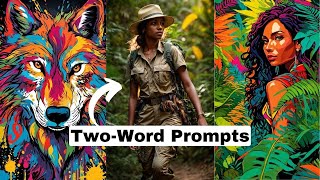
Matt Wolfe shows G Prompter, a free tool that generates detailed prompts for AI image generators. He demonstrates it with Leonardo AI's Photo Real and Dream Shaper models to create photorealistic portraits and vector art, covering settings like RAW mode, depth of field, and aspect ratio.
Chapters
Want to know how to create hyper realistic images like this, or this, or like this, or maybe like this? Or maybe you want to start creating a really cool style all of your own, like this and this and like this and like this without needing to be a prompt engineer and only needing to enter a prompt like this. Well, it's super easy to do. And I'm going to show you the free tool that I use that actually generates these prompts for me. So let's get into it. So this is a really cool tool that I came across. I actually learned about it on a Twitter space recently. It's a tool called G Prompter. And I know on the site it actually says Mid Journey Prompter, but you can ignore that this works with any AI image generation tool. And I'm going to show you how to make it work really, really well with my favorite AI art generation tool, Leonardo. Now, this video is not sponsored. Other than the fact that I had a conversation with the creator of this on a Twitter space, I have no association with the creator. And it's a totally free tool. And what this tool allows you to do is, is actually train your own sort of ideal prompts. The way it works is you give it some data on some of your favorite prompts that you've created so far that have gotten you some really good results. It then uses the GPT API to create a new prompt generator. So it uses the prompts that you've given it already as sort of inspiration to generate new prompts. And instead of trying to describe it, let me just show you how it works. So if you come to g-prompter.com, scroll down to where it's got the prompters here and then click on Train your own. You can see I've got Matt's test prompt, which is one that I've already created, but I'm going to create a new prompter here. So I'm going to click Train a new prompter. And this one I want to train on Leonardo realistic photos. So if I jump over to Leonardo here, they actually have a new model called Photo Real and it's really, really good at creating photorealistic images. And so I want to make a prompt generator that helps me quickly come up with new prompts to generate images that are this good. So if I jump back over to G Prompter here, I'm going to call this one Leonardo Photo Real. And we'll click Continue and then it asks for the prompter type and it gives you the option of photography, traditional art, digital art, and all combined for this one. Since we know we're going for photorealistic images, let's click on Photography and then I'll click Continue. Under Photographic style, it says select the main styles you want to use to consider for the training. For this one, I'm going to most mostly generate human images. So let's go ahead and do portrait and fashion. Let's do street and let's just go ahead and leave it at those two. And we'll click Continue. And now it has generic slash global styles. Select the secondary styles you want to consider for the training. There's all sorts of options here. But again, since we're going for photorealistic on this one, I'm going to go ahead and just select Glamorous and fashion and Photorealism. And then we'll click Continue. Now here's where we train our prompter on existing prompts that give good results. It says it's recommended to set around 5 to 10 prompts. So what I like to do for this, Leonardo already has a great database of images that other people have created and we can see exactly what prompts were used to create those amazing images. So let's jump back over to Leonardo here. Again, I'm going to click into the photo reel for the featured models because we're going to play around with this model first and then down here we can see images created with this model and then we can view more. So let's click on View more and then you can see trending new and top. I'm going to go ahead and select top. And these are the ones that have been voted on by users as the best images using this model. And if I click into any one of these images, I can see the exact prompt that was used. So this is the one that was voted the best by users. So let's just copy this prompt here. We'll jump over to G prompter and I'll paste that prompt right in there. Now it's got that whole prompt. I'll click Add. Now this is added in and I've got my first prompt trained into here. We'll close out of this one. This image is a pretty good photorealistic image. So let's go ahead and copy the prompt here. Jump over add prompt. Let's find some other ones that are really good photorealistic images. This one here looks realistic to me. So I'm gonna go ahead and copy this prompt. We'll paste this one in. But I don't want it to be trained on just women. I want to Be able to have it prompt some males as well. So let's find some images with some dudes that look good as well. Here's one. An elegant gentleman in a tailored suit. That one's looking pretty good. Let's copy that prompt. Toss it into here. Add prompt. This one's really solid as well. So let's go ahead and copy the prompt for one. Let's paste that in there. Let's get one more image of a dude. We've got three women and three dudes. All right. This one of Chris Hemsworth looks pretty dang good. Although I can't tell if that's supposed to be an Adam's apple or a mosquito bite, but ignore that. We'll go ahead and just use this prompt anyway and paste this in. Now we've got six prompts, three male, three female. I'll click continue and it says congrats. Your prompter is now ready for you to use. And now I can enter my idea here, but let's go ahead and change some settings here for prompt length. I like to leave it on really long. This seems to give me the best results from this tool so far. For artistic style on this one, we've got a few that we can potentially use. We've got Professional Photo Shoot, realistic and detailed, National Geographic fashion and design. Any of these will probably give us decent images. But let's go ahead and use Professional photo shoot. And then this is specifically if you're going to use Midjourney, it will add those extra things to the end. But we're not using Midjourney. We're using Leonardo and their custom tuned stable diffusion model. So I'm going to put no ratio MJ version, no version. Now if I want, I can do good visually and let it just generate a random prompt without entering any idea. And it will just generate something that it thinks will make a good image. But I want to generate people. So let's come up here and under enter idea, let's put a firefighter and just give it no extra context. Just put a firefighter and let's click Submit. Let's copy this prompt that it gave us, plug it into Leonardo here and then we can choose between cinematic, creative, vibrant or none. I always like what cinematic generates. So let's go ahead and click Generate. And here's what that generated. Here's the first image. Here's the second image. Let's come over to Leonardo here and play with some of these additional settings. Let's go ahead and change the depth of field to high. That'll make the background less blurry. Let's switch on RAW mode and see how this impacts the images. If we read the description here, it says enable this mode. If you're looking for more control and flexibility with complex prompts, leaving it off works better with shorter prompts. Since we are using a little bit longer prompts, the RAW mode might actually work better. Also have some options here for high resolution, contrast boost, and resonance. Let's just go ahead and leave those as they are for now. And then I actually want to switch the aspect ratio. Let's go ahead and go 916. So it's more of a portrait mode. And let's generate again with this higher depth of field and portrait mode. And look at that image that we just generated. Pretty solid. And here's another one. All right, let's go ahead and try one more. Let's go back to our G prompter here. This time let's do a female. Let's add a little more detail. A woman with a city skyline in the background. And let's submit this. And we've got a nice detailed long prompt that we could play with here. So let's copy this to the clipboard. Jump back over to Leonardo. I'm going to paste this in. Leave all these settings that we just played with the same. And let's click Generate. And look at that. There's the first one. Our woman in a business suit with a city in the background. And here's the second one that it generated. Let's do a woman exploring the jungle. See if we can get some nice colorful green jungle colors in there. Let's copy this to the clipboard here. Paste in the prompt it gave us. And let's go with vibrant. Let's see how that affects the image. And let's click Generate. And look at that. This is what we got of that. Like, dang, that is some super impressive detail. And I love, love, love the colors. Here's the other image that it generated. And once again, I mean, ul realistic, maybe a little bit of funkiness on the fingers if you're looking really, really close. But this is super, super impressive. I really like the way the vibrant came out, actually. So now we know the combination of G prompter using Leonardo could get us really, really awesome, colorful, realistic images. And all we have to do is enter a short prompt, like a woman exploring the jungle. And based on what we trained it on, that's worked well in the past. It will generate much longer prompts for us, like a woman dressed in khaki. Explorer attire, complete with hat and boots, confidently travers lush greenery of the jungle. The sunlight filters through the dense foliage, casting a warm golden glow on her face. Her expression reflects both awe and determination as she encounters unique plant and animal species along the way. The composition showcases her adventurous spirit and captures the essence of a realistic professional and marketing photo shoot. We got that prompt out of just typing a woman exploring the jungle. So let's do something a little more creative. Let's train a new prompter here, but this time let's pick a sort of style. Right? Let's go back to the homepage of Leonardo here. I really, really like what Dream Shaper V7 does in Leonardo as well. Let's click on View more and view some of the most popular images generated with this model. But let's try to generate something in a specific style, like this sort of vector art style that we've got here, this graphic design T shirt of Harry Potter. So let's try to generate more images like this. We'll come back to G prompter. I'm going to call this one Leonardo Vector Style. We'll click Continue here. I'm going to select Digital art as the prompter type. We'll do digital as the digital art style. And then under the secondary style, let's do pop art and maybe collage. Let's select those two, see what that does for us. And I'll click Continue here. And now I'm going to enter my 5 to 10 prompts. So let's go ahead and copy this Harry Potter prompt here. We'll add that one in. This one with a cat has kind of the same style. So let's copy that prompt. Toss that in there. This joker image here looks really cool. So let's copy this prompt. Toss this one in. This horse image over here is really cool. We'll grab this, paste that one in, grab this image of a dog here, that one, and then let's just grab one more. This one of the skateboard order here is looking pretty good. So I'll copy this prompt, toss that in, add the prompt, and let's continue artistic style. Let's try Pop Art inspired this time. Let's see what happens if we use the same prompt. A woman exploring the jungle. And click Submit. We'll copy this to the clipboard, jump back over to Leonardo here, scroll to the top, and let's generate with this model. Paste this in. Let's turn on our prompt magic over here. And let's go ahead and generate and see what it comes up with. I mean, look at this one. Obviously it's a totally different style from what we did before when we did a woman in the jungle, but they just look amazing. I mean, look at those colors in there. Let's create another one. Let's do a wolf vector. Click Submit. But it generated nice detailed prompt for us. Copy this to the clipboard. Toss this big old long prompt in there and let's see what we get out of it. And we got this image. I mean, look at that. That just looks epic. Got this one as well. I'm sort of not a fan of the angle on that one, but the colors and the design of it just looks so good. I'm going to do a contrast boost and write it again just because I'm curious how much of an impact this contrast boost has. I'm going to click Save and let's generate this one more time with a contrast boost on it. Okay. Now these look awesome. That is so cool. Look at that. Look at those colors. Look at how black the blacks are and how white the whites are. I mean, it's just the contrast on it is just amazing. And the color differences. I'm pretty impressed by the combination of what I get when I let this generate prompts for me based on real simple prompts. And I toss them into Leonardo using Dream Shaper and their Alchemy and Prompt Magic. Now, in case you're wondering, this G Prompter tool, totally free, just go to g-prompter.com Leonardo. You get a handful of free credits every month to generate. However, some of these features over here I think, like photoreal and Prompt Magic and Alchemy. Some of these are actually only available if you are in the upgraded plan, but they do have a free trial of that plan as well, so that you can actually use these for free during the trial phase. So you can generate unlimited prompters inside of G Prompter. I don't actually believe there's a limit to how many prompters you can train. And one thing that is cool about G Prompter is none of what you create here. None of these prompter lists actually are stored on their servers. They're all saved locally on your computer. So no data, no prompts that you create, nothing that you generate here is actually shared with the people that created G Prompter. It is just completely locally stored on your own computer. And if you like the tool, well, you could buy the creator a beer. And again, you can learn more about Leonardo. Over at Leonardo AI, you do get a certain amount of free credits. You can get a free trial to use some of the more premium features that are available in here as well. So that's what I got for you today. Hopefully you enjoyed this quick video. Nice little tip for for generating some cool images with Leonardo or really any AI art tool. I just found this really, really cool to enter a real small, simple prompt and pretty much every time get amazing results out of it. So I was impressed enough with this tool to make a quick, fun little video and show it off to you. And if you like really cool tools like this, make sure you check out futuretools IO. This is where I curate all the coolest tools that I come across, adding new tools every single day. I also keep the AI News page up to date and I got a free newsletter. So if you want to receive updates about cool tools and cool news in your inbox, join the newsletter and I'll hook you up there as well. You can find it all over at FutureTools IO. So again, hopefully you enjoyed this video. I'm just having fun. If you haven't noticed, I'm working with two cameras now, so it's fun to kind of play around and mess with different cameras. I really got that second one up there to do like top down stuff so I could like show you what I'm looking at like this remote control, but when I'm not using it in top down mode, I'm just kind of having fun with it and putting it at weird angles and just trying to enjoy making videos and having some fun putting these videos. If I'm not having fun making these videos, I'll probably make less of them and that's not good for anybody. So I'm just gonna have some fun and show off some cool tools and have some fun edits and hopefully you enjoy it. And I got a lot more videos coming. I plan on just flipping on the recorder whenever something fun pops up and I go, you know, who needs to know about this? The YouTube folk. So look out for that. More videos on the way. If you want to see more videos like this, give this one a thumbs up. Maybe consider subscribing to the channel and hitting the bell and doing all the stuff the other YouTubers tell you to do. It helps my channel, it motivates me to make more videos and I really appreciate it. So thank you so much. I really, really do appreciate you tuning into this video and I'll see you in the next one. Bye Bye.
More from Matt




AI News: Dots, GPT-6.1 Sol, Sonnet 5.5, Gemini 4, and everything you need to know




