Testing MidJourney Hacks From Twitter
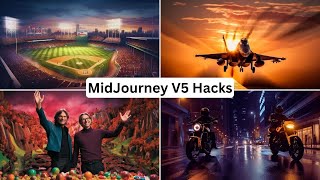
Matt Wolfe tests Midjourney v5 prompting tricks from Twitter, including using ChatGPT to generate structured prompts and monetizing images through Wirestock. He demonstrates techniques like RAW photo and David LaChapelle style, and shows the DSNR Discord tool for building detailed prompts.
Questions this video answers
March 28, 2023.
Wirestock.
Midjourney version 5 (referred to throughout as v5 or --v5).
16:9 (often appended as aspect ratio 16,9 in speech and prompts).
DSNR (Twitter handle mentioned as @DSNRAI; join via their Discord linked from their Twitter).
Chapters
I recently took to Twitter to ask people what their favorite prompting trick was with Midjourney version 5. In today's video, I'm going to share with you some of those tricks. We're going to test them out, see what they do. And I'm also going to share some of my favorite tricks that I've come across, as well as one really, really cool tool that you can use to get ultra realistic images with Mid Journey. So let's get into it. Today's video is actually sponsored by my friends over at Wirestock, which is a tool that actually helps you make money with your AI created images. I'll talk a little bit about them more in a minute, but before I do, I want to share a tip that's actually been asked quite a bit. So people keep asking me how. I have my own Discord group where I organize into various categories the images that I'm creating here. And I want to show you how to do that real quick. So when you're inside of Discord, you can scroll all the way down to the bottom. You're probably not in as many Discord groups as I am, so it probably isn't as far down at the bottom. But you can click down here and click Add Server. Click click on Create My Own, and then click for me and my friends and then name it whatever you want. Let's just call this one Personal Midjourney. You can upload an image to represent this. That will show up in the sidebar if you want, but I'm gonna skip that step for now and go ahead and create this Discord group. Now that I have the Discord group here, I can delete the voice channel. I'm never gonna use it. And then I'm gonna jump into the Mid Journey Discord real quick. And over on the right sidebar, you'll see Midjourney Bot over here. If I click on Midjourney Bot, I can click this button to Add to Server. Now, this only is gonna work if you're on one of the paid plans of Midjourney, so keep in mind, I don't believe you can do this with the free plan, but if you click on Add to Server and then select the server you're gonna add it to. I'm gonna add it to the Personal Midjourney server that I just created and then click Continue Authorize it for all of this stuff here. Click I am a Human. And now it's authorized. Now, if I come up to my Personal Mid Journey Discord that I just created here, you can you can see that I've got the Midjourney bot in it now, and if I type, imagine I could. Now start entering prompts. Now, if you want to keep your discord nice and organized and have different rooms for just character creation, desktop backgrounds, locations, things like that, you just simply come up here, click the plus next to text channels, and then create your room. Let's just call this one Backgrounds. Create the channel. You can see it automatically added the Mid Journey bot over here on the right. And I can prompt whatever I want inside of this room. So I wanted to share that quick little trick with you. That's how I keep mine organized. All right, now let me tell you about Wirestock. Wirestock is a tool where you can upload your AI generated images. You can upload your photographs, you can upload your original artwork, and you can automatically submit it to a ton of different stock photo sites all at once. Now, a lot of stock photo sites do accept AI images. Now, Adobe Stock Deposit Photos and several others all allow you to submit AI images. Now you can see here's 50 images that I've submitted straight through Wirestock that I created using Midjourney. Let me show you how easy it is to actually submit an image to a ton of stock photo sites all at once. It's basketball season, and so I thought I would make some stock photos of some basketballs. So I'm gonna take this image up here on the top right of a basketball on a court at sunset, and I'm going to upscale that image. Let's take it to one of the free upscale tools here, and I'm going to drag and drop it in here. So we have a nice high quality, upscaled version to send to Wirestock. Let's go ahead and enhance the quality on it. And we'll download our upscaled version of the image. Now, if I simply head over to Wirestock, click on Upload, select Upload from my computer, and we'll upload this basketball image here over on the right side here under Extra Details. Let's just go ahead and type AI generated just so they know that this is AI generated. And I will go ahead and click post. And that's it. That's all I have to do. Now they're going to submit it to all of the various stock photo websites that will allow the AI generated art. And anytime that image sells, I'll get a commission. I don't have to come up with the tags, I don't have to come up with the description, I don't have to come up with the title for the image. Literally, Wirestock does all of that for me. I just upload the image and they take care of the rest. That's how easy it is. They have a very clean and easy dashboard to understand exactly where your sales are coming from and which images are selling. And you can even explore the top selling images so you can get inspiration on images to generate that will likely sell well as well. So if you want to learn more about Wirestock, head on over to FutureTools IO Wirestock and start uploading some images. It's a real easy, passive way to generate some extra income off of the images that you're generating with Midjourney already. Again, that's FutureTools IE Wirestock. And once again, thanks so much to Wirestock for sponsoring this video. All right, now let's start exploring some of your ideas on how to use Midjourney 5. Now, one thing that was suggested quite a bit in inside of this thread and also is My personal favorite way to generate prompts for mid journey is to use chat GPT. GPT4 + Midjourney version 5 is like a match made in heaven Because Midjourney version 5 uses more natural language prompting to get really amazing images. And well, GPT4 is really good at creating natural language prompts. So for example, I can give ChatGPT an example of a formula that I want it to follow when generating prompts. Or I could just have it generate prompts without giving it a formula. So let's start by not giving it a formula and see what we get out of it. Write a detailed generative image prompt for a scene happening at a baseball stadium. It's about to be baseball season here in the us. Might as well generate some images around baseball. Let's see what GPT4 comes up with for us. So ChatGPT gave us this big long prompt here, and it's quite a lot. So let's go ahead and just copy this beginning prompt, create a detailed and lively scene of a thrilling baseball game, et cetera. Let's copy that and let's see what it gives us here. So I'll paste the prompt in here. Make sure I add version 5 at the end by adding dash dash v5 and then let's make it an aspect ratio of 16. 9. And here's what it came up with. These look amazing. Seems like there's a few players missing on the field, but other than that little nuance there, these look really, really cool. But personally, I like to guide Chat GPT a little by training it on a sort of prompt formula. So let's go ahead and give it a formula. Let's go ahead and type. Here is a mid journey prompt formula, a detailed image of subject. Then let's do doing something interesting during and then let's put time of day taken with a. And then let's put type of camera using type of lens with let's just put cinematic lighting in all of it. That always produces pretty cool results. And then at the end let's make sure all of them are using V5 so we can just copy and paste it easier. And let's make sure all of them are using aspect ratio 16,9 because that's the aspect ratio I use the most. And then I will just say do you understand the formula? All right, so it says yes, I understand the formula. It provides a structured way to describe a detailed image of the particular subject engaging in an interesting activity during a specific time of day. And then it actually breaks down the formula and, and now we can give it anything in these brackets and it will automatically fill in the rest. I usually like to give it a subject to follow. So let's do write a midjourney prompt following the above formula. The subject being a wolf. And here's what it gave us. A detailed image of a majestic wolf stealthily stalking its prey during the twilight hours taken with a high resolution DSLR camera using a telephoto lens with cinematic lighting. V5 aspect ratio 16, 9. Let's go ahead and copy this whole prompt here. Just paste this whole thing in. Don't need to do anything else. It's already got my version 5. It's already got my 16, 9 aspect ratio. We should get something really, really awesome out of this. All right, so check out these images. These are like ultra realistic. It's so crazy how good these came out. All right, let's try another prompt here. I'm just going to go ahead and copy my same prompt up here. Paste it down here. But instead of a wolf this time let's do a fighter jet. I think it's interesting that it actually gives them a title too as it writes the prompt. A detailed image of a powerful fighter jet performing a high speed maneuver during a brilliant sunset. Taken with cutting edge mirrorless cameras using a wide angle lens with cinematic lighting. Paste this right in, no changes. And look at those. Those are awesome. I mean this jet up here is a little bit funky, but look at, you can see like the heat coming off the back of this one. Just if you look real close here, look at the Sunset in the background of this. If these don't give you Top Gun vibes. Do, do, do, do, do do do, do, do. All right, I'll stop. All right, so that's how I use ChatGPT. Let's dive into some of the prompt suggestions that you guys had for me on Twitter, and then we'll wrap it up with a really cool additional tool that does a lot of the prompt thinking for you. And I'll show you that one to close out the video here. So let's try some of your prompts here. So my buddy Bar here says, I'm really loving David LaChapelle style. And then he actually gave us some prompts for these images. So if we look at this one, it's obviously Deadpool and Wolverine fighting here. But if we click on the alt, you can see David LaChapelle photograph of Deadpool in his mask and Wolverine played by Hugh Jackman, fist bumping each other in a field of daisies. So let's try the David LaChapelle style here. Let's go imagine Steve Jobs and Bill Gates high fiving in a land made of candy. And then I'll add David LaChapelle style. And then we'll go ahead and add our version 5 aspect ratio 16, 9. And here's what we got out of that. I like how in three out of four of them, it made them holding hands and only one of them made them high fiving. But that's what we get with the David LaChapelle style. Pretty, pretty funny images. Reclaimer here suggests using RAW photo at the start of a prompt. And then he showed a picture of two cars street racing. So let's go ahead and try a prompt with RAW photo at the beginning. Raw photo of. Instead of two cars, let's do two motorcycles street racing. Because I lack creativity sometimes. Two motorcycles street racing at night through a well lit, colorful city. And here's what we get when we add RAW photo to the beginning like that other prompt. I mean, this is pretty cool. I love the reflections on the street. And you can see the lights of the car reflecting off the water. This one up here is pretty cool too. The city lights reflecting some really, really cool images. Silver Stars here recommends using double or even multiple exposure to produce some unusual object combinations. Let's try multiple exposure. Imagine a skateboarder skating through an urban landscape using multiple exposure photography. All right, so using multiple exposure, we get some really cool effects. You can see the skateboarder here, but then it looks like the city is like A second exposure over the skater in some of these. The skateboard themselves kind of came out a little bit wonky, but it definitely looks like multiple exposures with you know, one exposure being a city background and another exposure being the skateboarder. Evo Fuse suggests a stunning still from a Sci Fi movie promo shoot showcasing cinematic lighting techniques and beautiful color grading that exists within the scene. And then place the subject here, here. So let's go ahead and copy that imagine and then let's replace the subject with giant humanoid robot and here's what we get with that prompt. This reminds me of Bumblebee from Transformers a little bit. But these all look like they can be a still straight out of a Sci Fi movie for sure. Here's AI Art Machine suggesting using Raw photo again. And here's the image they got using the prompt Raw Photo a close up portrait photo of a brutal 45 year old man in Wastelander clothes. Long haircut, pale skin, slim body, background is city ruins, highly detailed skin with an extra weight of 1.28 K UHD DSLR soft lighting, high quality film grain, etc. Now what's interesting about this is they actually said during the mid journey office hours that using the keyword 8k will actually make the images look less realistic. They don't work as well in version 5 anymore, so I wouldn't actually recommend adding 8k. But the rest of it, I mean obviously it produced a really really great result here. So M AKA my main man Mike here suggested for paintings rather than photos, use painterly visible brushstrokes, palette knife, textured layers and moody lighting. Vague terms yet specific enough to achieve my aim. So let's try some of these. A painting with visible brush strokes of a beautiful woman in the early 1900s. It should be painterly with moody lighting. V5 let's switch the aspect ratio on this aspect ratio. 2, 3. And here's what we got of that. You can definitely see visual brush strokes and it looks like a painting for sure. Very cool and completely different style from what we've been generating so far. I absolutely love it. Kektex01 suggests using Catwalk for a bokeh effect or using Mood Board for weird compositions. I like the idea of mood board. Let's test this mood board here. Wonder what happens if I just type a mood board? And here's what I get if I just use Mood board as the prompt. Not the most exciting images. Let's go ahead and make a more specific mood board. Imagine a mood board focused on video game culture and Energy drinks. And here's what we get from that. A little bit more interesting, a little bit more colorful, but still some random as hell images here. All right, now I want to show off one really cool tool. You can find this by going to twitter.com and going to the username dsnr AI and then opening up their discord here and joining their discord. Now let me show you what the DSNR discord does. If you jump into their discord and then click into the text channel called Create thread and then click the button to create a new thread, it will open up a private thread and then you can use the keyword design, hit enter and then enter any sort of prompt you can imagine. So let's try a Formula one race car. You don't have to get detailed yet because this does the prompt engineering for you behind the scenes and writes all the details for you. So let's do Formula one race car and then it just starts to ask you questions. What type of prompt do you want to generate? Custom or photorealistic? Let's go photorealistic. All right. What is the color of the Formula one race car? Red. Blue. Yellow. Green? Black. Let's do yellow. What type of tires does the Formula one race car have? Slick tires. Rain tires, Intermediate tires, Soft compound tires. Hard compound tires. I don't know the difference. Let's go slick tires. What is the shape of the front wing of the Formula one race car? Flat, curved Triangle? Rectangular. Circular. Triangular. What is the design of the livery on the Formula one race car? I don't know if I'm pronouncing that right. Let's go geometric shapes. That sounds cool. What is the shape of the rear wing of the Formula one race car? V shape. And then it just generates the prompt for you. You can see you can just copy this whole prompt, jump back over to mid journey, type imagine, paste this in and I'm going to add my version 5 here and let's just see what it generates if I just copy and paste it. And there you go. It generated some pretty dang cool looking Formula one cars here. Let's try another one. Let's go design a wolf. Let's select photorealistic. What is the color of the wolf's? Let's make it a gray wolf. What is the expression on the wolf's face? Let's go angry. What's the position of the wolf's body? Let's do hunting. The background of the image. Let's do a snowy landscape. What is the size of the wolf in comparison to Its surroundings. Larger than life. Life size. Smaller than life. Insignificant. Same size as surroundings. Let's go larger than life. And it generated a nice long prompt for us. So let's go ahead and copy this jump back to mid journey. We'll paste this prompt in here, make sure we add version 5 at the end, see what we get. And here's what we get out of it. That's our gray wolf with an angry face hunting in the snow. Can't really tell that it's larger than life because it's a little too zoomed in, but it's very, very realistic looking. So again, that's called dsnr. And the goal behind this tool is to pretty much take the prompt engineering out of prompting images. You just give it a very basic idea of the image you want and then it will ask you questions about the details you want and then it will do the prompt engineering behind the scenes for you. Now, it's not always perfect. I would say these Formula One cars leave a little to be desired still, but these wolves here look pretty damn phenomenal. So something fun to play with. Take some of the thinking out of the prompt engineering side. You can see the detail that it puts into some of these prompts here. So you don't have to think about the details, you just think of the high level image you want and then it will figure out all the details for you. In order to use that DSNR plugin, go follow them on Twitter @DSNRAI and then the discord link to get access to that is right there on their Twitter. So some pretty cool prompt ideas there for you. I hope you enjoyed these. Twitter is an amazing resource to find some awesome prompts and awesome prompt ideas. ChatGPT is also another amazing resource to generate prompt ideas and tools like DSNR are out there that can really generate some cool stuff as well. So give all of that a try. Midjourney version 5 is absolutely phenomenal with creating photorealism. It's just getting easier and easier to create prompts without a whole lot of effort to give you photos that are practically indistinguishable from reality. So really, really cool stuff. If you enjoy nerding out about AI and all of this kind of stuff, head on over to FutureTools IO. This is where I curate all the coolest AI tools that I come across. And if all of this AI stuff's a little overwhelming for you, join the free newsletter Every Friday I'll send you the TLDR of the Week with a handful of cool tools that I came across a handful of news articles, a few YouTube videos, and one cool way to make money with AI. It goes out every single Friday and it'll keep you in the loop with all the interesting stuff that's happening in AI right now. You can find it over at FutureTools IO. And again, if you like this type of video and you want the high level of what's going on in the AI space, make sure you subscribe to this channel and give this video a thumbs up. That'll help make sure you see more of them in your YouTube feed. And thanks again for tuning in. I really appreciate you. And thanks once more to Wirestock for sponsoring this video. Thank you. Learn more about Wirestock over at FutureTools IE Wirestock and appreciate you guys. See you in the next one. Bye Bye.
More from Matt




AI News: Dots, GPT-6.1 Sol, Sonnet 5.5, Gemini 4, and everything you need to know




