The Ultimate MidJourney Prompting Guide
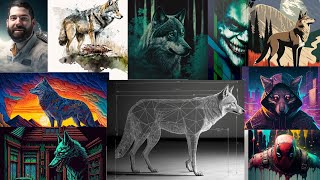
YouTube tutorial by Matt Wolfe demonstrating how to use MidJourney (via Discord) to create diverse image styles. Covers account setup, key settings (choose v4, enable Remix), typing /imagine prompts, aspect ratio and negative prompts, upscaling/variations/remaster, using seeds, uploading and blending images, and many example style prompts and external resources.
Chapters
Hey, do you want to learn how to use Midjourney to create really cool images like this, or like these? Or like this or this? Or maybe some video game inspired images like these or these or these ones. Maybe you're looking to do infographic type images like these, or cool watercolor images like this, or maybe posters like this. You can create images like these. You could get creative like this and this, or create totally unique styles like this. I'm going to show you how to do all of these images and and more in today's ultimate guide to Mid Journey prompting. I hope you enjoy it. Let's dig in. I've used Mid Journey quite a bit and messed with all sorts of different styles and prompts and done a lot of experimenting and figured out a lot of different ways to actually leverage the tool to get all sorts of different art styles. So the first thing you're gonna wanna do is you're gonna wanna go to midjourney.com and you're gonna wanna Join the beta. Now when you join the beta, it's going to actually open up Discord. So you do need.
If you don't already have a Discord account, it is completely free. Just go to discord.com, download the free tool. So once you have Discord, click on Join the beta. It will open up Discord and it will put you inside of the Discord room. You can go into one of these newcomer rooms, one of these newbie rooms and generate your prompts right in here. You could look at what other people are generating, get some inspiration. But what I like to do is I like to open up the Mid Journey bot and just have my own individual bot where I am doing my prompts kind of in private. So over on the right you can see this list of users. If you don't see this list of users, click this little member list button up in the top and it will show the list of users. And somewhere towards the top you'll see Mid Journey Bot. If you right click on Mid Journey Bot and then click on Message, it'll actually open Mid Journey in a bot view here. So let's go ahead and go full screen with this. Now once you're inside of Mid Journey, you can going to want to tweak some settings by default. These settings aren't perfect. So what you want to do is you want to type slash and then settings and it'll open up a little settings window here where you can tweak some settings. You want to make sure you're using Mid Journey Version four, Mid Journey version four, in my opinion, gives you the best quality images. You have different quality settings here. I personally just leave it on the base quality and I'm really happy with the images it comes out with. The main thing you're going to want to set in here is where it says Remix mode. You're going to want to make sure you have Mid Journey 4 selected and remix Mode by default. These aren't selected by default. You'll typically see Midjourney version 3 and you'll see mid Remix mode as off. Make sure you select mid journey version 4 and turn remix mode on. And that just lets you do some extra cool stuff with Mid Journey that you won't be able to do just by default if you don't turn those settings on. So make sure those are set. Now, to type a prompt, what you're going to do is you're going to type slash and then you're going to type imagine. And then once you hit the space bar, it's going to give you a little box to start typing your prompt. Anything you can imagine, you can type into this prompt. So if I want to do a wolf wearing a top hat on the beach with waves crashing in the background, now there's some extra little things that you could add to the end of your prompt to get some extra stuff out of it. So if I type dash, dash and then the letters A R, that stands for aspect ratio, by default you're going to get a one to one aspect ratio. It's going to give you a square image. Now, I can do an aspect ratio of 3, 2, and an aspect ratio of 3, 2 is landscape mode. It's going to be a little bit wider than it is tall. Or you can do aspect ratio 2,3, which is more portrait mode. It's going to be a little bit taller than it is wide. I typically either do 1 to 1 or 3 to 2. I like to do wider images because I make a lot of YouTube thumbnails and things like that. Now, the other thing you can do is you can type dash, dash, and then put no. And anything you type after the no is a negative prompt. Those are going to be things you don't want to see in the image. A disclaimer on that. Inside of Midjourney version 4, at the moment, the negative prompts don't actually work super well. So a lot of times I'll put negative prompts and you'll still find the things that I tried to put as a negative prompt showing up inside of the image. So just be aware of that. The older versions of Midjourney are a little bit better at negative prompts, but the newest version, they're not totally dialed in yet. For the most part, I actually don't even use negative prompts. I let Midjourney just show me what it wants to show me. So let's go ahead and just do this one. A wolf wearing a top hat on the beach with waves crashing in the background. Aspect ratio 3, 2, let's go ahead and see what that generates. All right, so it generated these four images for me. Wolf on the beach, wearing a top hat with waves crashing in the background. So let's say I really, really like one of these images and I want my future images to be in a similar style. Well, what I can do is, is let's say I like image number three here. Well, you've got these buttons here. The U stands for upscale. So If I press upscale 3, it's going to make a larger version of this third one. So this is image 1, image 2, image 3, image 4. So upscale 3 is going to give me another version of this. And so here's the upscaled version of my wolf in a top hat. Now, let's say I like this one up in the top left, but I want it to be tweaked a little bit. Well, if I hit this V1, it will actually give me an extra prompt here. This is part of the remix mode. So if you didn't turn remix on this prompt, won't happen. But it actually allows me to tweak this settings a little bit. So let's say I don't want him to be wearing a suit. I can add the negative prompt, no suit. It may or may not work. Like I said, sometimes the negative prompts don't work very well. But. But now what it's gonna do is it's gonna give me some additional variations with my new information added to the prompt. So I'll go ahead and do submit and let's see what that generates for us. So it looks like it gave us some pretty funky results. When I tried to do no suit, it put a bow tie on this one. It disfigured the head of this one. So as you can see, sometimes the negative prompts don't work very well. Let's come back up here. Let's do another variation of number one here. Let's just leave it the same. It'll generate more variations of number one without my negative prompts. And here we go. Here's four more variations of that first image that we made, you can see it kind of has some different variations of the cliffs in the background, some different variations of the little suit that they're wearing, a little slight variations of the waves and the hat. And so now I could kind of dial it in more of what I want. So let's look at this one again. I really liked this image. This is a good image. It's a very realistic looking wolf. The waves look great in the background. It's a nice top hat. He's not wearing a suit or anything. I want to make more images that look similar to this style. Well, what I want to do is I want to use the same seed, the same sort of random generated number that was going on behind the scenes to get this image. I want to use that same seed for future images so that it has a similar looking style every single time. So the way I would do that is if I click up on the right up by this add reaction and I click this little envelope button, what it'll do is it'll actually send me another message up here in the midjourney bot and it'll tell me what the seed is that generated this image. So now what I can do is let's make another prompt. I'm gonna go ahead and copy this seed to my clipboard and I'm gonna go imagine a wolf in a top hat walking through the woods with creepy trees in the background. And then we wanna go aspect ratio 3, 2 again. And then I wanna go seed. And then I'll paste that seed number in. And it's going to use that same seed for this one. And theoretically I'm going to get a very similar sort of style of image using that same seed. So let's go ahead and see what this generates. And here we go. So this one up on the top left is using the same seed as the original. It's got some little funky proportions, but you can tell it's a very similar style of image to this original one here. Let's go ahead and upscale it. And here we go. Here's the upscaled version. Now it's got kind of crazy long legs and he's wearing a coat. It looks a little funky. And when that happens, sometimes what will work to actually fix some of that is if we click this beta upscale redo. If you click that, it's actually going to take another pass at it. Now it still looks a little funky. It's got this, you know, funky leg going on here. The legs are still real long, so there's this remaster button. Now, if I click this remaster button, let's see what happens. It actually cleaned it up a little bit. You can see the proportions are a little better. It doesn't have a funky leg. That's one of the things you're going to find with Mid Journey is that you're just going to keep on messing with the prompts, and you're going to keep on trying different upscales, different variations, and eventually you're going to land on an image that you really, really like. All right, so that's really the basics of Mid Journey. That's what you need to know to really get going with it. Now what I want to do is I want to dive into some really cool tricks to get awesome art. I get inspired by a lot of other creators, and I to share some of those with you, so you can make really, really awesome prompts. So the first one that I want to highlight is this guy here, Guy Parsons. You can find him at Guy P on Twitter, but he actually does all sorts of different prompts on his Twitter account, and then he shares what the prompts were. So I highly recommend following him. So this is somebody that I've gotten a lot of inspiration from, and I'll show you some of my favorite prompts that I've learned from Guy Parsons here. So the first one that I really, really like because I love this sort of nostalgia, throwback kind of imagery. The retro imagery is this one called Synthwave. And it kind of gives it these, like, purpley pink, like, retro images. So imagine a retro wave portrait of a wolf wearing a hoodie looking into the camera, Futuristic cityscape behind him. Now we're talking. Got this cityscape in the background, a wolf wearing a hoodie in the foreground. Very, very cool. This is something that I could use as like a profile pic on Twitter or something like that. Now, another prompt that I really like is the duotone prompt, where it's just kind of two colors. So let's go a duo tone portrait of a wolf in the forest. Let's go black and green and see what we get with the duotone prompt. And there you go. Check that out. It' basically a black and green, just a couple colors. Let's try another one. Imagine a flat duotone portrait of a wolf, red and blue. And there's some more cool stylistic images that you can get with that duotone prompt. Now, another creator that I really liked, her art is this Chris Cashtanova. My favorite, the one that I've messed with a Little bit that I really, really liked is 1990s point and click 16 bit adventure game. So let's go ahead and add to it a wolf in a haunted house. 1990s point and click 16 bit adventure game. And let's see what this creates. See, I absolutely love this style. It looks like an old school retro video game. 1990s point and click 16 bit adventure game. I'm going to go ahead and do a wolf in a spacesuit on the moon this time. Let's do an aspect ratio of 3, 2 again so we get that wider image. Okay, so how freaking cool is that? These are, these are so good. I love these so much. Now in that same style of video game. Another creator that I really like who has some really awesome prompts that he's been sharing is this guy, Olivio Sariques. He's got a bunch of videos about various mid journey prompts that have worked well for him and I've played with a lot of the prompts that he shared as well and they are just really, really fricking cool. So I'm going to share some of my favorites of his. But make sure you check out his YouTube channel on. I'll make sure I link that up in the description as well. Now this is a prompt I've actually used quite a bit myself and had some fun with. It's this prompt called 32 bit isometric. And it creates these little, you know, angled rooms that are really cool looking that have a retro video game look. Imagine a futuristic living room with a big tv, lamp, some plants and an arcade machine. And then let's go ahead and add this extra bit 32 bit isometric and see what we get out of it. There we go. We got our tv, we got some plants. Don't see the arcade machine, any of these, but these are some really, really cool looking images. Another cool artsy creative prompt that I really like is Phantasmal iridescent. A beautiful wolf staring into the camera. Phantasmal, iridescent. And check this out. So it gives it this kind of colorful creative style to the images that I just really, really love. Another cool one is diagrammatic drawing. So let's go imagine a diagrammatic drawing of a wolf. All right, so how cool are those? They're basically wolves that are drawn into diagrams. And if you really wanted to, you could plug in your own text or whatever into each one of these. I also really like using a watercolor sketch. So if you go imagine a watercolor sketch of a gray wolf hunting its prey so cool. You could literally do anything you can imagine with this tool. I love it so much. Finally, the other style that I really like from Olivio is the stained glass concept. A stained glass window of a wolf showing its fangs. And there we go. We got a stained glass window of a wolf. Pretty damn cool. Now, the last style that I'm going to show you here before we get into some even more advanced stuff with Mid Journey is one that I kind of came across myself. And it is the style of Charlie Harper, who creates those posters of national parks that you've probably seen everywhere. I really, really like that style. So let's go imagine a national park poster of Yosemite with a wolf in the foreground, mountains in the background in the style of Charlie Harper. And then most of his posters are, you know, tall poster size. So let's do it with an aspect ratio of 2, 3. Look at that. Look at how cool those are. I love that style as well. That's one that I kind of stumbled upon because I love these posters by Charlie Harper. All right, I want to move into some other stuff that you can even do in Mid Journey that I haven't really seen many other people talk about yet. You can actually upload your own images and then have it actually iterate off of the images that you upload. So let's go ahead and upload a picture of my face and see if I could get an image that somewhat looks like me, but in some cool styles. So I'm going to go ahead and upload. Let's go ahead and upload this headshot of myself here and just throw it right here inside of Discord. Now if I go and right click on this and copy the link, I can actually go ahead and type Imagine and then paste this URL in that. It just copied this is that same image there. And then I can add some additional prompts to it. So let's go ahead and say, let's try Imagine. Paste that URL in. Go. A man with a beard loading in space with a space suit. And here's what it came up with. Using my face as an astronaut floating in space. It's not perfect. You're not going to get as close as you would if you were to generate it in stable diffusion and trade a whole bunch of images on your face. But that's a different tutorial that I've already made. So check that video out if you haven't already. But midjourney, you can get kind of close to your look. Now, another cool thing that you could do with Mid Journey when you have remix mode turned on is you can actually take two images and blend them together and see what it comes up with. So let's find two images that we can blend together and see how it does. So let's go ahead and find an image of a wolf. Let's go ahead and grab this one here. Let's just see what happens if we get like a dragon. Sure, let's go ahead and grab this one here. All right, so let's go ahead and upload those two images here. So I'm going to take this one and upload this dragon here and then we'll take this wolf here and let's upload that one. So let's copy this wolf image, copy the link. Let's go. Imagine I'll paste in the image of the wolf, put a space, copy the image of the dragon here, plug that in here. And now it's going to try to remix the two and let's see what happens when we do that. And here's what it came up with. It took the image of the dragon and the wolf and tried to blend the two together. Now you can even add some additional prompts to it. So let's go ahead and imagine our wolf image here with our dragon image here. And let's add this phantasmal iridescent prompt that we were messing with earlier and add aspect ratio 3, 2. And now we're talking. Now we got some crazy looking wolf, dragon, colorful hybrid images that are really creative and artistic. Now there's one last little trick that I want to show you that is probably my favorite thing to do out of all of Mid Journey. And I learned it from this guy, FutureTech Pilot. He's got this video that I'll link to below called the Ultimate Cheat Code in Mid Journey. And this is just awesome. This is where you generate a cool image and then you blend another prompt with that image to get these really cool artistic designs that have never been seen before. This is what I like to do. So let's, let's try this. Imagine a dripping colorful paint splatter on canvas. Let's go ahead and start with that prompt and it'll give us this sort of abstract splatter art and we get some images that look like this. I'd say I really like this bottom left one. I think that's kind of cool. Let's blend that with another image. So first off, let's go ahead and upscale number three here. That's this one. And there you go. We've got a cool upscaled splatter paint on canv. So let's go ahead and copy this link and let's blend it with something else. Let's go imagine and then we'll paste this link in here. And let's go a portrait of a wolf staring into the camera. And what it's going to try to do is it's going to take that splatter and make a cool sort of artistic art with the wolf and the paint splatter. And check that out. It kind of blended the art splatter with the wolf, but it does really, really cool with people's faces as well. So let's go ahead and copy this link again and let's go imag and I'll paste that whole image in there. Let's just add Deadpool to the end and see what it comes up with. So check those out. Look at this one. That's so cool. All right, let's do another sort of background here. Let's go imagine blue and green abstract art painting with straight, clean lines. All right, so this is what it came up with. I really like this one on the bottom left. So let's go ahead and upscale number three. All right, so I'm going to go ahead and copy this link here. And then let's imagine. Let's use that link there. And I'm going to do the joker staring into the camera with a creepy smile painting on canvas. So check that out. Look how creepy that is. Those are so awesome. And there you go. That is my ultimate guide to prompting in mid journey. This is a lot of the stuff I've experimented with. There's a lot of creators out there that are a lot better than me at this point. And if you're looking for more inspiration for cool prompts, here's some cool resources to check out. So the first one is the subreddit for midjourney on Reddit. You can see some of the top images that people have created with Mid journey in here. So check out this one. Star wars, except everyone is a baby. Let's click into this and check it out. Found the prompt here. It says photo of a baby character inside location, wearing blank clothes, 35 millimeter depth of field, lots of detail. Ultra photo reel dash dash Q2. That's a quality setting and V4, and that's how they got a lot of these prompts here. The next resource that you can use is actually ChatGPT. It will actually write some pretty cool prompts. Write an image prompt for generative art to create a colorful stylistic wolf. All right, so it says, a majestic wolf with piercing blue eyes stands atop a mountain surrounded by a vibrant sunset. Its fur is a mix of fiery reds, oranges, and yellows with streaks of deep purples and blues. The wolf's body is adorned with intricate patterns and designs, giving it a unique and stylized appearance. As it howls to the moon, the colors of the sky seem to swirl and dance around it, creating a beautiful, dynamic scene. So let's go ahead and copy this whole prompt here and let's see what it gives us. Jump into Mid Journey, type imagine, paste our entire prompt there. Let's see what it gives us. All right, so check these out. This is from the prompt that I copied and pasted that chat GPT wrote for me. So ChatGPT is actually pretty damn awesome at creating prompts that you can then plug into Mid Journey as well. And then the last resource is, of course, FutureTools IO. Now, there's some cool prompting guides that you can find here on future tools, and the easiest way to get to them is if you come over and click on inspiration. So it filters it down to just the inspiration stuff. And then just search for Mid Journey, and then you'll see it'll filter it down to the tools that are mid journey prompts. So there's this one here, which is 100 different AI prompts. Let's take a peek at it. You can see it's a Trello board that has prompts for ChatGPT, stable diffusion, midjourney, Dall E. And then if I jump back here again, there's also this prompt base here, which is a database of Dall E GPT3 midjourney and stable diffusion prompts that you can use. And that, my friends, is my ultimate guide to midjourney prompting. If you haven't already, make sure you check out FutureTools IO, where I curate all of the coolest AI tools. It's updated every single day. It has every tool you can imagine for almost anything you can imagine, and it is really cool. You're gonna love it. That's @FutureTools IO. Thank you so much for tuning in. I'll see you guys in the next video.
Sam.
More from Matt




AI News: Dots, GPT-6.1 Sol, Sonnet 5.5, Gemini 4, and everything you need to know




