These AI Meme Videos Are Going Viral (Here's How They're Made)
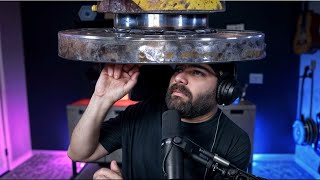
Matt Wolfe shows how to make viral AI meme videos with Pika Art, using effects like inflate, melt, explode, and cakeify on images and video frames. The Pika Effect tool produces striking results but generation can take up to 3 hours, though upgrading to Pro speeds it to about a minute. He walks through the workflow: freeze-frame a video, apply an effect, then edit it in DaVinci Resolve.
Questions this video answers
October 3, 2024
Pico 1.5
inflate, melt, explode, squish, crush, cakeify
Up to about 3 hours from prompt to ready for some clips
Yes — Wolfe reports faster Pika Effect generations after upgrading to Pro (interface messages changed to 'generation usually takes about a minute')
Chapters
All right, I got a super quick but pretty fun thing to show off today. Maybe you've seen some of these going a little bit viral on various social media platforms. Videos like this one from Justin Hart that shows off various landmarks sort of inflating and then flying away. I mean, they look pretty cool and they're surprisingly easy to make. And I'm going to show you in this video how stuff like this was done. But before I do, here's a few other examples. Here's a video from my buddy Bill of Alsatdhu showing a toilet getting crushed, and then that toilet melting and then that toilet getting cut like it's a slice of cake. And then that toilet exploding, and then getting balled up like it's putty. And then that inflation sort of effect we saw earlier. Here's a video from Andrew Gao here of an RTX GPU getting sliced like a piece of cake. Here's a video from Justine Moore, of Justine herself getting sliced like a piece of cake. And there's some really cool ones from the corridor crew guys. Like this one where there's this guy, you know, shooting his gun here. All of a sudden he freez and then he gets picked up and balled up like a piece of putty. There's another one from the corridor crew guys. It starts off with a video. They jump in the trash can. Somebody else is popping out of the trash can. All of a sudden it freezes and they're all crushed under a giant crusher. And finally, here's one that I posted on my Instagram account of me sort of getting destroyed in multiple ways.
Getting blown up like a balloon, and then I float away.
I reversed the video real quick and then blew myself up. And then once again after that, I reversed the video really quick and smashed myself under a giant crusher.
By the way, a lot of times when I make tutorials on this YouTube channel, the output of whatever I made I usually share over to my Instagram account. So if you're not following that Instagram account, you can follow it over at Mr. E Flow. Again, I'm sharing outputs there. A lot of times a few days before, I actually share the tutorial video on how I made it. So anytime you see, like an interesting video over there, you could probably expect that within a few days I'm going to be making a tutorial on this YouTube channel about how that video was made. Anyway, all of this was done in a tool called Pika Art. And just to be clear, this video is not sponsored. Now, Pika did reach out to me. They actually asked if they could sponsor a video. I told him I would prefer not to do a sponsored video and just share my sort of unbiased thoughts after playing around with it. But what Pika has done is they've added a new model called Pico 1.5. You can see down by this little rabbit here. If I click this, you could select Pico 1.5. And if you actually want to use their older Pika 1.0 model, you actually have to upgrade. But you can actually right now use this Pika 1.5 new model for free while it's in, like, beta, I guess. I'm not sure if it's always going to be free or if eventually going to change it to paid. I'm sure eventually it'll change to paid, but as of the recording of this video, you can use this for free. They added this new Pika effect button and you can see the various effects that we've seen already. You've got inflate it, melt it, explode it, squish it, crush it, and cake ify it. So the very first time I jumped in to use this new Pika effect tool, I literally clicked the Pika Effect button, selected melt it, and then if you click the generate button, I believe it just picks an image at random and then melts that image. So the first examples that I got out of it were this box here. You can see the box melting. The sound effects you're hearing are actually part of the video as well. I then typed melt it again. This time it gave me a head of lettuce and it melted that head of lettuce. But then I wanted to go and try it with my own headshot. So I uploaded this image of myself. I started with Cakeify it, and here's what that looked like. It's interesting because the knife doesn't actually look like it's cutting. It looks like it's just sort of floating over me until the very end. And then it starts to look like it cuts. But it's a pretty cool effect. I've seen some videos where it looks really, really good. Videos like this, it doesn't look very realistic because the knife doesn't seem to enter at the proper spot. I then took that same image and I used the inflate it feature. And this is what we get me turning into like a ball and then floating away. That's actually like the screen grabbed I use on the Instagram video was like my face all blown up like that. And it's actually Doing pretty well on Instagram, so grabbed attention. I then melted myself, which looked like that almost kind of reminds me of that show the Boys. That's like very gory and bloody. Like if that was a little bit more red, that would look just like a splash of blood, like melting out. Fairly gory looking, honestly. Next, I did explode it. You can see what that looks like. And if you're curious, there are sound effects on this. I've just got them muted, but you can hear if I turn them off, it actually does make an explosion sound. Next, I use the squish it feature, which sort of turns whatever in the image into like a moldy putty clay thing and squishes you up like that. And finally I tested the Crush it, which makes it look like you're getting crushed by like a giant hydraulic press. Once again, this one comes with sound effects as well, so you can actually hear that hydraulic press sound. And that one's pretty fun as well. Now, one thing I haven't figured out and I'm sure somebody in the comments is going to let me know or somebody at Pika is going to reach out to me, but I actually doing just normal text to video generation with Pika 1.5. I haven't gotten it to work yet. I don't know how to generate text to video with Pico 1.5. You can see here I tested my normal prompt, a monkey on roller skates. And first time something went wrong while generating this video. Second time something went wrong. Third time something went wrong. Fourth time, we're experiencing high demand right now. How flattering. Upgrade for faster generations. I started generating this about 18 hours ago and it hasn't generated. So at this point I don't think it's going to generate. I also tried a wolf howling at the moon. Same thing. First time something went wrong. Second time we're experiencing high demand. I started generating this one at the same time as this one. So it's been about 18 hours and it's trying to generate, but it's not. So I don't know if you have to upgrade to get text to video to work or if the servers are just so overloaded right now that text to video just isn't working. I also tested the prompt your mom because I secretly have the humor of a 15 year old. Same issue hasn't generated. I tried a wolf howling at the moon. Again, same issue hasn't worked. And then this one melt. It is the one that I actually started to generate at the beginning of this video or just a Couple minutes ago and it's still generating right now. But even these ones down here, that did work with the hydraulic press and the squish it and the exploded, they took a good three hours from the time I plugged the prompt in to the time a video was ready. So I put my headshot in there, I told it to explode it and I just went away and did different stuff. I left it open on my screen for about an hour. It hadn't completed yet, so I just went and did other stuff. Came back two hours later, still wasn't done. Came back three hours later. Finally these videos had generated. So while it is really, really cool, it is really slow right now. Now I actually went to X here to ask if upgrading actually speeds it up. I said I wonder if anyone can confirm how much faster generations are if you pay to upgrade. And the first response I got from Anu here said I upgraded. Doesn't seem to help. I'm still waiting in the queue. Blaine Brown here says it's kind of hit or miss. Some of them are generating, others are still hanging as you can see here. These are like the ultimate hanging videos because I started generating them like last night. But let's go ahead and do one real quick, see if it actually generates fairly quickly. I am going to go ahead and upgrade just for the off chance that maybe it'll be a little bit faster. Okay, so I just upgraded to the Pro plan here. You can see it says faster generations and I have access to 1.5 and 1.0. So now let's go ahead and click back. You can see I've got the little Pro button up here. It removed all the buttons that said upgrade for faster generation. Let's see if these actually come through now. I just clicked retry on all of these to see if maybe now they'll work as a Pro account user if they're any faster. On my melted generation, it did just update to say generation usually takes about a minute. We're so excited for you. So it looks like my peak effect version is actually generating faster now that I move to Pro. So that does seem to actually speed things up on the peak effect stuff. Pico 1.5 Just text to video still doesn't seem to be working. Again, that might be my error. Maybe Pika 1.5 isn't capable of doing text to video and it's only for pica effect. I'm not sure. So we can see the video it generated here. A pineapple with a candle in the middle randomly getting melted. So it Just sort of picked a random image and then melted that image. And again, I can confirm that upgrading does speed up the Pika effect, but I still haven't managed to get it to generate your mom. Let's go ahead and toss a meme image in. Here's a popular meme image that I could toss in here. And let's turn this guy's head into cake and see how it looks. So I'll go to my image here, select this specific image, click my Pika effect, and select cake Ify it. And I'll hit the little star button here. And here's what it generated from that meme. And you can see the knife looks a little bit funky when it first goes in like, it goes in like in one direction but then sort of pivots somehow. So still a little bit funky, but it's still fun nonetheless. Finally, I want to show you how they did that sort of video into getting squashed like we saw the corridor crew guys do. So here's one of my YouTube videos. I'm just going to use like the first five seconds of it. You can see in the first couple seconds I'm just here talking. I want it to like freeze right here and then crush me. So in order to do that, it's really simple. I'm using vlc. You can either take a screenshot of this frame here. VLC itself actually has a button to take a snapshot, so I'll go ahead and just use that button. So now I've got this freeze frame image from the video. I could simply just take this freeze frame, pull that in here as my image. And this time let's go ahead and use the crush it effect here and let's go ahead and generate that and we get a video of me being crushed from that freeze frame. It gets a little funky at the end, but that'll do the trick for my example purposes here. Also, I wanna point out it doesn't work great all the time. That was my second reroll. The first time it did this for some reason where my eyes got really wide and then it just cut to a video of a crusher. So I don't know why that happened the first time, but on my retry we got a little bit better of a crushing video here. So what I would simply do is download this video clip, jump into something like DaVinci Resolve. I like DaVinci because it's free. You can also use something like CAPC. That would do the trick as well. I'll pull in my video of Me getting crushed here, it looks like this. And I'll pull in my original video of me sort of talking to my office, and I just want the first five seconds of it. I'll pull this video of me talking onto my timeline here, and then I'll pull this video of me getting crushed out of my timeline here. And then I'll do my best to line them up. And then I have like a short little video that starts off with me talking, followed by me just getting crushed. While we're still waiting for Sora, we got another generative AI video platform. And then I get crushed. And that's essentially how those were done. They used the first part of the video, took that last frame, freeze, framed it, pulled it into Pika, and then did their crush or their squish or whatever. And then if you want to get unsquished, I would just go into DaVinci, copy this same clip here. And so it's a second clip. And then over on the right sidebar here I can go to speed change and then reverse it. And then you'll see it'll crush me. And then uncrush me.
There I am getting crushed, and here I am getting uncrushed. And then I can move on with the rest of my video. I like to speed it up on the uncrushing. So I would just go to change, clip, speed, make this minus 250% minus, because it's in reverse. And go ahead and click change. And then it looks like this.
I am getting crushed. And then now I'm uncrushed. So there you have it. There's how all those videos are getting done. So if you're seeing people getting sliced like their cake, or they're getting blown up like a balloon and floating away, or they're getting crushed by a hydraulic press or getting molded up like putty, now you know exactly how to do that in your own videos or for your own memes, or for whatever you want to use it for. Quick, easy, and as of right now, it's free. But if you use the free version, it is still really, really slow. So just a warning there, but it's pretty cool. And that's what I got for you today. Hopefully enjoyed this video super quick tutorial on how to do that. If you like videos like this, make sure you like this one and subscribe to this channel to make sure more cool AI tutorials and news videos show up in your feed. If you haven't already, check out Future Tools IO. This is where I share all the cool AI tools I come across. I keep the AI News page up to date on a daily basis, and I've got a free newsletter where I'll deliver just the coolest news, the coolest tools directly to your inbox. It's all totally free. FutureTools IO. Thank you so much for tuning in and nerding out with me about these cool tools today. I'll see you in the next video. Bye Bye.
More from Matt




AI News: Dots, GPT-6.1 Sol, Sonnet 5.5, Gemini 4, and everything you need to know




