THIS AI Meme Went VIRAL (Here's How It Was Made)
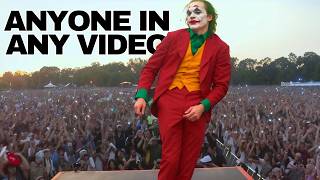
Matt Wolfe walks through making viral AI video memes using Viggle AI templates and free tools. The simple version swaps one person into a template in minutes. The advanced method layers stock footage, Runway inpainting to remove original actors, and Suno-generated music in DaVinci Resolve.
Chapters
If you've been on social media at all lately, you've probably seen this meme right here.
Obviously, the bottom is the original video of Lil Yachty at a concert. The top was somebody replacing Lil Yachty with the Joker. Now this specific example comes from AI Warper, and this is probably the most viral one that's been circulating everywhere. There's also this one which I'm muting the sound on because I'm pretty sure the music's copyrighted, where they took this famous scene from Pulp Fiction and replaced the two actors with Leia and Darth Vader, and you can see the result. This specific meme came came from Mark Aaron here, and both of these use the same tool called Biggle. And pretty quickly after the Joker meme went viral, we started seeing pretty much every iteration you can think of.
In this video. I am going to show you how videos like this one from AI Warper are getting made. Now, this tutorial was inspired by a combination of what AI Warper teaches in his thread here as well as what Mark Aaron teaches in his thread. Because the process to put two people into a video is different than the process to put one person into a video. In fact, if you want to make a video like this one with the little Yachty stage thing, it is the easiest thing in the world to do. I will show you how to do it and then we'll jump into the more advanced stuff like what I made here to promote the launch of our new Next Wave podcast.
Yo, listen up. I got something to say about a podcast past. Let's take an AI the next way they Posted by Matt Wolf and Nathan L. They bringing the knowledge they got the upper hand they dive deep they keep it real long form conversations they know the deal Talk about AI how it changes the game Giving you the truth. You'll never be the same by the way. Subscribe Today. Join the Next Wave podcast. Don't delay unlocking the secrets of AI everywhere. Matt and Nathan got the wisdom.
Now. Congratulations. That song will be stuck in your head. Everything that I've showed you so far was done with this tool called Viggle AI. And as of right now, while it's in beta, it is actually free to use. Anybody can play around with this one. Now to make more complex videos, you're probably going to also want to use Runway, the song you just heard about. The Next Wave podcast was generated with Suno and I pulled a bunch of stuff together in DaVinci Resolve. But if you want to make a real simple little Yachty walking Out on stage video, Biggle already built a template to make it super easy. So you're going to go to Viggle AI, click on Join the beta. This is going to open up their Discord. Unfortunately, like early days of mid journey, this one's only available in Discord right now. But once you're in the Discord, you're going to come down to one of these animate channels here. Let me just pick a random one. I'll go to animate 8 for this one. You can see somebody actually just recently prompted the template for the little yachty stage entrance. You can see they create a little code, dollar sign, little underscore yachty, underscore stage, underscore entrance. If you give the prompt inside of viggle this little code here, it will generate that same stage video. So all I have to do is find somebody I want to animate. I think it'd be fun to animate this little spider man costume person here. So I'm going to grab this image, we'll jump back into the discord here and then I'm going to type slash and then animate and we have the option to drag and drop our image in. So I'll grab my little spider man image that we just created here. For motion prompt, I'm going to grab this little code. The easiest way to find the little code is just to look up inside of Discord. Everybody's using it right now. Everybody's making this same video. If you just kind of look through Discord, you will see a lot of people using this little prompt code. Just find it, copy it and paste it. That's probably the easiest way. I'm going to go ahead and copy from the dollar sign over Lil Yachty stage entrance for motion prompt, I'm going to paste that little command right into our motion prompt for background. It gives us two options. White background, green background or from template. If you're using something like the little yachty one, you're going to want to use from template. Then under fine tune I leave it on and that's it. Now I'm going to hit enter and you can see my prompt has been submitted. You are currently in queue. And what happens inside of this one? Unlike mid journey where you give it the prompt and then wait and then it gives you a new message with the image, this one actually updates your original image. So if I kind of keep hovered in this area, I don't scroll down and let the feed keep moving. It will eventually generate right here on this same message. However, right now viggle is really slow. Like there are so many people using this thing, it is viral right now. And in some cases it's taking upwards of 30 minutes to generate this. So at this point we just got to hang out and wait. And this time it was actually surprisingly fast. It only took two or three minutes. So sometimes it's fast, sometimes it's slow. The first few times I was playing with it, it literally took 30 minutes or so. So let's see what it generated for us.
And just like that, in about three minutes, I have a video where we replaced Lil Yachty with Spider Man. And luckily Viggle was running really fast. So literally it took me less than five minutes to create that video. I could go share it as a meme. They have a bunch of other short codes available, like Tom Cruise from Risky Business. Here's somebody putting LeBron into that scene from Risky Business. Here's somebody putting themselves in the scene where Joker blew up the hospital. You can see we've got a short code for that as well. This is what that looks like with that image. There's a lot of pre built templates where if you want to make a meme from an existing popular scene, and it might already be in there, Viggle has a real convenient place to find the prompts that are available. If you go to Viggle AI slash prompt, you can actually find all the existing templates that are here. Little yachty stage entrance is the one that's up at the top left. We've got the Star Lord dance off. We've got Peter Parker, evil dance, Hugh Grant dancing. Joker blowing up the hospital, Tom Cruise, Risky Business. You can see there's pages and pages of pre built templates. Most of the best ones from movies are on page one. Here again, Viggle AI slash prompt. I'll link it up below. However, if you want to get two people into the scene like this or like this video that I did with Nathan here, the process is quite a bit more involved. So if you want to just make something real basic with just one person, I've kind of shown you how to do that already. If you want to make it with two people and make it a little bit more crazy, well, this is going to use multiple tools. So let me break it down real quick. In this video that you're watching here with me and Nathan, there's multiple elements. So I needed a picture of me, I needed a picture of Nathan. I needed a video with two people dancing in it that I could replace the people in the video with me and Nathan and Then I needed a blank slate of that same video where I have the video but I didn't have me and Nathan on it. And with this one specifically I put it to music. So I needed the song and then I needed to pull all the parts together which I did in DaVinci Resolve. Let's break it down by each little step. Starting with I need a video of two people doing something in the video. For this I am going to use storyblocks. I'm going to do a search for two people, see what I can find. Here's a little 12 second video of two people running. This will do for the purpose of this demonstration. So I'm going to go ahead and download this video and then I like to do my editing in DaVinci Resolve. So I'm going to fire up DaVinci Resolve here. Once I'm inside of DaVinci I'm going to pull in this new video that I made. So I've got my video of the two people running here in DaVinci Sheet. But I need to render this as two separate videos because I need just the one person on the left running and just the one person on the right running. And I need them to be two separate clips. That way I can process it through Figle and it knows which person to replace. So in order to do this real simple, drag my video onto my timeline here over under cropping, I'm going to crop the left. So now I'm just going to crop the guy out. Just like that. I've got a clip of just the runner on the right. I'm going to render this video out as runner right. All right, so that video is rendered out. I'm going to jump back to my edit page here. Remove the crop on the left. This time we're going to crop right and just crop the runner on the right out and we should be good. So now I'm going to render this one out and I'm going to call this runner left, render it out and that's that step done. I've got this video now that I've rendered out of just our runner on the right and this video that I've rendered out of just our runner on the left. And I want it to maintain the same aspect ratio because when I put the videos back together I want them to be in the same places they were originally. That's why I left the size, the full size of the video. Now I need to swap these two people out with different people. So let me go find two images real Quick that I can swap it with. And since I got an image of somebody wearing a Spider man costume, let's do the other one in somewhat wearing a Catwoman costume. So I'll be using these two images. This original Spider man image we were played with a minute ago and this Catwoman outfit. And we're going to make them running side by side. So I'm going to jump back into Viggle here, scroll all the way down to the bottom, and this time I'm going to use the slash mix command because this gives us the option to upload an image and a video reference. So let's go ahead and start with Catwoman as our image. For our video, I'll replace the woman on the right. So I'll go ahead and swap it with this video that we just rendered out. For background on this one, I'm going to select green so it makes it on a green screen. And then for fine tune, I'm going to go on and we'll turn it on.
Any day now. I don't want to be waiting on you anymore.
Okay, so I added that montage in there because, well, I made the song and I made the montage, and I really thought Viggle was going to take a long time to process my video. But to be fair to Viggle, it was actually really quick. It was only like two or three minutes. I thought the montage was fun anyway, and sometimes I just like having fun making videos. You got the montage. And for our first clip, our Catwoman clip, I got this, which isn't horrible. There's a little bit of, you know, extra border around her, but it'll do the trick. For the demonstration purposes now I need to do the second version, so I'm going to go ahead and type mix for the image. I'm going to toss our Spider man in there. For the video. We'll toss our runner on the left background, green screen. Fine tune on. Once again, let's generate. And here's what we got for our runner on the left, a nice little animation of Spider Man. Now, we have one other problem that we have to solve real quick, and that's that in this video, we have these two people running in here. So if I just overlay my Spider man and my Catwoman video, you'll be able to see the people still behind these people. So I need to remove these two people so that the two animations I made are the only animations you see in here instead of the original people with Spider man and Catwoman on top of them. In order to do that, I am going to use runways tool. If I come to edit videos, they actually have this inpainting feature here. And if I click into inpainting, I can drag and drop our video here of the two people running. And now we've got this timeline inside of Runway of our two people running. But I want to remove the two people running. So let's go ahead and crank up our brush size here. And I'm just going to paint out the people running. So let's paint out this girl here. Do my best to cover her all up. Doesn't need to be perfect because our new people that we are going to drop in are going to hide some of the imperfections behind where this person originally was. Right. I'm going to go ahead and erase our other person here. So let me just paint over them like this and let the AI sort of hide them. Now, it's not perfect. You'll notice if I skim through it. You can kind of see almost looks like there's like ghosts or something floating where the people used to be. We get some of these, like, weird artifacts here. I can fine tune it a little bit by coming over, clicking on mask and seeing what it's finding. You can see a little bit of our hair right here is still showing up. So I can do a little bit extra masking on her hair in this one and then go back to the result. And you can see some of that weirdness disappeared a little bit. And if I skim through it, for the most part, it's pretty clean. I'm just looking for anything that looks like really weird. Like right here, we can see your hair kind of come back into the screen again. So let's go back to mask and clean up a little bit extra of the hair right there. Go back to our result. I think we're going to have something that's good enough here because remember a lot of where this funkiness is. You can see a little bit of, like, the ghost where they once were. The new character is going to be there, so it's going to hide a lot of that. So I'm going to go ahead and click on export up here. I'm just going to do it in 1080p, I think it'll be a little bit faster. And I'll click export video. Now if I go to my export page, we can see that it's starting to export. This might take a couple minutes for it to work as well. Okay, so our video is done exporting from Runway Again, you can see what I'm talking about. It's a little bit more apparent here with that sort of ghost effect. Again, this is for demonstration purposes. You could spend a little bit more time cleaning it up. I did notice on this version that the guy's water bottle sort of pops into the shot here for a, um. If I was really trying to make something polished off, I would have gone through and made sure that that was masked out as well. Hopefully some of that stuff isn't as noticeable in the final video. But again, you can really, really dial this in with Runway and clean it up. I just missed it before rendering this one. But anyway, I'm going to go ahead and download this version of the video with our people edited out, and we're going to jump back into DaVinci Resolve. But first, I'm going to pull in our clean version without the people in it anymore, and I'm going to add this to a new timeline. So now we've got this timeline with the people not on it. Now I'm going to pull in my two green screen videos that we made here. I've got Spider man on the left. There's no audio, so I'm going to delete that. And then I've got Catwoman on the right here. Once again, I'm going to delete the audio track here. And now we've got our top video with green screen with Catwoman, our second layer with Spider man, then our third layer here, which is the motion background. Now, everything I'm showing you you can do with the free version of DaVinci Resolve. So anybody should be able to duplicate this. It's on PC, it's on Mac. It doesn' doesn't matter. You should be able to do this. I'm going to click on our video here with Catwoman on it. And I'm going to click on this little magic wand icon and come to this screen. Don't get overwhelmed. This is super easy. While in DaVinci, I'm going to hit Control spacebar and it's going to bring up this little select tool menu and I'm just going to type in delta D, E, L, T A. It'll bring up this delta keyer and I'm going to click add. You can see it added it right here, but for some reason it didn't connect it. So I'm going to click on my little line here, delete it, and then connect our media in one to delta keyer. And then we're going to connect this to media out. So we just need this delta keyer to fall between our media in and our media out. Make sure your delta keyer is selected. It's got the little red highlight around it. And then over on the right, we're going to click on this little eyedropper tool. Keep clicking. And just drag the eyedropper tool over onto the green. See, if I take it off now, she is green screened out, and we can only see her. Now, if I come back to our main timeline, you can see I've got both of our people running side by side, but Spider man still has a green screen. So now I'm going to hide this upper video track. So I'm only seeing this video track. We're going to do the same thing. I'm going to click on the magic wand, hit control space, search for delta keyer, click add, and once again, grab my eyedropper, bring it over here, select the green, and you're good to go. Jump back to our main timeline. And now you can see we've got Spider man running on this background here, and we can simply unhide Catwoman. Now, if we play our video, we've got Spider man and Catwoman in the same video running side by side. You could see the little ghost of the person that used to be there behind them. You know, you can clean that up a little bit better in Runway if you want, spend some more time on it. I was trying to make a quick tutorial, and then, of course, I've got a little issue here where the water bottle pops up behind his hand a little bit. So this isn't perfect. I wouldn't, you know, put this out there into the world and say that this is the most amazing video ever. I just wanted to give you a quick demo of how to do this, and if you want to add a little bit more fun and excitement to it, pop on over to sunoai. Click create. To create a new song, let's do a prompt, like a poppy rock song about Spider man running alongside Catwoman to get their workout in. And we'll click create, pull our new song here onto our timeline, and this is our finished product for now.
Spider man and Catwoman side by side running through the city with the powers that glide in the morning sun they hit the street no time to waste they gotta work out to be.
Now we just export our video and we're good to go. Now, I know this isn't the most polished example you've probably ever seen. Most of the demos I showed you earlier were a little bit more dialed in. But this is the process. This is how it's done. So if you want to take another video and replace whoever's in that video with yourself or a friend or make a funny meme out of it, now you know the steps. And again, right now you can use Viggle for free. You can use DaVinci Resolve for free. Runway, I believe, has free trials to do what I showed you. So there was really nothing in here that I showed you that should cost you much money at all, if anything. And if you love nerding out about AI as much as I do and you want to play around with the latest AI tools, stay in the loop with the latest AI news. And if you want to get emails every week with just the coolest AI tools and most important AI news, make sure you join the free newsletter. If you join the free newsletter, I'll also hook you up with the AI Income Database, a cool database that I made of ongoing ways to make money using AI tools. Totally free. You can find it over at FutureTools IO. Join the newsletter and if you like videos like this, make sure you like this channel. Subscribe to this channel and I'll make sure videos like this keep on showing up in your YouTube feed. I love making tutorials, I love talking tools, and I love sharing the news. So if you're subscribed to this channel, I will make sure you are completely looped in on all of that stuff. Thank you once again. I really, really appreciate you. I had a blast making this video. I want to make more videos like this. If you have ideas for tutorials using AI that you'd like to see me make, let me know. I'll make more like it because this is so much fun. That's it. I'll see you in the next one. Really, really appreciate you. Bye bye.
Yo, listen up. I got something to say about a podcast. Let's take an AI the Next Wave Posted by Matt Wolf and Nathan Lance they bring in the knowledge they got the upper hand they dive deep they keep it real long form conversations they know the deal Talk about AI how it changes the game Giving you the truth you'll never be the same by the way. Subscribe today. Join the Next Wave pod. Don't delay Unlocking the secrets of AI everywhere Matt and Nathan got the wisdom to share.
More from Matt




AI News: Dots, GPT-6.1 Sol, Sonnet 5.5, Gemini 4, and everything you need to know




