This AI Tool Could Replace Photoshop (No Skill Required)
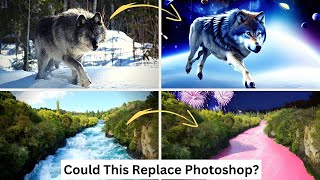
Matt Wolfe demos Playground AI, a text-based photo editor that lets you modify images with prompts and masks. He edits a waterfall photo and a wolf image, changing them to nighttime, adding rafters, turning the river pink, and more. The free plan allows 1,000 images daily.
Questions this video answers
Matt Wolfe
This AI Tool Could Replace Photoshop (No Skill Required)
February 2, 2023
playgroundai.com (Playground AI)
Stable Diffusion 1.5, Stable Diffusion 2.1, and Dall·E2
Chapters
In this video, I'm going to show you how to edit images with just text. Could this be something that replaces Photoshop? Let's find out. So this is a website called playgroundai.com and at Playground AI you can actually generate images. It uses the Stable Diffusion model in order to generate any images you want. And just like a site like Lexica, you can scroll and see some images that have been recently created on the platform. Now, this isn't a technically free site, but it's practically free. If I come up here to create, I could come in here and create images with stable diffusion 1.5, 2.1, or Dall E2, and I can create up to a thousand images a day on the free plan. If you want to create more than a thousand images, well then you got to pay 15 bucks a month. But I mean, a thousand images a day is quite a lot. Now, I've done quite a few videos on image generation through tools like Midjourney, Blue Willow and and various platforms that leverage stable diffusion. So I'm not going to go into that. In this video. In this video, I want to talk about something called Instruct Picks to Picks. Now, if you remember in my previous video where I talked about Hugging Face, I actually messed around with Instruct Picks to Picks inside of the Hugging Face platform. However, Playground AI actually has it built in and I want to actually spend some more time playing around with it and seeing what kind of things you can do with it. Now, I actually downloaded a couple stock photos. One is this photo of Hookah Falls in New Zealand that I want to play around with a little bit. This is an actual image, it's not an AI generated image. And another one is this wolf image that I downloaded and purchased the rights to. Also a stock photo of a real image, not AI generated. So I want to play around with real images and see what kind of tweaks I can make to them using this instructPix2Pix technology built built inside of playground AI. So let's start by coming up to the top up here and clicking on Import Image. And let's start with our waterfall image here. And it gives us this instruction box over here. And we can do things like say, make it nighttime and click Generate and see what happens. And you can see it generated an image here that is based off this original one. But now at nighttime, let's see what else we can do with this here. So let's try add a raft going down the river and let's generate that and you can see it Sort of based it on the original picture, but added some rafters going down the river. Let's see what happens when we use the same prompt but crank up the instructions all the way to 20. You can see we got some funky rafts and the water color changed and the actual path of the river changed a little bit. It followed our instructions, but it kind of changed the image quite a bit. Now if I bring the instruction strength all the way down to, let's say just one, let's see what happens. You can see our image is pretty dang close to the same, and it sort of kind of added a little raft down in the bottom. So this instruction strength is kind of what you have to play with to get it to what you want. So let's bring this up just a little bit, bring it to six, and see if we can get the same looking image, but with an actual rafter coming down. It's getting closer. Kind of put a raft inside of the cliff here. Let's bring it up a little bit more. Let's bring it to an 8 and see what happens. Now we're talking. Now we have almost the same image, but with some rafters going down the river. But that's not all we can do. There's actually a cool feature in here where we can add a mask. So if I click on add mask here, you can see it gives me some control. So let's go ahead and make this a big mask and let's actually mask off our river. And let me just do this real quick here. Just try to cover all the water. It doesn't have to be exact. Bring my mask down here to kind of get this area up in there. And now we've masked out the area that is water. Now I can do stuff like make the river pink and let's generate that. And what it should do is leave everything on the outside the same and just mess with the river. Now look at that. Now I have pretty much the same image, but with a pink river. Now let's go ahead and clear our mask. And this time let's mask out the sky up here. Let's. Let's try our original prompt of making it nighttime. But ideally it'll leave everything below the sky, make it nighttime with fireworks in the sky. Let's see if it can add fireworks for us. Look at that. It made it look like a night sky and added fireworks in the background. Let's actually crank up our instruction strength because now we know it's not really going to mess with anything down below. And see if we can get an even crazier effect. Let's generate one more time. Pretty cool stuff. Now let me cancel out of this and let me pull up my wolf picture that I brought in here. And let's do some tests with this one. Now just to get the best result, I'm going to go ahead and add a mask again. And I'm going to mask my wolf off and mess with just the wolf here. And I'm going to add a little bit extra above the wolf's head here, and you'll see why in a sec. And so let's go ahead and give it the instructions. Give the wolf a top hat, and let's go ahead and generate that. Well, it gave the wolf a top hat, but it gave it two top hats. Let's bring down the instruction strength a little bit and. And generate it one more time. And there you go. We have a wolf walking through the snow wearing a top hat. Let's do some more masking. This time. Let's mask out the snow. And I'm not going to worry too much about getting some other, you know, the wolf's paws in the picture. It doesn't have to be exact. Let's just kind of COVID everywhere where you can see snow, and there's some snow up in there. And let's go ahead and say make the snow colorful. Let's see what happens there. Let's turn up our instruction strength. We're going to. We're masking out kind of just what we want. So it should keep the trees and the wolf fairly the same. And let's click generate. Look at that. It made sort of rainbow snow there without really doing too much to mess with the wolf or the trees or anything else going on in the background. Let's try change the snow to sand, and let's see if it could make the wolf walking on sand instead of snow. Look at that. It added some sand. Kind of blurred the wolf with the sand. If we bring down the instruction strength, we might be able to clean that up a little bit. And let's generate one more time. And there you go. Now it looks like a wolf walking. Walking through sand instead of snow. Let's do one more prompt. Let's go ahead and clear our mask here. Close out of this. And let's just try something really crazy. Make the wolf floating in space. Let's generate that and see what happens. Look at that. It kept our wolf kind of in the same pose. You can tell it's a little bit more of an AI generated wolf because it kind of lost a leg, but there we go. We have a wolf floating in space. So this is playgroundai.com once again, while not technically free, you can use a thousand images per day. I'm on the free plan. I'm not paying monthly personally, I've just been playing around with the free credits and I've yet to create a thousand images in a single day where it's been an issue. So pretty cool feature. This is the first platform that I'm aware of outside of Hugging Face that integrated the instructpics to Pics concept and in my opinion they've done a fairly good job of it. Now, will this tool replace Photoshop? Probably not, but it can definitely be a complimentary tool to Photoshop. You can come in here, mess with the picture, give it some instructions, and then pull it into Photoshop to do any other restoration or cleanup that you want to do. Pretty, pretty cool stuff. So check out playgroundai.com hopefully you found this fun and informative and kind of cool. I love nerding out about this kind of stuff and hopefully you love nerding out about it too. If you like finding really, really cool AI tools, head on over to FutureTools IO. All the cool AI tools that I come across I share on this website and I update it every single day, put a ton of new tools on it all of the time and check back daily because Honestly, I'm putting 15 to 20 new tools on this website every single day and I'm curating only the best of the best. I kind of ignore all the junk submissions that come across and only show you the cool tools that I love playing with myself. So futuretools IO is the website. If you enjoyed this video, you want more cool AI and nerdy tech videos and tutorials and things like that, click the like button below this video and if you haven't subscribed to the channel yet, subscribe. That would really, really do me a big favor. I'm trying to sprint to 100,000 subscribers and I'd really love your help. So click the subscribe button if you haven't already and a like on this video will make sure you see more videos like it inside of your feed on YouTube. And thanks for hanging out. Appreciate you. See you guys in the next video. Cue the music.
Sam.
More from Matt




AI News: Dots, GPT-6.1 Sol, Sonnet 5.5, Gemini 4, and everything you need to know




