Matt Wolfe shows how to set up Gmail's canned responses and filters to automatically reply to incoming emails. You can create templated answers and rules that send them without touching each message.
Chapters
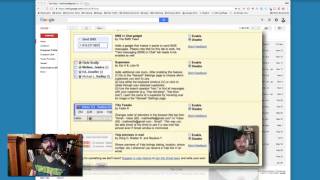
Hey there, Matt Wolfe here. Today I want to make a quick video about how to turn your Gmail into an autoresponder. Now about six years ago I made a video and I put it up on YouTube. It was actually one of the first videos I ever put on YouTube and it was this little trick about how to turn Gmail into an autoresponder. And it's my most popular video I've ever put on YouTube. It's gotten about 40,000 views since then. But you know, Gmail's changed a little bit in the last six years and, and I wanted to kind of recreate this and show you how it looks now. Now the process is pretty much the same, but I thought I'd just make an updated video and show you in the new sort of way that Gmail looks. Alright, so the first thing you want to do is you're going to come up to this little gear icon inside of Gmail and go to your settings. Once you click on settings up at the top, click on the little tab that says Labs. And under Labs, make sure canned responses is enabled. What canned responses is, it actually makes it so if a certain filter comes in, you can make this email automatically go out. So I'll explain it more in a minute, but if you get a specific email with a, you know, if it has, you could set the filter on a specific from line, a specific to line, or a specific subject line or other criteria. And when that happens, you can make Gmail automatically send out this canned response. Kind of like a vacation reply, but but with a little bit more filters and logic involved. So make sure you have canned responses enabled inside of Gmail. The next thing you want to do, come back to your inbox and compose the message that you want to automatically go out. Now this is automatically throwing in two of my signatures. I'm gonna go ahead and delete that and write the message that will automatically go out, complete with the subject line and everything. So thank you for your email.
Please read this. Alright, so let's just assume that's the subject line of my canned response that I want to automatically go out. And I'm going to go ahead and really quickly type up an email. I'm going to speed this up real quick and then I'll read you the email.
Alright, so I basically made a real quick basic email that says this is an automated reply. Thank you so much for replying to my last email about the bonuses. Below you'll find the link to directly access your bonuses. Thanks Matt Wolfe. Now why would you Want to do something like this? Let's say you just sent an email out to your list or you made a blog post and you told people to send you an email in that blog post. Maybe, maybe in that blog post you said, hey, email, you know, mattattwolf.net and when you send me an email at this address, I'm going to send you some special bonuses. This will automatically reply if somebody sends a message. So here's an example I would use on my blog post. Maybe on my blog post I'll put something that says, hey, I just put together a really cool video that I think you're gonna like, but in order to get it you need to shoot me an email. And in the subject line of the email put send me the video. That's the subject I want you to put for it. And when you send me that email, I will reply with a link to this bonus video. Now this email will be the automatic reply. So the next step is I need to make this the canned response to that. So here's how I do that. Down in the bottom right corner you'll see this little arrow. If I click on this arrow you can see canned responses. Alright, so let's go ahead and save this canned response. Let's give it the name, let's go ahead and leave it at. Thank you for your email. Please read this. So it's the same as the subject line. Now I'm going to go ahead and close this. I'm going to create a filter. Now to create a filter I'm going to come up to this little drop down arrow here at the top. And for the subject, I'm going to type the subject that I told people to use as the subject line. So in this case it would be send me the bonuses. Right, that's the subject line that in my blog post or in my previous email or on my podcast or whatever I told people to use as the subject line. Alright, so I'm gonna go ahead and create a filter with this search. So subject line, send me the bonuses, go ahead and create a filter with this search. And what I want to do is when somebody emails me with the subject line, send me the bonuses. I am going to have it send a canned response. So send a canned response, go ahead and select the one that we just created and create the filter. Perfect. That's all we need to do. Now if anybody emails me from any email address with the subject line, send me the bonuses. That email is going to go back out to them with the link to the bonuses. That canned email that I just made. So that's how you kind of turn Gmail into an autoresponder. And this is an updated version of that that, you know, you could probably see a little bit clearer than my last version and has the newer layout of Google. So hopefully this video was helpful. Again, you can use this to on a podcast. Tell people to email you to your email address with X subject line to get a specific bonus from your blog. Tell people to email you with X subject line to get your bonuses. If you have an existing autoresponder like AWeber or active campaign or something like that, and you want to solicit replies, you could give people specific instructions to do this kind of thing. So lots of very cool uses for this. And that's how you essentially turn Gmail into your own private autoresponder. All right, I'll see you in a later video.