Matt Wolfe shows how to use Gmail's Canned Responses feature to automatically reply to hundreds of similar emails. Enable it in Gmail Labs, save a template response, then create a filter to send it automatically when matching emails arrive.
Questions this video answers
In Gmail Settings → Labs tab (enable Canned Responses and click Save Changes).
No — the subject match is not case sensitive.
Chapters
Hey guys, Matt Wolfe here. I just wanted to shoot this quick video today to teach you a cool little trick. Now, as you can probably imagine, I just get tons and tons of emails every day. I mean, I get probably in the hundreds of emails every single day and sometimes it gets pretty overwhelming to deal with them all. So I want to show you a quick little trick that I use to kind of handle all those emails. It's something that most people don't really know exists, but it's a cool little Gmail trick. I use Gmail for all my email, and this is just a little tip that you could use in your business and your email if you want. Now, one thing I like to do is I get a lot of emails that are on the exact same subject. A lot. You know, maybe I'll do something on my blog where I'll ask for opinions on something and I'll say, email me your opinion at this email address or email me with this subject line. You know, something along those lines. Like maybe I'll do a poll and say, hey, what do you want to learn about WordPress? Well, email me with the subject. What I want to learn about WordPress. Well, I can actually set Gmail up so that whenever somebody sends me an email with that subject, I automatically respond to them. I don't need AWeber or any autoresponder like that. I could just do it right in my Gmail. So I want to show you exactly how I do that. So right now I've already actually got it installed, but I'll show you how you're going to do it. It's something called Canned Responses. So what you're going to do is you're going to come into your Gmail here and you're going to come up here to Settings.
You're going to come over to this little tab right here that says Labs and click on the Labs tab. And mine's at the top because I have it enabled right now. But you'll probably have to scroll down and find Canned Responses. Once you find the little box here that says Canned Responses, you're going to go ahead and click Enable and then you're going to scroll down and at the bottom you'll go ahead and click Save Changes. Obviously I've already got it set up, so I don't need to do that. But just look for the little plugin called Canned Responses. Enable it and save your settings. Now what you could do is you can actually come back to your inbox. You can actually compose an email and let me just Write up an email real quick that says.
Hey, thank you.
So much for giving me your feedback on what you want to see.
Me teach about WordPress. Something along those lines. Then I could go on to say I have received.
Several hundred.
Emails on this subject.
So I apologize.
I don't immediately reply. Thanks again, Matt Wolf. Now I spelled apologize wrong. Go ahead and fix that. Okay, so this is the email that I want it to send. Every single time somebody sends me an email with the subject line what I want to see in WordPress or what I want to learn in WordPress. So what I'm going to do is I'm going to come to this canned responses here.
I'm going to go ahead and save this. See under save as a new canned response. Now I'll name it.
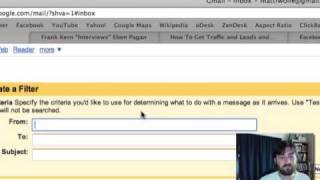
What I want to learn. That's fine. I'll save it as what I want to learn. Click ok, now I'm just going to go ahead and go to inbox. I can discard this message. I don't need it anymore. I'm going to come up to the top. I'm going to create a filter up at the top of Gmail. Now my filter, see the subject line right here? I want it every time somebody emails me with the subject line what I want to learn in WordPress. Now it's not case sensitive, so don't worry about the all caps or all lowercase. As long as it has this subject line what I want to learn in WordPress, then it's going to send in this canned response. So I'm going to go ahead and click Next step.
And then it's going to give me the different options I can do. What I want to do is I want to go ahead and tell it to send a canned response. I'll click Send canned response and then I'll select what I want to learn. Then I'll click Create Filter. Then that filter will be created. And whenever somebody sends me an email now with the subject line what I want to learn in WordPress and is automatically going to send them that response that I just created. That's one of the ways that I deal with a lot of emails. Now I sell products online. I have a few products. WordPress Classroom Autopilot, cash Formula, Quick Niche Credibility. I sell quite a few products and kind of coming with the territory, you do get some people asking for refunds on this product. So I have canned responses. Anytime somebody uses the word refund in an email to me that tells them the process of how to go about doing a refund. You know, I set up my vacation replies when I'm on vacation. I just send a canned vacation response to everybody who emails me. It's just a really cool feature in Gmail that I don't think many people use and it's a way to just basically set up an auto response for any type of email that gets sent your way. Now, obviously you do want to respond to people personally if you can, but if there's any emails that you're specifically getting a lot of, this is a cool way to just have it automatically take care of it for you. So that's my cool little tip of the day that I wanted to share with you. It's how to use canned responses in Gmail to automate your email a little bit and kind of keep your inbox a little bit cleaner and just handle that kind of stuff well. So there you go. I hope you enjoy it, I hope you implement it. It's cool. And thanks for checking out my blog. I'm Matt Wolf and I'll see you later.