Matt D. Smith walks through creating a simple ship illustration in Adobe Illustrator using basic shapes and fundamental tools. The tutorial focuses on rapid UX design techniques for building clean, minimal graphics quickly.
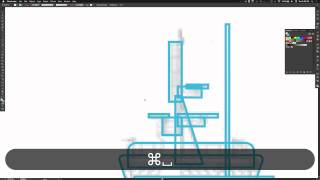
Hey everybody. Welcome to AI ux, a series about rapid UX design with Adobe Illustrator. I'm your instructor, Matt D. Smith, and today I'm going to show you how to create a simple illustration using basic shapes and modifying them with the pen tool and the pathfinder, the direct select tool, etc. Let's get started. All right, I've got a ship here and I'm going to draw a square to start off with on some of these, on some of the base shapes. Now I'm going to change this to the default fill and stroke and then knock out the fill so I can have the ability to see what I'm working on here. I'm going to knock the opacity to this ship down a little bit just so I can see the line work on top of the image. And I'm going to change the color of the stroke just so it it doesn't get lost. Alright. So I'm going to. I'm just kind of making the shape to be kind of the base bottom piece of the ship. I'm going to draw another square here and round these edges to make that kind of tail end. And I'm going to using the V, the V key to transform this. But I think I'm gonna go back, I'm gonna kind of shift this over using the Direct select tool, I'm gonna add point. So I added a point to the edge and then I drug the top part over. Now I'm gonna round that corner. I want to go over here and pull this in with the Direct select tool, just kind of modifying this angle to match the front edge of that boat. Around that edge I'm going to actually select both of those bottom corners and make sure that they're equal. So I'm going to draw a new shape here and I'm using the Direct select tool to pull in the corner and I'm going to round that top corner that doesn't look quite right. So I'm going to. If you round the corner and then try to move the corner points, you'll lose your ability to edit those. So I changed it back to get a better slant and now I'm going to add that rounded section now. So I'm just going to create another rectangle here for this part and round those top two edges by selecting the top two points with the Direct select tool, I'm going to draw another shape and select this bottom two pieces with the Direct select and nudge them in to kind of form this wedge shape around those top two pieces. Center. Align those two by selecting them. Draw another square in here and bring this side in with the Direct select tool. Bring that over. Just kind of grabbing these points and dragging them to match the the outline of this vessel. This one I just added a point there with the pen tool and that way I could drag the other and have that little indention at the top. So here I'm going to just keep drawing rectangles just to match up. I'm not trying to be really specific. I'm just adding in a few little details so I don't need this to be perfect. I just want it to look like a ship and I want it to be vectorized so it's nice and clean on the wireframes. I'm going to keep drawing these little rectangles in here. Draw another one. Just kind of adding a little bit of detail. I'm going to zoom in so I can see a little better. Alright, so that will work for those, I'm going to zoom in over here and add this rectangle for whatever that is kind of crane and drag another one. I'm going to draw a square here and I'm going to remove this point so I have a little wedge shape and then pull this down and draw another little piece here. Now I can select both of these and option drag it over here to have like a similar look and then draw another little square. Pull this point up. Maybe just pull this point over a little bit. There we go. So it looks like I've got a pretty good basic shape. So I'm going to select all of this and it's always good to make a copy and then I'm going to change this to the fill to get a look at it. So that looks pretty good. So I'm going to go ahead and open the pathfinder and hit combine shapes and so that changes all of those individual shapes into one big shape. So now that I've got that, I can get rid of or actually let me bring this up to opacity just to kind of look at it. Alright, that looks pretty good. I'm going to delete these and let's see, I might add a little water line just to give it a little bit of a kind of anchor point visually. So I just drew a line and I'm going to nudge these. Make that two pixels, two points and nudge these sides in a little bit. The Direct select tool. So that concludes this quick little illustration for today. If you have any comments or questions, leave them below or hit me up on Twitter imds and thank you for watching.