Learn to install Python on Mac by opening Terminal, using Homebrew as your package manager, and running `brew install python`. The guide walks through checking if Python exists, entering your password, verifying the installation with `python3 --version`, and testing it with a simple Hello World script.
Chapters
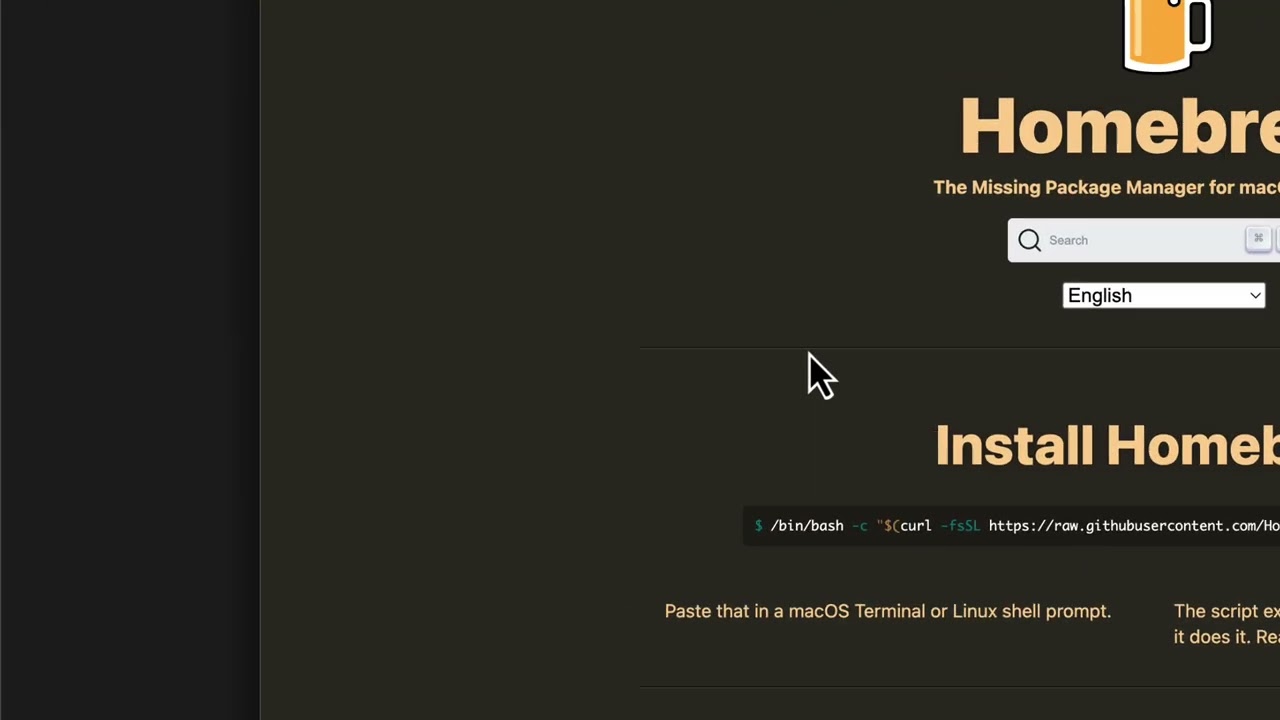
Hey there, in this video we're going to walk you through installing Python. This is the macOS installation. From macOS, you're going to want to open a terminal window. You can do that by choosing Command+Space and typing in "term" and you'll see Terminal pop up. Once you do that, your terminal window will open, and first you want to check to see if you've already got Python installed. So we're just going to type in Python. It says command not found, but that doesn't mean you don't have it installed. We're going to try another one because sometimes it's installed as Python 3. So it looks like right now you could see those three caret symbols that are pink on my screen. That indicates that I'm in interpreter mode, which means Python 3 is installed. I'm going to go ahead and, uh, quit that. And now, um, for those of you who do not have Python installed, we're going to go ahead and install it. Now on Mac, there is a package installer that makes installation much easier for us, and it is Homebrew. So the first thing I'll ask you to do is go over to a browser like so, type in Homebrew. There's actually a link in the, um, notes. But here, notice it's not like a Windows or application installer. It actually is a script. So you're going to go over here. This is the install Homebrew script, and you're going to click on this, and then you're going to go back to your terminal. And you're going to hit paste and enter. And now it's going to ask you for a password. You'll notice here it has a little key there next to the word password. Go ahead and type in your password, but notice it won't actually tell you that you've typed it in, but you are doing it correctly. If you mistype it, it won't work, but it is— this is the password you use to log in to your macOS system. So once you've done that, it's going to say press enter to continue to do this installation. It's going to go and download it. It's going to update Homebrew because I do already have it. It's going to say great, Homebrew is enabled. Um, now I can run brew enter to make sure it is installed correctly, and it is. So when you type in brew, it'll show you all the options. There's brew install, brew update, One of the things after I do this installation is I do always type in brew update just to make sure I have the latest version. However, typically I just installed it, so I do have the latest version. All right, so now that we've got brew installed on Mac, the next thing you could do is type in brew install python, and it will automatically go out and find Python for you and install all the required packages. Now you'll notice here in my My notes it says already downloaded, but this allows you to— you'll see when you do this that your installation completes. Now again, once you're done, you're going to want to type in python3 --version to check the installation. In my case, it says I'm download— I've downloaded 3.13.3, and I can just type in python 3, enter. And now, as you can see at the very bottom, I am now in interpreter mode. Now for the final test, we can run a very simple script, which is also in your notes. And it's pretty easy. We're just gonna print hello world, a typical test, test that we run as a developer. So we're just gonna type in print, which will print something back to the screen. We're going to put in a parenthesis, which is going to provide the parameter for what we want printed. We're going to put what we want printed in quotes. So you could say, "Hello world!" Um, exclamation point. Uh, and you'll notice what happened is that my environment automatically completed that, but you'll want to make sure you end the quotes provided in parentheses and hit enter. And when you hit enter, you'll notice it prints "Hello World" directly to the screen. And now you know it's working. Congratulations, you've got Python installed. Let's move to the next step.