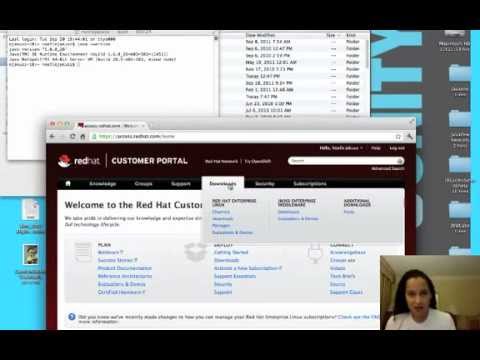
Noelle Russell walks through installing JBoss EAP on a MacBook Pro. Download the Application Platform binary from the customer portal, extract it, run ./run.sh from the bin directory, then verify at http://localhost:8080 with default credentials admin/admin.
Chapters
Hi, I am creating this video because I've had a couple requests from developers who've seen some of my other videos looking and noticing that I'm doing a lot of my demos on a Mac and wanting to know how to set JBoss up on a Mac. So I wanted to demonstrate that to you really quickly because it doesn't take long at all. First thing you want to do is go out and install a runtime environment, a Java Runtime Environment, a JRE. So you'll want to make sure that that is installed somewhere. You can tell on your system if it's been installed by simply going to a terminal. You'll notice I have one open here, and you can type in java-version. It might be --, we'll see. And it should tell you what it looks like. So it looks like here I have the Java Standard Edition runtime installed at 1.6, so that's perfectly fine. The next thing you want to do is go and get the actual software, and there's a little trick to doing that. So you'll want to sign in. You'll notice I'm already signed in as Noelle Russell. You'll want to sign in and then you'll go to the downloads page. You will have to have some entitlements to do this. All my videos tend to be enterprise software because I work with enterprise customers, so hopefully that's what you're looking for. So let's go take a look at the download section. When we do a download, there is going to be a directory list, as you see here, a list of things that you will want to download. Now there is a tendency for people to look down this list and go and choose Application Server. Not sure why this is in this list. I think it might be because, um, I don't know why. Maybe it's because it was useful before, but it is not the right place to go to. I'll show you. If you go there, you'll notice that the information there is not relevant to today's version of the latest version that is available. So hopefully this will come up relatively quickly. Excuse me. Oh my goodness. So you'll notice here there's no releases, there are 2 patches and a security advisory for version 4.0.5. Probably not where you want to be. So you will want to make sure you choose application platform. So once you choose the application platform, that's going to readjust this list to be the software that you would expect. Now there are a couple different download options for the software. We're going to choose the application platform and do EAP. I'm also going to do another video after this of SOAAP. So if you are a SOAAP customer or someone looking for an example of how to do this with the SOAAP product, I'll show you that as well. But once you have the application platform, installed or, or selected, you'll have a couple options you can choose, uh, depending on your platform that you're installing it on. You can choose a, a binary installer, or you can choose just to download the product. I recommend just downloading it, not to get caught up, um, in using the installer because the installation in and of itself is extremely simple. So What I have done is I've downloaded the— just the platform, the platform binary. Click on download, get it onto your hard drive. So I have here created a directory called JBoss Software, and in that JBoss Software, you'll see here that it says I have EAP and SOA downloaded for both the videos that I'm about to do, right? So now what I'm going to do is go back to my terminal window And I'm going to cd into that directory. And then I'm going to, let's see, down, ah, no, no. Is that right? JBoss, maybe? There it is, software. Software. So now you'll see that I have EAP here. So what I'll want to do, of course, is unzip it. Now what you could do on a Mac is simply go here double-click on the EAP version, right? And it'll just extract it for you, which is kind of the easier way to go, right? Um, so we'll wait while this extracts, and then once it's extracted, we can go in and actually test it out. So now you'll see it's extracted, and what will happen is that it opens up a separate dialog window that shows you that extraction. Not too curious about that. What I am more interested in is the terminal window. So now I should be able to go into the JBoss EAP directory, and I'll see the different directories provided by my JBoss installation. So I'm gonna go ahead and cd into my JBoss installation and go right into the bin. If you're familiar with JBoss, in the bin is our run script. So super easy, you're going to do ./run.sh just like you would on a Red Hat box or Fedora, and you'll just hit enter and it's going to deploy the default configuration. It'll even tell you what that looks like. It'll also go through, and if you, you know, take a look at some of the information that's being displayed here, it'll show you what the default settings are for the RAM or for the amount of VM resources you've allocated. You'll see here for XMS as well as for perm size, all that stuff has been— there's some defaults associated with that, so it'll display it to you if you want to read through it. Usually takes about 50 seconds or so depending on your resources. You'll notice on my screen my memory is maxed, so it could take me a little bit longer than that to do, but it'll run through. While that is happening, The way to validate an installation of JBoss is to simply go to a web browser and execute a request for that application server. So once this starts up and we get that magic word phrase at the bottom that says, "Your server has been started, congratulations," um, we will then go into the web browser and we will execute a request for that console. So it should come up any second now. You'll see, uh, all the default resources that are configured. Here's where the context is deployed. You'll see right now they're finishing up the creation of the JBoss process. And it says in this case, 1 minute and 12 seconds, a long time, but mainly it's because I'm running at really high utilization right now because I have a lot more programs running here than I should and not enough memory to support it. So let's go here, open up a new tab, type in localhost:8080. And what should happen here is that it'll bring us to the administrative console. And now if you've gone into the properties file and enabled the ability for you to make these changes, I'll show you that right now. Um, if you go in here, you'll notice in the application server, um, inside the server configuration that we've deployed, which is called default, Inside the configuration, you'll see a set of properties. Inside those properties, you will see, um, console users. So I'm going to go ahead and open up this properties file. And it's going to show me basically a line of code that I need to uncomment to enable an administrative user to use this, um, later. So I'm going to go ahead and remove that comment, save it. Now, just as simple as that, I'm gonna go back to my browser, select the admin console, and it's going to probably require me to log in. So I'll give it a second. Again, it's the resources on my machine. It's taking a long time. So here's my administrative console login. I'm going to not use that, but use admin admin, as you saw in that properties file. And if you don't remember, I'll pull it up, right? It says the users are going to be admin and the password is going to be admin. So did I hit login? Yeah, so it's thinking. So again, the speed is not the best, I understand. Please forgive me. I have a bunch of stuff running and I just wanted to get this video up and out and available. But you'll see it logs you right into the console and you're up and running, right? Very easy, no problem. Hardest part might be installing Java the first time. If you have any questions or any concerns about anything that was displayed here, just give me a holler. Reply either in a comment or send me an email at noelle@jbossgirl.com, and I'd be happy to respond to you. So I hope you have a great day, and I'll talk to you later. Bye!