Watch how to download and install VMware GemFire on your machine. The presenter shows where to get the software, runs the installer JAR, walks through the license agreement, picks an installation directory, and then finds the user guide and release notes.
Chapters
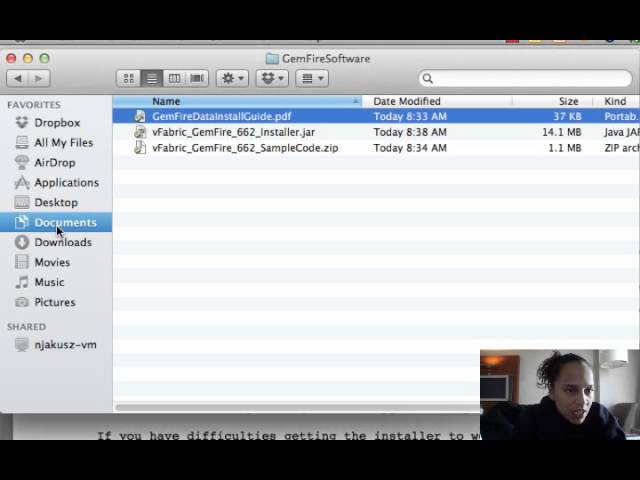
Hello and welcome to a quick video about how to get started with GemFire. I just wanted to take a couple minutes to walk through the steps to install GemFire. Basically what we're gonna do is first show you where to get the software, then we're going to take a look at installing the software, then I'll show you some product documentation, and then we'll install an example. Just so you can kind of get started. So if you need any help with that, hopefully you'll find this video helpful. So the first thing you have to do is get it. There's a couple different options. If you already own it, already have a license to it, you can go into your My VMware portal and get it that way. Another thing that you could do is also go out to VMware.com and you could grab an evaluation copy. So there are a couple options there. What Regardless of which option you choose, you'll end up at this page where you can actually download the product. So you'll notice here on this page, it gives you the ability to download, obviously, different versions. Probably, uh, I would recommend you download the latest version, but that's completely up to you. Um, it'll also give you the opportunity to read the release notes, and then you'll see 3 pieces of downloadable software. So the first one is the installer. So We'll download that. The next one is a text file that'll just walk you through some quick installation steps. It's very easy. And then finally, the sample code, which we'll use in this exercise to get you started and get you a feel for what Jamf Fire can do. So once you have downloaded it, I think I have here, I've downloaded all 3 pieces. Inside that, so I went ahead and saved that text file as a PDF. So I'm going to open that for us right now. So really it's just very simple installation instructions, right? It says here's your minimum requirements. I'm actually not going to be satisfying those too much because I want to install it on my Mac and just kind of see how that goes. And then we're going to— so we're going to run the installer by simply invoking this JAR file. So I'm going to go ahead and open up a terminal window, and I'm going to just invoke this guy, if I can copy it. Nice. And see what happens. Why would that be? Oh, I think I might have— oh, I moved it. Haha. That's kind of funny. Actually, let me just look in here really quick. Sorry. Where did I put that? Yay! There we go. So we can do it from here. Sorry about that. So here you'll see, as you begin the installation, I'll give you the end-user license agreement. You read it thoroughly and understand exactly what you're doing. Signing and saying how you're going to use it, right? You say enter. Give you a couple definitions of what we're going to be using, documentation, guest operating system software, pretty much standard stuff with the EULA. Press enter to continue. So we're just going through, blah, blah, blah, blah. I mean, very important stuff. You should read it in its entirety, understand what you are signing. It goes through a bunch of things. You'll actually see this several different times. Oops. Um, if you download lots of different VeeFabric software. So finally, when you get to the end, after reading it completely, you will say agree or disagree. I will say agree. Um, and now it's going to ask me, where would you like to install this? The default will put it in my Dropbox. I'm not sure that's where I want to install it, so I might put it somewhere else. So I'm gonna put it in— oops, I'm gonna go see where I have to put this really quick. Document— I don't want documents. I guess I do want documents. And I'm going to go ahead and create a new folder in here. So I'm going to go to Documents and Gem— well, that was silly to do that, but alright. Let's hope that works. Using AccuDocu— Documents, Gemfire. Yes. And there you can see as I did that, it created this directory, added in the EULA that we just agreed to, and dropped all these directories in here. So poof, Gemfire is installed at this point. So once you've got it installed, I would suggest the next thing you do is take a look at the documentation. You might even have taken a look at this documentation ahead of time. So let's go do that really quick here. So there is a link to the documentation. Again, you can get there pretty easily from VMware.com. You'll notice it'll give you first the new features and release notes if you just want to see kind of the delta, and then you'll see the documentation, the user's guide. So once you click on the user's guide, you can see, of course, it'll walk you through a bunch of things, which I'm actually going to do. I like to keep these videos pretty short, so at this point what we've done, right, is we've installed it. We've gotten those directories extracted. We've now taken a look at the user's guide. At this point, you've gone through the installing vFabric. You'll notice there's two different options here. One is to install it as part of the vFabric Cloud Application Platform, which I totally intend to do at some point. But today we focused on installing it really as a standalone product. So we're going to do standalone. In the next video, what we're going to do is configure this installation by setting up some environment variables and then going through and actually running the examples. So stay tuned for that. Hope you enjoyed this video so far, um, and congratulations on installing the Veeam Fabric Gemfire.