8 Google Docs Tricks to Maximize Productivity (Free Master Guide)
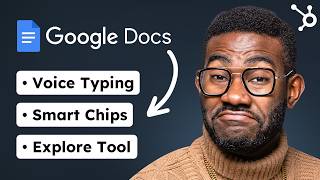
Patrick Biddiscombe walks through eight Google Docs productivity hacks: voice typing, keyboard shortcuts, and offline editing. Learn to build a business proposal faster using features most people miss.
Chapters
In this video, I'm going to build a short business proposal while running through some Google Docs basics as well as eight essential hacks that have helped maximize my efficiency. And trust me, you're going to want to stick around until the end of this one, because I promise, hack number eight is a total game changer. Let's get started. From the main Google Docs hub, you'll find a huge selection of templates ranging from resumes to project proposals to newsletters and more, which can be a helpful place to start if you're not sure how to how you want to format something. I like to start from scratch, so I'm going to select a blank document. The toolbar here should look familiar if you've used a word processor before, you'll find a variety of simple features to choose your font, font size, formatting options like bold, italics, color indents, and bolded lists. In the top left corner there are some menu options including File, Edit and View. File is where you go to save, print and share the documents you create. Edit has options for copying and pasting as well as searching within the document. View lets you choose to go full screen and toggle features like the Ruler or switch between Editing, suggesting and viewing mode. Okay, now that we've got the fundamentals down, let's really dive in. So I've got a sense of what I want to include in my business plan, but maybe I just want to have a meeting with business partners before I start drafting, which leads me to hack number one Building blocks and smart chips. This is a great little feature that lets me automatically create notes for a scheduled meeting or draft an email from the body or of a Google document. I just type an symbol and options come up, letting me insert dates to book meetings, make dropdown menus for status updates, or connect to my Google Calendar for easy tracking of meeting notes, agenda items, and assignment of action items to meeting attendees. So now that I've met with my team, I've typed up the basic text I want to include for my business proposal for a retail expansion of my online bakery. You might be wondering how I did this so quickly, which leads me to hack number two Voice typing. All you need is Google Docs and a working microphone on your computer and you can dictate your documents. If you find that easier or like to pace around the office like I do, just head to Tools and select Voice Typing. A little microphone icon will appear and all you've got to do is click and start talking. And if you're struggling with what to add to your document or are looking for sources or reference material to include, here's hack number three, the Explore function. Go to Tools, select Explore and Google will scan your document for suggestions on details you may have omitted or Internet articles to help you out. And since we're talking about hacks, I want to take a second to shout out the biggest hack of all, HubSpot's incredible Google Docs Master Guide, a one stop manual for everything I'm talking about today. I've got their cheat sheet by my side at all times and it's been a huge lifesaver. Be sure to check it out in the description below. Okay, so looking at my copy, I'm realizing I want to have my Vision section come after my Goal section. To do that, I'm going to highlight the Vision text and copy and paste it elsewhere, which I could do using the Edit menu, but here's hack number four. Keyboard Shortcuts it's as easy as hitting Control C or Command C on a Mac, selecting where you'd like the text to go, then Control V to paste. There are tons of easy shortcuts like this, and the good news is you can even use Control Forward slash to bring up a menu for you to refresh your memory. It might sound like a lot to remember, but with a little practice it'll become second nature. Okay, I know what we've got right now doesn't look super pretty, but thankfully Google Docs has a host of formatting options to customize your documents. First, I'm going to use the Headers feature to delineate my sections. For my overall title, I'm going to go to the Dropdown menu and choose Title, then heading one for the remaining sections. For any subsections like these, under Milestones, I'm using the slightly smaller heading 2 to format my text. All I've got to do is hide the words I want to change and use the options in the toolbar to adjust the font size, color, italics, bold, or underlines as desired. For whole paragraphs, I can set left, center, right, or justified alignments and adjust the spacing between lines. All I have to do is highlight the desired paragraph and go back to the toolbar for options to adjust alignment, indents, line spacing, and more. I can also create bulleted or numbered lists, which I'll do under Goals by highlighting the text and choosing it from the toolbar. If I wanted to go even deeper, I could even insert images by going to Insert then images uploading from my computer or my Google Photos. But Google Docs has a cool feature that I love that allows me to search images from the web without leaving the document. So I'm gonna find a delicious cookie image and throw that in here. Finally, since I use the headings feature to separate my different sections, it's easy to create a table of contents at the top of my document. I just go to insert then table of contents and choose the style I like and bam. Our document is formatted just how I want it. Which leads me to hack number five, the Outline fe. If I go up to View, Check, Show Outline and look over on the left here, it automatically uses my headings to create an outline for the document that can be used to navigate easily between sections. This is particularly useful for really long documents. Now that I've got my document ready to go, it's time for hack number six. Streamlining workflows and collaborating. Sharing with collaborators so they can leave comments or make suggestions is super easy. I'll go to File Share, then add the emails of anyone I want to send to. I can also set different levels of permissions in case I don't want everyone to be able to make edits. If there are others editing, I can see a version history by clicking this little clock, which will bring up all the edits made since the document's creation. And if I need to leave a comment somewhere, I just have to right click on the spot I want and click Comment. Google Docs has a host of add ons that you can find by going to extensions. Then add ons like hack number seven, the Translate feature. Let's say I'm going to share this document with a colleague who speaks a different language. This makes it super easy to translate your entire document into French, for example, just by choosing Tools Translate, which will create a copy of the document in the selected language. And finally, hack number eight. This one is a game changer, really important for me as I'm always on the go. You can't always depend on the wifi on planes and so hack number eight is working offline. All I've got to do is go to my Google Docs settings from the homepage and make sure the offline button is checked and blue. This lets me edit documents without Internet and my changes will sync to my Google Docs account once I'm back to civilization. And now that my business proposal is done, it's time to share it with investors and to start my takeover of the national gourmet cookie market. Google Docs is a robust free resource for your business with tons of features that can help make your life easier. Don't forget to check out HubSpot's Google Docs master Guide for all the tips and tricks you need to make Google Docs work for you and your business. Let me know in the comments if there are any Google Docs hacks that have boosted your productivity because I'd love to hear them. As always, subscribe to the HubSpot YouTube channel for more easy how to guides and marketing tips. Now if you'll excuse me, I'm going to go Google Doctors in my area to figure out how many cookies is too many cookies to eat in a single sitting. I'd like to get right to that limit and be just below it until then. I'll see you next time I can find this client info. Have you heard of HubSpot? HubSpot is a CRM platform so it shares its data across every application. Every team can stay aligned. No out of sync spreadsheets or dueling databases. HubSpot grow better.
More from Patrick



A NEW BREED OF PARTNER: The Partnership Ecosystem Model Journey of Patrick Biddiscombe, Part 1








Customer Success Workspace: Never Lose Sight Of What Matters Most | HubSpot Spotlight