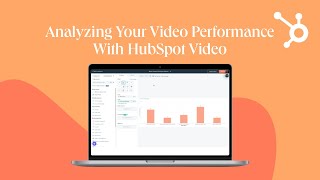
Patrick Biddiscombe shows four ways to track video performance in HubSpot: view retention on your pages, check individual contact views in their records, build custom reports with Media as the data source, or create attribution reports to tie videos to deals and revenue.
Chapters
Analyzing your video performance is how you can evaluate your success and prove ROI. HubSpot video allows you to measure key video metrics and evaluate the impact of each video. There are four ways you can analyze the performance of HubSpot videos. For one, you can analyze a video through a page's performance details for website pages, landing pages, blog posts, and knowledge based articles. Each content type follows a similar process which Once you've located your page, post or article, let's review how this works. Find your content and select the name of your published page. This will take you to the content's performance details where you can scroll down and find data for video views and video retention. Now you have a consolidated view of your page's overall content performance. Another way you can analyze your video performance is through a contact record in your HubSpot account. Navigate to Contacts, then click Contacts. Locate the contact you'd like to review, and click their name. At the top of your activity Timeline, click Filter Activity, then select the Media Place Checkbox. Here you'll see your contact's video views. Viewing your video's performance this way will help you identify and nurture your most engaged contacts. Creating custom reports is another way you can analyze your videos. If you have Marketing, Hub Professional or Enterprise navigate to Reports, then select Reports. In the upper right, click Create Report, then select Custom Report Builder. Click the Primary Data Source dropdown, select Media, then click Next. On the left, you'll see a variety of HubSpot video events and categories to customize your report, including Media events, default measures, Top Properties, Media properties, and more. Configure custom reports to prove the ROI of your video efforts. Finally, you can identify the impact of your HubSpot videos by creating attribution reports available for those with Marketing Hub or CMS Hub Professional and above. This allows you to attribute credit for contacts, deals, and revenue created. Navigate to Reports in your menu, then click Reports, click Create Report and select Attribution. Here you'll find a list of questions to help you generate an attribution report or create a new report by selecting Create a New Report from Scratch. Make your selection and click Next. In the left panel, choose your chart type. Attribution Model Dimensions and Filters Creating attribution reports allows you to showcase how your videos influence contacts, deals, and revenue. Now you know four different ways to review the performance of your videos without leaving HubSpot. HubSpot video provides the ease of reviewing key video metrics and the flexibility to pull specific reports. Check out the link to learn more about HubSpot Video.