Essential HubSpot Apps For Sales Leaders | HubSpot Integrations
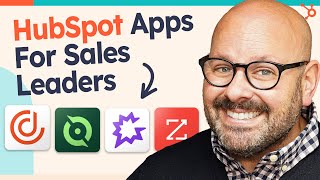
A HubSpot Academy presentation (speaker: Mark) demonstrating essential HubSpot Sales Hub integrations to streamline sourcing, quoting, commission tracking, and conversation intelligence. The video walks through hands-on demos for Deal Hub (quote generation and digital Deal Rooms), ZoomInfo (automatic contact and company enrichment), QuotaPath (commission tracking, deal flagging, payouts and forecasting), and Gong (call/web meeting/email capture, Call Highlights pushed into HubSpot). The speaker guides viewers through installation from the App Marketplace, configuration steps, and key UI flows, and closes with a CTA to sign up for a free Sales Hub account.
Chapters
Calling all Sales Leaders Are you tired of juggling numerous tools to source and close deals? Don't worry, HubSpot's got you covered with Sales Hub to revolutionize your selling process. All from right within HubSpot. To get started, Click the link in the description below to sign up for your free Sales Hub account and get access to thousands of powerful integrations to streamline your selling tools and scale with you as you grow. There's thousands of integrations that supercharge Sales Hub. First up is Deal Hub. It is a complete quote to revenue solution designed to move your sales forward faster. Once you connect Deal Hub and HubSpot, it just feels like Deal Hub is part of HubSpot. Let me show you how it works. To get started, head over to your deals pipeline and select any one of your deals. I'll select Susan. It will bring up the deal record for the deal and you'll scroll down until you see Deal Hub. And we're going to start by creating a quote for our prospect. When I click Create Quote, this brings you right to your Deal Hub quote generator. Here's where you're going to get a sense of the guided selling process that Deal Hub helps your salespeople with. You'll notice that the contact's name is already put into the quote. And as I scroll down, you'll see that there are a series of questions that I will answer. To start to build this quote, I can select a product. I can even update the number of licenses or how many administrative licenses. From here you can also manage the subscriptions for any ongoing renewals. Next you'll select Service and Support. So will you need any support? I'll just give them basic. Will they need a project team? You can even build in. Who's going to be on the project team and how many hours do you need to build into this quote? Finally, down here you can select any management items for the contract. And finally we get down here to the actual quote. Now the best part of Deal Hub in my opinion is it creates what's called a digital Deal room. This is a great asset for your prospect and let me show you why. Click Preview Deal Room and you'll be brought to a Digital Deal room for your prospect. Say goodbye to boring email quotes. Digital Deal rooms are dynamic interactive web pages that that service quotes for your prospects. Here's what it looks like. You'll see that the Digital Deal Room has the proposal, a little welcome message, and then you can customize this as your heart desires for your company. You can see there's great sales collateral on here. And of course our quote is right here for the prospect. They can even view the terms and conditions, any additional files or documents, and finally sign the quote to get the sales closed. That is the power of Deal hub right inside HubSpot. Tying reliable data to inbound leads is essential for your team's success. Let me show you how ZoomInfo takes care of that for you to get started, you're gonna search for Zoom Info in the App Marketplace. Here you'll see some overview details, requirements and even resources like a setup guide or a support website. Once you go ahead and install the app, you'll be brought to your dashboard. To get started connecting and configuring ZoomInfo, simply click on the tile box and select Admin Portal. Then on the left hand side you'll scroll over to Enrich. Here you'll see that you can manage and connect Instant Enrich will connect ZoomInfo with your HubSpot. Here you can see all of the ZoomInfo fields and the HubSpot fields that will map together. Once you take a quick look at those, you can customize any of them. Click Verify and Save. Now that you're connected and configured, ZoomInfo will automatically add reliable and rich data to HubSpot for you to see the power of Zoom Info in person. Get started by clicking Contacts in the upper left hand corner. Here I'm going to add a new contact. I I'm going to simply click Create Contact and just type in an email address and notice I'm leaving the rest of the information blank. First name, last name, job title, phone number. I'm leaving it blank because ZoomInfo is going to do the work for me. I'll go ahead and click Create and quickly you'll see that the new contact is created. But watch what happens. Immediately ZoomInfo is able to bring in her title, her company name, her phone number and other important information. Now that's what ZoomInfo can do for your contacts. But watch what it does for companies. To get started with companies, scroll up top. Select Contacts and Companies. Again you'll notice I'm going to create a company and all I'm going to do here is put in the domain of the company and notice I'm leaving all of this other information blank. I'm going to go ahead and click Create and immediately Zoom Info is calling back to HubSpot and getting all this important information. Industry size, location, address, zip code, etc. Even a great description of what this company is and that's how ZoomInfo can help your sales team get access to reliable data for their inbound leads and company Another essential app for Sales Hub is quotapath. It allows you to feel confident tracking and paying commissions on every sales deal. Let me show you how it works. To unleash the power of QuotaPath, simply search for it in the App Marketplace and click Install App. Once you go ahead and log in with your account, you're going to be brought to your dashboard. To get started, click Home. This screen does a great job of providing an overview of how quick QuotaPath actually works. First you got to make sure you have deals to approve. Next deal with any discrepancies. Then you'll go ahead and flag or resolve any flagged deals. Then you'll finally get ready to pay your salespeople out. This page again does a great job of providing an overview of how QuotaPath works, but it also gives you great sales data. Here you can see total earnings or total payouts. You can even toggle it from weekly to annually, quarterly, et cetera, and get all of your great sales data in one simple, easy to use dashboard. To get connected with HubSpot, scroll on down to Settings, click Integrations and go through the Setup wizard to connect to your HubSpot portal. Next you'll be able to view Attainment for all of your sales deals. You'll see that all of the data from HubSpot is brought directly into Protopath so you can get a look at where your sales numbers are by deal, by rep, all right here within the attainment window. Another great thing quotapath does for you and your sales team is forecast your pipelines. Check this out. To get started, make sure you select earnings from the left hand side and simply toggle on the Forecast Pipeline button. This is going to allow you to see what commissions and bonuses are actually due to salespeople based on their performance or deals that are in their pipeline. For example, here I can see that somebody earned a 10% commission plus an additional 5%. That might be because a customer leveled up to the next tier of a subscription or purchased additional products. You can click into any one of these deals to get a better sense of what the revenue was, the rate and the actual earnings that are going to be needed for your team. Another great feature of QuotaPath is that it allows you to flag deals for your sales team. Go ahead and click on Deals and here you'll see there all the deals that are currently being pulled in from HubSpot. We have 417 deals. As you scroll down, check out that flag column and you might see a deal that's been flagged. Here you can see when I hover over the flag that the reason that this has been flagged is for some other issue and it needs to be a split deal. This is a great way for sales leaders to know which deal deals need their attention. You can also flag any deal at any time by simply hovering over the three dots, selecting flag deal and going ahead and giving a reason why this deal needs to be flagged. This is a great way for sales teams and sales managers to align on sales issues. So now that you've done all the work, you've set up a commission plan and a bonus plan, you've tracked and flagged deals. But how do people actually get paid? Let's take a look at how it gets done inside Quotapack. So to get started making sure people are getting paid out, you select Payouts on the left hand side and and here you'll be brought to the first window which says Approve. Here you'll see a list of all your members, their earnings, what has been approved, and if there's any actions that you need to do, such as approve a team member. You can also then click payout. This is where you'll get a sense of some great data about earnings that have been approved, any records that need to be resolved. Also a summary about what has been paid, what is owed and who is eligible. From here you can click Create Payout and select the appropriate fields to get people actually paid. Or you can click Export if you'd like to export all of this data to a CSV to make sure people are getting paid. Do you want better visibility into how your reps are interacting with prospects? And better yet, what separates the highest performers from the rest? If so, then the GONG interaction is for you. GONG gives you unparalleled visibility into how your reps are interacting with prospects through phone calls, web meetings, and even emails. And it all starts by Connecting Gong and HubSpot. Connecting HubSpot's CRM data with Gong's revenue intelligence platform allows you to view customer interactions among web meetings, emails and phone calls. To get started, you're going to figure out which HubSpot Fields will map to Gong. You can come on over here and you will click Manage HubSpot Fields. And from here you'll be able to determine which of the HubSpot fields should map to Gong. So over here we can see which ones I've selected and you can see I've put in a bunch of contact information we can even put in account information as well as opportunity information. These are opportunities or deals that will all translate into your deal dashboard. In Gong, you're going to be able to get more powerful visibility into your customer conversations. Gong is going to help you win more deals, improve sale effectiveness and hear the voice of your market through the phone calls with your sales reps and your prospects. And all of it is logged in HubSpot and in your Gong dashboard. Gong allows you to transform your sales team into sales superstars. It can analyze your HubSpot phone calls and and shows you what separates your highest performers from the rest. Plus, Gong captures every phone call, web meeting and email so you can finally see how deals are progressing and what you could be doing better across your sales team. With Gong, you can streamline insights because we have two way functionality Gong talks to HubSpot and HubSpot Talks to Gong. Gong now pushes calls directly to HubSpot so your salespeople can view all activities and highlights directly in HubSpot. This feature is Call Highlights and URL to Recording and participant info will all appear under a new meeting in HubSpot linked to a company, a deal or even a contact. So if you're ready to get started, click the link in the description below to sign up for your free HubSpot account and get started with Sales Hub. Then try out those apps I just showed you to supercharge your sales process. I'm Mark from HubSpot Academy. Thanks for watching.
More from Patrick



A NEW BREED OF PARTNER: The Partnership Ecosystem Model Journey of Patrick Biddiscombe, Part 1








Customer Success Workspace: Never Lose Sight Of What Matters Most | HubSpot Spotlight