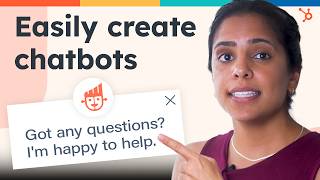
Step-by-step guide to building a free chatbot in HubSpot that qualifies leads and routes conversations to sales reps. Start with a template like concierge or qualified leads, set up welcome messages and quick replies that save to CRM properties, then configure targeting by page and device. Conversations land in your sales inbox for follow-up.
Questions this video answers
7 seconds
1 day
Chapters
As much as I would like to, I can't do or be everything for my customers at once. But luckily I have an assistant who can. My chatbot. My chatbot can qualify, lead, create meetings, create tickets, service the knowledge base, lookup, and so much more. Because my chatbot takes care of a lot of the admin work, I can focus my time on the more complex issues. No coding skills are needed and it's free to install. Come, I'll show you how. Now there are two things to do to make sure that your chatbot is is in tip top shape. Now the first thing that you want to do is make sure your tracking code is on the back end of your website. If you already have a HubSpot website, you don't have to do anything. But if your website is hosted with a third party, you're going to have to install the tracking code. Now to do that, simply go to the settings icon and on the left hand side click Tracking code. Now if you're like me and have no idea how to install this tracking code, just email it to your web developer and they can take care of it for you. Now the next thing you need to do to make sure that your chatbot has some place for the conversations to live so that you can review them if necessary, is to create an inbox within HubSpot. Now many of you might already have this because it's completely free, but all you need to do is go into inboxes on the left hand side, go into Actions and select Create New Inbox. Just follow the instructions on screen. It's super intuitive, but because we already have what we need, I'm not going to do that today. Now let's get to the fun part. Creating the chatbot. Hop into conversations and click Chat Flows. Now on the top right click Create Chat Flow and let's hit Website. Now we have a ton of templates available for you to choose and if I were you, I would definitely start with a template. These are completely editable, so if you see something you don't like, no worries. And it gives you a really great starting point. So why make more work for yourself if you don't have to? Now there are a couple of templates that we can choose between. One is a concierge bot. This is like a receptionist for your website. It just directs people to the right place. The qualified leads bot is great for sales teams and it saves them so much time in qualifying their own leads. So you can have a bot ask, what do you need help with? How many employees are part of your company before it gets passed over to a sales rep so that the sales rep can really deal with what matters rather than those admin tasks. A meeting spot helps visitors book meetings with your HubSpot meetings link. Just make sure that you have created that meetings link in HubSpot before. A ticket spot collects information from customers and opens support tickets so that your team can respond to it later. This saves the support team so much time. Knowledge Base and Support Bot is for Service Hub Pro and Enterprise customers only. They this helps your customers sift through Knowledge Base articles so that they get exactly what they need. And an offline bot honestly might be one of my favorite bots. This makes sure that when visitors come to your website and no one is manning live chat, they still have a way to get help. So they can be directed to an email address, a phone number, or just say their problem and someone can get back to them between the hours of 9am to 5pm for example. For today, I really want to help my sales team out and I want to qualify leads before those leads get to my reps. Now I'm going to select an inbox where I want this chatbot conversation to live. Think sales is an appropriate choice and a language. And here is the fun part, actually building out the chat flow. So the welcome message is the first thing that my customers or website visitors are going to see. So before they even click into it, this is what they'll see. That's a pretty nice one, but we got to say hi. All right, looks good to me. And now let's move on. So the Action name is a name for only you and your other employees to see and it really should tell you what the purpose of the specific message is. This is a get contact reason which makes sense. What would you like to do? Ooh, now I have to talk to you folks about quick replies. Quick replies are in my opinion really, really useful to use. It saves your website visitors so much time they don't have to type in any answer, instead they just need to click and it automatically submits. And for you and your HubSpot CRM it is incredibly useful because one these quick replies can be saved to properties and it takes out any of the guessing or the mistakes spelling that your customer has to do. So for example, instead of saying learn about products, a lot of customers or visitors might just say products or maybe they'll misspell products on accident. By having quick reply responses, you're really standardizing the response so that everything makes sense in your CRM. I Like learning about products. I like learning about pricing. Not a fan of something else. And I also want them to learn about Academy. I'll disable open responses so they can only click these three. And I definitely want to save it to a HubSpot property under membership notes. Let's save this now. Next up in the template, it asks for number of employees. I actually don't need that information, so I'm going to delete that action. But I do definitely need contact name. And the template actually already saves it to that property. So easy. And then it'll ask for the email address. And the really cool thing about this is if based on the contact name, HubSpot sees that the email exists, it won't even ask this question. So I definitely want that once we get those two pieces of information, I get to send it to a team and I want to send it to my global sales team. And you'll also see all these contingencies. So if a team member is available, it'll round robin it between the folks I selected. If no one's available, it will either say a specialist will email you at the email you provided our specialists are busy, or that we've passed along this information. Perfect. That's what I want. Let's save. All right, now, in our target tab up here, we specify where this chat flow will live. I want this on my sales page, and I love this little robot head, but I'm gonna be honest, I think I want something else. And I'm gonna use one of my best sales reps. Don't worry, I asked her. That looks so much more friendly. Great. And I can also customize how the chat flow will appear to targeted visitors on desktop, tablet, and mobile. So I can pop it open as a prompt. I can only show the chat launcher. Wow. Or I can show the entire welcome message. You know what? I think the welcome message as a prompt. And when should it appear? I think time on page is 7 seconds. Works for me. And let's go to options. The typing delay between messages is the amount of time your bot will spend typing before answering or responding to the inquiry. And I think I'm just going to do a slight delay. The session timeout is the amount of time after inactivity before the chat session is reset. So a day seems good. And chatbots, like all technology, might have some technical difficulties. So we have an error message. This is kind of generic. I'm going to insert an email address here so that they know how to contact us. Great. Availability only when team members are available. You know what? I want it always, because they can always contact us via phone or email after. All right, this looks good to me. The one last thing I need to do before launching this live is previewing it. All right, so got any questions? I'm happy to help. How about we learn about products? Awesome. So, on the customer side, the hubbot worked exactly as I intended. And I don't know if you saw that, but I got a notification. So on the sales rep side, I can go into my conversations and inbox and go into my sales, and I can start chatting so easy. So my chatbot just saved my sales rep so much time so they don't have to qualify this lead before it reaches them. What a win. All right, y', all, you just saw how I was able to save my sales team so much time simply by using a chatbot. I bet you can think of a million other ways to use a chatbot. So don't delay and sign up for our free HubSpot CRM today.