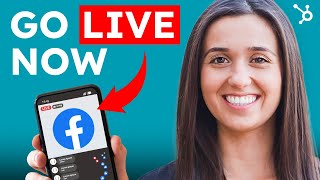
Kristin from HubSpot walks through how to broadcast on Facebook Live from your phone or computer, how to check how many people watched, and what actually works when you're streaming.
Chapters
Hi, I'm Kristin from HubSpot and today I'm going to show you how to go live on Facebook. If you enjoy this video, don't forget to like it and subscribe to our channel. Post any questions or suggestions you have in the comments below. Let's get started did you know that as of 2018, 78% of online audiences are watching video on Facebook Live? Facebook Live is a Facebook feature that uses the camera on your computer or mobile device to broadcast real time video to the platform. Live broadcasters can decide who on Facebook can see their video as well as use this content to engage their audience during various moments and events. Facebook Live is a fun and fairly simple way for marketers to communicate their brand stories and build authentic relationships with fans and followers through real time video. In this video, we'll cover how to broadcast on Facebook Live via your mobile device, how to go live on Facebook from a desktop computer, how to analyze your live video's performance, and tips and tricks to get the most out of the tool. Let's get started with learning how to go live on Facebook via a mobile device.
Tap the live camera icon at the top of your newsfeed. Give Facebook access to your camera and microphone. When prompted, choose your Privacy and Posting settings. Write a compelling description, Add lenses, filters, writing, or drawings to your video. Click the blue Start Live video button to start broadcasting. Tag friends, interact with viewers and commenters. Click Finish to end the broadcast. Post your reply and save the video to your camera.
Roll now. How to go live on Facebook via.
Your desktop computer first, click the three Dots icon that appears under the what's on youn Mind prompt. From the menu that appears, click Live Video. Give Facebook permission to use your computer's camera and microphone. Write a compelling description of your video that will appear on your page's Timeline and and in the News Feed. Check to make sure your description and video view are finalized prior to starting your broadcast. Press Go Live to start your broadcast. Interact with viewers and commenters. The broadcast will appear in the News Feed and on your page's timeline, where it can be edited by tapping the three Dots icon in the upper right hand corner.
Once you've conducted your Facebook Live video, you'll likely want to analyze its performance. Here's how to do just that through a Facebook business page.
Head to the Insights tab at the top of your brand's Facebook page. Then click the Video section of your analytics on the left hand side of the screen. Scroll down to the top Video section and choose a video from that menu to look into or Tap Video Library to look at all of the videos you your page has ever posted. From here, you can dive into the details about your prerecorded and live videos. For prerecorded videos, Facebook lets you analyze minutes viewed, unique viewers, video views, 10 second views, average percent completion, and a breakdown of reactions, comments and shares. For Facebook Live videos, Facebook lets you analyze all the metrics listed above, plus peak live viewers, total views, average watch time, people reached, and the demographics of the people who watched your video.
Now let's move on to some tips and tricks to make your Facebook Live experience a simpler one. Test out live video using the Only Me privacy settings so you can experiment without anyone actually seeing it. Space out live videos with other Facebook posts to maximize your organic reach and provide your audience with variety. Keep reintroducing yourself as you start your live video because you're continually getting an influx of new audience members. Make the video visually engaging to entice audience members to stick around and continue watching. Make it spontaneous. You're live, so make viewers feel that way. Spontaneity will provide your audience with a level of excitement and intrigue. Don't worry about mistakes or stutters. This is bound to happen with live content. It brings a human element to your branding and work. Encourage viewers to like and share the video to extend your reach as much as possible. Engage with commenters and mention them by name to make the live broadcast personal. This will also lead to an increase in the number of comments and interactions, which increases your Facebook relevancy score. The thing that pushes your content up on people's news feeds? Have someone else watching and responding to comments from a desktop computer while you're on or working the camera. This way you don't miss any interactions and your video looks great. Subtitle your broadcast in the comment section for anyone watching your video without sound.
Ask viewers to subscribe to your Facebook.
Live notifications so they know about your live broadcasts and live announcements. They can do this by clicking the small downward facing arrow in the top right hand corner of the live video post and choose Turn on notifications. Broadcast for at least 10 minutes and no longer than 90 minutes. This is how long people tend to remain engaged on Facebook Live. Say goodbye before ending your video. Thanks for watching or informing your audience of a next live broadcast are two options. Add a link to the video's description once you've completed your live video so audience members and followers can re watch it. You can also always go back and.
Change the privacy settings or delete the.
Video completely as you would with any other post.
Thanks for watching.
If you've enjoyed this video, be sure to like it and subscribe. Let me know how your Facebook Live went in the comments below.