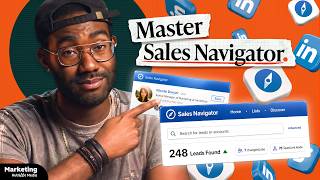
This HubSpot YouTube tutorial explains how to use LinkedIn Sales Navigator to generate and manage leads through a four-stage workflow: searching for prospects using advanced filters (e.g., seniority, function, recent activity, shared experiences), organizing prospects into saved searches and lead lists, messaging prospects with personalized InMails, and tracking outreach performance (including integration with CRMs like HubSpot). The video demonstrates narrowing a large company result set (example: Urban Outfitters) to a manageable list, explains exclusion filters and the View Similar feature, and describes Sales Navigator integrations and subscription tiers (Advanced/Advanced Plus) that enable team collaboration and CRM data validation. The speakers reference HubSpot resources (LinkedIn marketing guide, sales email templates, LinkedIn for Business course) and include light humor throughout.
Questions this video answers
830 million users.
53 million organizations.
50 InMail credits per month (replenished in part when recipients respond).
The initial Urban Outfitters search returned over 6,500 employees and 265 decision makers; after filtering (new to job + shared experiences) the list narrowed to 28 people.
Chapters
For 830 million users and 53 million organizations, LinkedIn is an essential tool for doing business in 2022. And if you're responsible for finding new leads and driving conversions, then the best way to leverage LinkedIn is by using Sales Navigator. What's up? It's Jamal from HubSpot, and in this video, I'm going to show you some of the ways that you can use LinkedIn Sales Navigator to target the right buyers, make your outreach personalized, and understand key insights. If you want to learn more about how LinkedIn can be used to amp up your company, you should also Download the free HubSpot guide to LinkedIn marketing for there's a link in the description, and while you're down there, be sure to subscribe to this channel and ring notification bell. All right, so first things Primero, as they say, when it comes to using LinkedIn Sales Navigator to optimize your lead generation, the process can be broken down into four stages. Searching for potential customers, then organizing those prospects, messaging those prospects, and tracking the results of your prospecting. When it comes to search, Sales Navigator offers dozens of advanced filters not available to regular LinkedIn users. Some of these filters, like Seniority level and Function, are designed to help you identify decision makers in the organization. You can also filter by activities which help you stay current with what your prospects are up to. These include having recently changed jobs, been featured in the news, or posted something on LinkedIn. There's also a shared experience filter that will let you connect to a potential customer on a personal level. There's even a filter to let you know if anyone within your search parameters already knows your organization. Want to see me put these filters together? Let's imagine I want to start my own line of, oh, I don't know, Jamal branded T shirts, for example, and I want to sell them at Urban Outfitters. How would I determine the best person for me to contact? A quick search for Urban outfitters reveals over 6,500 employees, but only 265 decision makers. That's still a lot of decision makers. I'm not going to lie. Out of that list of 265 decision makers, I'm going to filter for people who are new to their jobs and people who I've shared experiences with. Now I have a manageable 28 people worth reaching out to. So I'll select all of them and save them to a list that I titled Urban Outfitters. Now I can reach out to these 28 individuals and surely someone is going to get this space into those stores. I hope now, odds are whatever you're selling is a lot more in demand than what I'm selling. In fact, by applying advanced filters to your search, you'll reduce the avalanche of possible prospects on LinkedIn into a manageable list that you can reach out to and start leading down your sales pipeline. Sales Navigator will also let you save your search parameters so that you can quickly revisit them whenever the top of your funnel needs to be topped off with new prospects. And that's not the only way to save time. With Sales Navigator, you can create lead lists to help keep the results of your searches well organized and even shareable across your team. It also lets you filter out leads who you don't want, perhaps because they're in the sales pipeline, or maybe they just won't hit you back in the DMs. Frankly, these exclusion filters can greatly reduce redundancy in your lead gen and lets you focus on fresh new prospects. But could there also be a way to use the existing data in your CRM to make Sales Navigator work for you? We asked Caroline Bishops, a senior program manager for sales process and systems at HubSpot, this question, and she told us to upload our existing account list into Sales Navigator so you can start receiving automated updates whenever an event occurs, like a promotion or a new round of funding that might merit fresh outreach to the prospect. And if you somehow run out of prospects in the filtering process, the View Similar feature can help you find potential leads who closely match, though aren't identical, to your ideal customer Persona. Technology is crazy, I'm not gonna lie. Ultimately, the goal of sales prospecting is to identify decision makers in an organization who could be interested in purchasing your product or service. But once you've identified decision makers, you have to start a process of reaching out to them in order to raise awareness and build trust and ultimately close deals. To avoid spam, LinkedIn puts in tight controls on who you can message as well as how many messages you can send. Much to my chagrin, every Sales Navigator subscription comes with InMail credits that allow you to contact LinkedIn users outside of your connection. And the LinkedIn UX spotlights these messages, so they're hard to ignore. Sales navigator users receive 50 emails per month, but the actual number of emails you can send is determined by the response rate you receive. Because every time a user responds to an InMail that you sent, you get a credit towards sending another InMail. So if I send 20 email messages and 10 of the recipients respond, I now have 10 more InMails I can send Seal InMail in mail out by using Sales Navigator's advanced search functionality, it's easy to draft personalized messages to each prospect, increasing the chances of receiving a response. If you want to maximize your chances of making meaningful connections with your leads, check out the link to HubSpot's free sales email templates and down in the description below. By filling out these templates with the intel you discovered through your filtered searches, you'll be able to generate a terrific response rate. So good, in fact, you're probably going to have a hard time keeping track of all. I mean, they're just going to be throwing money at you. Dollars, euros, bitcoins, no rubles though. To help you keep track of all the success, Sales Navigator has a convenient dashboard that you can use to track your overall usage as well as your success rate in outreach. Sales managers can use these tools to track their entire team's performance, and you can integrate sales navigator with third party CRMs like HubSpot so that all of your lead gen activity on LinkedIn can be tracked next to activity on other platforms. Integration is available to Sales Navigator users with Advanced or Advanced plus subscriptions. Previously called Team and Enterprise tiers, these upgrades allow users to work together by offering features like the ability to identify prospects who share connections to members of your team so that you can get qualified introductions. There's also advanced ROI reporting and even CRM data validation that will let you cross check the info in your CRM with the data that LinkedIn and has for those individuals. This effectively makes Sales Navigator an extension of your main CRM and turns all of LinkedIn into your business database. And at this point I feel like you should be pretty confident to start your first search on Sales Navigator. If not, clearly I've let you down in some way. I'm sorry. Let me know in the comments how I could do better. If you're looking for more ways to use LinkedIn to accelerate your business, you can sign up for HubSpot Academy's free LinkedIn for Business course and look out for more content dedicated to optimizing your LinkedIn strategy coming out soon on this channel. Subscribe now so you don't miss a single lesson. Now if you'll excuse me, I really am going to be trying to get my face into Urban Outfitters. I don't care if it's on a T shirt, stickers coaster, a portrait where we Photoshop my face onto Jesus Christ himself. We're going to figure it out. Until then, I'll see you next time.
This data is wrong every freaking time.
Have you heard of HubSpot? HubSpot is a CRM platform where everything is fully integrated. Whoa.
I can see the client's whole history. Calls, support tickets, emails. And here's a task from three days ago. I totally missed HubSpot.