Patrick Biddiscombe walks through HubSpot's August 2024 updates: new datetime properties, Workflows improvements, Zoom integration, Pipeline Approvals for Deals, and weighted meeting rotations in Smart CRM.
Chapters
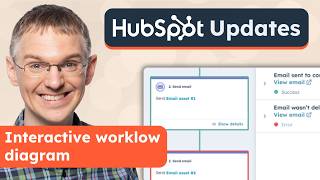
Hey everyone. Welcome to another monthly product update from HubSpot. We've got a bunch of great new updates for you again this month. Let's get right to them. First up, Workflows now has an interactive diagram to show you the path an individual record took after it was enrolled. Check this out. So here I am looking at a workflow I built and if we zoom out, you can see it's decently complicated. It's got lots of different branches and arrows connecting things. If you wanted to see the path an individual record went through, that would normally be very hard to figure out. But you. But now if you come up to view and click Enrollment History, you can select any record who has gone through this workflow and look their path will be highlighted. You can see these green lines showing that this record went down this branch and successfully made it to the end here. Additionally, if any errors are triggered as part of this workflow, you can see those as well. So we can see Maria here went through these green ones. This custom code action had some issues and if I click on it, I can see exactly what went wrong. This is going to help you in your troubleshooting efforts a whole lot. So here I am on the Properties page and I'll create a new property and I'll select my group and give it a name. And when you want a datetime property on the field type dropdown, you're going to select Date and Time picker. As you can see here, in this example, you're going to be able to select a date from a calendar and a time from a dropdown. So if we save this, let's see what it looks like in action. Here on the Contacts index page, I've added our new property as a column and if I click in here, you can see this experience of selecting dates and times and being able to save them in a single property. Now, next, let's talk about HubSpot's integration with Zoom. Historically, there have been two different integrations, a HubSpot Zoom app and a Zoom HubSpot app. Now you can install and manage both from your Connected App settings. Take a look. So here I am in the Connected Apps section of my settings and if I come down and find the Zoom integration, there are a lot more settings and controls available here than have been previously. So in this my Settings area we can see things related just to me. Under Global settings, we can see all the global settings that affect app everyone using this integration. And then we also have feature discovery, all the different things you can use the Zoom Integration for and in Meeting App. So this is HubSpot's app inside of Zoom. As you can see, when you're inside a meeting, you can have CRM information right here to take notes and update records. Previously, this had to be installed separately from inside of Zoom using Zoom's Marketplace. Now, when you have the Zoom integration inside HubSpot, you can just start right from here. If you don't have it installed, you can do it with a few clicks of a button. And it's a much more streamlined way to get HubSpot and Zoom working together. Next up is Pipeline Approvals for Deals. This enables admins to require deals to be approved before progressing past a certain point in a particular pipeline. Let's take a look. So here I am in my pipeline settings for one of my deal pipelines and you can see this pipeline has an approval stage. It's highlighted in yellow. It says approval stage right on it. The way you set this up is by coming over to pipeline rules and and turning on the approval process for deals. There's a little toggle over here. And if we edit this, you can see you can drag and drop this stage to be wherever you want it in your process. And you can choose who is going to be approving these deals. And do all the approvers need to approve it? Does any one of them need to? You can add any notes they need here. Let's look at what it looks like in action. So here I am logged in as a sales rep inside this same account and I'm looking at my deal pipeline. You can see the pending approval stage right here. And this is a deal that's been rejected. It's highlighted in red. Here are a couple that have been approved. Let's look at what this approval process looks like. So if I take this amazing deal and I move it into the pending approval stage, now we need to start the approval process. So now I'm logged into this account as an admin and if I come into the pending approval stage, I will see this one is pending approval. So if I open it up up here at the top, I see that approval is needed. I can look over this deal, decide if it's going to be approved or not, and then I can decide to approve it, reject it or request changes. And so if there's few things he needs to update, maybe I don't know that this amount is accurate. I can leave some comments or if I want to just go straight to approving and rejecting it, I can do that right here. Leave a message as needed and I'm done. And finally, as an update to meeting rotations inside the Smart CRM, you can now create weighted meeting rotations. Check this out. So let's imagine that I am a BDR and I am working with this contact and and it's come time for me to schedule a meeting with Brian and the reps that I support. If I click the meeting scheduling page, I can select the user I want to book this meeting with. Or if I'm working with several sales reps, I can choose a meeting rotation that will rotate the meetings historically evenly between the members of this rotation. But now you can do a weighted rotation. So if we click the settings here, I can come into one of my rotations and edit it. And notice this option to distribute meetings evenly or to distribute them based on weight. And if we want to do that, we can choose different weights here to spread it out as needed. I can come to the individual users and I can change the percentages to get this weighted the way I want. That's all the updates we're highlighting this month, but there are many more that came out. Be sure to check the link in the description for a full list. Subscribe to this channel for more videos like this one and hope to see you back next month for another product update video.