Increase Conversions Using Live Chat Software
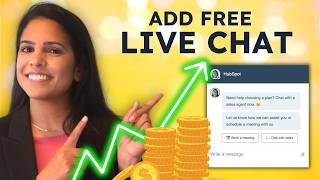
Patrick Biddiscombe walks through HubSpot's live chat setup, from creating chat flows and welcome messages to assigning conversations and targeting specific visitors. The tutorial covers bot templates like the Qualified Lead bot, snippets for faster responses, and integrations with Slack and email.
Questions this video answers
Patrick Biddiscombe.
July 16, 2024.
Chapters
Buyers want information and they want it now. When your potential buyers have to wait to get a response, it leads to lower customer engagement, decreased satisfaction, higher marketing costs, and missed opportunities. When you employ live chat, you're able to reach your customers quickly on a platform they want to use. Live chat is a great way to convert potential buyers into customers. And with HubSpot, you're able to set up live chat with bots for free. Let's check it out. To set up your live chat and your HubSpot account on the left hand side, select Automations and select Chat Flows. This is where all of your previous live chats and bots are going to live. But in order to create a new one, select Create Chat Flow. You can put your chat flow either on your website or use it as a Facebook messenger. But for today we're going to click website and the next thing we're going to do is choose an inbox or help desk where all of our live chats are going to live. Now if you want your chat to automatically create tickets, and if you want your chat to help out in customer support, you may want to choose Help desk. But if it is more sales marketing related, we might want to click into the sales inbox on the left hand side. You'll see a ton of options. A couple for live chat and a whole host of options for bots. Bots are very exciting and we're going to talk about that in just one second. But for today we are going to click Live Chat and select Create. HubSpot does such a good job walking you through all of the steps it takes to create a live chat, starting with building out your welcome message. It gives you a pretty generic welcome message and you're welcome to use this, but I'm going to change it to make it just a bit more personal. If you have a service Hub Pro or Enterprise account and you're using your bot to help out with customer support, you can enable a knowledge based search. But that's not relevant for our example today. But what is relevant is assigning conversations. By assigning conversations we are making sure that none of the chats are going to fall through the cracks. Every rep is going to be assigned a live chat so that they know who they're in charge of responding to. You can either assign it to a specific user or a team and if you do choose a team, it will round robin it to all folks in that team. And then finally you can ask visitors for their email address immediately. If no one responds after one minute or you don't have to do this option at all. Next in the Target tab you're going to choose which page the chat widget appears on and who it should appear for. So here I'm going going to say my Website URL is HubSpot.com and under visitor Information and Behavior you have control over who sees your chat flow. So if I only want to show my chat flow to folks who I don't have in my CRM, these folks are brand new. I can say visitors is unknown. We have a lot of options here, so I highly recommend you take some time and look through this dropdown to make sure that this aligns with your strategy. Now, something that you can do if you have a Pro or enterprise account that's really cool is only show the chat widget to logged in visitors. By targeting logged in visitors, you can provide a really personalized chat experience when using HubSpot Private Content or even the Visitor Identification API. If you do want to learn more about it, we have a great resource linked right here. It's also a really good idea to put chat widgets on membership only sites. This not only will ensure that you're chatting with folks who are really interested in your product or service, but also it might motivate people to set up an account with you to learn more about membership sites. Watch this video Once you're done there, the next step is to go into display to customize the chat heading, chat display behavior and timing controls. You can choose your chat avatar. You can also customize how the chat flow will appear to targeted visitors on desktop, tablet and mobile devices. Finally, once that's done, head on over to options to choose your language and data, privacy and consent options. When you're ready, click into Preview and you'll actually be able to interact with this live chat here, just to make sure everything's working the way you want it to. Looks good. When I'm ready, I can just toggle it on. Once you have it on your website, this is what it's going to look like. This little chat widget. If you click into it, you'll be able to type a message. Pretty slick. Now once you have your live chat set up, the next step is to respond to your visitors who live chat with you, and you can do that through our inbox. If you go into your HubSpot account, click into CRM and select Inbox. A shared inbox is where all of your live chats are going to live, where you and the rest of your reps can work out of. To make sure that you are responding to all the live chats assigned to you in your inbox. You'll notice that there are some pre made filters that like unassigned assigned to me open. You can even see all the bot conversations within the inbox. And inbox is a really great way to make sure that you are responding to all of the chats that come in. Now, HubSpot has a couple of tricks that help you respond to your live chats really efficiently. The first one is snippets. Snippets are a way that you can answer frequently asked questions really quickly. It's a short reusable text block that you can use and when responding to live chats. So let's say that I know a ton of people who chat and want to know my hours of operation. Instead of writing out a long sentence about what they are every time, I can use a snippet that automatically inserts a longer sentence. To create a snippet in your HubSpot account, go ahead and click into library and select Snippets. Click Create Snippet on the top right and here you'll be able to create your snippet. All you do is create an internal name, the snippet text and the shortcut. A great use case for snippets is also an introduction. Now if your customers are anything like my customers, they might start on email and then switch to live chat and then back to email. And they expect you to know everything without missing any of those emails. Well, with HubSpot that's not a problem because we employ channel switching with a click of a button. So. So let's say that you start off live chat, but then your visitor wants to move to email. Not a problem. All you do is toggle it over to email and you'll be able to email that same person. And the best part is, everything is going to still live in this thread. So in a week from now, when you need to reference something, you can just go straight to this thread. You don't have to go through your inbox. Everything is just in one place of magic. Live chat is great for your customers and your visitors to get help 24, 7 but that doesn't mean that your reps need to be working 24, 7. Right? That's ridiculous. So with the power of bots, you are able to have those personalized conversations at scale. With bots, you're able to scale marketing, answer common questions, even promote conversions. If your bot brings up webinars or ebooks that your visitors should sign up for now, you create bots in a very similar manner as you would live chat. Once you get to this page, you'll see a whole host of bot options. Some of my favorites are the ability to qualify leads and create meetings. So the Qualified Lead Spot asks qualifying questions before passing visitors to your live team. So that's going to save them a ton of time if they don't want to ask those same questions to everyone. And the meeting spots help visitors book meetings such as demos or consultations using a meetings link. So again, things that your reps don't have to worry about. Let's go ahead and click Qualified Lead Spot now. Something really cool about HubSpot is it gives you a pretty robust template to work off of. So now this template says your bot is going to ask for the number of employees, it's going to get their name, their email, and only after it's done those three steps is it going to send it to a team member. All of this is editable and I highly encourage you to think through what are those qualifying questions your reps want asked before they talk to someone via live chat? Once the bot asks those questions, we can again round robin it to your team so all of your reps have an equal chance of getting this chat assigned to them. If you want to know more about chatbots, check out this video here. And if you're not at your desktop, no problem. You can use HubSpot's free Slack integration or HubSpot's app to get live chat notifications and respond directly to conversations. Incorporating Live Chat on your website is crucial for maintaining a competitive edge and enhancing customer satisfaction. Live Chat offers immediate real time support which significantly improves customer engagement and trust. For marketing teams, it serves as a powerful tool to drive conversions by proactively addressing customer queries, guiding them through the purchasing process and gathering valuable insights into customer behavior. By providing Instant Assistant, Live Chat reduces bounce rates and increases the likelihood of turning visitors into loyal customers, ultimately boosting sales and fostering long term relationships. According to J2 ratings, HubSpot is a leader for small mid market and enterprise businesses. You can start small with HubSpot free tools and as their business grows, HubSpot scales with you. So what are you waiting for? Sign up for HubSpot's free CRM today.
More from Patrick



A NEW BREED OF PARTNER: The Partnership Ecosystem Model Journey of Patrick Biddiscombe, Part 1








Customer Success Workspace: Never Lose Sight Of What Matters Most | HubSpot Spotlight