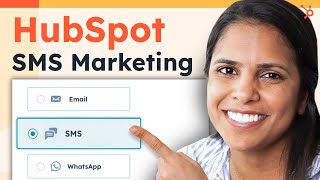
Patrick Biddiscombe walks through setting up SMS marketing in HubSpot. Register your business and phone number, get explicit opt-ins from contacts, then create and schedule messages with personalization tokens. The feature is available to Marketing Pro and Enterprise customers.
Questions this video answers
Patrick Biddiscombe
August 25, 2023
Marketing Pro and Enterprise accounts
Chapters
Foreign. Oh my God. Kuma, that favorite toy of yours is on sale. Oh, but only for the next hour. Okay, this has got to wait. I'll be back. That's the perfect reason why you should start using SMS messaging to engage with your contacts. Come, I'll show you. In your HubSpot account, there are three things that you need to do. You need to register your business, opt your contacts in, and then the fun part, create those SMS messages. So the first thing we're going to do is in our settings account on the left hand side, we're going to click into sms. Now here we're going to register our business, our SMS details and then get our number. So I do want to say that HubSpot is not the person who is approving these submissions, but once you do get approved, the next step is to opt your customers in. Now it's very important to note that you can only send SMS messages to to contacts who have explicitly opted in to receive these messages from you. So once you've collected those names, and that can be from form submissions or emails, you're going to want to make sure that you let your CRM know that these are the folks who have opted in. So there are two ways to do that. In your contacts tab, go to a specific contact and under the Communication subscriptions, click View Subscriptions. And once you're registered, you'll see SMS pop here so you can subscribe, select a basis for communicating and an explanation and click save. And now you'll be able to send an SMS message to this person via HubSpot. Now, if you have a whole slew of people who you want to send messages to, you can bulk enroll contacts. So just select the folks you want to bulk enroll, click more and click Edit Communication Subscriptions and select sms. All right, so we've registered our business, we've opted our contacts in. Now the next step is to create those SMS messages. Under marketing, click SMS and here you'll be able to create a message. Now I want to create a message highlighting this flash sale that I am having tomorrow. And the flash sale is only going to be available for an hour. And that's another reason I want it to be a text message versus an email because it's time sensitive. So I'm going to add in a personalization token. I obviously want to use first name and perfect and I always want to include default opt out text so my contacts don't feel like they don't have an option and that they feel like they have a little agency in who's texting them. So this looks great. I want to make sure my personalization token works perfect. All right. Looks like everything works in Settings. My name, the language I want it in, and I could put it with a campaign. But right now I only want it as a single text message, so that's okay. And now I can either send my message now or schedule it for later. I can set the exact time. All right. Once I send my test message, I'm well on my way to sending it to all my contacts. Now, if this form of marketing is something you want to use to engage with even more of your contact base, use our SMS tool available in our HubSpot, Marketing Pro and Enterprise accounts. Good luck.