Typeform HubSpot App: Conversational Forms Tutorial
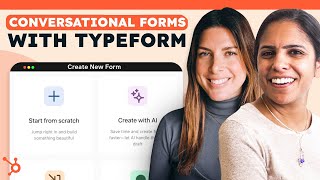
Build a B2B lead gen form in Typeform with AI smart blocks, conditional logic to skip questions for high-value leads, and lead scoring rules. Map it to HubSpot so submissions create or update contacts. Keep it short, use multiple choice for better data, and show different end screens based on lead quality.
Questions this video answers
February 1, 2024.
About six questions.
10 points.
5 points each.
5 points (none for under 50).
Chapters
We all know how hard it is to do lead generation as a B2B marketer. However, with the HubSpot and Typeform integration, it doesn't have to be all that hard. Hi, I'm Adrithi from HubSpot and I'm joined by my colleagues over at Typeform to talk about how great this integration is. Come join.
Today I'm going to walk you through how to create a super slick lead gen form using Typeform and then how to connect that with HubSpot to send all your leads to one place. Here we are in the Typeform workspace. So I am going to start by clicking Create New Form. So what we're going to be doing is creating a lead generation form for a fictional company called L and D Marketing. So here we're presented with three options to create a form. You can start from scratch. You can import questions from a tool like Google form or copy and paste from another location, or you can create with any AI. What we're going to start with is Start from Scratch because that also has some AI features that we're going to be able to use. So let's click Start from Scratch.
So something I love about Typeform is their inclusion of AI. Currently, HubSpot doesn't have AI in its forms, although it does have it in blog posts, emails, et cetera. But this is why this integration is really, really powerful because you get to use the benefits of HubSpot, HubSpot CRM, HubSpot AI with Typeform, which also has AI in its forms.
And we are creating a legion form. So here we are in the Type form builder and we're going to start by adding a question. You can do that by hitting the plus sign, but instead of adding a question, we're going to use one of these smart blocks. So we have this lead Qualification smart block that comes up with questions based on some information that we're about to provide. So let's click there and here's where we'll add in some information about the company. So we'll click Continue. And so here you can see it's pulled the data from our description to create our ICP or our ideal customer profile. So we included all that in the description to be able to pull that through into our form. So this looks great. Let's click Generate Content. So you can see here we have about six questions that have been generated for us through AI. And under this lead qualification section here you can see that you have the option to set the lead scoring rules. We will do that a Little bit later once we've finalized our questions. But first, let's go and make sure that this design of our Typeform matches our brand. So if you go to design, you can see some themes here labeled with brand kit. So this feature is available on our enterprise plan and it just basically lets you stay on brand with previously approved logos, color palettes, photos, anything you need included in your branding here we will use this theme which by magic is applied to our Typeform. First thing we want to do this question is a little bit long, so we're asking for their contact information. What we're going to do is just remove all this. So it's important to keep your Legion forms as short as possible. This will help improve your conversion rates and also get the key information that you need.
This is really important what she just mentioned. The shorter your form, the more likely people are going to fill it out. So especially for a lead gen form where you just need to contact that person, it probably doesn't make sense to ask them 10 questions. However, if you are sending them an ebook or something a little more substantial, you can, you can ask more questions. So just make sure the number of questions actually matches the offer.
Let's go to the second question. So here we're asking what industry is your company in? But maybe we want to offer a few more options other than other. So if we hover over here, we'll see this generate with AI option that can actually help us generate a couple more multiple choice options. These look great. So let's click use these four choices and just like that we have these options. I'm going to move this one down to the bottom and what you can do here is you can also go to the question options and you can choose the other option. And that way people can actually type in what industry they're in. So we'll just remove that.
It's obviously really important to have an other category, but I love that everything here is multiple choice. When you have people fill in short answer, it gets more tedious and and also it's more prone to spelling errors. So when you do want to filter by a certain industry, you're not accounting for the people who might call it something else or maybe the people who accidentally spelled it wrong. So I love multiple choice for forms.
Moving on to question three. How many employees does your company have? So we're just going to leave this one as is. I think over 50 is what we're really interested in. And if we need to figure out later exactly how many employees people have we can easily ask that the next question, where's your company located? So again, we're mostly interested in potential clients from the U.S. so we're just going to leave this as other for now. And if we decide that we want to collect that information later, we can. Okay. The next question asks about the seniority of the person filling in this form. This is a bit wordy, so what we're going to do is we're just going to keep it simple and we're going to remove these options. I think these are a bit too much for what we're asking for. So let's just start with something like senior here and then we'll ask AI to create the rest of the answer options for us. Okay, perfect. So now we have a better idea of the seniority that the respondent has in their company. Finally, we have the last question. What specific marketing services are you interested in? This isn't actually a question that we are interested in at the moment. So we're going to change this. Instead. I'm going to ask what is your role in the purchasing decision? Let's ask AI to come up with some suggestions here. Okay, perfect. Let's use these five choices. Okay, so let's add one more question. This will be a short text question. And here we want a bit more information about the project. Now what we want to do is add a bit of personalization to this form. Because we collected some data in question one, we are going to be able to recall some of that information throughout the form to make it a bit more personal. So here it says what industry is your company in? If we want to name the company, all we have to do is click the symbol and this will recall information from any previous question that was collecting information. So what industry is your company in? And that'll just help it make a bit more personal. Here again we can do the same. And then here we can recall their first name just to make it again a bit more personal to the person that is filling in this form. And we'll do that again here. So now we have been able to personalize this form a little bit by recalling information. Now we've already looked at the design, but maybe we want to add a bit more flair to the form. So what we'll do is we'll go into question settings and we'll choose to add an image or video. And here you can see one of the options. One of the tabs is Brand Kit. So this is something that I mentioned earlier. It lets you have pre approved images from Your company. So here, let's try and find a nice image. I think this one works pretty well and maybe this isn't the best location for the photo. So what you can actually do here is you can change the layout. So for desktop, which we are on right now, maybe it looks nice there. But as you can see, there's also the option to change the layout on mobile. Because a lot of people fill in forms on mobile devices, it makes sense to optimize your form for both desktop and mobile.
Don't sleep on trying to make your form as visually appealing as possible. It's so boring to just fill out a Google form that just has seven questions and nothing else. Add images, add things that you can to make it as engaging as possible.
So to finish it off, you can also add an ending. So endings are just a way to say goodbye for your Typeform. So you could actually add more than one ending. So if you wanted to send people two different endings based on their score, for example, on their lead score, you could do that by adding another end screen.
This is such a great feature because now if certain people match your ideal customer profile, you can put in more specific language, like one of our sales reps will get in touch with you in two days, or you could even put in a phone number or email address, letting them reach out to you directly.
So now what we want to do is make our form a little bit shorter for our hottest leads. And we're going to do that by going to the Logic tab. So here you can see, see the logic map. And what we want to do is just skip a couple questions for people that we know have purchasing power. So here basically we want to drag and drop this question over directly to the summary. So if we know that someone has high seniority in the company, they probably have that purchasing power. So what we're going to do is we're going to say if your seniority, which is the question here, is either a senior or, and then we'll add a executive, then you can send them directly to the question to ask more information about their project.
This is such a great feature and can get pretty complicated, especially if you have different logic going on. What we recommend over at HubSpot is whiteboarding this or putting it on a piece of paper so you can see it and kind of change it before you actually input it into a software like Typeform. So just a little tip there.
So we'll hit save and you can see that the logic has been set up on our form. So now let's go back to our form and review our lead scoring rules. So if you go under lead qualification and we can click here to set lead scoring rules. So here there was already some scores already set up, but you can do whatever kind of scoring method you want. So actually here what we want is to set up 10 for software and services because we told AI early on that that is our desired. But we've also had some success with healthcare and retail. So we're gonna add five points to each of those. Again here we prioritize companies with over 50, so actually what we're gonna do is leave that at 5 if they have over 50, but not give them any score if they're under 50 because we're really not interested in them at this time. And again, where's your company located? We will give five points if you're in the US if you're in another country, again, we're not super interested in you at the moment, so we won't give any additional points to that. Okay, so in role seniority, we would say that a executive probably gets the most and senior maybe gets just below that. And a manager 5. And then the rest, we won't discard them completely. We'll give them two points each. And then finally, what is your role in the purchasing decision? Again, we really are interested in the purchasing manager, so we'll give them 10 points and decision maker again are of way more interest to us. So we'll leave that at eight and maybe we'll give three for the others. Okay, great. So now let's hit save. So now we have all of our lead scores set up. All we need to do now is publish our form, which you can do by clicking Publish. And now we're going to set up an integration with HubSpot. So you can access that just by clicking here and HubSpot is right here. So now we're ready to start setting up the integration. So the first thing I'll do is hit authenticate. So the next step now is to map their questions in type form to fields in HubSpot. This actually all comes from that first question that we had, the contact form question. So these are automatically mapped to Fields in HubSpot. That's great, that's perfect. The only one I want to add here is the lead score. So if I click add here, select a question, I'll scroll down to where it says score variable. Put that there and you can select a field to map to. I have actually already set up a lead score custom dimension in HubSpot. So I will put that there. Now this checkbox will appear. You should click yes to require an email address. You also have a couple other options here. You can add a company, you can also add a deal, but we are just going to skip that for now. Here you can choose whether or not you want to enable source tracking. I would highly recommend this so that you know where your leads are coming from. So I'll just leave that on and then send existing responses to HubSpot. This is if you already have responses to this type form. We don't have any yet. It's brand new, so we're not going to have to deal with that. And so then we click save and we are all set. You can see here that the integration is connected, so you can turn that on and off with this toggle. And if you need to make changes, you can go ahead and just click Edit and you can make changes to any of the mapping or anything else you want to include in the integration. So we have our lead gen form created and we have the integration set up with HubSpot. So now anytime a lead fills in your type form, that information will automatically be sent to HubSpot and create a new record. So now I'm going to hand it on over to HubSpot so you can see what that looks like in HubSpot.
All right, looks like I'm up in my contacts. I can set up a specific view for good fit form submissions. And if we go into this view, the first conversion is the form that we just made lnd contact us. And I want to see a lead score of greater than 10. So these people in my mind are the folks that I want to make sure we're contacting within two days. So I have my list. So I have two people in my list who have submitted the form today and if I click Preview, I get to see all the information, the company they're associated with and any other things that they submitted on the form. So this looks great and I want to make sure I'm contacting them. So I can either checkmark them and enroll them in a sequence very easily, or I can simply call them up, create tasks, enroll them in workflows, all that good stuff, and there you have it. With the HubSpot and Typeform integration, you are able to level up your B2B lead generation efforts.
More from Patrick



A NEW BREED OF PARTNER: The Partnership Ecosystem Model Journey of Patrick Biddiscombe, Part 1








Customer Success Workspace: Never Lose Sight Of What Matters Most | HubSpot Spotlight