This content was created by Peter Szabo. This content was uploaded by Peter Szabo. This is a YouTube video titled "Facebook Ad Account & Business Page Request" created on November 23, 2016. It provides a step-by-step guide on granting admin access to a Facebook business page and linking Facebook ad accounts to a business manager.
Chapters
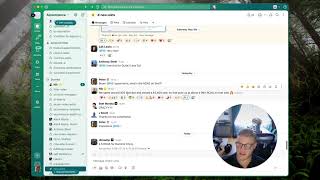
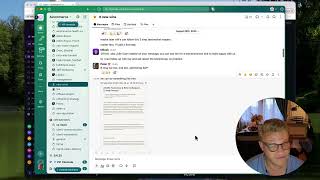
Okay, so for this short video here, we're gonna walk through the process of letting Meteorite have admin access to your Facebook business page. So what we're looking at here is a typical business page on Facebook. And when we recruit, when we request access to your page, you can see this little notification that appears at the top. You'll have just a standard notification when you're looking at the page, even when you're logged in as yourself and not as your business. So, next step is to go ahead, click on the notifications icon and in your notifications list, you will see Meteorite requested access to your page. And when you click on this, it's going to take us to the the Page roles section of your business page. And then from here you can see you'll have pending partner requests. You'll simply need to respond to the request and either give or decline. And in this case, if you would like for us to manage your page and be able to run your ad campaigns and do other things with the page, then you will need to give Meteorite access to to your page. So you go ahead and click on that, and here it's going to confirm that you are giving us access. Meteorite being given access to the page, and you go ahead and approve the request. And that is pretty much it. You can see here that Meteorite is now approved. So once you have completed this step, always make sure to click the save button at the bottom. And when you are brought to this point, simply enter your password for your account. That is to confirm that this request is being made by yourself and not by somebody else trying to hack your Page. So once your password is entered, click Submit and you're all. Okay.
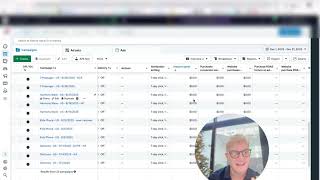
Let's accept an invitation from a Facebook business manager to link your Facebook ad accounts to the business manager. So you'll want to get back to your Facebook ad account. And if you want to see how to get to this page, watch the previous video in this blog post. Then go ahead and click on the name of your account over here on the left. That will take you into your ad account. You may see a different page here depending upon whether or not you've run campaigns in this previously. But go up here to the top left where it says Ads Manager. Click on that. Go down and hover over the All Tools option. Down at the bottom, go over to the far right, click Add Account Settings. This will take you into the settings for your ad account. And scroll down here. You should see a pending agency request right here from Step Group. Now it's possible that you have multiple ways to log into your ad account, multiple users, and that one of them might be an admin. Maybe one of them isn't. In order to see this here, you'll need to make sure that you're logging in as an ad account admin, which is what I'm doing right now. So once you see this request here, go ahead and click respond to request. That will open up this page. Click give stub group access to my ad account, and then that will take us here, and boom. That's all you need to do to link your Facebook ad account to our Facebook business manager.