Calendly: FREE Automated Appointment Scheduling
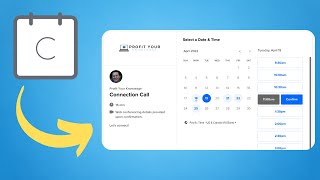
Calendly automates appointment scheduling for coaches and small business owners. The video walks through setup: choosing a pricing tier, connecting Google Calendar or Zoom, creating event types with custom questions, and setting availability windows. The free tier lets you manage one event type with email reminders.
Chapters
Have you ever tried to book a simple appointment with someone for your business that took way too freaking long? Well, Calendly solves that. Gone are the days of emailing and texting back and forth trying to find a day and time that works for you and your prospective clients. With a simple click of a button, you can send people to a streamlined page curated to your availability where they can book a time that works for them, eliminating all the noise and back and forth that goes into booking a simple appointment, and it'll prevent you from having or being a bottleneck in your business. I talk to a lot of people and it boggles blows my mind how many do not have a tool like Calendly. Today I'm going to show you just how simple it is to set up an event in Calendly. That way you can stop wasting your time and energy booking appointments and start doing more of what you do best.
Let's dive in.
On this channel, we talk about how to turn your knowledge, passions, and skills into a profitable online business that can work for you. And to better help you do that, I want to give you my free 5-step guide that will show you how to sell what you know on autopilot. Inside this guide, I'll teach you how to find your big profitable idea, who your target audience is, and what they find I'll teach you how to build a business on generosity. We'll go over the best type of digital product to build and how much to sell it for. And the best part is I'll teach you how to sell that on autopilot 24/7 without paying for ads. To get your guide, just go to ProfitYourKnowledge.com/guide, or there's a link in the description as well. Now, Calendly is a free tool, but there are ways that you can upgrade and different perks and benefits that you get when you do upgrade. But you can get started for free.
All right, so when you go to Calendly.com/pricing, you're gonna see a list of different pricing options and you can choose between monthly or annual. The basic option is always free. Essentials is $10 per month with the monthly plan. Professional is $15 per month. Teams is $20 per month. And then Enterprise, you do have to reach out and contact them. But most likely you are a small business owner. You don't need to have Enterprise or Teams. You're just booking some calls and maybe making podcast booking a whole lot easier for yourself. Now, a couple important things that differentiate the free plan from the $10 per month or $15 per month plan is first that in the free plan you only get one active event type, where every other plan that you actually pay for, you get unlimited event types. But the free plan does allow you to connect Calendly to your calendar and do all that kind of stuff. The other most important thing that I think you do get with the paid plan but not with the free plan is the ability to send email reminders and follow-ups or text reminders and follow-ups. To the people that book through your Calendly link. Now it's super important because people forget about appointments all the time, especially because Calendly makes it super easy and super streamlined for them to book a call. It's easy for them to be like, I don't even remember booking that call because it was so smooth. So once you have decided which plan makes the most sense for you and your situation, just click Get Started. Now once you've created an account, you're gonna go into the homepage of Calendly. And before you start creating events or anything, Couple things that I would recommend to do are first set up your availability times and any integrations that you're gonna need for your business. In the homepage, in the top right-hand corner, you're gonna see a couple options where it says Home, Availability, or Integrations. We're gonna start with Integrations. Inside here, you can connect Calendly to Chrome, to LinkedIn messaging, Salesforce, HubSpot, MailChimp, Zoom, uh, Gmail workflows. You can even connect Stripe and PayPal and take payments through here. Uh, Google Analytics. You can do a bunch of cool stuff in here. The biggest things that I'd recommend first and foremost without getting super fancy or technical is go over to calendar connections and make sure that your Google account or calendar or your Outlook calendar, all of that stuff is hooked up to Calendly. That way when people book appointments, it's automatically going to get sent over to your calendars. That way you don't miss anything. The other thing that I would recommend is to connect your Zoom account with Calendly because when you create an event type and you want the location to be set on Zoom, Calendly will automatically create a Zoom meeting for you so that you don't have to go and do that when people book calls with you, which is gonna save you a ton of time. So once you get all your integrations set up inside of Calendly, you want to go over to your availability, which is also in that top right-hand corner. From there, you can easily set your default hours, whether it's from 8:00 AM to 3:00 PM, or maybe you're only available to take calls in the morning or in the afternoon after your job maybe, or if you have client calls. This is where you're going to be able to set your default hours. So this is This is cool because it's based around your schedule, the time that you are available. So when you send over the link to your prospects or to people that you want to interview on a podcast, because you've already set up Calendly to give these people times that you are for sure available. But let's say you're only available on Mondays. You could just check the boxes and set it up so that you're only available on Monday from 8 AM to 3 PM, for example, or you can completely delete whatever the day or interval is. And if you ever want to add things, you could just go over to add a new interval, but Calendly makes it very straightforward. So once you've got your availability and integrations all set up, you're on your pricing plan or your free option, we want to go over to create and make sure that you're on event type. And for most people, you want it to be set on a one-on-one meeting. From there, you just have to name your event, pick the location. You can make it be an in-person meeting, make it be a phone call that you guys meet. You can do Google Meet, Microsoft Teams, GoToMeeting, Webex, or my favorite, which is a Zoom meeting. Now again, when you click Zoom meeting as your location and you have Zoom connected to your Calendly account, this will automatically create a Zoom meeting inside of your Zoom account. And Calendly will send you an email notification, everything just saying, here's your Zoom meeting. All you have to do is when the time comes, just click on the Zoom meeting and you're good. You can also add some details about what the event is about, and then you can create a custom link of what the event link is. So automatically Calendly is going to create the majority of the link, you just have to fill in the back half. So if it was a discovery call, it would say calendly.com/profityourknowledge/discovery. And you can also pick whatever color you want to better organize your events. After you know what the event is and where you guys are going to be meeting, you can decide when people are actually going to book this event. So if you have multiple events, for example, let's say you have discovery calls or strategy sessions, and then on top of that you also have podcast interviews, two separate events, even though you've already done your availability in the beginning, you can still customize separate hours or availability slots for separate events. You can decide when people are going to book calls, if it's only on business days or complete calendar days, if it's in a specific date range into the future. I usually like to do 5 days and make it be on business days, Monday through Friday, because I don't like to take calls on weekends personally. And you can even set it to be within a specific date range or indefinitely into the future. You can decide how long the call is going to be, if it's 15 minutes, 30, 45, 60 minutes, or custom if it's gonna be like a 2-hour call, which I don't know why you would do that personally, but even in Calendly, it tells you that any event you create can be as long as 12 hours. As I mentioned before, if you already set up your availability with those default hours, you can set every event to those default hours, or you can set custom hours for that specific event. And you can also create buffer times in between your calls. So let's say, for example, you had back-to-back strategy sessions. You can create 15 minutes before every single event and and 15 minutes after event to just give you some breathing room to kind of get centered, get prepped for that next call. But it doesn't have to be 15 minutes. You can make that be a 5-minute buffer, 10, 15, 30, 45, 1 hour, all the way up to 3 hours of buffer time in between calls. For me, I usually do 15 to 30 minutes depending on the call. Now what's also cool is when you create an event, you can choose what kind of questions you want to ask these people when they book an event through you. So there's some basic information like their name and email, but you can even change that. You can do first and last name, which is what I usually like to do. And then down below it automatically gives you one question which says, please share anything that will help prepare for our meeting. Typically I just leave it like that even if I'm doing a strategy session because I like to ask the questions when I'm actually on the call. But if you were doing a discovery call or a strategy session or something like that, you can ask all the questions that you want inside here. And to add a new question, you just click add new question, type whatever the question is, and you can check the box to make sure it's a required question for these people, that they need to actually fill it out, or you can make it optional. And then you can decide what type of answer type you want them to have. I would say if you're asking like, what's your biggest hope or dream for your business or for your health, that you would do multiple lines to give them room to fill in. It's going to be more like a paragraph box. Or you can pick one line. You can do radio buttons if it's yes or no. You can also do checkboxes as well. Now you may want to use Calendly to book podcast interviews. I used to do a lot podcast interviews, but I don't really do them anymore. But when I met somebody that I wanted to do a podcast interview with, I would just send them over my Calendly link. I set up the Zoom meeting, everything inside of the event. And the information that I would want to get from somebody for a podcast would be their first and last name and their email. And then 3 questions that I would ask them to better set us up for the podcast were: number 1, what is the main topic you specialize in? An example would be leadership, sales, relationships, career, et cetera. That way I knew what to base the interview around. I would also ask them to include a short introduction bio for me to better introduce them for the interview. And the third question was, what are your social links? An example would be Facebook, Instagram, your website landing pages, a lead magnet, et cetera. That way I can include that information into the description of the podcast episode. Now feel free to take those. I really don't mind. And now when somebody would book an interview with me, or let's say a strategy session, I would get an email from Calendly saying, hey, this person booked an appointment, and it would give me all the information about the call. And then once your event is all set up and you're ready to do your discovery call or do a podcast interview with someone, whether you meet them in person or online through Facebook or LinkedIn or something, all you have to do is just click copy link and then paste it into your text message, into an email, or into the Messenger box, and then they can book their call.
So I hope by now you understand how much time and energy Calendly can really save you. And the coolest thing is almost fully automates booking calls for you. But what if you actually could fully automate the call booking process and fill your pipeline with quality leads? Well, it's exactly what I teach you in this lesson I did on lead generation. Do yourself a favor and set up Calendly. And on top of that, don't forget to pick up your free 5-step guide at profityourknowledge.com/guide. Get out there and crush it. I'll see you in the next one.