Look & Sound Your Best on Zoom (Easy Tutorial!)
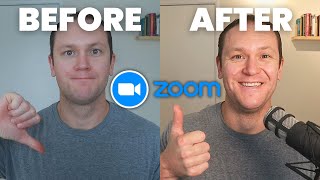
James Allen shows how to upgrade your Zoom audio and video with simple settings and affordable gear. Good sound matters more than video: get a dedicated microphone, disable automatic gain control, and enable Original Sound for Musicians. For video, use eye-level lighting and a clean background, or upgrade to a Canon Rebel SL2 with Cam Link 4K.
Chapters
In 2020, COVID changed the world, especially when it comes to the way we do meetings. Zoom as a company went from about 10 million daily users in December of 2019 to a whopping 200 million users per day in 2020. And Zoom is still the number one platform to meet with people for business, education, and communities. We meet with clients on Zoom, do workout classes on Zoom, try and impress your boss on Zoom, record podcasts, or are on other people's podcasts on Zoom. And if you really want to make an impression online, you need two 2 things. You gotta look good and you need to sound good. And while Zoom wasn't built for podcasting or high-quality recordings, there are a few simple settings that we can change and tricks we can use to both look and sound our best. And that's exactly what we're gonna cover in today's video. By the way, if you're running a service-based business and you're tired of being on Zoom meetings all the time and you'd like to create more products and build more passive income in your life, I put together a 5-step guide that walks you through how to earn your first $500 per month of passive income. And don't worry, even if you don't know what your business idea is, you can still use this guide and leverage this business model. The sooner you can get started, the better. This guide is free. It's my gift to you because I wish more people were using this system to create more income and freedom in their life. There's a link in the description, or you can always visit profityourknowledge.com/guide. So we're going to start with audio, because if you have really good sounding audio and even subpar video, you're going to stand out a lot better and make a much better impression than if you have really a good video, but no one can really understand what you're saying. Now, while you can go to the settings section inside of the Zoom dashboard, you're going to get this huge list of different settings and it's really complicated. So a better way to do this is to actually download the Zoom app on your device. And once you get that downloaded, you're going to want to open it up and you're going to have this little screen right here. Once you're in here, we're going to go over to this gear icon in the top right and click on Settings. From there, you're going to go down to Audio, and then you want to make sure first and foremost, that you have a microphone hooked up to Zoom. Now my input is the RODECaster Pro, so it is a mixer interface that I have. It's pretty fancy. I wouldn't say you need that by any means. And then the microphone I'm using is the RODE Procaster. So the RODE Procaster into the RODE Podcaster Pro. Not confusing at all. If you're gonna be doing Zoom meetings, make sure that you're not using just the computer audio. Make sure you actually have a decent microphone that you can plug in. It doesn't need to be this fancy of a setup. Probably $700 worth of a setup just for me personally. But you can just get a simple $50 USB microphone that plugs straight into your computer, and it's going to make you sound significantly better. So when you get a microphone that's decent, $25 to $50 or so, obviously you can go higher, make sure that it's plugged in and that you are connected so that Zoom understands that this is the microphone that you're going to be using. If this button right here, automatically adjust microphone volume, is on, you're going to want to turn that off. You want to have more control over your Audio. Then we scroll down to Audio Profile, and you'll probably by default are going to have the Zoom Optimized Audio. When you get a nice microphone plugged in, you want to turn on Original Sound for Musicians right here, and then click on High Fidelity Music Mode. This is going to make you sound way better. Zoom naturally compresses audio a lot, which gives it kind of that digital sort of sound because Zoom was made for regular meetings, just people meeting together. It wasn't made to have these high-quality recordings. So when you turn on original sound, it puts through the sound of your microphone straight through without adding all that unnecessary compression that Zoom automatically does. And if you have echo cancellation on, you're going to want to turn that off. Okay, so just original sound on, high fidelity music mode on. Now another pro tip is if you are doing your podcast on Zoom and you want to have separate audio tracks, you can set that up by staying in this screen and going down to recording and then going over to record separate audio file for each participant. Totally optional. But if you do want to have separate audio tracks that are separately recorded, that's how you do it. So once you get those settings all set up, you are good to go and are going to sound significantly better in your Zoom meetings. And then when you start a Zoom meeting, which is where we're at right now, in the top left-hand corner you will see Original Sound for Musicians Off. You're just going to want to click on that, and then that's going to turn on original sound. Just something quick to note is that if you do have original sound turned on and you're doing a podcast, for instance, your audio is going to sound a lot better. But if you're not using headphones, then in my experience, this has caused my guest to get a ton of different feedback and noises, and they couldn't even understand what I was saying. So anytime I I have original sound on, I make sure that I use my headphones as well. So now that sound's taken care of, we move on to video. And obviously the first part of video is your camera. The camera I'm using is the Canon Rebel SL2. I've had this camera for a long time and it's done me justice. I'm linking my camera to my computer by using an HDMI cable to the Cam Link 4K. This allows me to turn my fancy Canon camera into a webcam because I'm personally sitting on a lot of different meetings. I'm on other people's podcasts, I make content. So this keeps it really streamlined for me. Now I understand that you may not want to go down that route and spend a bunch of money right now, or maybe you're just not in the position to do that. And that's where I'd recommend that you invest in a simple webcam. If you go to Amazon and type in HD webcam, you'll get a massive list of different options. I personally would recommend the Logitech C920X or the Logitech Brio 4K webcam. Now these are going to range anywhere from $50 to $100 or so, but you do get what you pay for when it comes to webcam, and Logitech is a great brand. And when you have your camera, in terms of the way that it's set up, you don't want the camera pointing upwards at your face because that's going to look really awkward. Instead, keep your camera at eye level or even slightly pointed downwards on you, and that would look a lot more natural, more human. On top of that, you want to think about the rule of thirds, which essentially means that your eyes are in the top third of the screen. So next up we have lighting. What good is a camera if it can't actually see you? There's two types of lighting that we can use. First, we have artificial light, which is like the light that I have attached to my desk, and then of course we have natural sunlight. Obviously you don't want the sunlight blasting you in the face. It's better to have a softer kind of light situation, but sitting in front of a window is always a great, easy-to-use option. If you are thinking about investing a little bit to get some more light that you can manipulate a bit better, you can always check out a simple ring light on Amazon. If you want to take it up a notch from there, you can always check out soft lights. And my last tip for looking awesome on Zoom is to think about your background. Having a simple background is the way to go. You don't want to have a bunch of clutter or anything like that. Keep it clean because you want to be the focus point. And it is helpful as well to turn on a light in the background, whether it's a colored light or just a little light like I have. It adds a bit more character to the background while still keeping you as that focus point. Now, if you are thinking about using Zoom to host your own podcast, these settings are going to serve you very well, even if it's just an audio podcast, but also if it's a video podcast. You don't have to invest in another tool on top of Zoom like Riverside or something like that. And if you are thinking about using Zoom to host your podcast and your podcast to make money, then you should definitely check out this video where I show you how I made $4,000 my first week of podcasting so you can too. I hope this video is helpful. Give me a thumbs up and let me know a comment down below if you have any extra questions. I'll see you in the next one.