This Simple File Management System Changed My Life!
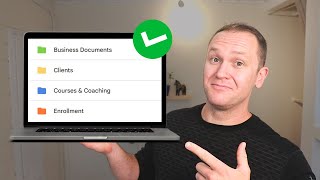
James Allen rebuilt his Google Drive from chaos into a searchable system for his coaching business, using three top-level folders (Business, Personal, Taxes), color-coded subfolders, and a naming convention with dashes. A conversation with his friend Kevin Carton sparked the overhaul, which now lets him find any document instantly.
Chapters
When I started my online business in 2018, I realized very quickly that I had no idea how to manage myself in particular. It's very different working for yourself versus working for a company. You pretty much just show up and are told, here's what you're going to do for the day, make sure it gets done by this amount of time, or keep chipping away at it. And they give you exactly what to do every single day. It's up to you just to do it. But as an online business owner, it's very different because we have to actually decide what is important for us to do, and then we have to actually do it and manage our time and organize everything to make sure we're not losing track of things. Otherwise we become the bottleneck. It took me years to learn how to manage my own time and to stay organized in my business when it came to clients, important documents for taxes, everything that goes inside of running your own business. Now I came from a background of construction work too, so I did not spend any time on a computer. I was in the work field and doing things with my hands. So going into running my own online coaching style business was very foreign to me and And what I would do is just kind of throw documents into different folders and try and keep things organized. But I had zero structure whatsoever. It wasn't until I sat down and spoke with a dear friend and colleague of mine, Kevin Carton, who has an amazing podcast called the Science and Spirituality Podcast, which I highly recommend that you check out. I'll link to it down in the description. We were talking about growing our own businesses and he had this beautiful, pristine Google Drive. And I thought, wow, like, that is so organized. Awesome, it's so organized. And we looked at mine and it was just complete chaos. So I said, Kevin, hold up, can you just walk me through like what you're doing here? Because this is phenomenal, everything's color-coded and whatnot. He's like, oh yeah, let me just kind of show you what I do. After that call, I spent the next week diving into my Google Drive and just running through and completely organizing everything. And I ended up taking what he taught me a step further and finding out exactly a nice little flow that I can use to organize my folders and naming my documents properly so I can search up the exact document that I need at the exact exact right time. And in this video, I'm going to walk you through exactly how I do this so you can too. By the way, if you're interested in starting your own online business, teaching your knowledge, passions, and skills on the internet, and then actually getting paid for it, I made a short 5-step action guide that walks you through how to earn your first $500 per month of passive income. And I know passive income can sound like it's too good to be true, but it's actually really methodical. And this guide walks you through in 5 simple steps how it works if you want to teach stuff online and then get paid for it. There's a link down in the description if you want to check that guide out. It's my gift to you. So let's dive into my Google Drive right now. So right off the bat, I like to start with big folders and then we're going to get into creating subfolders underneath these and then we'll get into the actual naming of documents and whatnot. First off, I just like to break up my life and business because Google Drive isn't just for my business. It's one piece of my life into these three folders. I have business, personal, and then taxes. And taxes are just kind of a quick review of when I finish my taxes, I just like to have things on file. So in here we have, you know, all the different years that I started doing this. It's very organized, just so I have quick access to any tax documents that are really important for my business. And if you're curious about like, is that safe to put stuff in there? It's just a recap of my taxes. I put it in there, Google Drive, is designed to be pretty secure. I've done some research about it, you can look it up. So it's something that, you know, I trust Google Drive with what I'm putting in there. But it's just something I like to have just for quick access. The personal folder is things like my personal finance, my dog's medical kind of records, and that kind of stuff is stuff that I keep inside of my personal. The big one that I use day in and day out every single day is my business folder. So we'll take a look at the business one. And inside of here, I have my subfolders, which also have subfolders underneath them. Now when it comes to running your own online business, in this example, there are many different areas of running the business. Things like marketing, there's enrollments, when I'm actually enrolling new clients. When people sign up to work with me, I have my clients folders. Business documents, and then courses and coaching are things that I personally invest in myself. I like to color code it. Is there any specific reason that I colored courses and coaching blue? No, it just looked pretty and it made sense to me. So there's nothing specific in terms of this, the reason why I'm color coding them. Okay, but I'm just thinking about under the folder of business, there's a ton of subfolders and little areas that are the major things I need to focus on, like enrolling new clients, anything related to that, clients, financials, any business documents that I have in there, like EIN number and that kind of stuff, you know, the actual business stuff. And then I like to have a planning folder. I'm not gonna break down every single one of these folders, but for example, we can look at marketing. That is a huge component and pillar to running your own online business. Inside of here I have my subfolders under marketing, and again, there's no specific color coding. I just kind of went with my gut of what felt right and what looked pretty so things didn't bleed together. You can do it to where they fade into each other, whatever you want. But in under marketing, there are other components and little pieces that go into marketing. For example, I have my content, email sequence, Kajabi partners. I'm a part of the Kajabi partner programs. Anything related to that marketing, the Kajabi side goes inside of this folder. My lead magnets, marketing resources, they're just kind of extra resources that I have from other courses and different things that I decided to put in there. Podcast interviews, teaching stories, and of course testimonials. All these things relate to marketing under business. Then if we go back, we have courses in coaching. In here are all the different folders I've created for things that I've invested in. Now this is where I actually do color code a bit more because I have the color code based on whatever color, like Film Booth for example, I've purchased courses from Ed Lawrence and I love Film Booth and I color code that purple because that's their big color, or green, I decided to go with purple. George Bryant is pink. Graham Cochran, you know, going through, these are the colors that their business is really built around. This is how I get the most out of courses that I personally invest in, because how many times have you purchased a course and you just kind of got lost or you forgot any of the resources or whatever it is? I like to soak up every little bit of a course, if it's a really good course, that I can. And what I do is I download the resources, the templates, and I use the stuff inside of that program and I keep it under here in these different folders. Then we'll take a peek into the enrollment folder. This is where I have different subfolders that relate to enrollment. Hopefully you can see how this subfolder system is starting to work now. Under enrollment, I have coaching agreements. If someone enrolls with me, they're gonna sign a coaching agreement saying this is what it looks like to work with me. It's legal stuff, just business stuff that we have to take care of. Okay, so any sort of coaching agreements that I have, PDFs, if I'm writing up a new coaching agreement for a new program or fine-tuning, adjusting, whatever it is, All that is done inside of this related to enrollment. Then we have enrollment calls, enrollment resources, new client enrollment. So that's when people freshly sign up to work with me. I have a little onboarding system just to make a couple copies of things and whatnot. And then sales call recordings as well. Now I want to show you how I think about creating and naming documents to just be more efficient and stay organized in my business. So if we look at enrollment calls here, for example, we go in, I have enrollment call resources. These are resources that are specific to actually I'm actually doing a sales call or enrollment call, past enrollment calls, just so I'm not backlogging this filled up with documents. And I'm a huge proponent of creating templates to streamline the business and just the daily act of doing things. So I have enrollment call template. If I'm going to do a call with someone who's interested in working with me, I don't just go off the cuff. I have an outline, a template that I follow where I take notes, all that stuff. And what I'll do is I make a copy So I'll say make a copy and then I'll open it up and that will be this new person. I'll just change up their name for enrollment call template. What I love to do to access my documents really fast is just use the search bar. So if I want to log into content, I will go into content right here. And again, I have subfolders under content, under marketing, under business. Okay, so you see in the subfolders, I like to have content complete. Past blog posts, and then I have my social media content as well and some content resources, just helpful things that relate to content. But I always have a content template and I always make a copy of this when I make a new video and it helps me just have my outline. So let's say that I was working on content last time I was in my Google Drive and I'm also building another product for my business. Then I would want to access that product quickly. So what I'll do is I'll go to courses and I will see PYK courses and offers, Profit Your Knowledge. Inside here, I was thinking about making an audience building course. I have Effortless Income, Peak Focus Academy was my old productivity course, Kajabi Kickstart, and then just some extra worksheets and resources. But inside Effortless Income, we can check out the folder. I have different resources related to it. These are things like the worksheets that I'm building for people when they're inside of the course, or PDFs, stuff like that. My emails and sales copy, anything related to the actual marketing and copywriting to sell this course, and then my Effortless Income research and the course outline. Now notice how everything says Effortless Income. So when I go back to business, I can say Effortless Income, and that's gonna give me a bunch of different resources that I have related to it or related to Effortless Income, the program. So I can type in or click on the folder Effortless Income. That will take me right over here or if I wanted to find a specific document related to this program, all I have to do is say Effortless Income in the search bar, and it's automatically gonna give me everything related to that program. And the same rule applies if I'm trying to find a client or anything else. I think about the subfolder that I am gonna have this document inside of, and then I do a little dash, and then I say what I'm looking for, what the document inside of that folder is titled. For example, I can say effortless income-resources. If I had a client, let's say named Tom Riddle, I could say Tom Riddle-lead magnet if it was the document that we were building their lead magnet inside of. And then all I'd have to do is just type in Tom Riddle inside of the search bar and then it'll have the little dash and it will say sales copy or lead magnet or email sequence and all of it will be lined up right there looking beautiful. Then it's up to me just to click on the document that I want to access. So there you have it. That is how I organize my Google Drive to make sure that it's simple and streamlined at the same time so I can access whatever document I need at a moment's notice. And I could just stay organized and productive because it took me a long time to get this down and just have a simple system and organize it like that. But it makes things so much easier when you just take a little bit of time to set up your Google Drive like this. If you don't use Google Drive, you're just using a document folder on on your computer, the same principle applies. Again, if you're thinking of starting your own online business or maybe you're doing it, it's not quite working, or you want to make it a bit more passive and product-based, I would highly recommend to check out that free guide I mentioned earlier on how to earn your first $500 per month of passive income. It's going to walk you through the process and the system on how to do it, along with clear-cut action steps. You know what to focus on at what part of the journey. It's my gift to you. It's totally free. It's in the description. And if you really want to maximize your productivity, I'd highly recommend you check out this video where I go over 8 small changes that you can make to work less and earn more money. Take what you learned here, get out there, make something happen. I will see you in the next one.