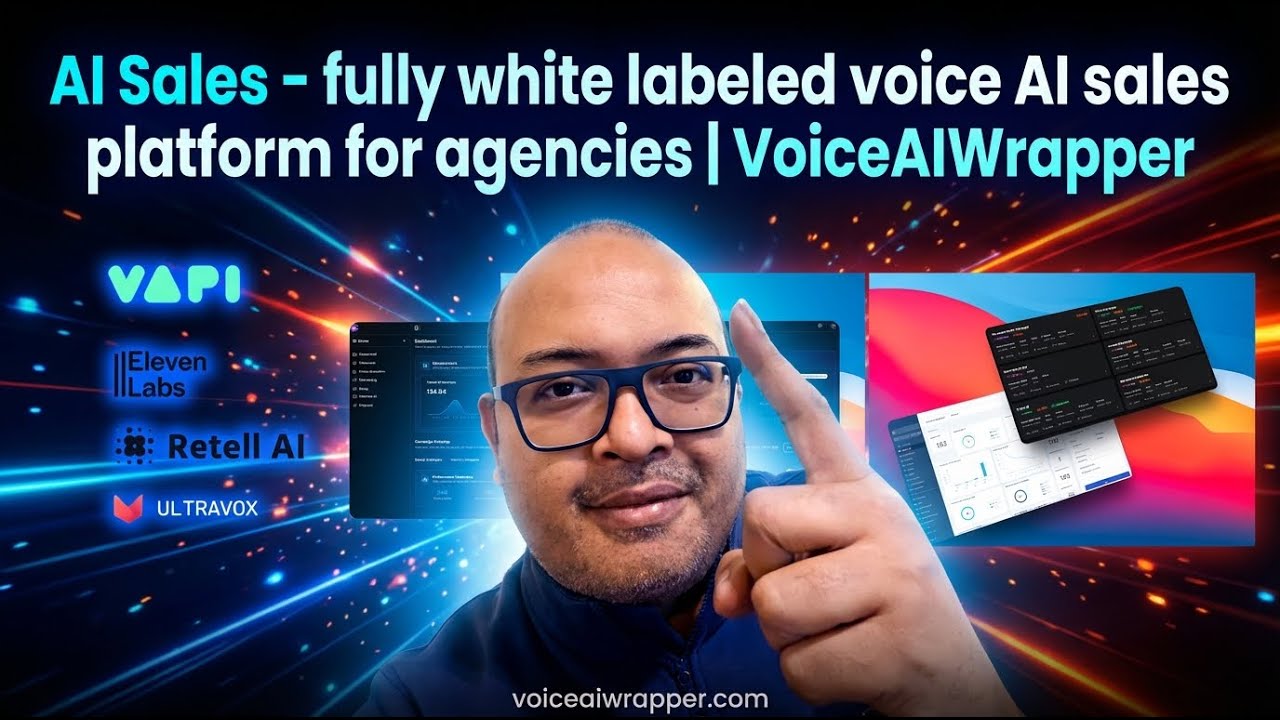
The video presents a step‑by‑step demonstration of VoiceAIWrapper, a white‑labeled voice AI platform designed for agencies to run AI‑driven sales calls. It explains how to connect external voice synthesis providers (ElevenLabs, VAPI, Retell) via API keys, which creates a “Voice AI pod” representing a 1:1 mapping to the provider. Within each pod users can create inbound or outbound sales campaigns, select agents/assistants, and configure a dialer type—either a single phone number or a number pool to distribute outbound calls and avoid spam filters. The presenter details outbound campaign setup: adding leads via API or CSV, defining campaign cadence (days, times, time zones, retry attempts) for compliance, and attaching tool calls (SMS, email, calendar invites) that are synchronized from the voice provider. Calls are automatically recorded, transcribed, and can be sent to external systems through configurable webhooks, enabling integration with CRMs or automation platforms (e.g., n8n, Make.com). Analytics are available natively or can be built via webhook data. For inbound campaigns, the focus shifts to capturing lead information during incoming calls by enabling structured data capture in the agent prompt, and optionally deploying a web widget that embeds on a website to engage visitors and generate leads similarly to phone‑based inbound calls. The video concludes with an invitation to request a demo, sign up, or contact support.
Chapters
And welcome to another video with Voice AI Wrapper. In this video, we'll talk about using AI in sales, especially voice AI in sales. So we'll show you how to create campaigns for both inbound as well as for outbound sales. Voice AI Wrapper allows you to connect the latest voice AI providers out there like ElevenLabs or VAPI or Retell If you're an agency, you can white label all of this and you can get access to built-in workflows inside Voice AI Wrapper, which allows you to add leads, make calls or receive calls for sales, generate analytics and trigger actions, right? So let's get into a bit more detail. So the first step would be to connect your voice API provider. And as soon as you do that, all you have to do is plug in the API provider keys. And as soon as you do that, you will see a card like this appear. We call this a Voice AI pod. Voice AI pod is basically a 1:1 mapping with your Voice AI provider. And as you enter the pod, you will now get access to the campaign feature, right? So campaigns can be both inbound and outbound. And the way you go about creating a campaign is by clicking on this Add Campaign button. And depending on the provider that you have connected, depending on the number of agents and assistants that you have created, you will get the option to choose the provider and the assistant and select either an inbound or an outbound campaign. Now we also have another unique feature called dialer type. What it does, it allows you to either select a single number to make outgoing calls or receive incoming calls, or you can select a number pool. Number pool is a collection of numbers, so you can add hundreds of numbers to a pool. That way, for instance, if you're making outbound calls, your calls are distributed over a larger number of numbers, so that way your numbers don't end up in spam, right? Now, We will talk about outbound campaigns first. And before that, I just wanted to point out that during your sales process, there would be actions like sending an SMS or booking a calendar, or let's say sending an email confirmation after the call. All of these are called tool calls, and these are easily set up inside your voice AI provider, which means if you are connecting ElevenLabs, for example, with Voice AI Wrapper, you would set up that tool call to send an SMS inside ElevenLabs. And when you connect ElevenLabs or VAPI with Voice AI Wrapper, you'll see all their features synced here, and then you can build campaigns on top of it. So let's show you— go about creating an outbound campaign. We'll pick one which is already created, and I'll pick this campaign. So if I go into the campaign settings here, the first thing that I would want to do is add leads. So you have multiple ways to add leads here. You can add leads via API, which means if you want to trigger an instant call to somebody who has just filled out an ad form, or you want to make a call to a lead that has been just added to a certain view or filter in your CRM system, you can do that. This API will send that lead from wherever the lead source is directly to this campaign, and based on the campaign cadence, which I'll talk about soon, the call is going to go out. Another option is to add leads via CSV upload. And then we head over to campaign cadence. Now campaign cadence basically gives you control over when and how many times you want to dial out to a lead. Apart from basic settings like selecting the agent which is assigned to make the calls and the phone number or the number pool that you want to use, You can also decide which day, what time, what time zone. You can also control how many dial attempts are being made to a lead, how long do you want to wait before the next dial attempt goes out to somebody who hasn't picked up. Very useful, and these are very helpful especially when it comes to compliance. Now all your calls as they are made, they are recorded. And they are transcribed and you want to send the recordings over or the call outcome over, you can just add a webhook here. This will send the call data directly to your CRM system. Or if you want to scrub that data first, maybe pass it through an N8N automation or a Make.com automation, you can do that and you can update your CRM system directly. So you can round trip between your CRM and VoiceCRapper this way. You can add leads using API, and after the calls have been made and processed, you can then send the call data out using the webhook, right? And I'll show you a sample campaign which we have provided inside our demo dashboard. So if you head over to this demo pod, head over to campaign, you see a dummy campaign that we have provided. You can see that You get the lead information, you will get the call log information, transcripts, all of that. You can even send it over using that webhook and you also get detailed analytics, right? So you can either use the analytics provided by us or you can use the webhook and create your own custom dashboards inside your CRM or any other system. Okay. So that's it about outbound. Let's talk about inbound. So again, with inbound, it's it's a similar process. The only difference here probably is with inbound, you would not add leads. You would rather generate leads when calls come in. So in order to do that, you need to make sure that you are capturing key information in your agent prompt, right? So if you want to capture the name, the email, and for example, the phone number, There's a way to enable that inside your agent settings. WP, for example, calls it structured data. Similarly, the retail in ElevenLabs also has similar functions. You need to make sure that you make it mandatory to capture emails and phone numbers during the phone call, and you need to add it in the agent prompt that the agent needs to capture these details. Whenever that happens and the calls start flowing in, your inbound agent will capture that information and you will see lead information being populated into your dashboard. There's also another feature inside inbound campaign which is the ability to create a web widget. So a web widget is like a simple piece of code, embed code that you can add onto your website. This web widget will work off your Voice AI agent prompt and it can intercept incoming visitors on your website. It can engage them into conversations and it can also generate leads and analytics just like your regular phone-based inbound campaigns too. So that's about it. We are more than happy to offer you a detailed demo and Feel free to sign up for Voice AirWrapper on our website. And if you have specific questions on specific sales workflow, feel free to reach out to us on our help chat. Thank you and look forward to meeting you in the next video.