Learn how to build inbound voice AI campaigns on Voice AI Wrapper by syncing your provider pods, configuring assistants and phone numbers, setting activation dates and calling windows, and connecting webhooks to push call data to external tools. The platform captures lead data, transcripts, and call logs, then generates analytics dashboards you can share with clients through a white-label portal.
Chapters
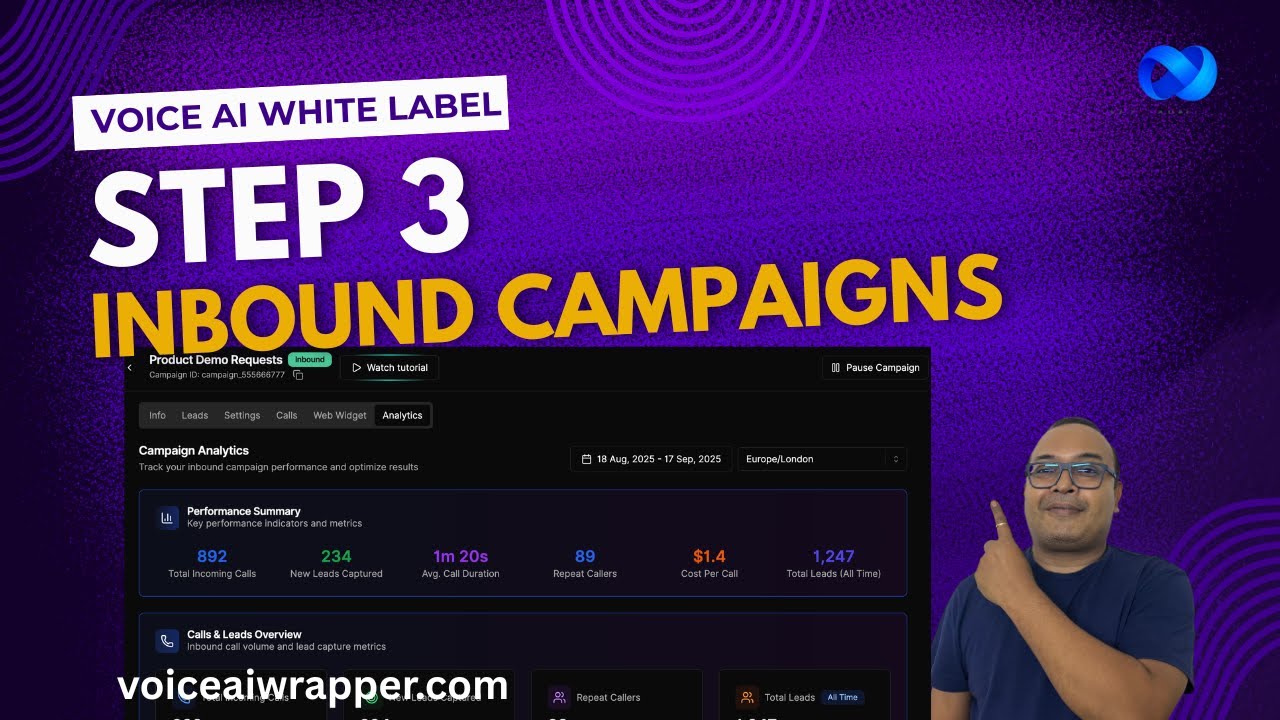
All right, in this video I'm going to cover how Voice AI Wrapper allows you to create inbound campaigns or inbound assistants. And for that, the first step to follow is to watch our earlier videos where we explain how the navigation inside our product works and how to set up Voice AI Bots. Now it's important to watch that video because you will be able to create campaigns inside Voice AI Bots, so I've already configured a pod by adding my VAPI keys, and I'm going to enter this pod. You can do the same thing with any of the other providers that we support, including ElevenLabs, Retail, VAPI, and so on. So, um, I'm going to go into this VAPI pod, and as you can see, we automatically sync your assistants from VAPI, and the ones that I need to use, I can click on Sync Now, and this will now be available in Sidebuy. Voice Airapper account. Similarly, we sync phone numbers and workflows and whatever assets you want to carry over from VAPI or sync it from Voice Airapper. We sync it here. To create an assistant, you would need to make sure that you have an agent that you have created inside VAPI synced with Voice Airapper, and you would need to make sure that you have a phone number synced inside Voice Airapper, right? So next step to create an inbound campaign is to just click on Add Campaigns. And then for specific providers like VAPI, there are multiple configs available. For others who do not offer workflows and squad, for example, there's just a single config. And you would go ahead and pick your assistant. You can select inbound, which includes a web widget, apart from one provider, which is BoldNow. We pretty much support Voice AI widgets for all providers, and then you hit save, right? So I already have a campaign created here. I'm gonna show you that. So inside this campaign, I have settings and I have selected the assistant, the phone number that this campaign needs to use. In case I want this campaign to be active for a certain period, I can select a start date and an end date. For inbound campaigns that you want to start immediately, always choose a date in the past, right? And it's clearly written here. And then I can select a calling window, or I can keep it 24/7, along with the time zone and the days of the week that are operational. Now, this might not apply for everyone, but there are certain agencies and clients who want the AI to kind of be functional only during specific hours of the day or days of the week. So these controls come in handy. Lastly, there's an option to add a webhook here. So if you want to take all the information that you're getting from these inbound calls and you want to take it to your N8N or a Make automation or send to a GHL or some CRM, you can just add a webhook here and it's going to send the campaign data outside of Voiceair Wrapper to whatever destination you choose. When inbound campaigns are running, based on the structured data that you have enabled in your prompt and your voice API provider, our system will start capturing lead information here. It will also start capturing call logs, transcripts, and all of that, and you have a choice of sharing with your client. We also offer the white label web widget functionality. This is an add-on, so you can basically decide design web widgets with an embed code which is white label and you can add it to your client's website and this can also intercept incoming calls. And lastly, when your campaign is running, this is also going to start generating analytics, right? And then you have a choice of sharing these campaign stats and these dashboards with your client via the client portal. So take a look at another video where I've explained how to set up client portal. Uh, basically when you set up your client portal and they log into your white label portal, your clients will be able to see, um, the account level dashboard and they'll also be able to see their campaign level stats just like, uh, you see it here. And this can also be shown at their— in their campaign level analytics, right? And what your clients get to see and what they don't get to see is completely dependent upon what you configure in your client account configuration here. So make sure you watch that video before you start creating inbound campaigns and share it with your clients. Thank you, and I'll look forward to meeting you on the next video.